> ## Documentation Index
> Fetch the complete documentation index at: https://docs.blinkops.com/llms.txt
> Use this file to discover all available pages before exploring further.
# Glean
> Glean develops an AI-based search engine software that connects enterprise data and generates answers through a tool in any company.
## Creating a Glean connection
Create the connection by using one of the following methods:
* [Global Client Token](#using-global-client-token)
* [User Client Token](#using-user-client-token)
* [Indexing Token](#using-indexing-token)
### Using Global Client Token
To create the connection you need:
* A Glean API Address
* A Delegated User
* A Glean Issued Token
Global tokens can make API calls on behalf of any user in the system. Enter
the user to delegate in the `Delegated User` connection field.
#### Obtaining the credentials
Only admins have access to create API tokens.
1. Log in to your account and click on the **wrench icon** in the left navigation bar. This will open up the `admin console`.
2. On the left sidebar, navigate to **Setup** and select `API Tokens`.
3. In the **API Tokens** page, select the `Client Tokens` tab.
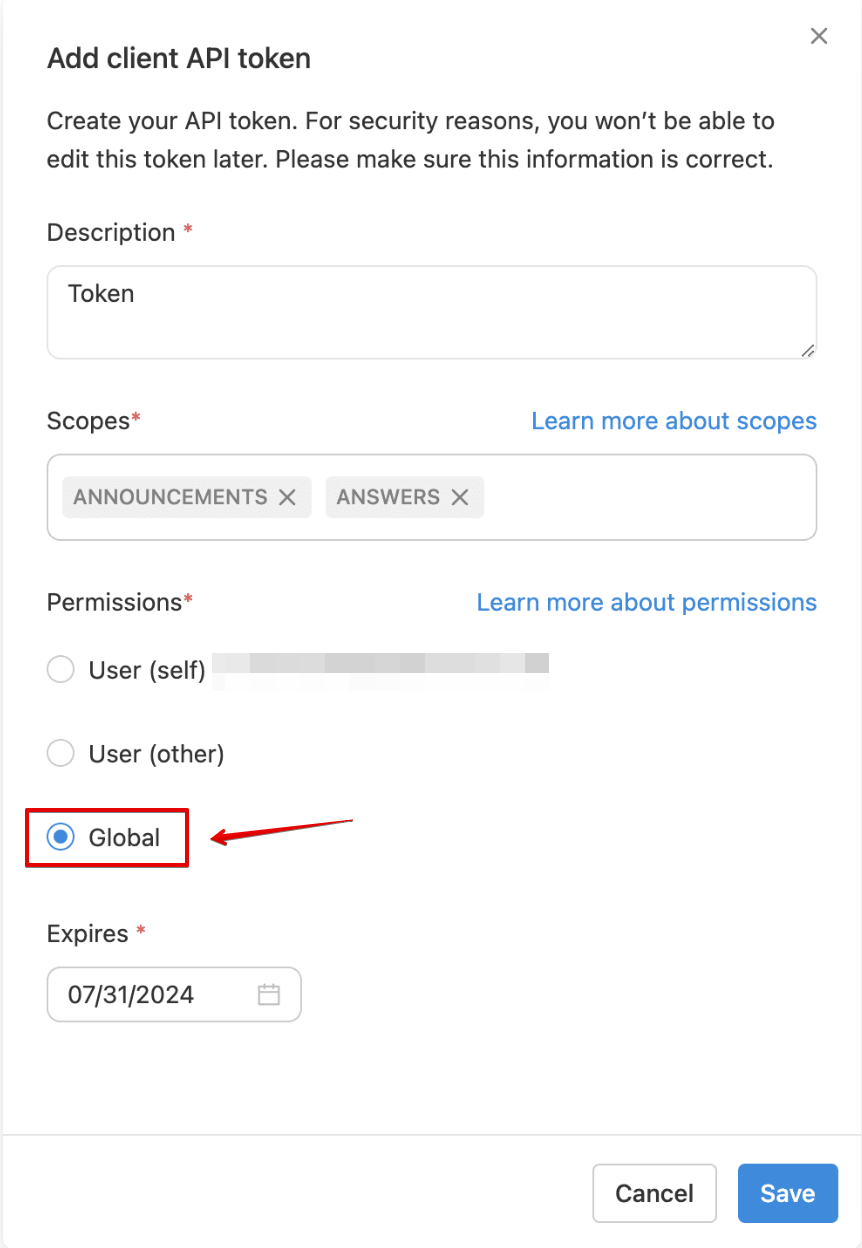
4. Click **Add New Token**. In the dialogue box, fill in appropriate values for Description, Scopes, and Expires fields. For the **Permissions** field, choose `Global`, then click **Save**.
 5. Copy the **generated token**.
#### Creating your connection
1. In the Blink platform, navigate to the **Connections** page > **Add connection**. A New Connection dialog box opens displaying icons of external service providers available.
2. Select the **Glean** icon. A dialog box with name of the connection and connection methods appear.
3. (Optional) Edit the name of the connection. At a later stage you cannot edit the name.
4. Select **Global Client Token** as the method to create the connection.
5. Fill in the parameters:
* The Glean API Address
* The Delegated User
* The Glean Issued Token
6. (Optional) Click **Test Connection** to test it.
7. Click **Create connection**. The new connection appears on the **Connections** page.
### Using User Client Token
To create the connection you need:
* A Glean API Address
* A Glean Issued Token
#### Obtaining the credentials
Only admins have access to create API tokens.
1. Log in to your account and click on the **wrench icon** in the left navigation bar. This will open up the `admin console`.
2. On the left sidebar, navigate to **Setup** and select `API Tokens`.
3. In the **API Tokens** page, select the `Client Tokens` tab.
4. Click **Add New Token**. In the dialogue box, fill in appropriate values for Description, Scopes, and Expires fields. For the **Permissions** field, choose `User (self)` or `User (other)`, then click **Save**.
5. Copy the **generated token**.
#### Creating your connection
1. In the Blink platform, navigate to the **Connections** page > **Add connection**. A New Connection dialog box opens displaying icons of external service providers available.
2. Select the **Glean** icon. A dialog box with name of the connection and connection methods appear.
3. (Optional) Edit the name of the connection. At a later stage you cannot edit the name.
4. Select **Global Client Token** as the method to create the connection.
5. Fill in the parameters:
* The Glean API Address
* The Delegated User
* The Glean Issued Token
6. (Optional) Click **Test Connection** to test it.
7. Click **Create connection**. The new connection appears on the **Connections** page.
### Using User Client Token
To create the connection you need:
* A Glean API Address
* A Glean Issued Token
#### Obtaining the credentials
Only admins have access to create API tokens.
1. Log in to your account and click on the **wrench icon** in the left navigation bar. This will open up the `admin console`.
2. On the left sidebar, navigate to **Setup** and select `API Tokens`.
3. In the **API Tokens** page, select the `Client Tokens` tab.
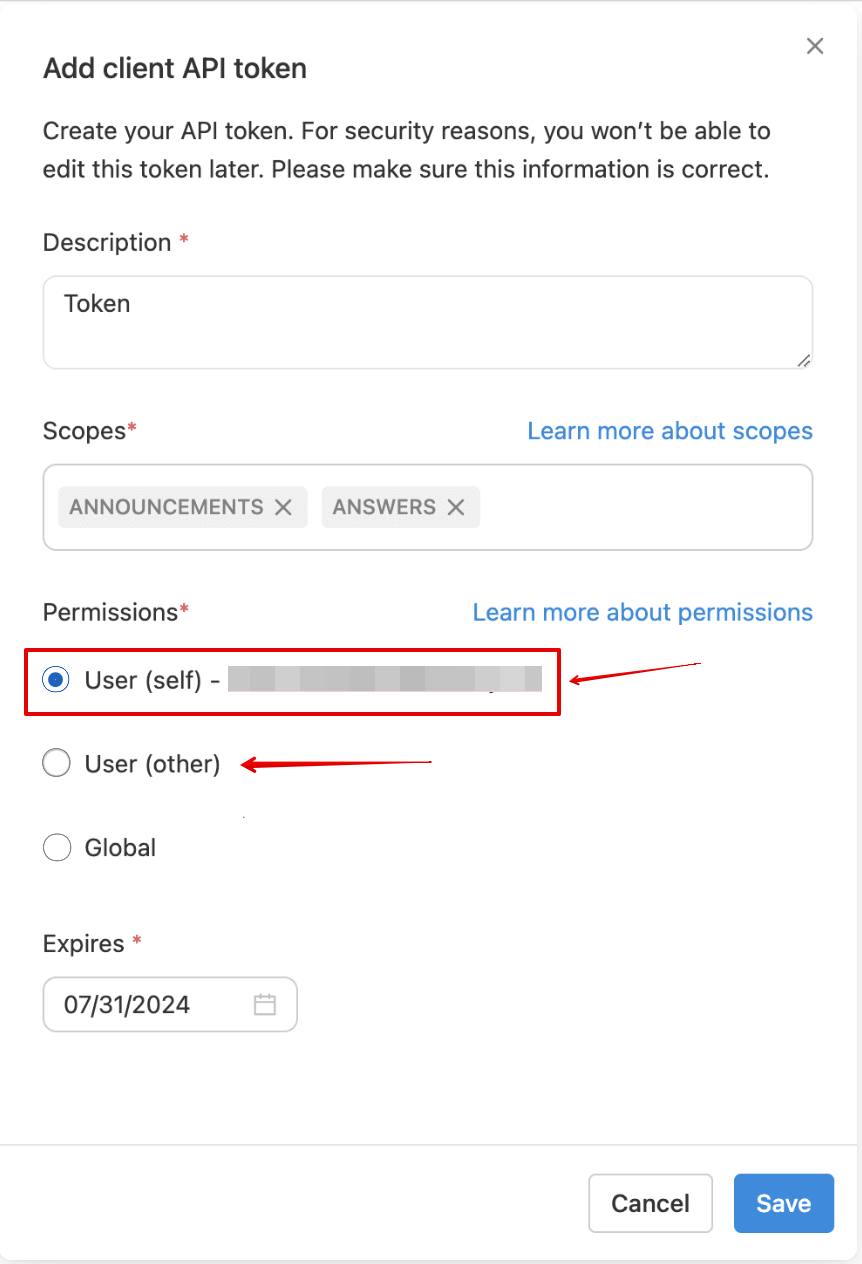
4. Click **Add New Token**. In the dialogue box, fill in appropriate values for Description, Scopes, and Expires fields. For the **Permissions** field, choose `User (self)` or `User (other)`, then click **Save**.
 5. Copy the **generated token**.
#### Creating your connection
1. In the Blink platform, navigate to the **Connections** page > **Add connection**. A New Connection dialog box opens displaying icons of external service providers available.
2. Select the **Glean** icon. A dialog box with name of the connection and connection methods appear.
3. (Optional) Edit the name of the connection. At a later stage you cannot edit the name.
4. Select **User Client Token** as the method to create the connection.
5. Fill in the parameters:
* The Glean API Address
* The Glean Issued Token
6. (Optional) Click **Test Connection** to test it.
7. Click **Create connection**. The new connection appears on the **Connections** page.
### Using Indexing Token
To create the connection you need:
* A Glean API Address
* An Indexing Token
#### Obtaining the Credentials
Only admins have access to create API tokens.
1. Log in to your account and click on the **wrench icon** in the left navigation bar. This will open up the `admin console`.
2. On the left sidebar, navigate to **Setup** and select `API Tokens`.
3. In the **API Tokens** page, select the `Indexing tokens` tab.
4. Click **Add New Token**. In the dialogue box, Name the token and specify whether the token has global permissions, or which apps the token has permission for. You can also set an expiry date. When completed, Click **Save**.
5. Copy the **generated token**.
#### Creating your connection
1. In the Blink platform, navigate to the **Connections** page > **Add connection**. A New Connection dialog box opens displaying icons of external service providers available.
2. Select the **Glean** icon. A dialog box with name of the connection and connection methods appear.
3. (Optional) Edit the name of the connection. At a later stage you cannot edit the name.
4. Select **User Client Token** as the method to create the connection.
5. Fill in the parameters:
* The Glean API Address
* The Glean Issued Token
6. (Optional) Click **Test Connection** to test it.
7. Click **Create connection**. The new connection appears on the **Connections** page.
### Using Indexing Token
To create the connection you need:
* A Glean API Address
* An Indexing Token
#### Obtaining the Credentials
Only admins have access to create API tokens.
1. Log in to your account and click on the **wrench icon** in the left navigation bar. This will open up the `admin console`.
2. On the left sidebar, navigate to **Setup** and select `API Tokens`.
3. In the **API Tokens** page, select the `Indexing tokens` tab.
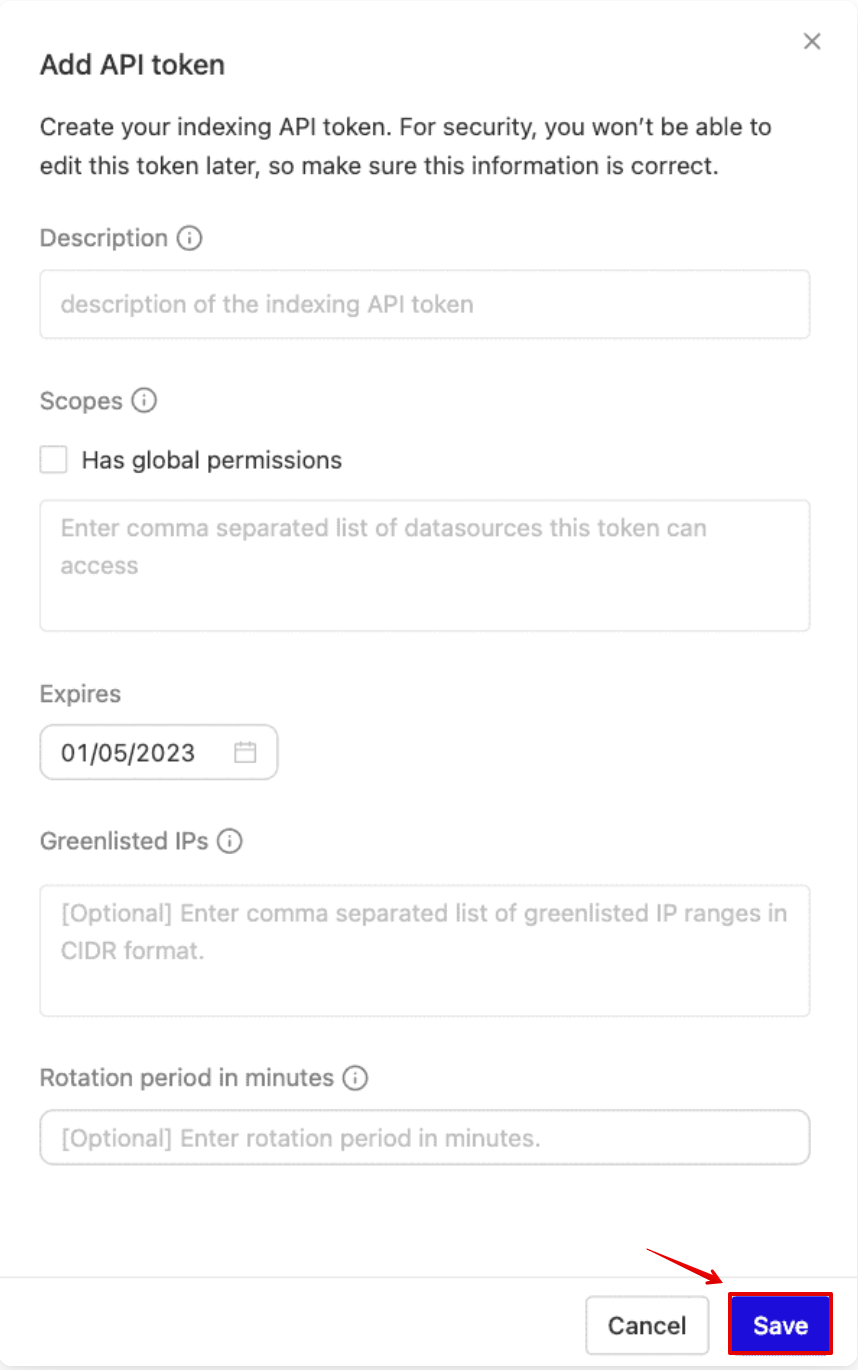
4. Click **Add New Token**. In the dialogue box, Name the token and specify whether the token has global permissions, or which apps the token has permission for. You can also set an expiry date. When completed, Click **Save**.
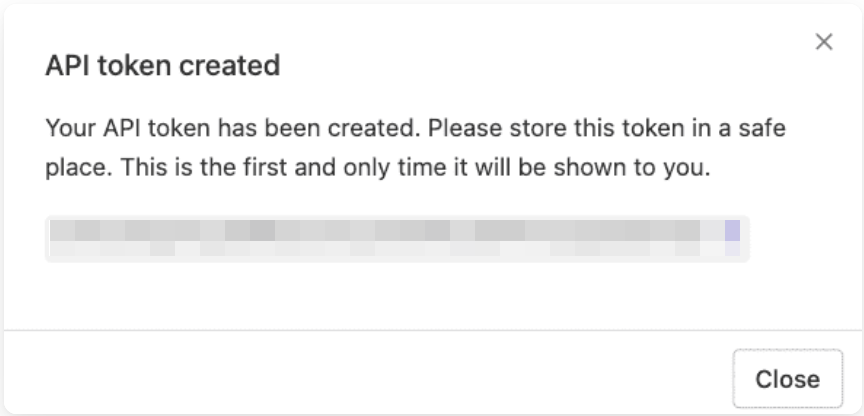
 5. Copy the **generated token**.
 #### Creating your connection
1. In the Blink platform, navigate to the **Connections** page > **Add connection**. A New Connection dialog box opens displaying icons of external service providers available.
2. Select the **Glean** icon. A dialog box with name of the connection and connection methods appear.
3. (Optional) Edit the name of the connection. At a later stage you cannot edit the name.
4. Select **Indexing Token** as the method to create the connection.
5. Fill in the parameters:
* The Glean API Address
* The Indexing Token
6. (Optional) Click **Test Connection** to test it.
7. Click **Create connection**. The new connection appears on the **Connections** page.
#### Creating your connection
1. In the Blink platform, navigate to the **Connections** page > **Add connection**. A New Connection dialog box opens displaying icons of external service providers available.
2. Select the **Glean** icon. A dialog box with name of the connection and connection methods appear.
3. (Optional) Edit the name of the connection. At a later stage you cannot edit the name.
4. Select **Indexing Token** as the method to create the connection.
5. Fill in the parameters:
* The Glean API Address
* The Indexing Token
6. (Optional) Click **Test Connection** to test it.
7. Click **Create connection**. The new connection appears on the **Connections** page.