> ## Documentation Index
> Fetch the complete documentation index at: https://docs.blinkops.com/llms.txt
> Use this file to discover all available pages before exploring further.
# GitHub
> GitHub is a software company that offers code hosting services that allow developers to build software for open-source and private projects.
## Creating a GitHub connection
Create the connection by using one of the following methods:
* [OAuth](#using-oauth)
* [Access Token](#using-access-token)
* [GitHub App Installation](#using-github-app-installation)
* [Using SSH](#using-ssh)
### Using OAuth
#### Creating your connection
1. In the Blink platform, navigate to the **Connections** page > **Add connection**. A New Connection dialog box opens displaying icons of external service providers available.
2. Select the **GitHub** icon. A dialog box with name of the connection and connection methods appear.
3. (Optional) Edit the name of the connection. At a later stage you cannot edit the name.
4. Click **GitHub** to authenticate using OAuth.
5. Sign in using your credentials.
### Using Access Token
To create the connection you need:
* An API Address
* A Token
#### Obtaining the credentials
Follow the instructions in the following link: [Creating a personal access token](https://docs.github.com/en/authentication/keeping-your-account-and-data-secure/creating-a-personal-access-token)
#### Creating your connection
1. In the Blink platform, navigate to the **Connections** page > **Add connection**. A New Connection dialog box opens displaying icons of external service providers available.
2. Select the **GitHub** icon. A dialog box with name of the connection and connection methods appear.
3. (Optional) Edit the name of the connection. At a later stage you cannot edit the name.
4. Select **Access Token** as the method to create the connection.
5. Fill in the parameters:
* The API Address
* The Token
6. (Optional) Click **Test Connection** to test it.
7. Click **Create connection**. The new connection appears on the **Connections** page.
### Using GitHub App Installation
To create the connection you need:
* An API Address
* An Application ID
* An Installation ID
* A GitHub App Private Key (PEM)
#### Creating a GitHub App
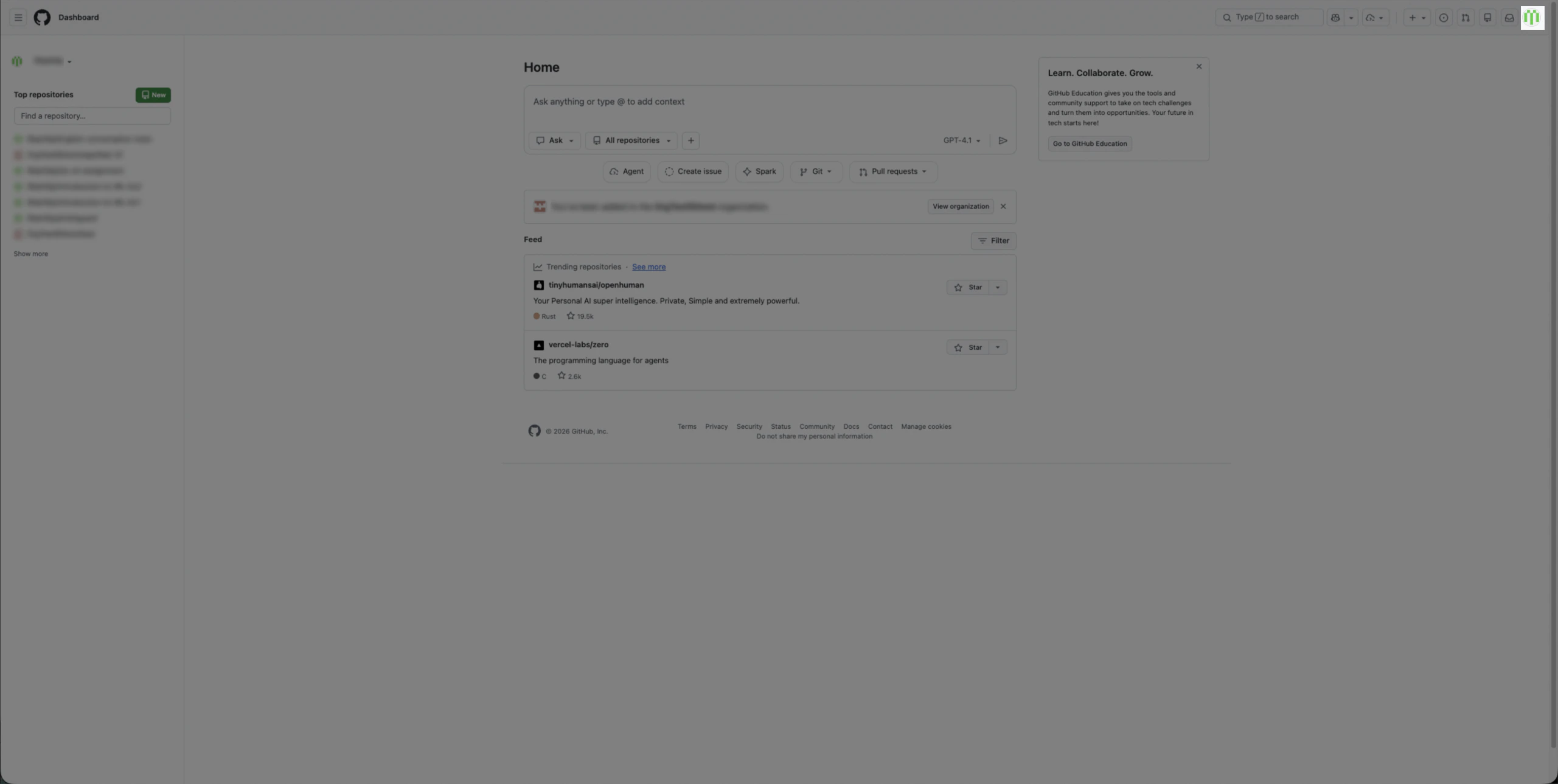
1. In the upper-right corner of any page on GitHub, click your **profile photo**.
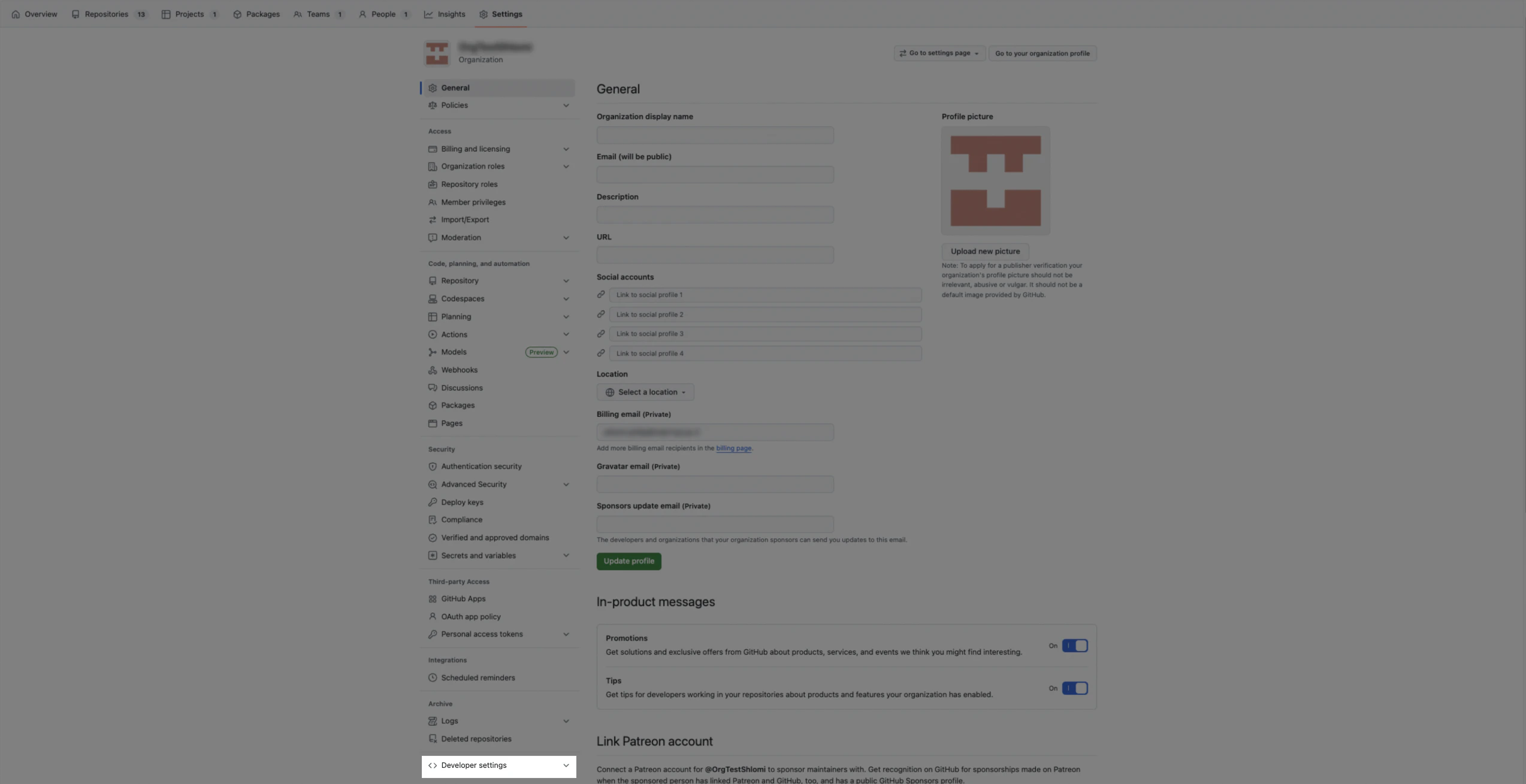
 2. Navigate to **Developer settings**.
* For a personal account click **Settings**, then in the left sidebar click **Developer settings**.
* For an organization:
* Click **Your organizations**.
* To the right of the organization, click **Settings**.
* In the left sidebar, click **Developer settings**.
2. Navigate to **Developer settings**.
* For a personal account click **Settings**, then in the left sidebar click **Developer settings**.
* For an organization:
* Click **Your organizations**.
* To the right of the organization, click **Settings**.
* In the left sidebar, click **Developer settings**.
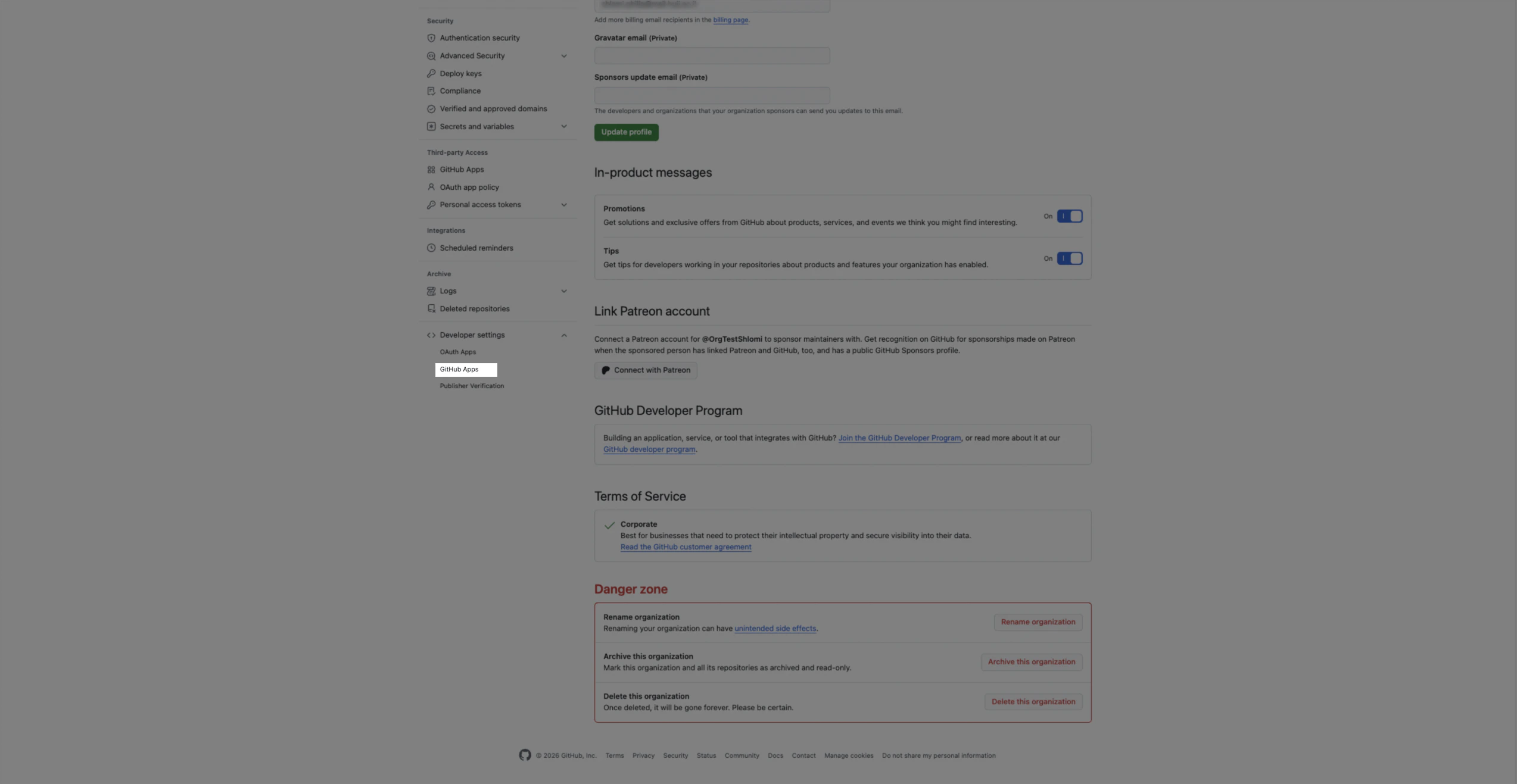
 3. Under **Developer settings** select **GitHub Apps**.
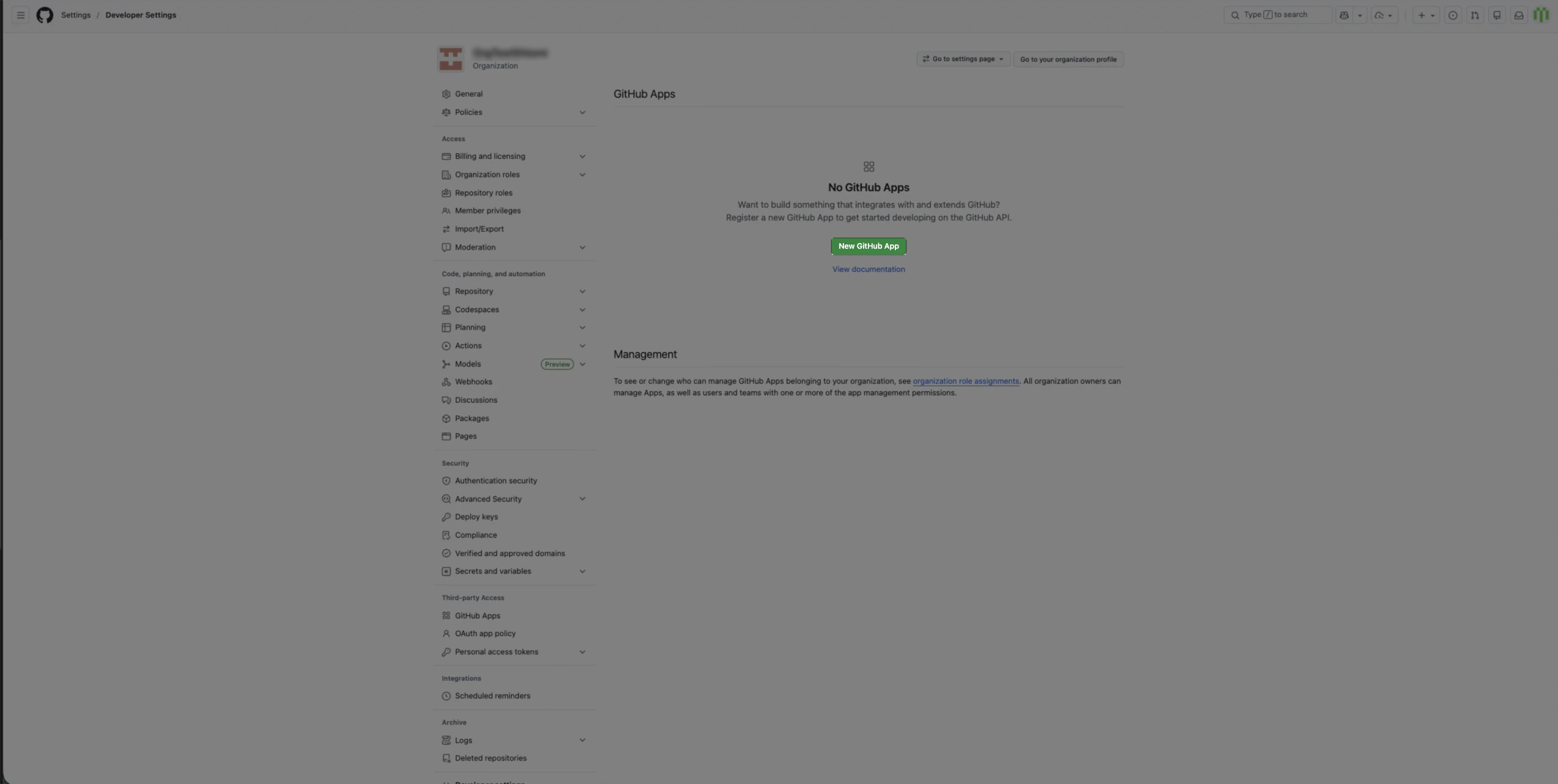
 4. Click **New GitHub App**.
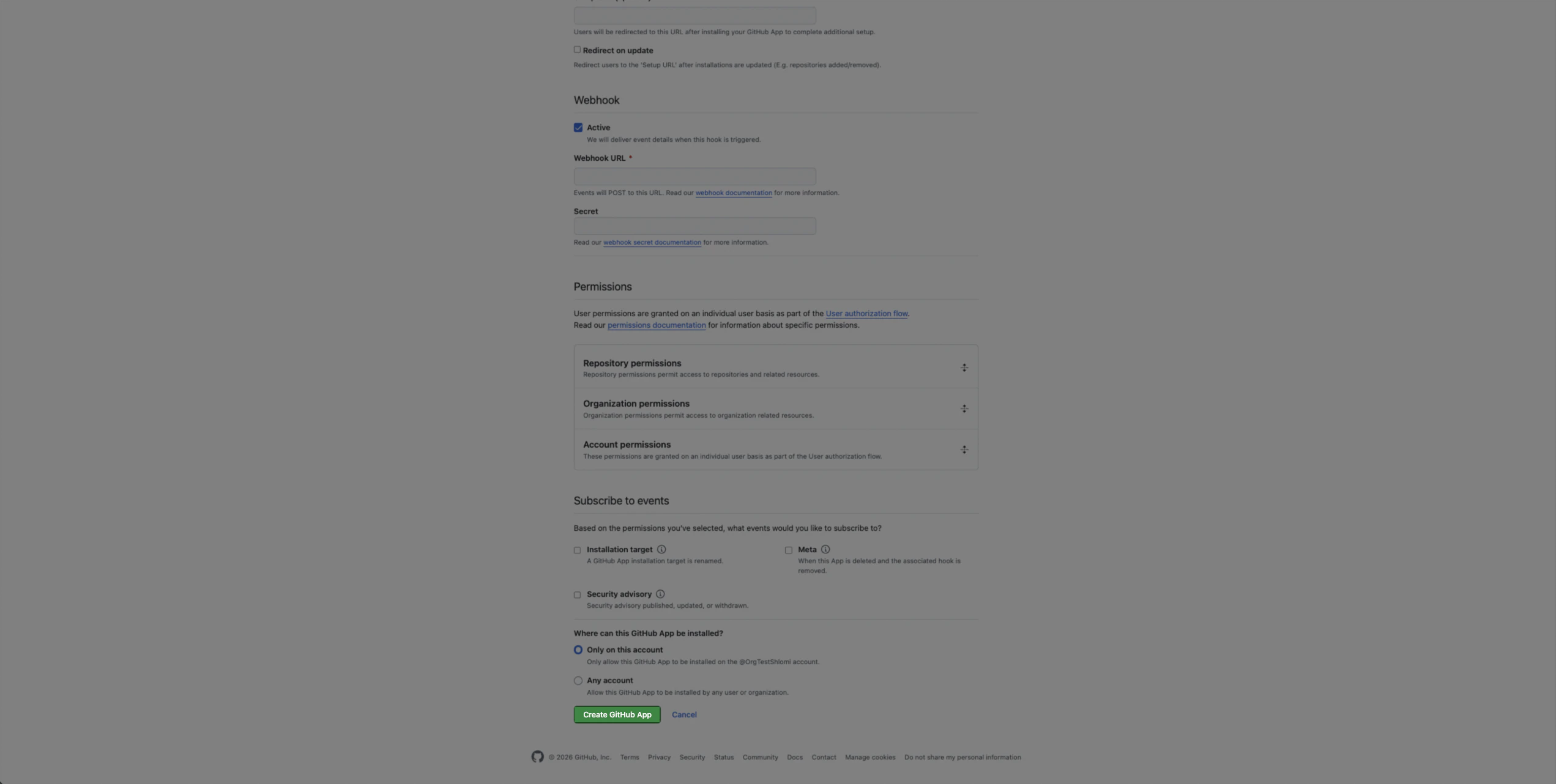
 5. Enter the required, fields scroll down, and click **Create GitHub App**.
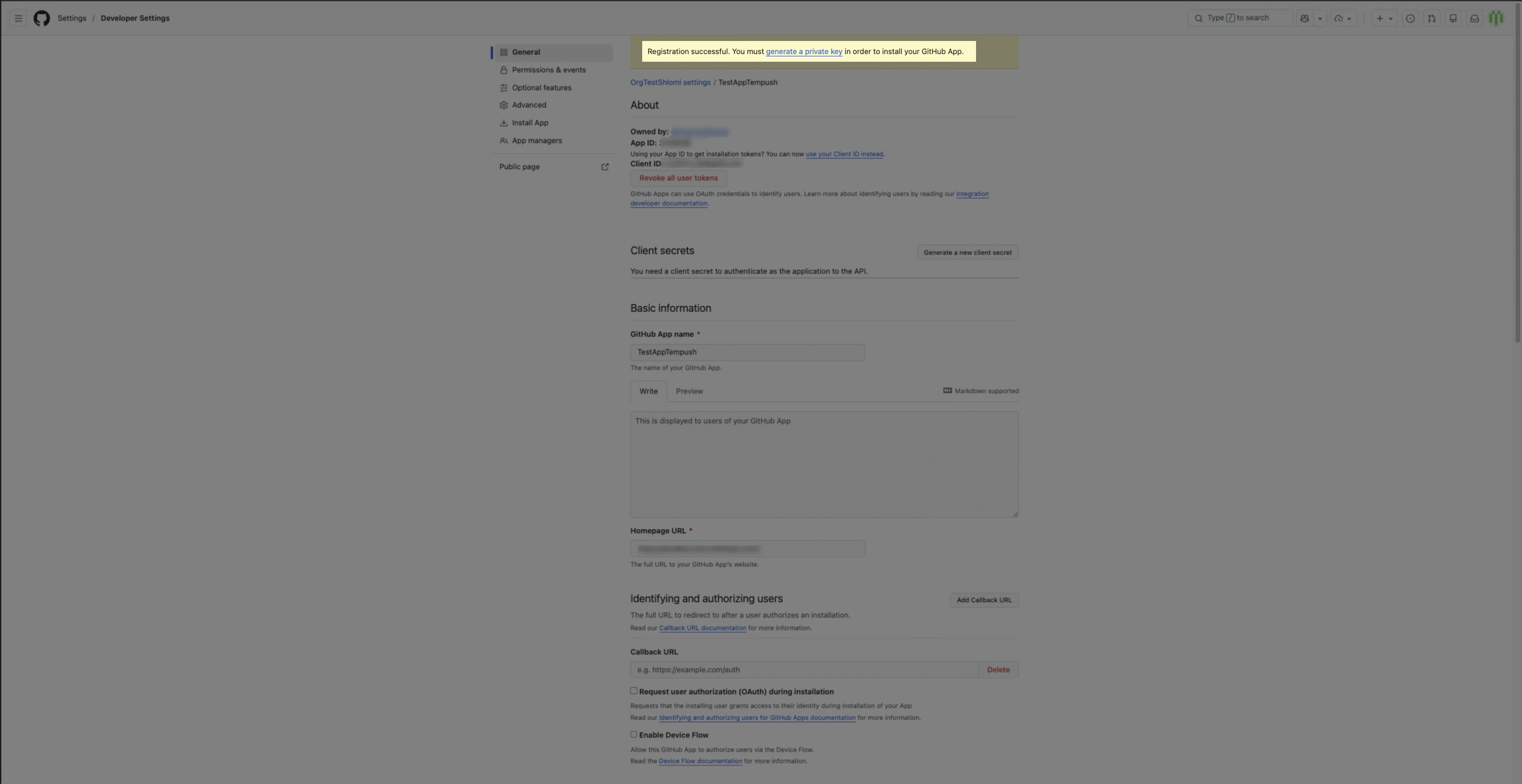
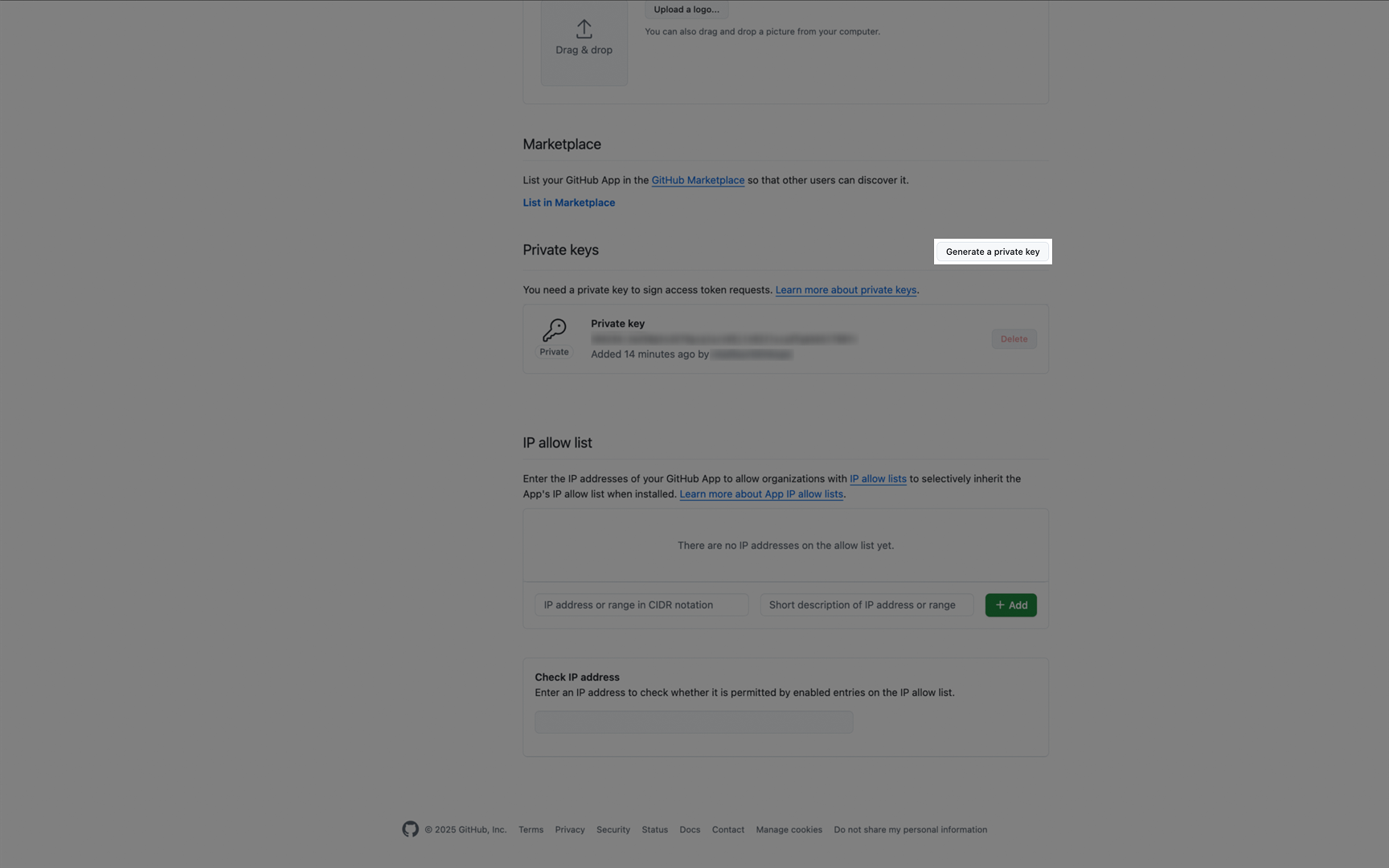
 6. On the app settings page, scroll to **Private keys**.
 7. Click **Generate a private key**.
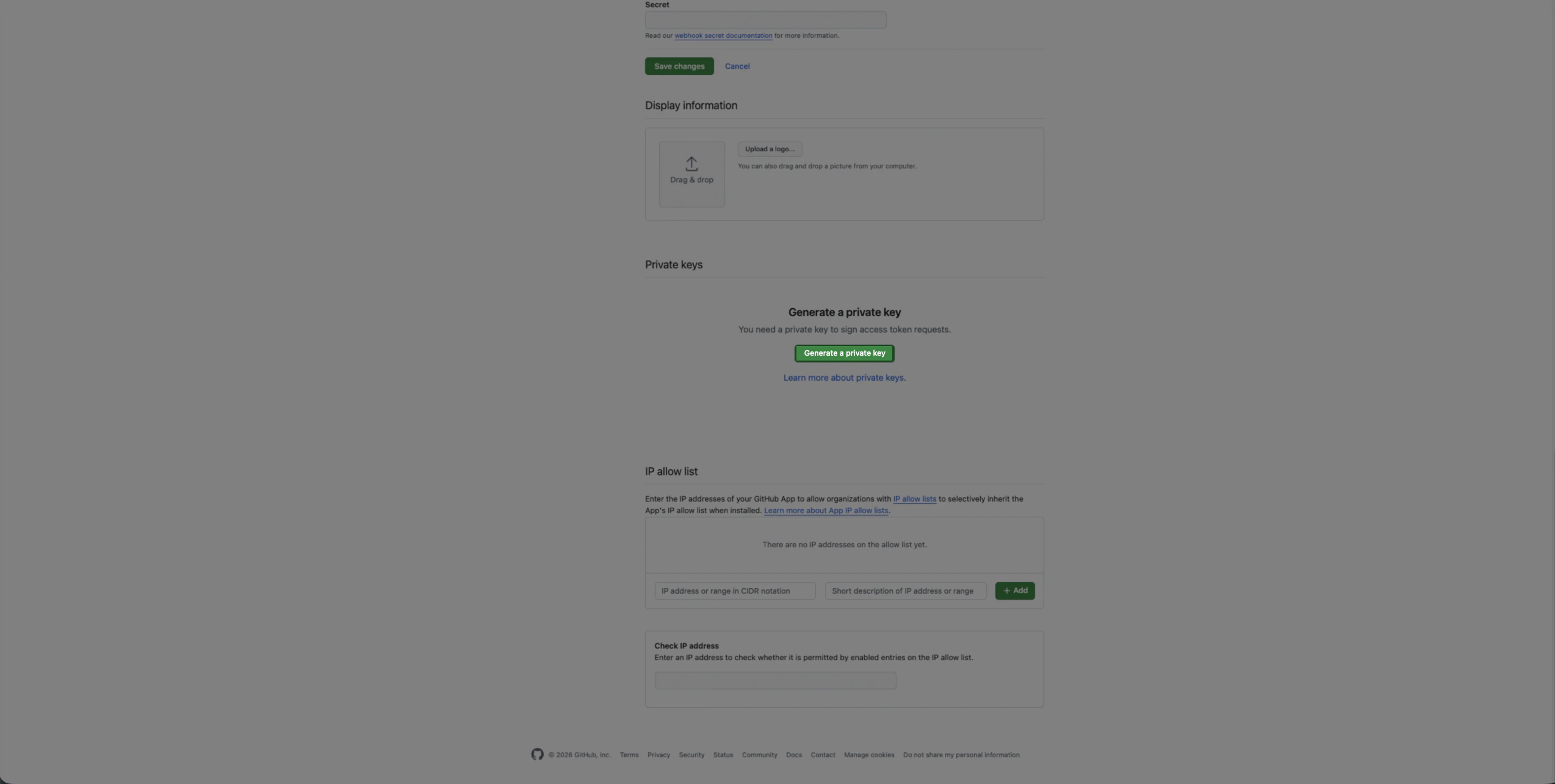 8. Download and store the PEM file securely.
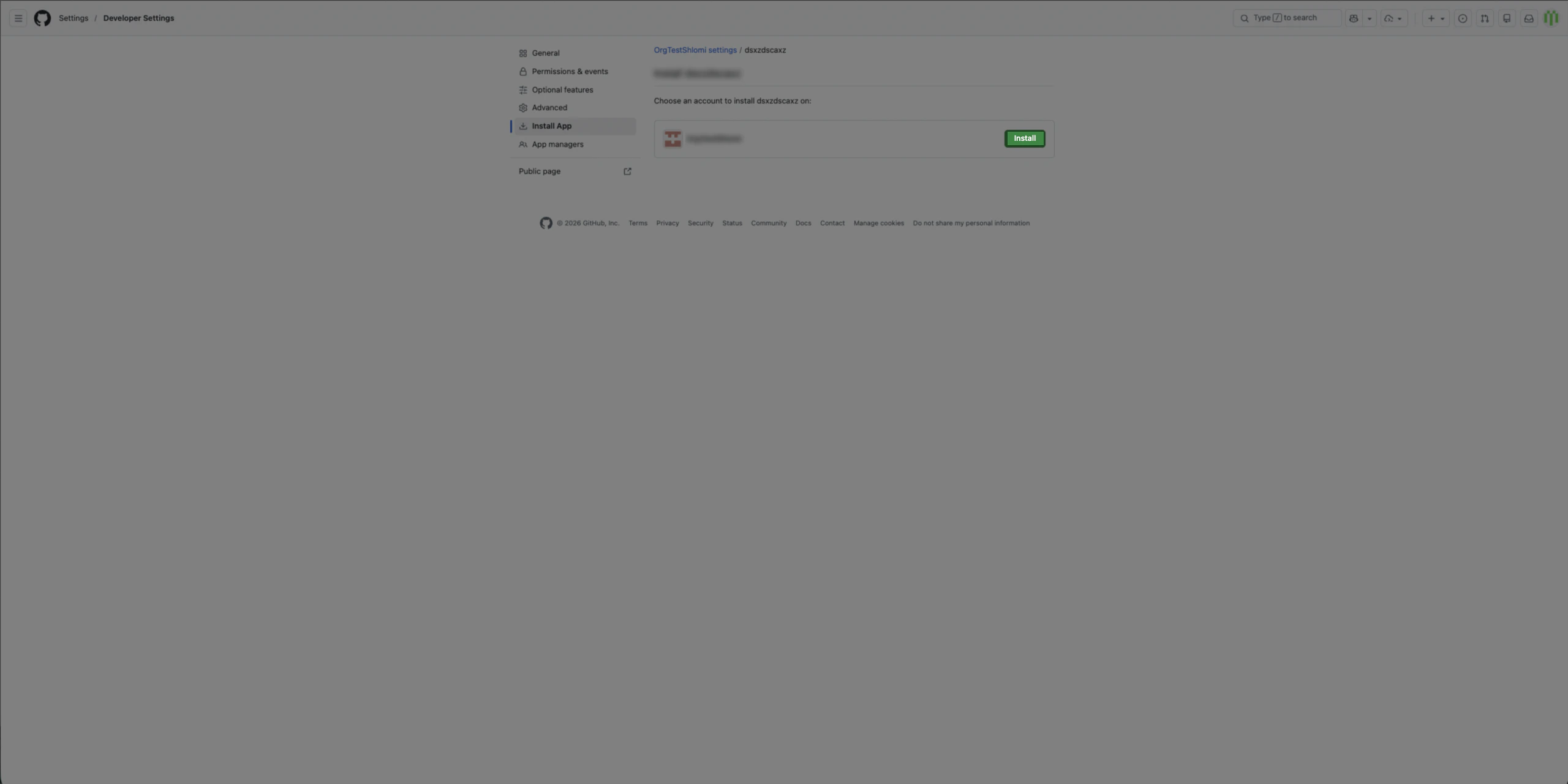
9. In the left sidebar, click **Install App**.
8. Download and store the PEM file securely.
9. In the left sidebar, click **Install App**.
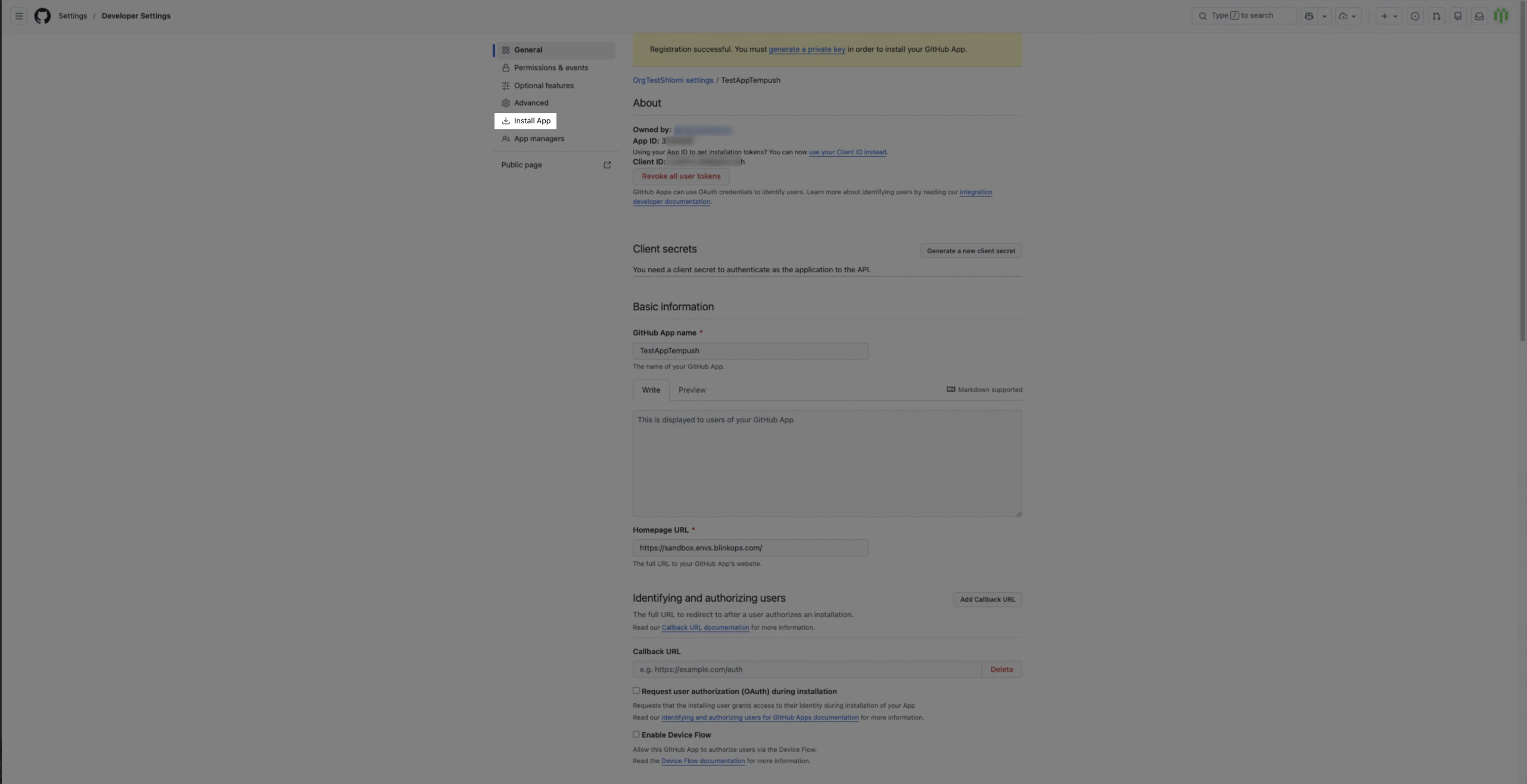 10. Click **Install**.
 #### Obtaining the credentials
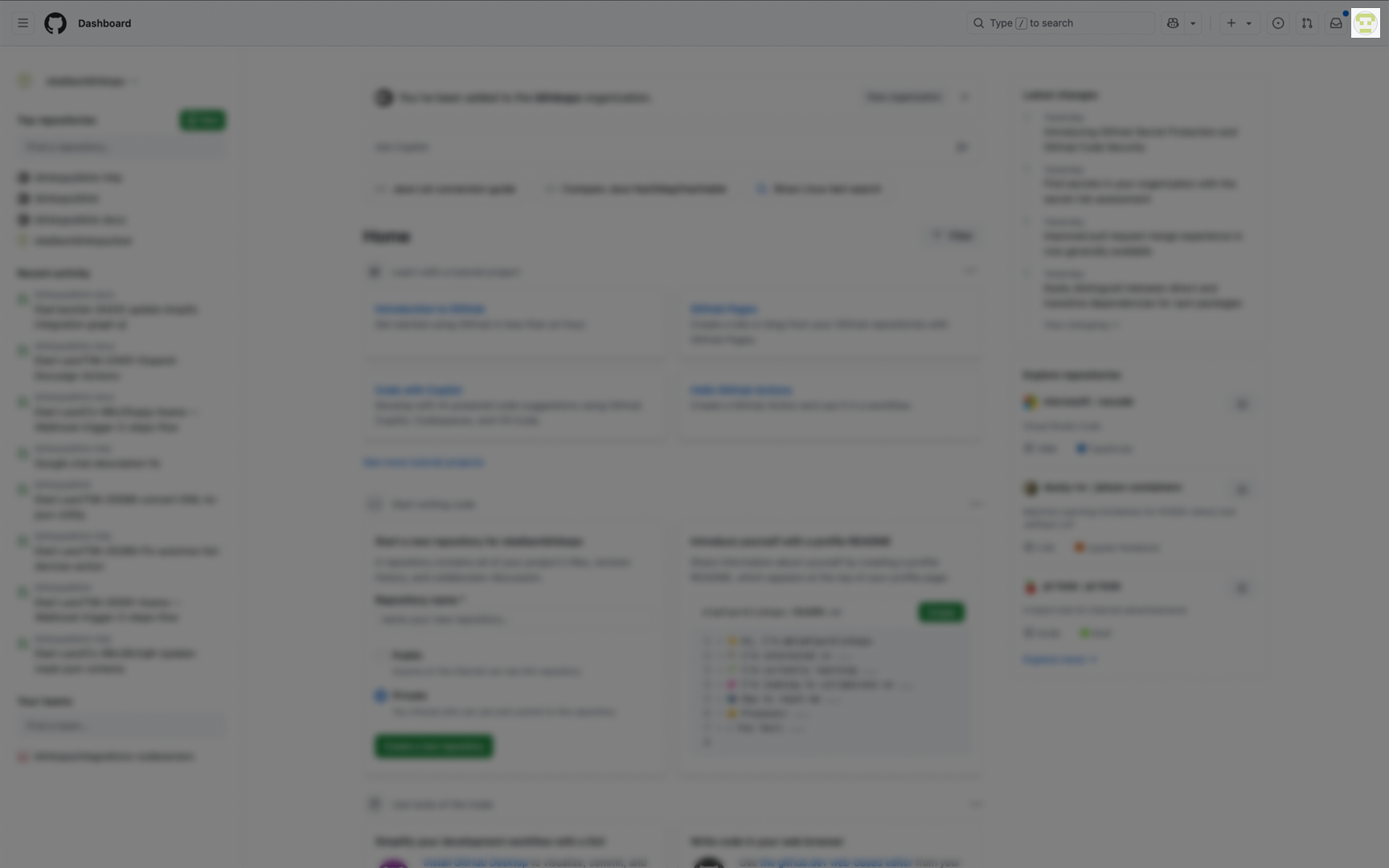
1. In the upper-right corner of any page on GitHub, click your **profile photo**.
#### Obtaining the credentials
1. In the upper-right corner of any page on GitHub, click your **profile photo**.
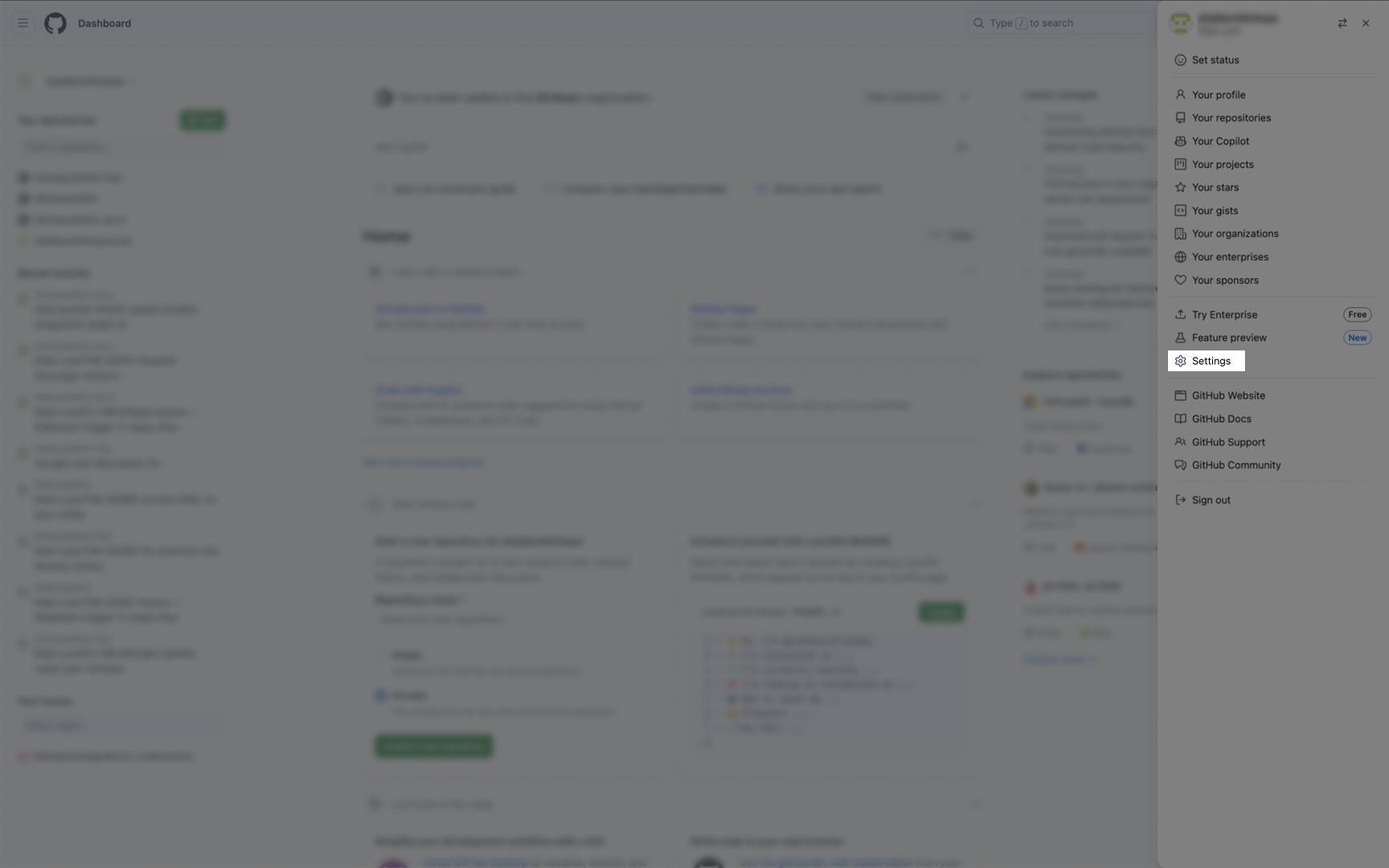
 2. Navigate to your account settings.
* For an app owned by a personal account, click **Settings**.
* For an app owned by an organization:
* Click **Your organizations**.
* To the right of the organization, click **Settings**.
2. Navigate to your account settings.
* For an app owned by a personal account, click **Settings**.
* For an app owned by an organization:
* Click **Your organizations**.
* To the right of the organization, click **Settings**.
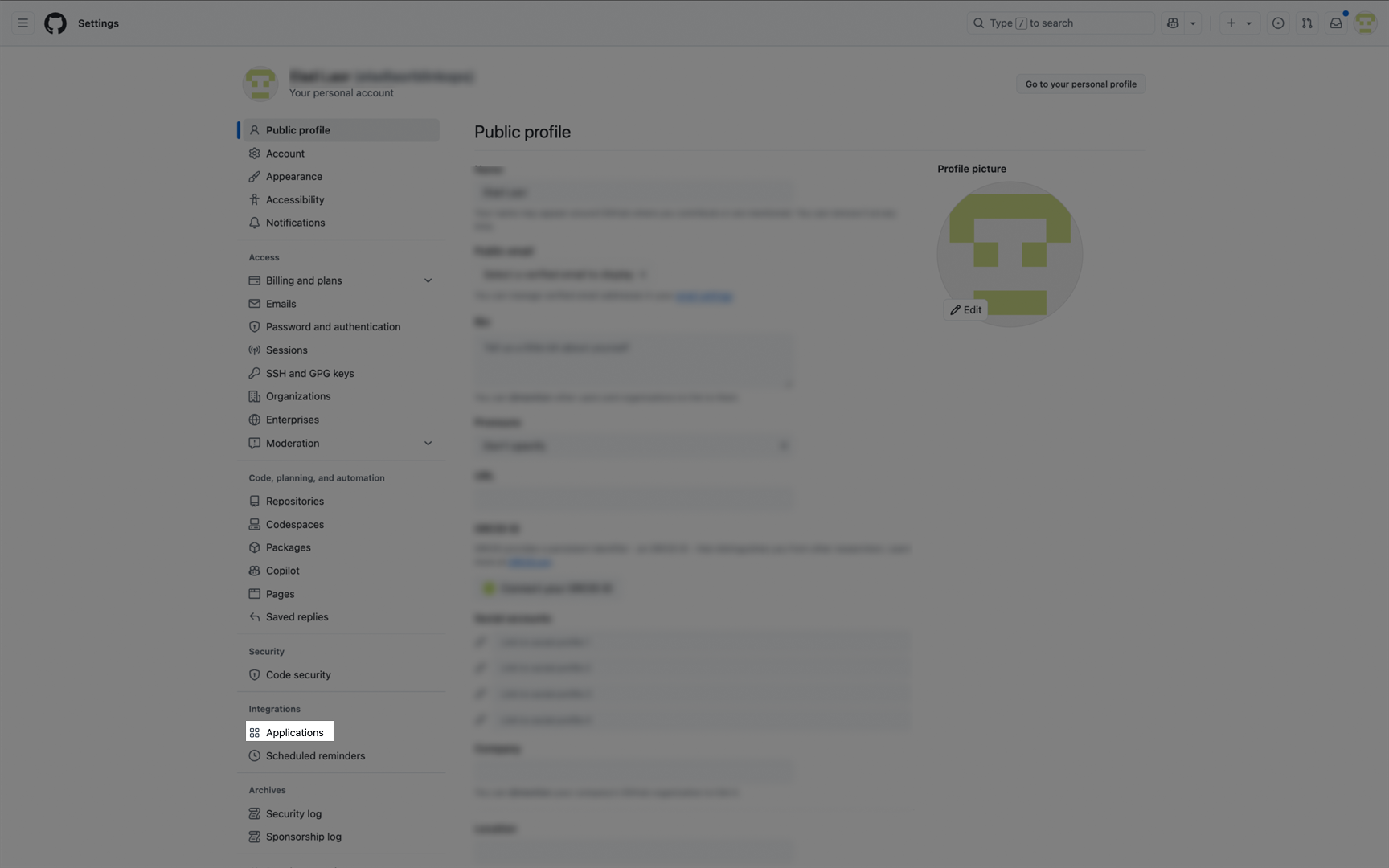
 3. In the left sidebar, click **Applications**.
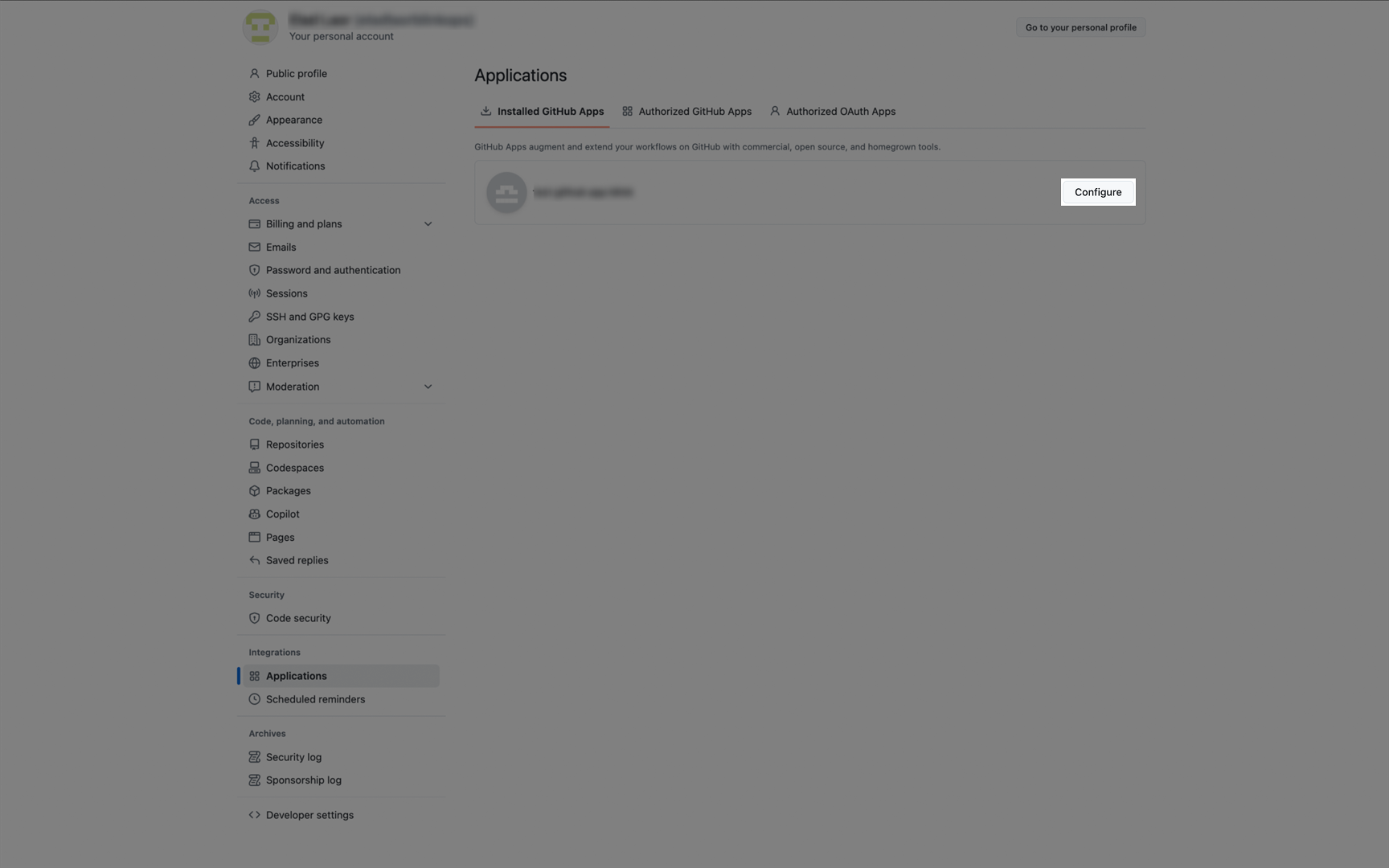
 4. Select your application by clicking **Configure**.
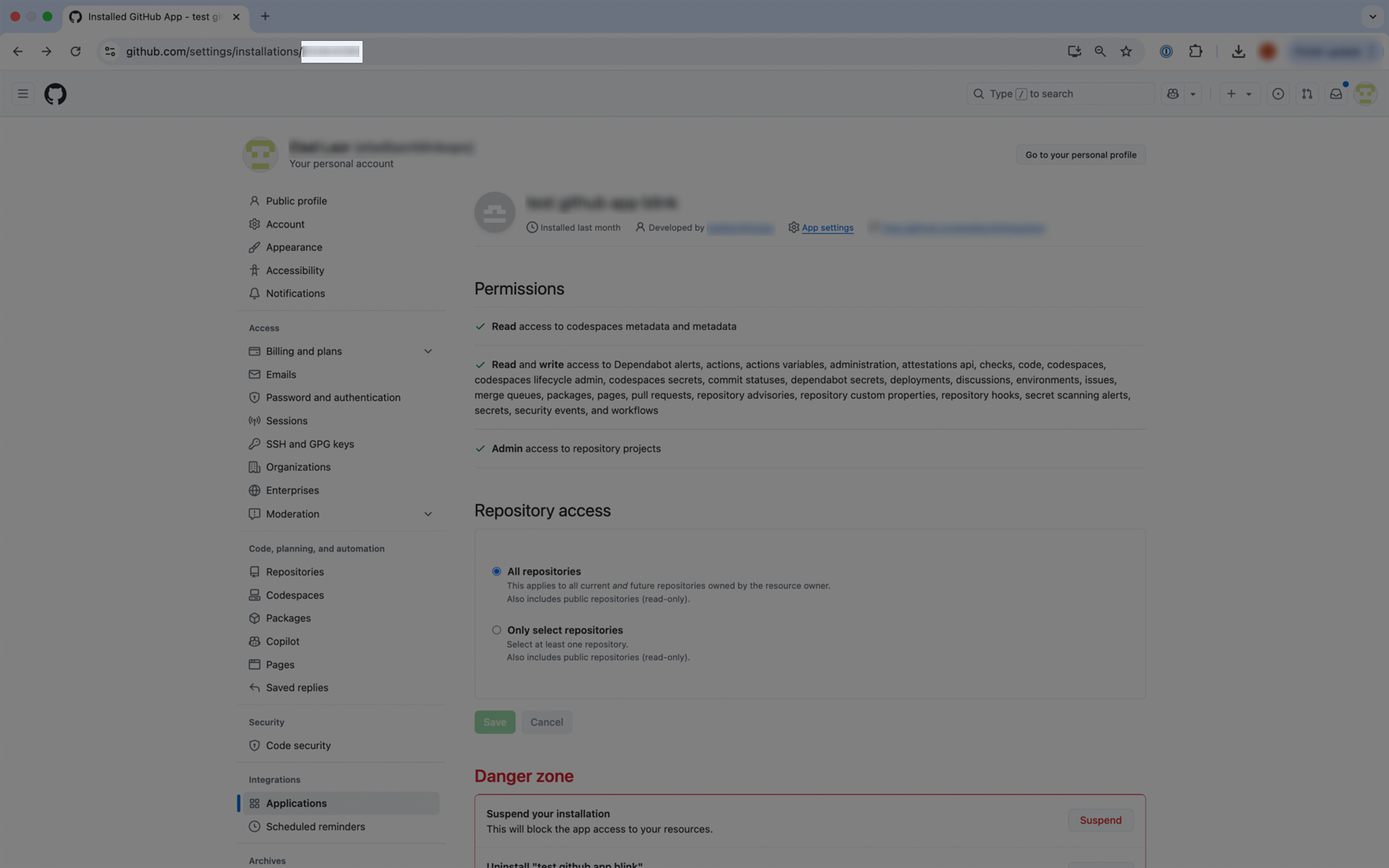
 5. You can find your **Installation ID** at the end of the URL path (github.com/settings/installations/**Your Installation ID**).
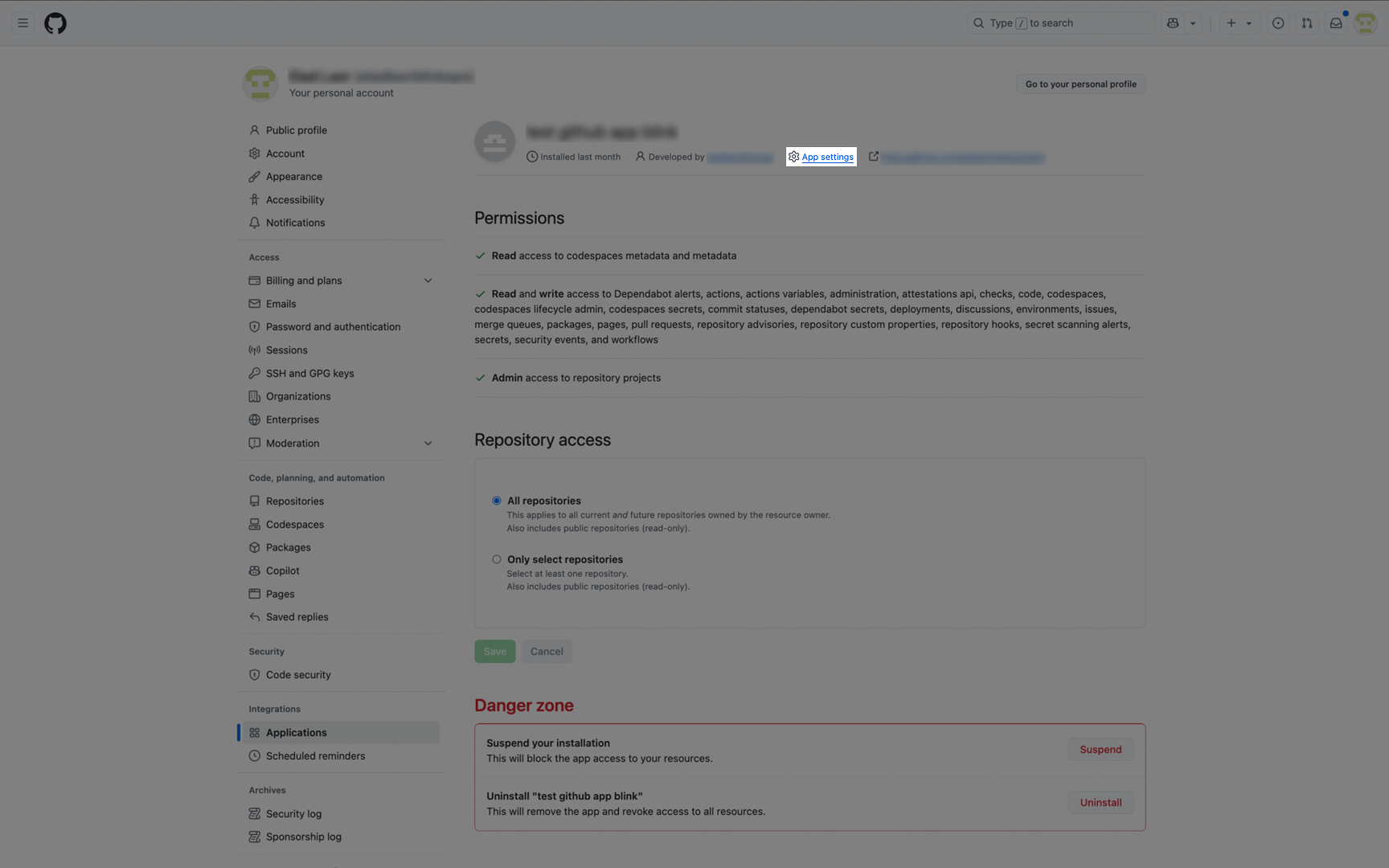
 6. Click **App settings**.
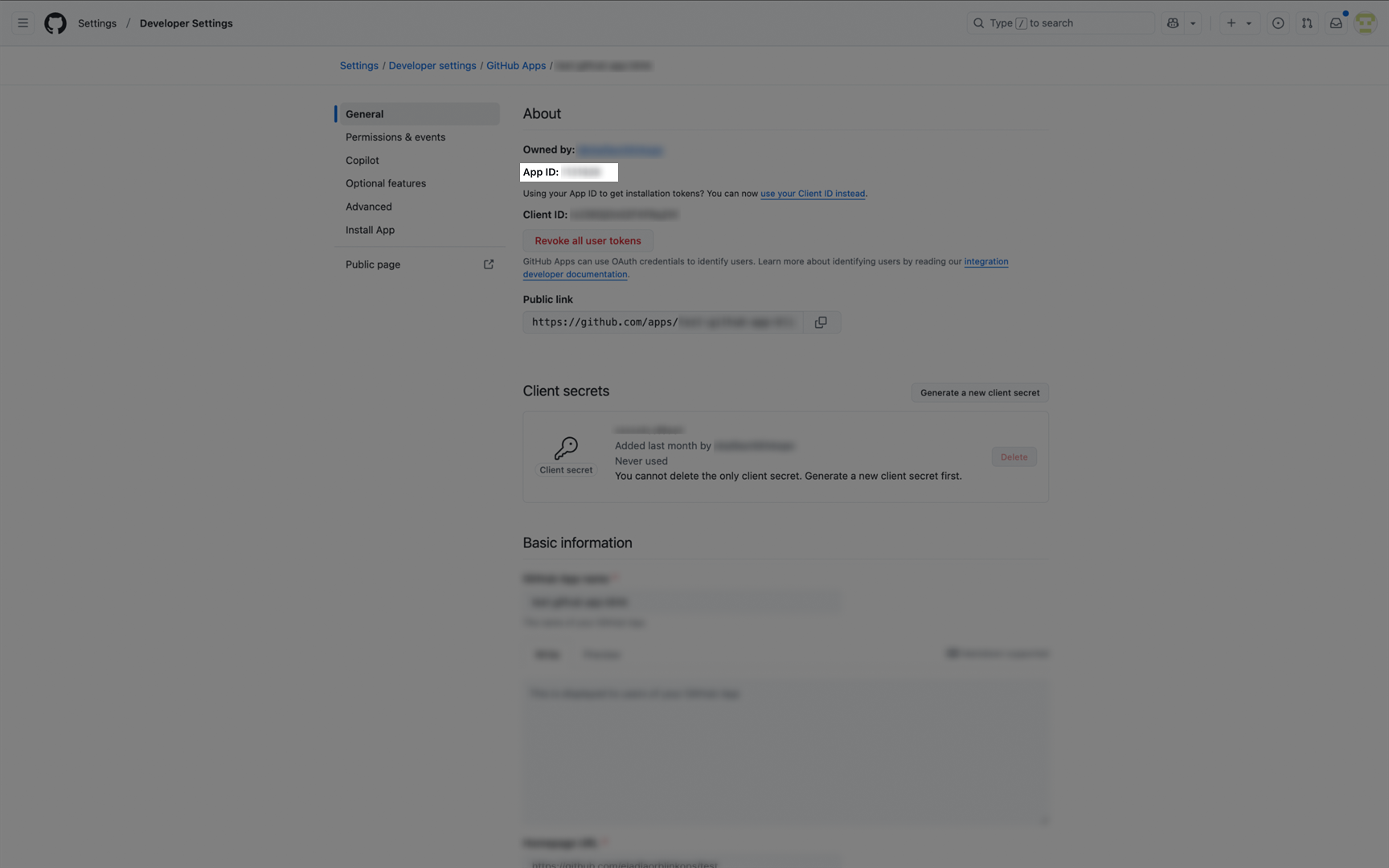
 7. Next to Client ID, you will see the **client ID** for your app.
 8. Scroll down to Private keys to generate your **App Private Key (PEM)**. Make sure to paste your key with the RSA labels.
 #### Creating your connection
1. In the Blink platform, navigate to the **Connections** page > **Add connection**. A New Connection dialog box opens displaying icons of external service providers available.
2. Select the **GitHub** icon. A dialog box with name of the connection and connection methods appear.
3. (Optional) Edit the name of the connection. At a later stage you cannot edit the name.
4. Select **GitHub App Installation** as the method to create the connection.
5. Fill in the parameters:
* The API Address
* The Application ID
* The Installation ID
* The GitHub App Private Key (PEM)
6. (Optional) Click **Test Connection** to test it.
7. Click **Create connection**. The new connection appears on the **Connections** page.
### Using SSH
An SSH connection is supported for the use of core.git
To create the connection you need:
* An existing SSH private and public key pair or generate a new one. To generate a new SSH key pair can use the SSH-keygen command.
#### Obtaining the credentials
You need to upload the public key to GitHub. Do this by following the instructions: [Adding a new SSH key to your GitLab account](https://docs.gitlab.com/ee/ssh/#add-an-ssh-key-to-your-gitlab-account) We do not support SSH key with passphrase for the CLI, therefore generate one without a passphrase.
#### Creating your connection
1. In the Blink platform, navigate to the **Connections** page > **Add connection**. A New Connection dialog box opens displaying icons of external service providers available.
2. Select the **SSH** icon. A dialog box with name of the connection and connection methods appear.
3. (Optional) Edit the name of the connection. At a later stage you cannot edit the name.
4. Select **SSH** as the method to make the connection.
5. Fill in the parameters:
* The key
* The passphrase
* The username
6. (Optional) Click **Test Connection** to test it.
7. Click **Create connection**. The new connection appears on the **Connections** page.
### Interactive Tutorial Guides
You can also refer to the following tutorial guides for a more in-depth understanding of how to create a GitHub connection.
[Creating a GitHub Connection in Blink Ops](https://demo.arcade.software/NnNufeQnrrCVgJdczkiq?embed\&show_copy_link=true)
[Creating a Github Connection](https://demo.arcade.software/O2dnqU9jpekogow60aGv?embed\&show_copy_link=true)
#### Creating your connection
1. In the Blink platform, navigate to the **Connections** page > **Add connection**. A New Connection dialog box opens displaying icons of external service providers available.
2. Select the **GitHub** icon. A dialog box with name of the connection and connection methods appear.
3. (Optional) Edit the name of the connection. At a later stage you cannot edit the name.
4. Select **GitHub App Installation** as the method to create the connection.
5. Fill in the parameters:
* The API Address
* The Application ID
* The Installation ID
* The GitHub App Private Key (PEM)
6. (Optional) Click **Test Connection** to test it.
7. Click **Create connection**. The new connection appears on the **Connections** page.
### Using SSH
An SSH connection is supported for the use of core.git
To create the connection you need:
* An existing SSH private and public key pair or generate a new one. To generate a new SSH key pair can use the SSH-keygen command.
#### Obtaining the credentials
You need to upload the public key to GitHub. Do this by following the instructions: [Adding a new SSH key to your GitLab account](https://docs.gitlab.com/ee/ssh/#add-an-ssh-key-to-your-gitlab-account) We do not support SSH key with passphrase for the CLI, therefore generate one without a passphrase.
#### Creating your connection
1. In the Blink platform, navigate to the **Connections** page > **Add connection**. A New Connection dialog box opens displaying icons of external service providers available.
2. Select the **SSH** icon. A dialog box with name of the connection and connection methods appear.
3. (Optional) Edit the name of the connection. At a later stage you cannot edit the name.
4. Select **SSH** as the method to make the connection.
5. Fill in the parameters:
* The key
* The passphrase
* The username
6. (Optional) Click **Test Connection** to test it.
7. Click **Create connection**. The new connection appears on the **Connections** page.
### Interactive Tutorial Guides
You can also refer to the following tutorial guides for a more in-depth understanding of how to create a GitHub connection.
[Creating a GitHub Connection in Blink Ops](https://demo.arcade.software/NnNufeQnrrCVgJdczkiq?embed\&show_copy_link=true)
[Creating a Github Connection](https://demo.arcade.software/O2dnqU9jpekogow60aGv?embed\&show_copy_link=true)