> ## Documentation Index
> Fetch the complete documentation index at: https://docs.blinkops.com/llms.txt
> Use this file to discover all available pages before exploring further.
# Gemini
> Google Gemini is Google's advanced multimodal AI system. Gemini can process and understand text, images, audio, video, and code simultaneously. It's designed with enhanced reasoning capabilities and has been integrated into various Google products, including their conversational AI assistant, Google Search, and Android devices.
## Creating a Gemini connection
### Using API Key
To create the connection you need:
* An API Key
#### Obtaining the credentials
1. Log in to [Google AI Studio](https://aistudio.google.com/).
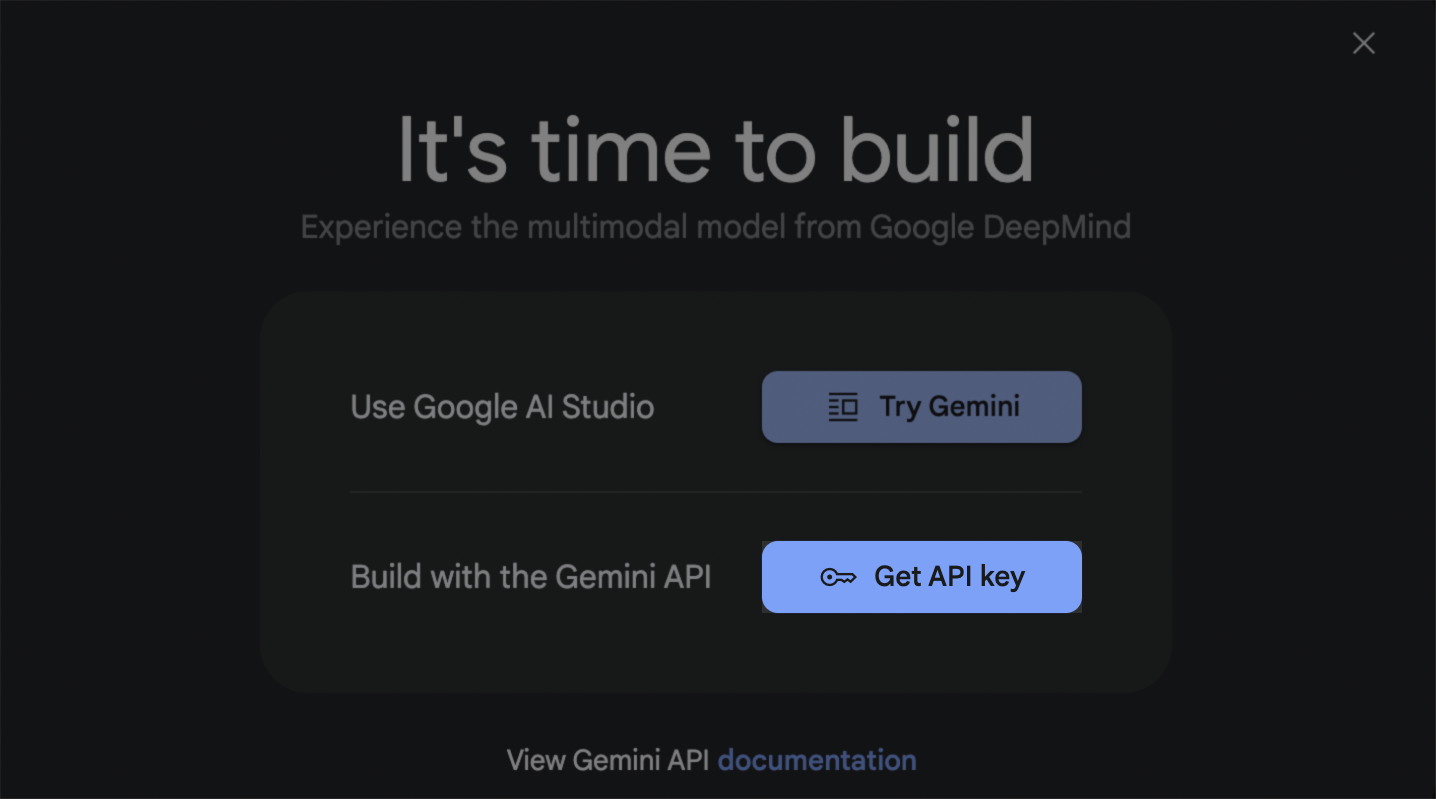
2. If a modal is displayed, select **Get API key**.
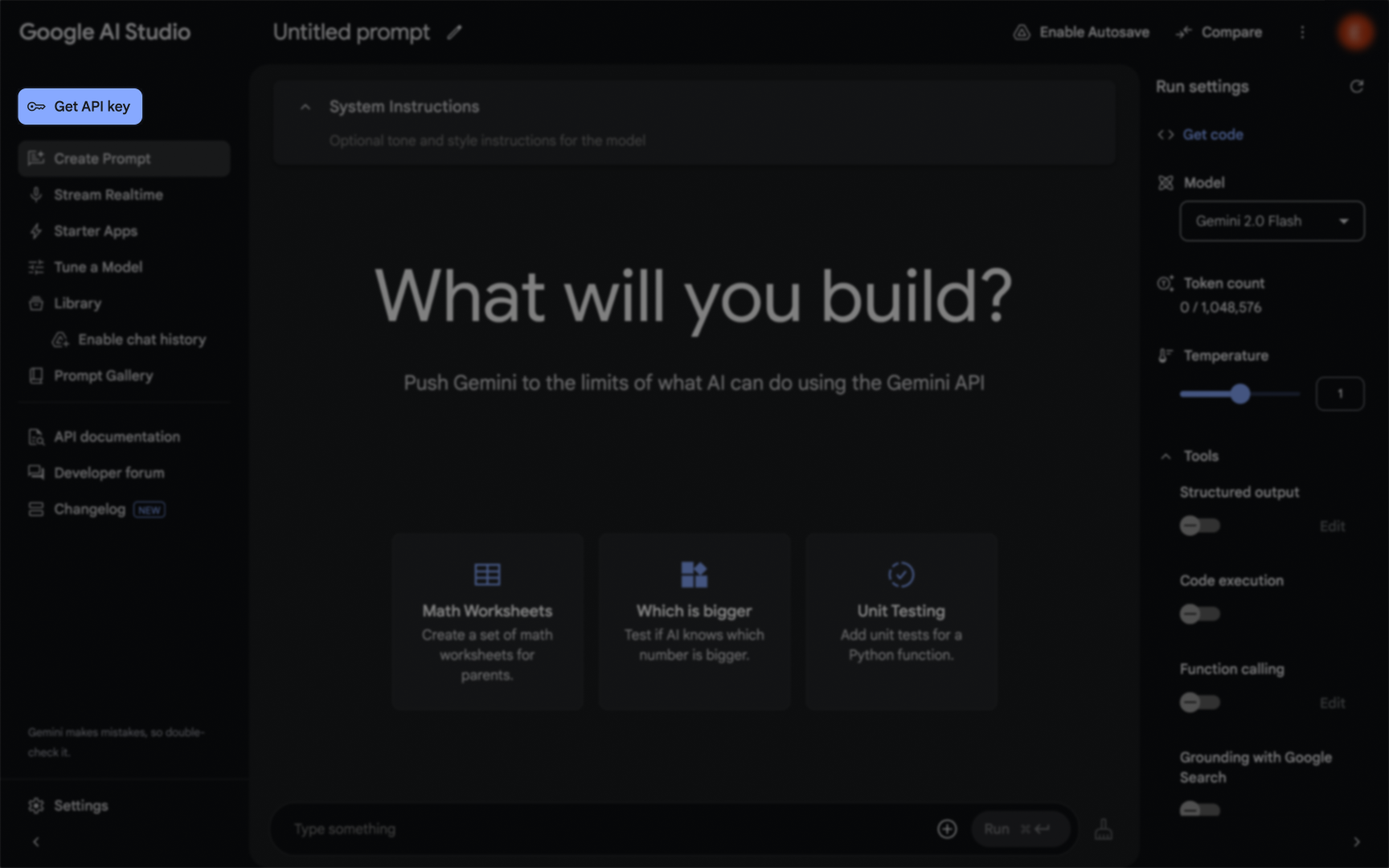
 3. On the left side menu, navigate to **Get API Key**.
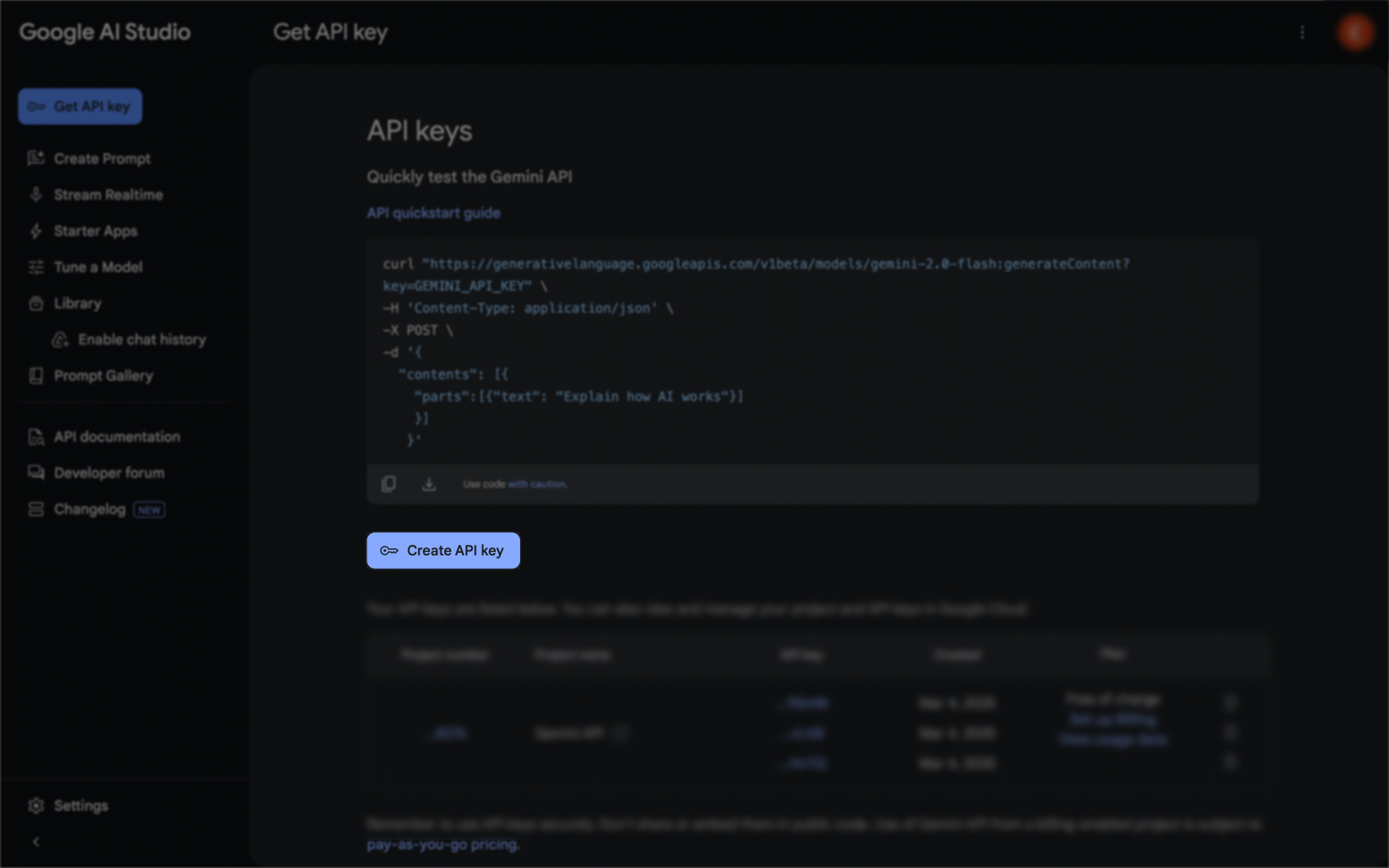
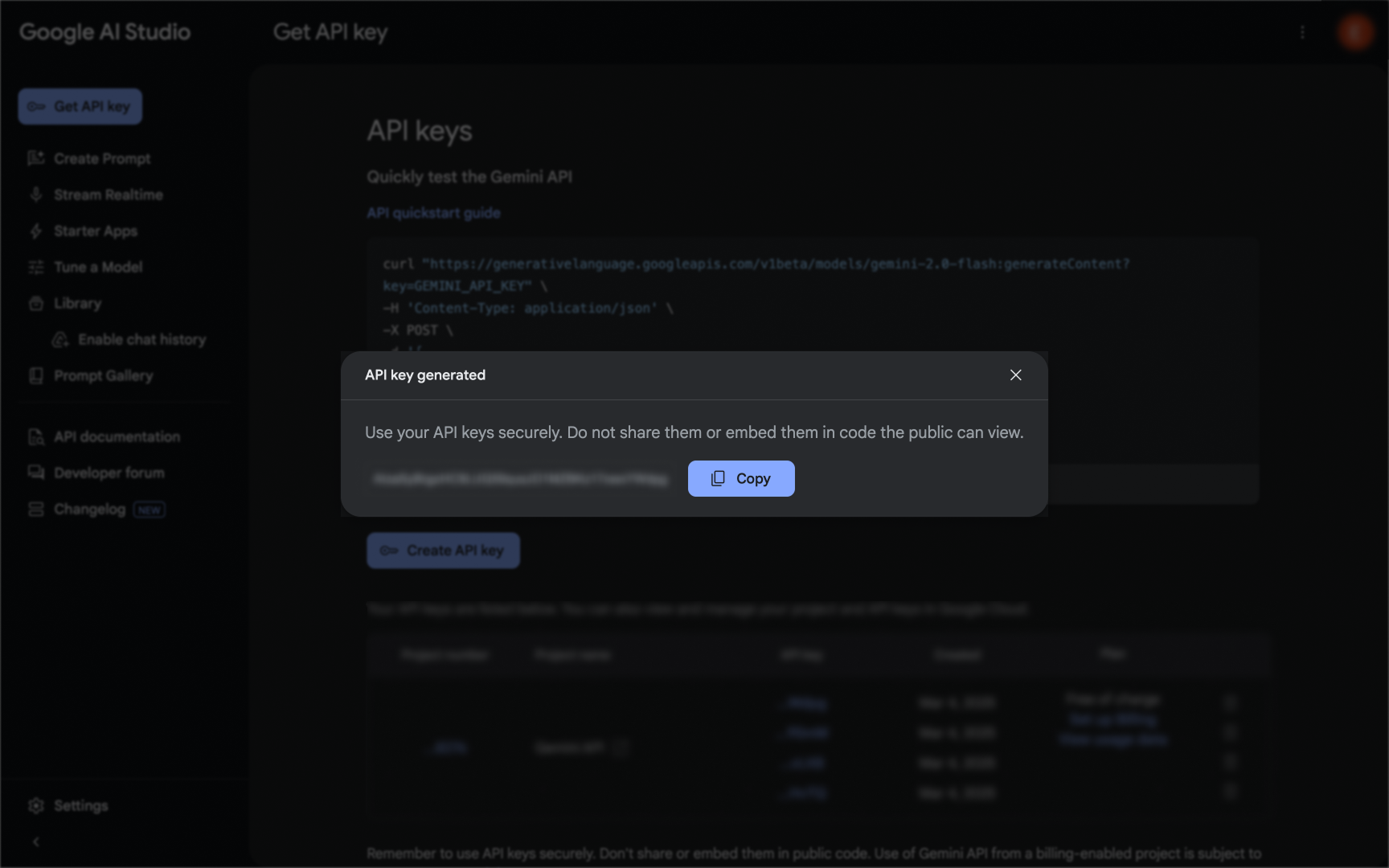
 4. Click on **Create API Key**.
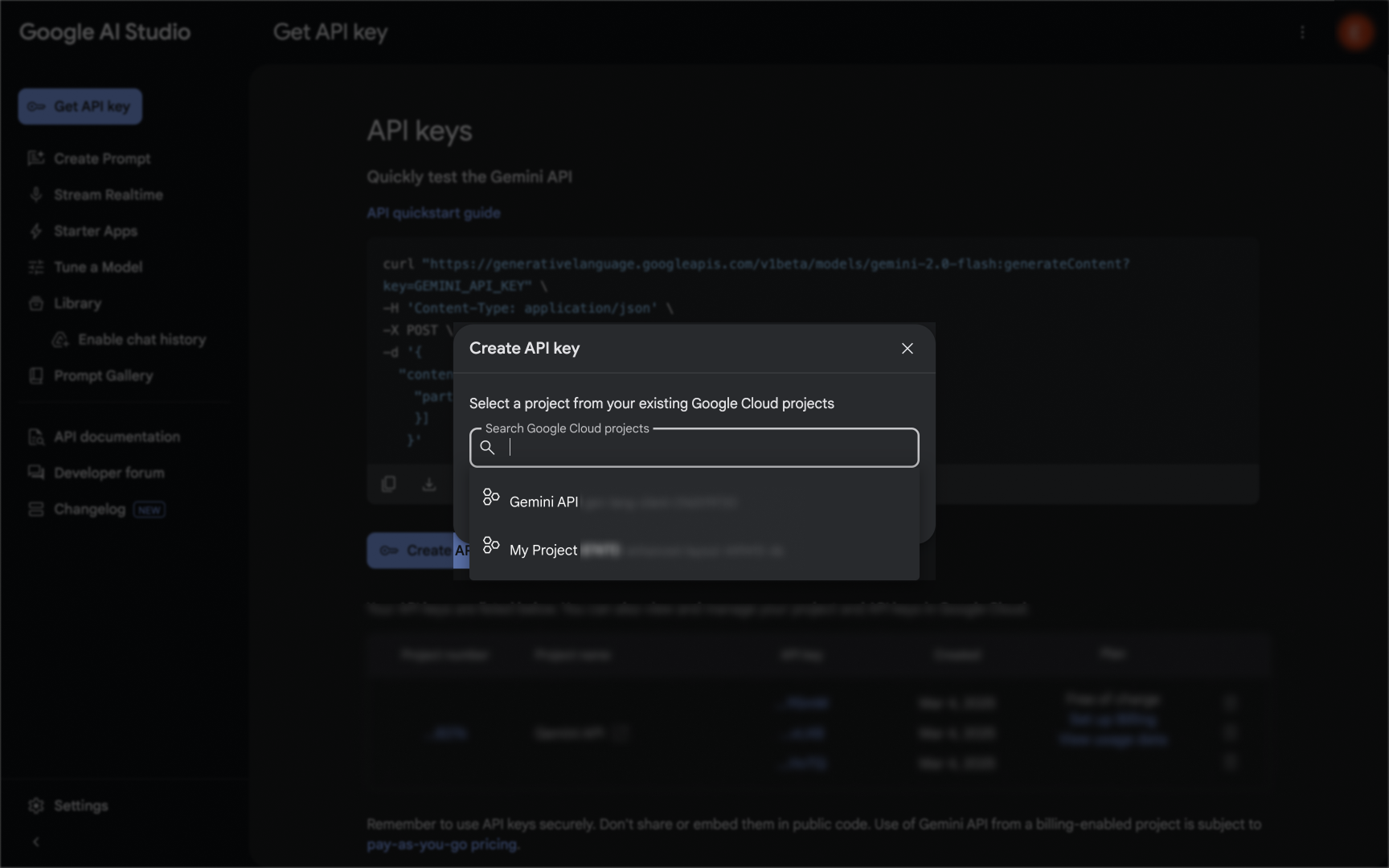
 5. If a **Create API Key** modal asks for Google Cloud projects, select **Gemini API**.
 6. Copy your newly created **API key**.
 ### Creating your connection
1. In the Blink platform, navigate to the **Connections** page > **Add connection**. A New Connection dialog box opens displaying icons of external service providers available.
2. Select the **Gemini** icon. A dialog box with name of the connection and connection methods appear.
3. (Optional) Edit the name of the connection. At a later stage you cannot edit the name.
4. Select **API Key** as the method to create the connection.
5. Fill in the parameters:
* The API Key
6. (Optional) Click **Test Connection** to test it.
7. Click **Create connection**. The new connection appears on the **Connections** page.
### Creating your connection
1. In the Blink platform, navigate to the **Connections** page > **Add connection**. A New Connection dialog box opens displaying icons of external service providers available.
2. Select the **Gemini** icon. A dialog box with name of the connection and connection methods appear.
3. (Optional) Edit the name of the connection. At a later stage you cannot edit the name.
4. Select **API Key** as the method to create the connection.
5. Fill in the parameters:
* The API Key
6. (Optional) Click **Test Connection** to test it.
7. Click **Create connection**. The new connection appears on the **Connections** page.