> ## Documentation Index
> Fetch the complete documentation index at: https://docs.blinkops.com/llms.txt
> Use this file to discover all available pages before exploring further.
# FireHydrant
> FireHydrant is an incident management platform designed to help engineering and DevOps teams efficiently respond to and resolve outages. With features that automate incident creation, coordination, and retrospectives, FireHydrant streamlines the entire incident lifecycle from detection to resolution.
## Creating a FireHydrant connection
### Using API Key
To create the connection you need:
* An API Address
* An API Key
#### Obtaining the credentials
1. Login to your FireHydrant account.
2. Click on the settings icon.
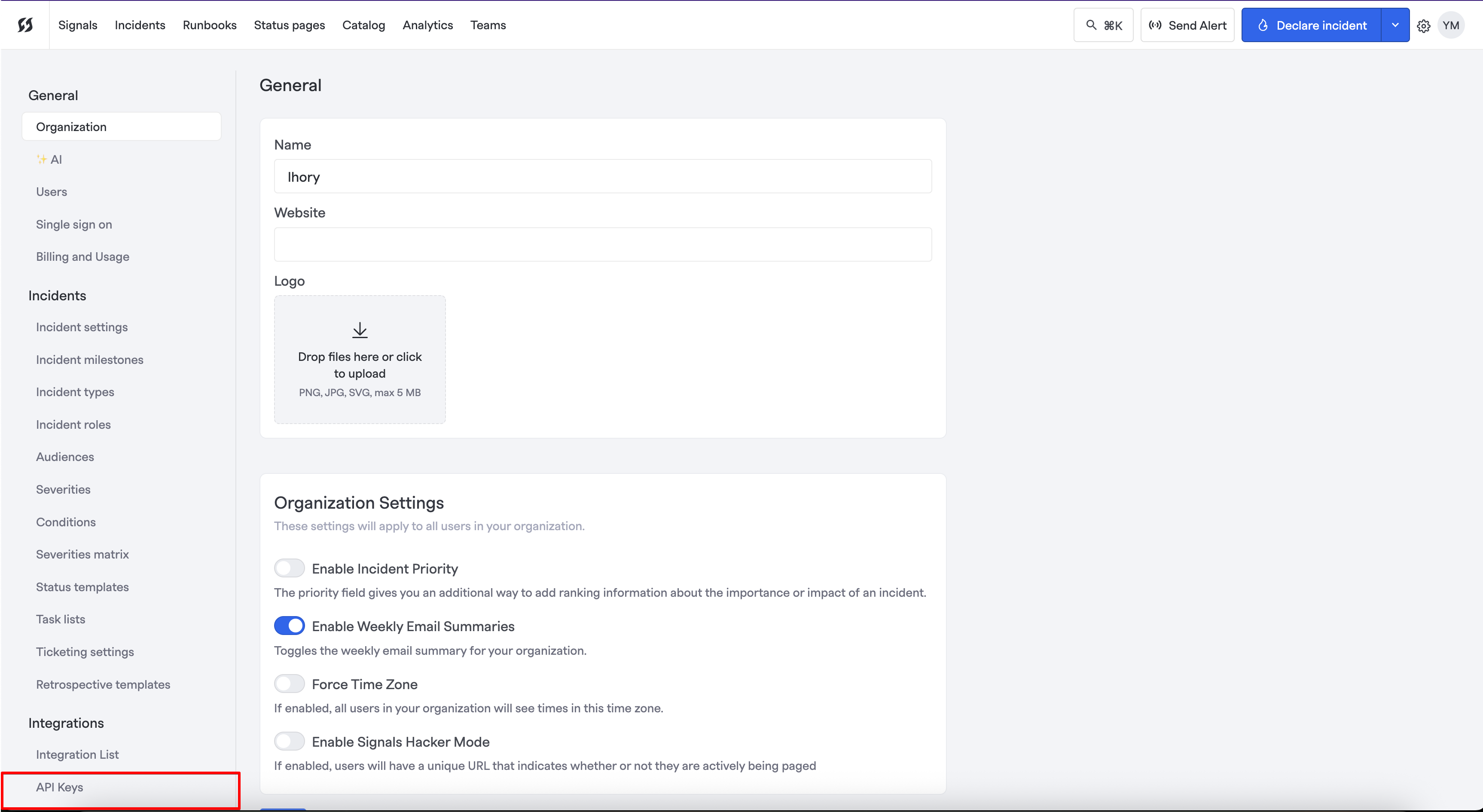
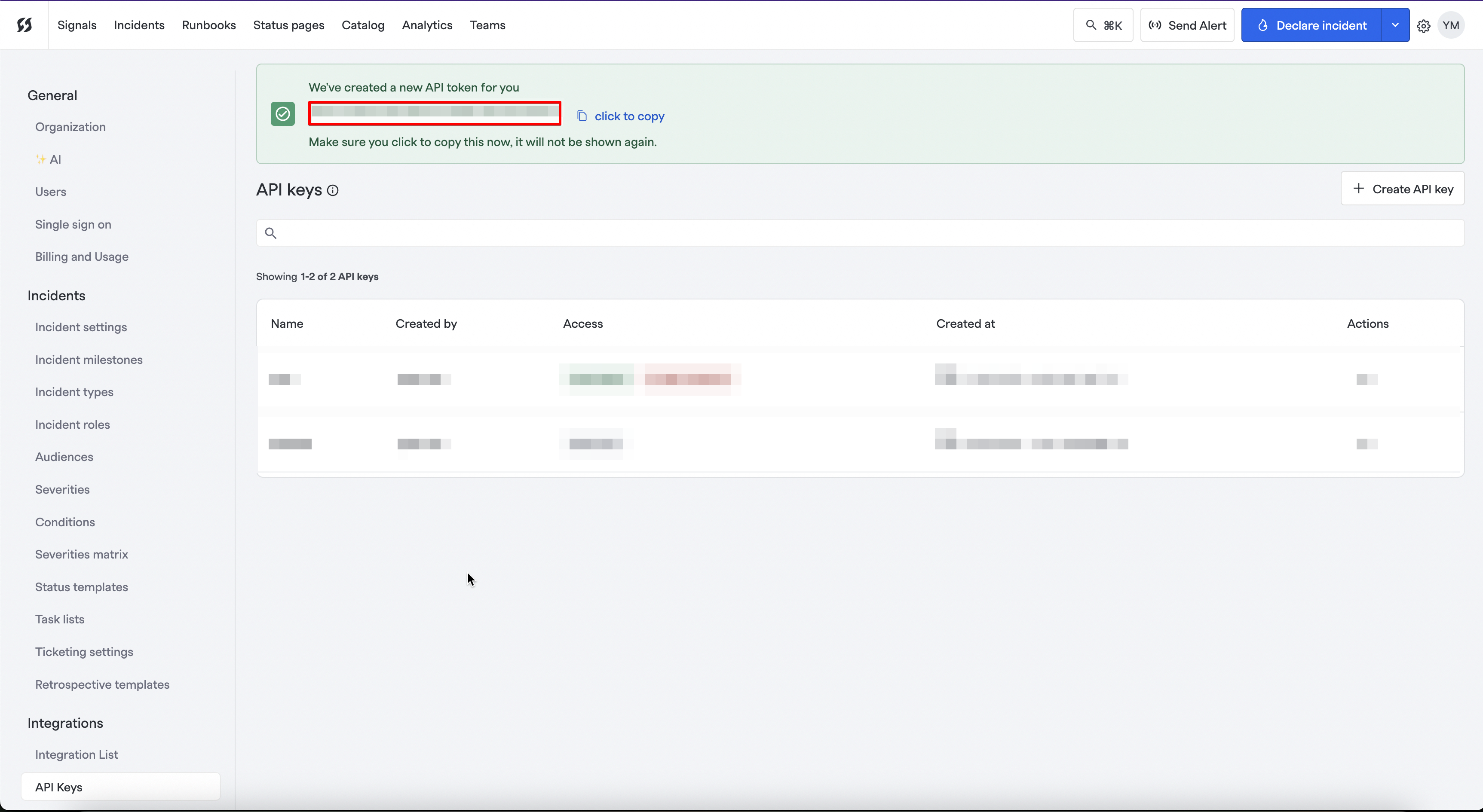
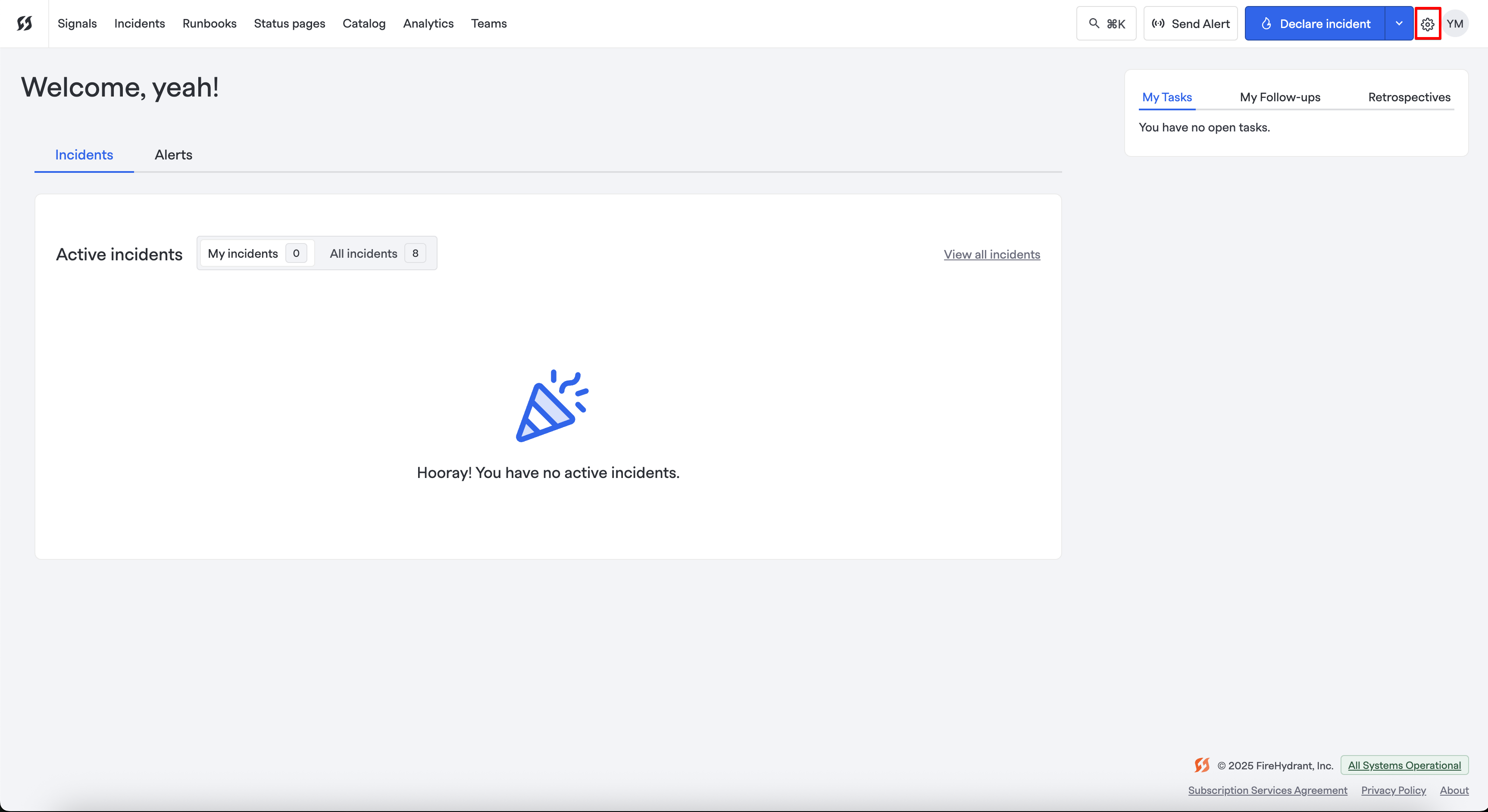 3. Click on `API Keys`.
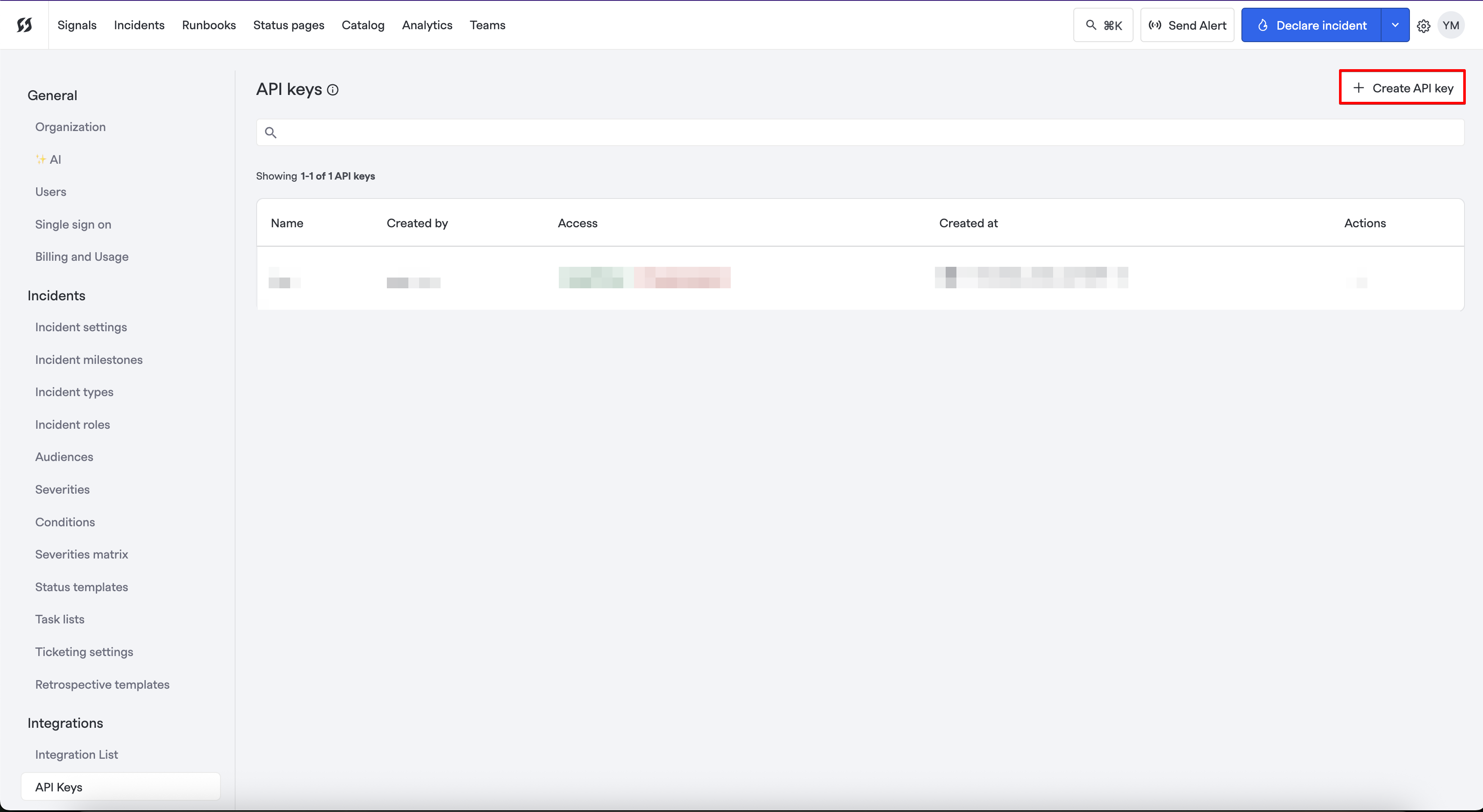
 4. Click on `Create API Key`.
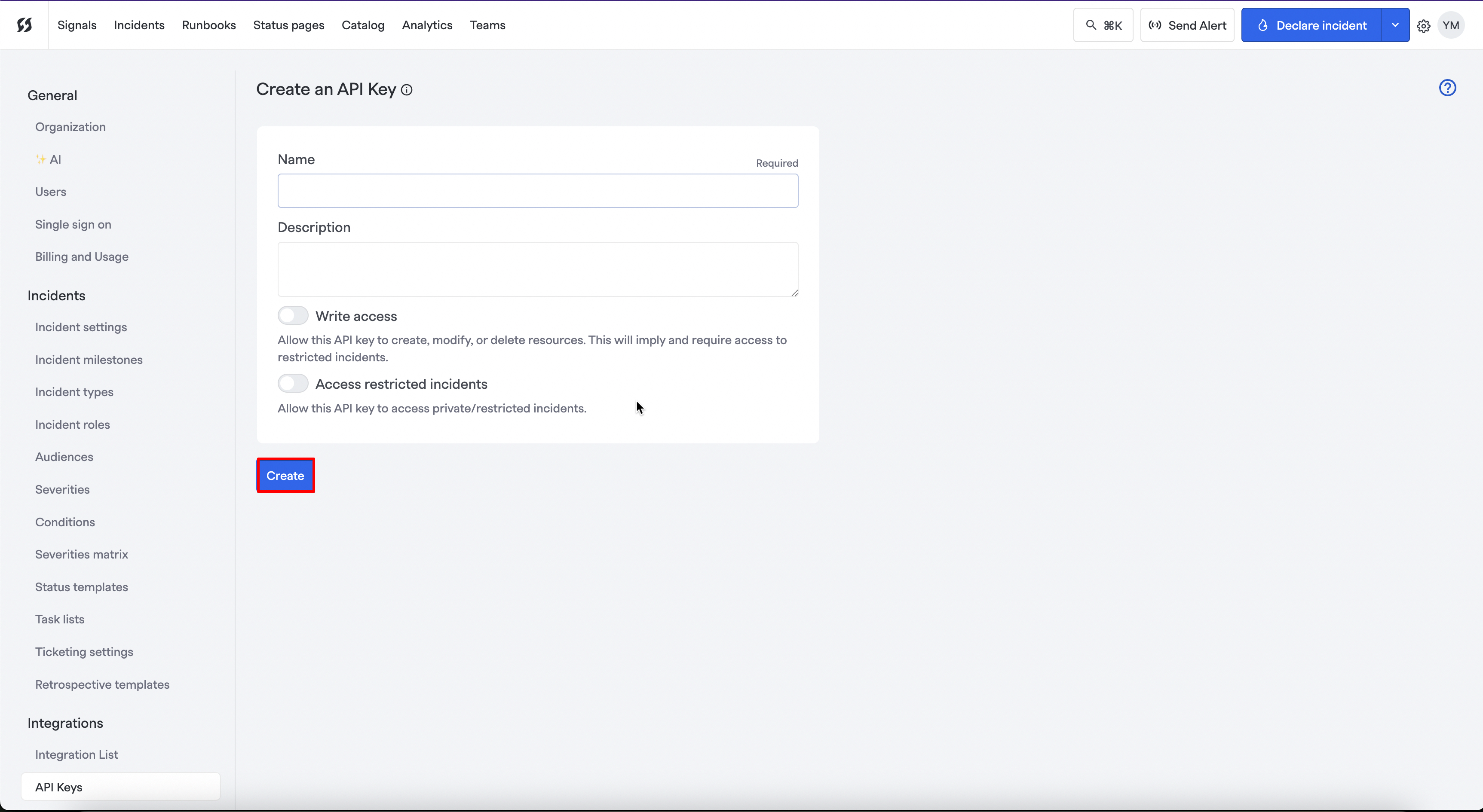
 5. Fill the fields and click on `Create`.
 6. Copy your API key.
 #### Creating your connection
1. In the Blink platform, navigate to the **Connections** page > **Add connection**. A New Connection dialog box opens displaying icons of external service providers available.
2. Select the **FireHydrant** icon. A dialog box with name of the connection and connection methods appear.
3. (Optional) Edit the name of the connection. At a later stage you cannot edit the name.
4. Select **API Key** as the method to create the connection.
5. Fill in the parameters:
* The API Address
* The API Key
6. (Optional) Click **Test Connection** to test it.
7. Click **Create connection**. The new connection appears on the **Connections** page.
#### Creating your connection
1. In the Blink platform, navigate to the **Connections** page > **Add connection**. A New Connection dialog box opens displaying icons of external service providers available.
2. Select the **FireHydrant** icon. A dialog box with name of the connection and connection methods appear.
3. (Optional) Edit the name of the connection. At a later stage you cannot edit the name.
4. Select **API Key** as the method to create the connection.
5. Fill in the parameters:
* The API Address
* The API Key
6. (Optional) Click **Test Connection** to test it.
7. Click **Create connection**. The new connection appears on the **Connections** page.