> ## Documentation Index
> Fetch the complete documentation index at: https://docs.blinkops.com/llms.txt
> Use this file to discover all available pages before exploring further.
# Duo
> Duo puts an organization on the fast-track to zero trust by securing the modern workforce. The simple, all-in-one platform lets you verify user identities, assess and act on the health of devices, set adaptive access policies, and protect users' productivity with modern remote access and SSO capabilities.
## Creating a Duo connection[](#creating-a-duo-connection "Direct link to Creating a Duo connection")
The Duo connection uses the Admin API application.
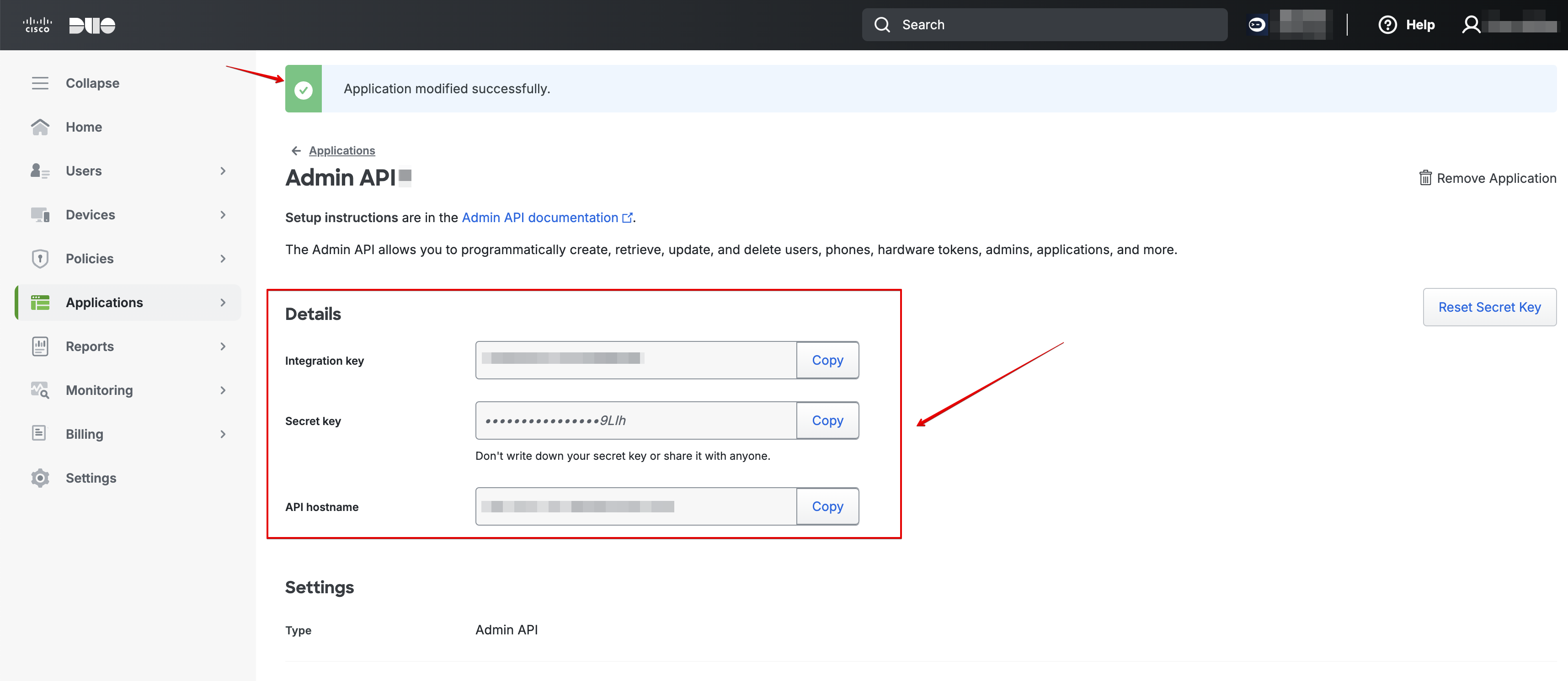
To create the connection you need:
* An API hostname
* Integration Key
* Secret Key
### Obtaining the credentials[](#obtaining-the-credentials "Direct link to Obtaining the credentials")
1. Log in to Duo's admin portal.
2. Navigate to **Application** > **Applications**.
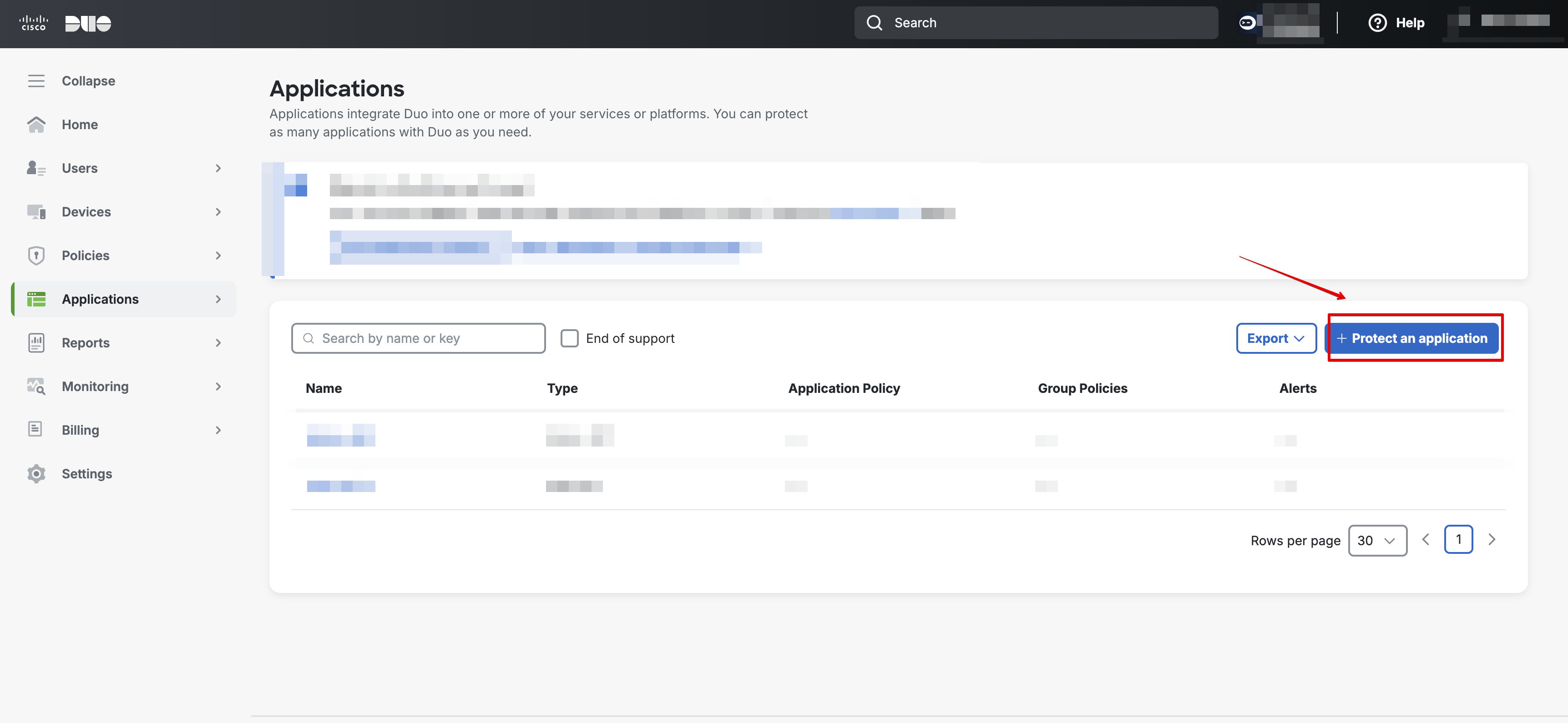
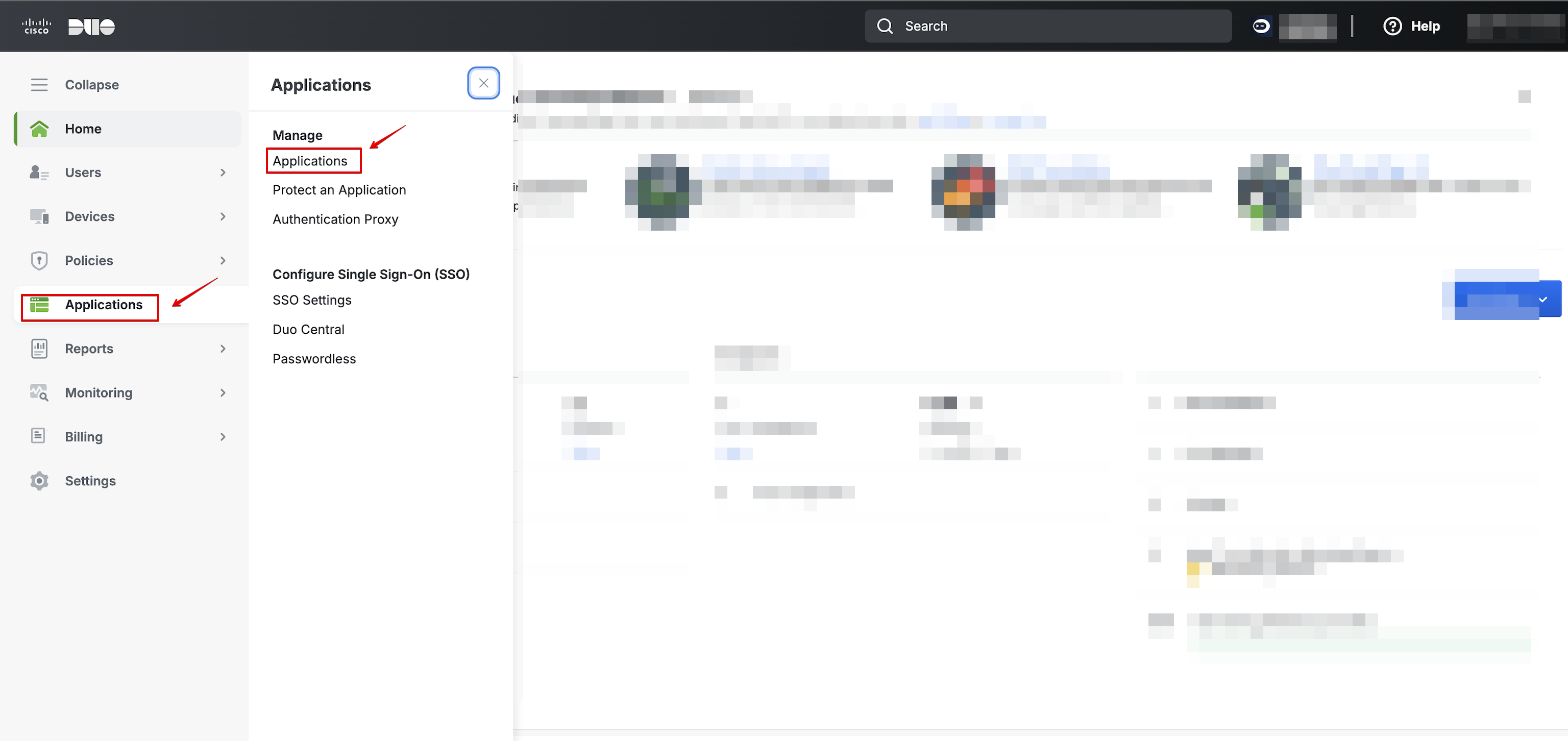 3. Click on **+ Protect an application**.
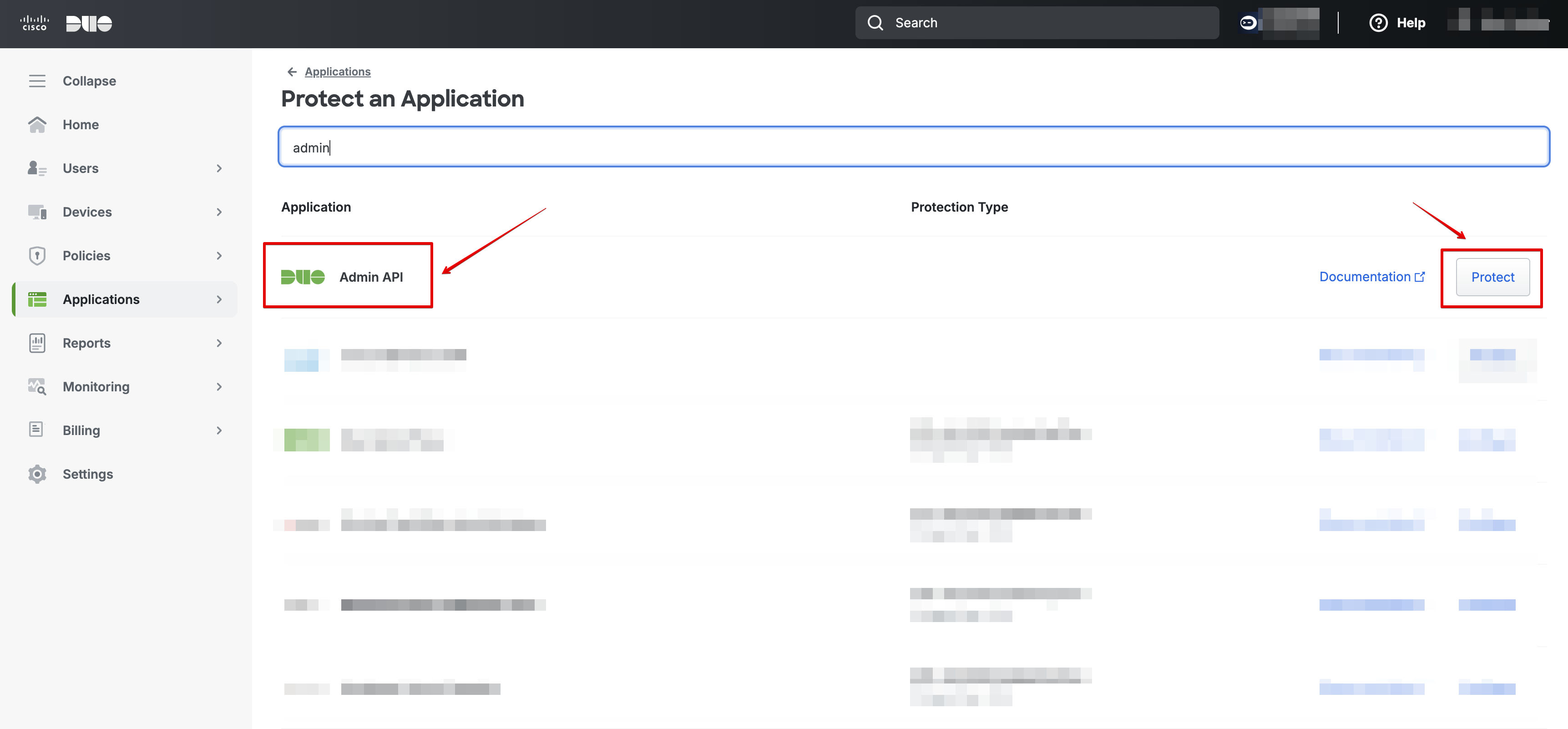
 4. Search for the Admin API application, and click on **Protect**.
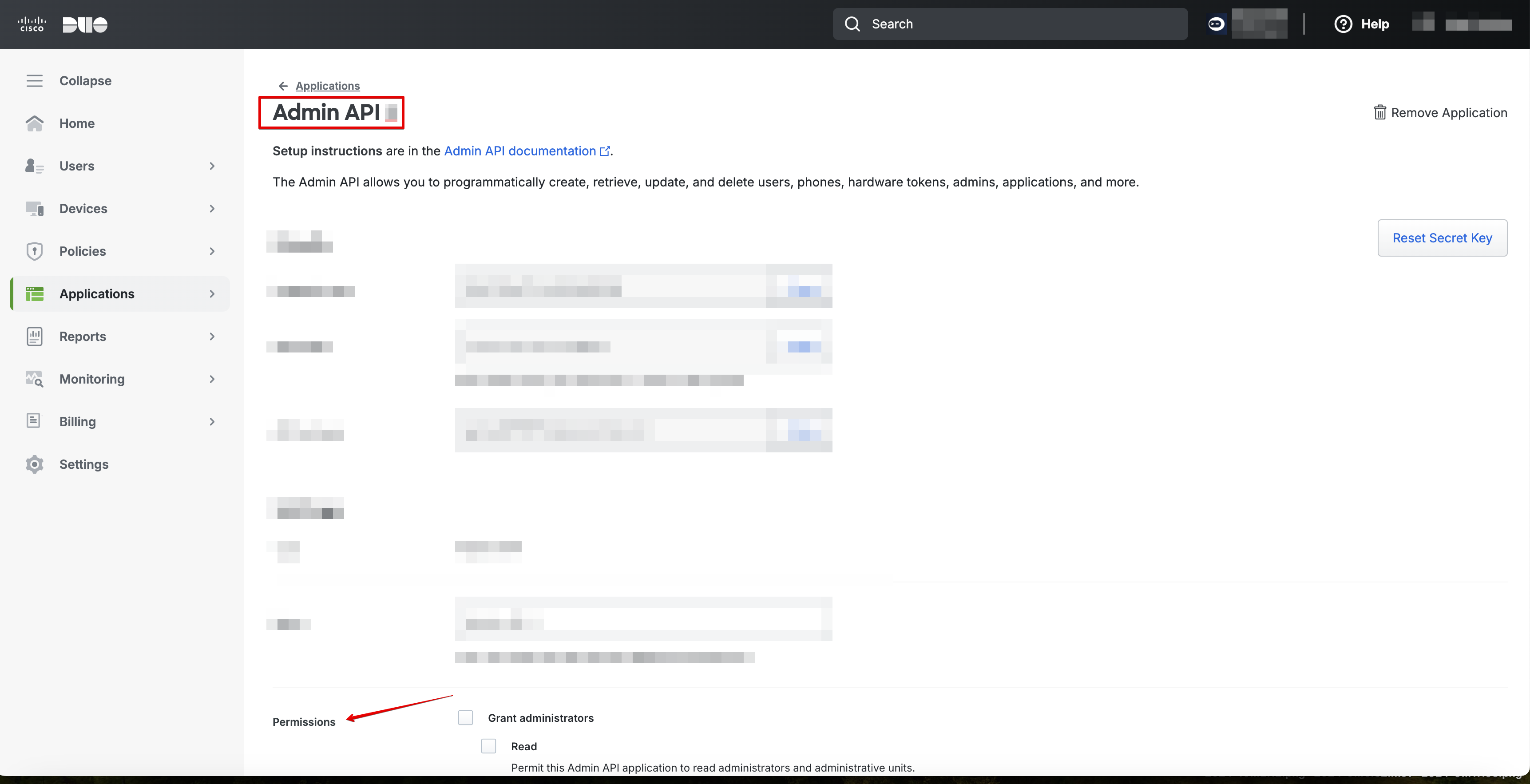
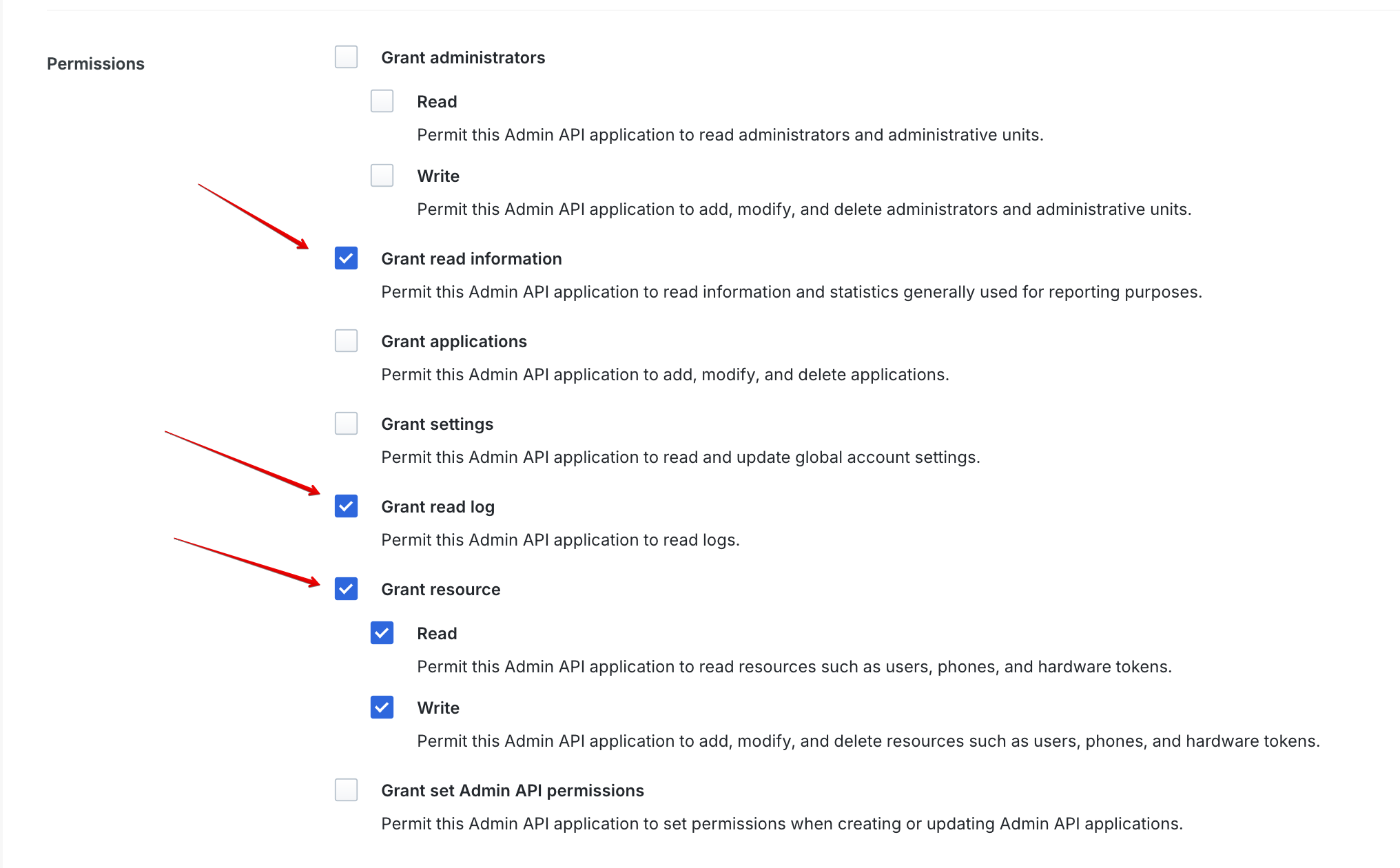
 5. On the application's settings page, navigate to the **Permissions** section by scrolling down. To enable the execution of all Duo actions, ensure the specified permissions are selected:
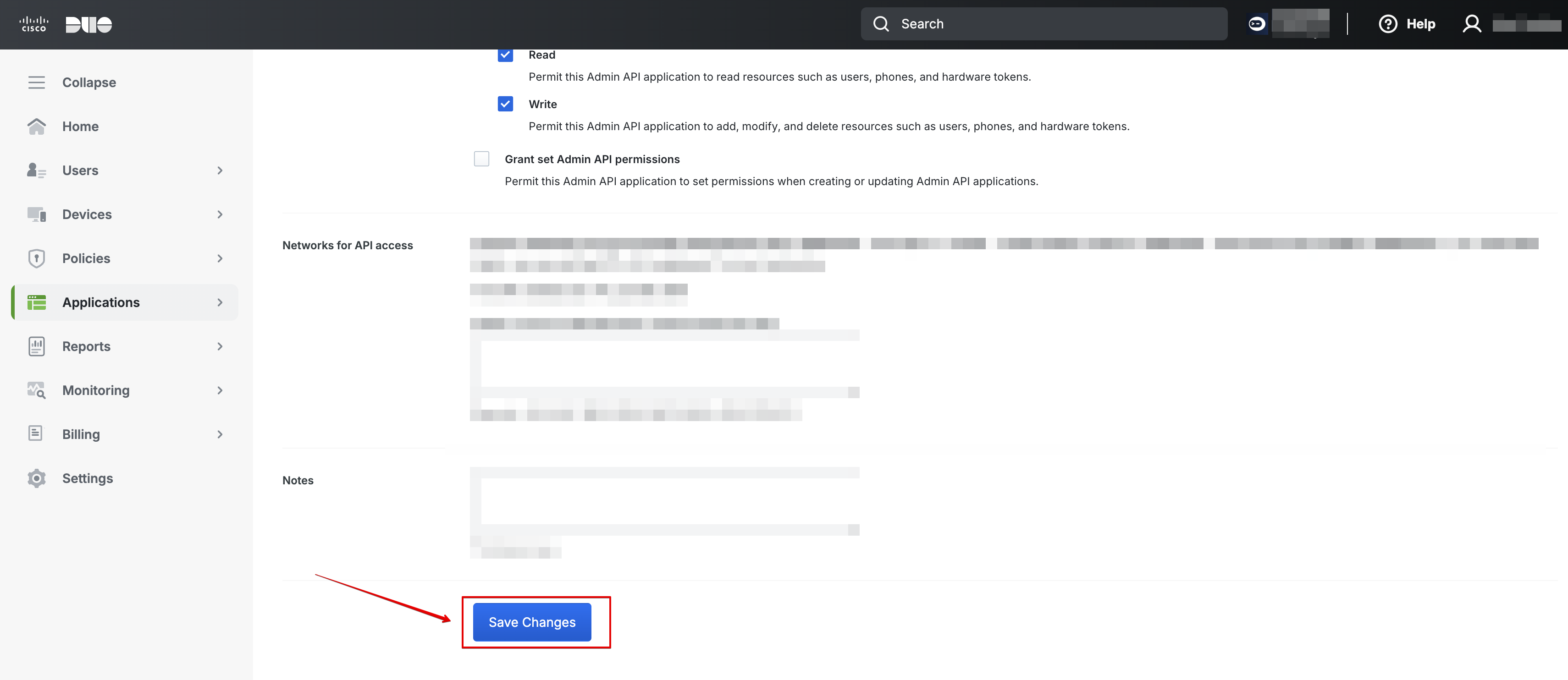
 6. Scroll down and click on **Save Changes**.
 7. Scroll up and copy the connection details.
 ### Creating your connection[](#creating-your-connection "Direct link to Creating your connection")
1. In the Blink platform, navigate to the **Connections** page > **Add connection**. A New Connection dialog box opens displaying icons of external service providers available.
2. Select the **Duo** icon. A dialog box with name of the connection and connection methods appear.
3. (Optional) Edit the name of the connection. At a later stage you cannot edit the name.
4. Select **Secret Key** as the method to make the connection.
5. Fill in the parameters:
* The Admin API hostname of the form `https://api-xxxxxxxxx.duosecurity.com`
* The integration key of the Admin API
* THe secret key of the Admin API
6. (Optional) Click **Test Connection** to test it.
7. Click **Create connection**. The new connection appears on the **Connections** page.
### Creating your connection[](#creating-your-connection "Direct link to Creating your connection")
1. In the Blink platform, navigate to the **Connections** page > **Add connection**. A New Connection dialog box opens displaying icons of external service providers available.
2. Select the **Duo** icon. A dialog box with name of the connection and connection methods appear.
3. (Optional) Edit the name of the connection. At a later stage you cannot edit the name.
4. Select **Secret Key** as the method to make the connection.
5. Fill in the parameters:
* The Admin API hostname of the form `https://api-xxxxxxxxx.duosecurity.com`
* The integration key of the Admin API
* THe secret key of the Admin API
6. (Optional) Click **Test Connection** to test it.
7. Click **Create connection**. The new connection appears on the **Connections** page.