> ## Documentation Index
> Fetch the complete documentation index at: https://docs.blinkops.com/llms.txt
> Use this file to discover all available pages before exploring further.
# DataSet
> DataSet is a SentinelOne solution that takes a security-first perspective to data analytics. DataSet expands beyond cybersecurity use cases delivering a limitless enterprise data platform for live data queries, analytics, insights, and retention.
## Creating a DataSet connection[](#creating-a-dataset-connection "Direct link to Creating a DataSet connection")
To create the connection you need:
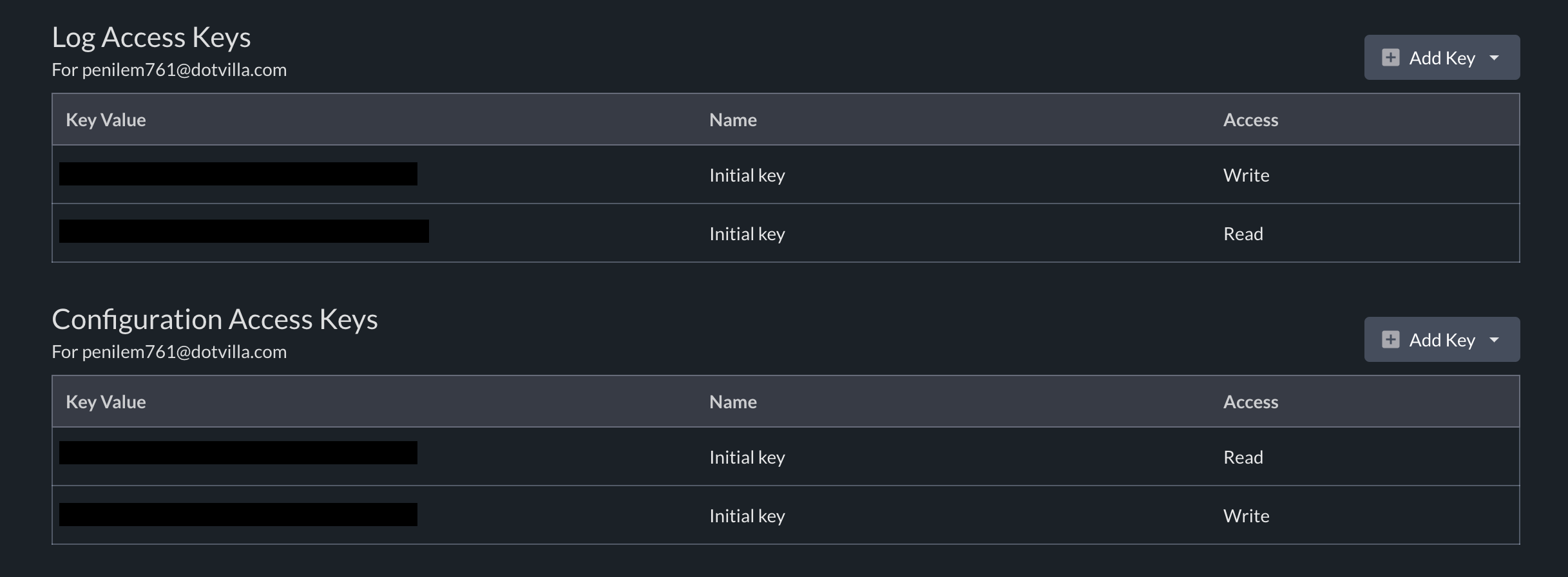
* A Logs Write API Key
* A Logs Read API Key
* A Configuration Read API Key
* A Configuration Write API Key
### Obtaining the credentials[](#obtaining-the-credentials "Direct link to Obtaining the credentials")
1. Navigate to [DataSet platform](https://app.scalyr.com)
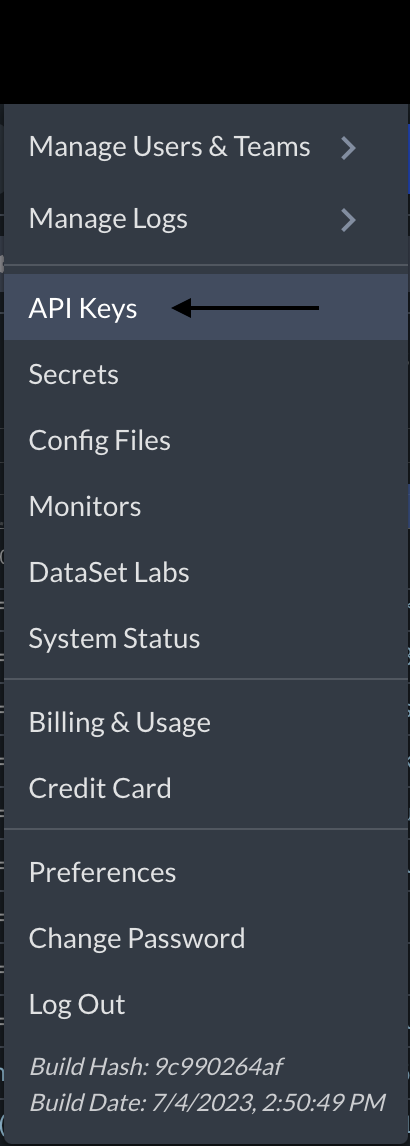
2. On the top right side of the page, click **API Keys**
 3. Copy all the *API Keys*
 Each action requires a specific API key type, as indicated in the action
description. Therefore, it is recommended to add all the API keys to the
connection in order for every action to work seamlessly. Including only a
subset of the API keys may lead to errors when performing certain actions.
### Creating your connection[](#creating-your-connection "Direct link to Creating your connection")
1. In the Blink platform, navigate to the **Connections** page > **Add connection**. A New Connection dialog box opens displaying icons of external service providers available.
2. Select the **DataSet** icon. A dialog box with name of the connection and connection methods appear.
3. (Optional) Edit the name of the connection. At a later stage you cannot edit the name.
4. Select **API Key** as the method to create the connection.
5. Fill in the parameters:
* The Logs Write API Key
* The Logs Read API Key
* The Configuration Read API Key
* The Configuration Write API Key
6. (Optional) Click **Test Connection** to test it.
7. Click **Create connection**. The new connection appears on the **Connections** page.
Each action requires a specific API key type, as indicated in the action
description. Therefore, it is recommended to add all the API keys to the
connection in order for every action to work seamlessly. Including only a
subset of the API keys may lead to errors when performing certain actions.
### Creating your connection[](#creating-your-connection "Direct link to Creating your connection")
1. In the Blink platform, navigate to the **Connections** page > **Add connection**. A New Connection dialog box opens displaying icons of external service providers available.
2. Select the **DataSet** icon. A dialog box with name of the connection and connection methods appear.
3. (Optional) Edit the name of the connection. At a later stage you cannot edit the name.
4. Select **API Key** as the method to create the connection.
5. Fill in the parameters:
* The Logs Write API Key
* The Logs Read API Key
* The Configuration Read API Key
* The Configuration Write API Key
6. (Optional) Click **Test Connection** to test it.
7. Click **Create connection**. The new connection appears on the **Connections** page.