> ## Documentation Index
> Fetch the complete documentation index at: https://docs.blinkops.com/llms.txt
> Use this file to discover all available pages before exploring further.
# Datadog
> Datadog is a monitoring and analytics tool for information technology and DevOps teams that can be used to determine performance metrics as well as event monitoring for infrastructure and cloud services. The software can monitor services such as servers, databases and tools.
## Creating a Datadog connection
Create the connection by using one of the following methods:
* [OAuth](#using-oauth)
* [API Key](#using-api-key)
### Using OAuth
#### Creating your connection
1. In the Blink platform, navigate to the **Connections** page > **Add connection**. A New Connection dialog box opens displaying icons of external service providers available.
2. Select the **Datadog** icon. A dialog box with name of the connection and connection methods appear.
3. (Optional) Edit the name of the connection. At a later stage you cannot edit the name.
4. Click **Datadog** to authenticate using OAuth.
5. Sign in using your credentials.
### Using API Key
To create the connection you need:
* [An API Key](#creating-an-api-key)
* [An Application Key](#creating-an-application-key)
* [A Datadog API Site](#obtaining-a-site)
#### Obtaining the credentials
#### Creating an API Key
1. Log in to [Datadog](https://app.datadoghq.com/organization-settings/api-keys).
2. Click on **+ New Key**. (If you want to use an existing key you can find it in the list, click on it, and copy it from the dialog box.)
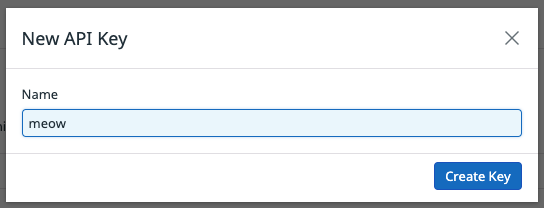
 3. Name your new API key and click on **Create Key**.
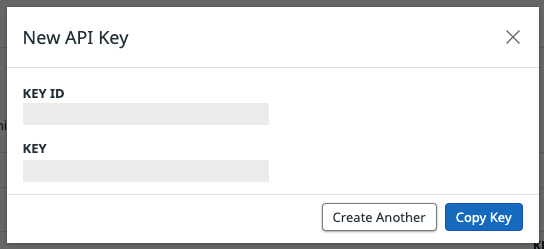
 4. Click on **Copy Key**.
 #### Creating an Application Key
1. Log in to [Datadog](https://app.datadoghq.com/organization-settings/application-keys).
2. Click on **Application Keys**.
3. Click on **+ New Key**. (If you want to use an existing key you can find it in the list, click on it, and copy it from the dialog box.)
#### Creating an Application Key
1. Log in to [Datadog](https://app.datadoghq.com/organization-settings/application-keys).
2. Click on **Application Keys**.
3. Click on **+ New Key**. (If you want to use an existing key you can find it in the list, click on it, and copy it from the dialog box.)
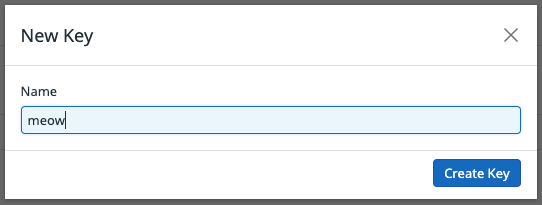
 4. Name your new Application Key and click **Create Key**.
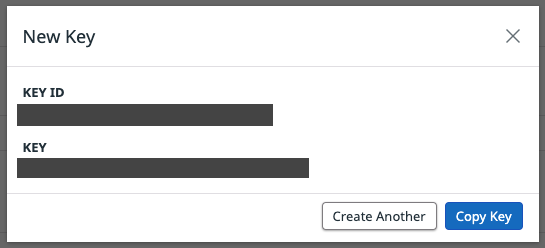
 5. Click **Copy Key**.
 #### Obtaining a Site
You can identify which site you are on by matching your Datadog website URL to the site URL in the table below.
| Site | Site URL | Location |
| ------- | --------------------------- | --------- |
| US1 | `https://app.datadoghq.com` | US |
| US3 | `https://us3.datadoghq.com` | US |
| US5 | `https://us5.datadoghq.com` | US |
| EU1 | `https://app.datadoghq.eu` | EU |
| US1-FED | `https://app.ddog-gov.com` | US |
| AP1 | `https://ap1.datadoghq.com` | Japan |
| AP2 | `https://ap2.datadoghq.com` | Australia |
For more information on finding your Site, view the [Datadog documentation](https://docs.datadoghq.com/getting_started/site/#access-the-datadog-site).
#### Creating the connection
1. In the Blink platform, navigate to the **Connections** page > **Add connection**. A New Connection dialog box opens displaying icons of external service providers available.
2. Select the **Datadog** icon. A dialog box with name of the connection and connection methods appear.
3. (Optional) Edit the name of the connection. At a later stage you cannot edit the name.
4. Select **API Key** as the method to create the connection.
5. Fill in the parameters:
* The API key
* The Application key
* The Datadog API site
6. (Optional) Click **Test Connection** to test it.
7. Click **Create connection**. The new connection appears on the **Connections** page.
### Interactive Tutorial Guides
You can also refer to the following tutorial guides for a more in-depth understanding of how to create Datadog connection.
[Creating a Datadog Connection](https://demo.arcade.software/XmCKgVbgG6vxAjF6qBQx?embed)
[Creating a Datadog Connection in Blink Ops](https://demo.arcade.software/5cRuSQDNWWzQq6zPbCaO?embed)
#### Obtaining a Site
You can identify which site you are on by matching your Datadog website URL to the site URL in the table below.
| Site | Site URL | Location |
| ------- | --------------------------- | --------- |
| US1 | `https://app.datadoghq.com` | US |
| US3 | `https://us3.datadoghq.com` | US |
| US5 | `https://us5.datadoghq.com` | US |
| EU1 | `https://app.datadoghq.eu` | EU |
| US1-FED | `https://app.ddog-gov.com` | US |
| AP1 | `https://ap1.datadoghq.com` | Japan |
| AP2 | `https://ap2.datadoghq.com` | Australia |
For more information on finding your Site, view the [Datadog documentation](https://docs.datadoghq.com/getting_started/site/#access-the-datadog-site).
#### Creating the connection
1. In the Blink platform, navigate to the **Connections** page > **Add connection**. A New Connection dialog box opens displaying icons of external service providers available.
2. Select the **Datadog** icon. A dialog box with name of the connection and connection methods appear.
3. (Optional) Edit the name of the connection. At a later stage you cannot edit the name.
4. Select **API Key** as the method to create the connection.
5. Fill in the parameters:
* The API key
* The Application key
* The Datadog API site
6. (Optional) Click **Test Connection** to test it.
7. Click **Create connection**. The new connection appears on the **Connections** page.
### Interactive Tutorial Guides
You can also refer to the following tutorial guides for a more in-depth understanding of how to create Datadog connection.
[Creating a Datadog Connection](https://demo.arcade.software/XmCKgVbgG6vxAjF6qBQx?embed)
[Creating a Datadog Connection in Blink Ops](https://demo.arcade.software/5cRuSQDNWWzQq6zPbCaO?embed)