> ## Documentation Index
> Fetch the complete documentation index at: https://docs.blinkops.com/llms.txt
> Use this file to discover all available pages before exploring further.
# Cymulate
> Cymulate is a leading on-prem and cloud-based Security Validation and Exposure Management Platform.
## Creating a Cymulate connection
### Using API Token
To create the connection you need:
* An API Token
#### Obtaining the credentials[](#obtaining-the-credentials "Direct link to Obtaining the credentials")
1. In the Cymulate platform, click the user icon and select **Settings**.
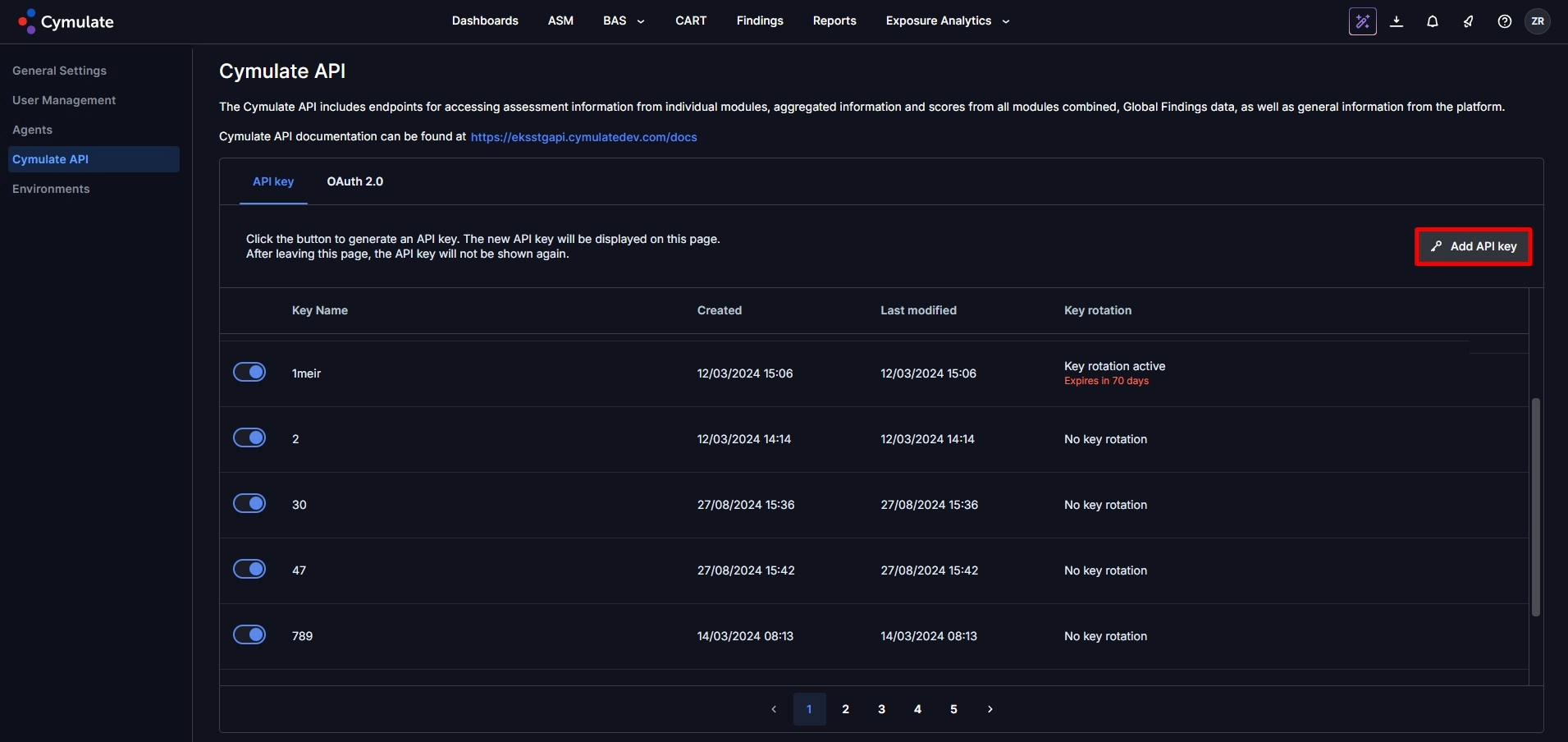
2. Click **Cymulate API**.
3. Under the API Key tab, click **Add API key**.
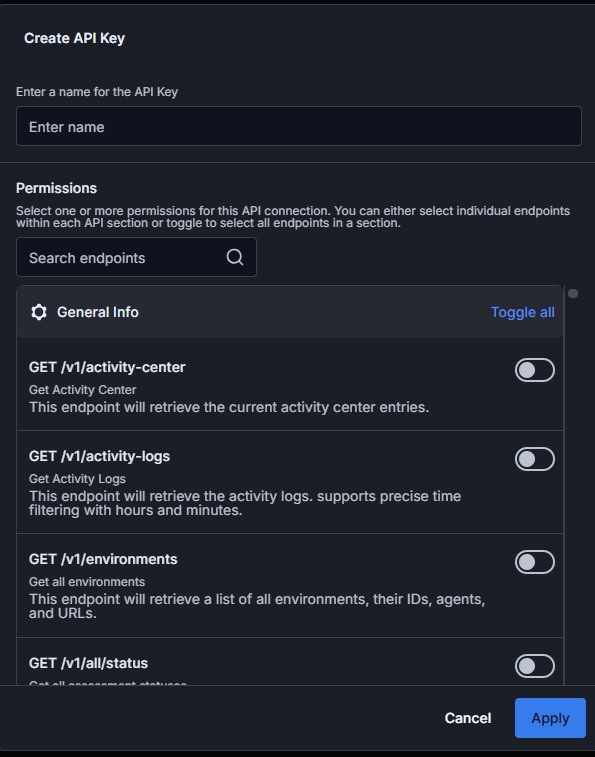
 4. Enter a name for the API key.
5. Select the permissions to apply for this API key. You can toggle all to select all endpoints within an API section, or select specific endpoints.
4. Enter a name for the API key.
5. Select the permissions to apply for this API key. You can toggle all to select all endpoints within an API section, or select specific endpoints.
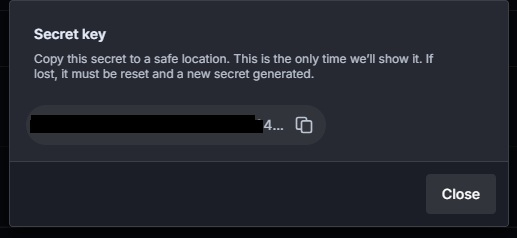
 6. Click **Apply**. Copy the secret key displayed in the popup window and keep it in a secure location. After closing the window, the key will not appear again.
 #### Creating your connection
1. In the Blink platform, navigate to the **Connections** page > **Add connection**. A New Connection dialog box opens displaying icons of external service providers available.
2. Select the **Cymulate** icon. A dialog box with name of the connection and connection methods appear.
3. (Optional) Edit the name of the connection. At a later stage you cannot edit the name.
4. Select **API Token** as the method to create the connection.
5. Fill in the parameters:
* The API Token
6. (Optional) Click **Test Connection** to test it.
7. Click **Create connection**. The new connection appears on the **Connections** page.
#### Creating your connection
1. In the Blink platform, navigate to the **Connections** page > **Add connection**. A New Connection dialog box opens displaying icons of external service providers available.
2. Select the **Cymulate** icon. A dialog box with name of the connection and connection methods appear.
3. (Optional) Edit the name of the connection. At a later stage you cannot edit the name.
4. Select **API Token** as the method to create the connection.
5. Fill in the parameters:
* The API Token
6. (Optional) Click **Test Connection** to test it.
7. Click **Create connection**. The new connection appears on the **Connections** page.