> ## Documentation Index
> Fetch the complete documentation index at: https://docs.blinkops.com/llms.txt
> Use this file to discover all available pages before exploring further.
# Bitwarden
> Bitwarden is a free/freemium open-source password management service that stores sensitive information such as website credentials in an encrypted vault.
## Creating a Bitwarden connection[](#creating-a-bitwarden-connection "Direct link to Creating a Bitwarden connection")
To create the connection you need:
* A Client ID and Client Secret from personal API Key
* A master password
### Obtaining the credentials[](#obtaining-the-credentials "Direct link to Obtaining the credentials")
Complete the following steps to get your Personal API Key:
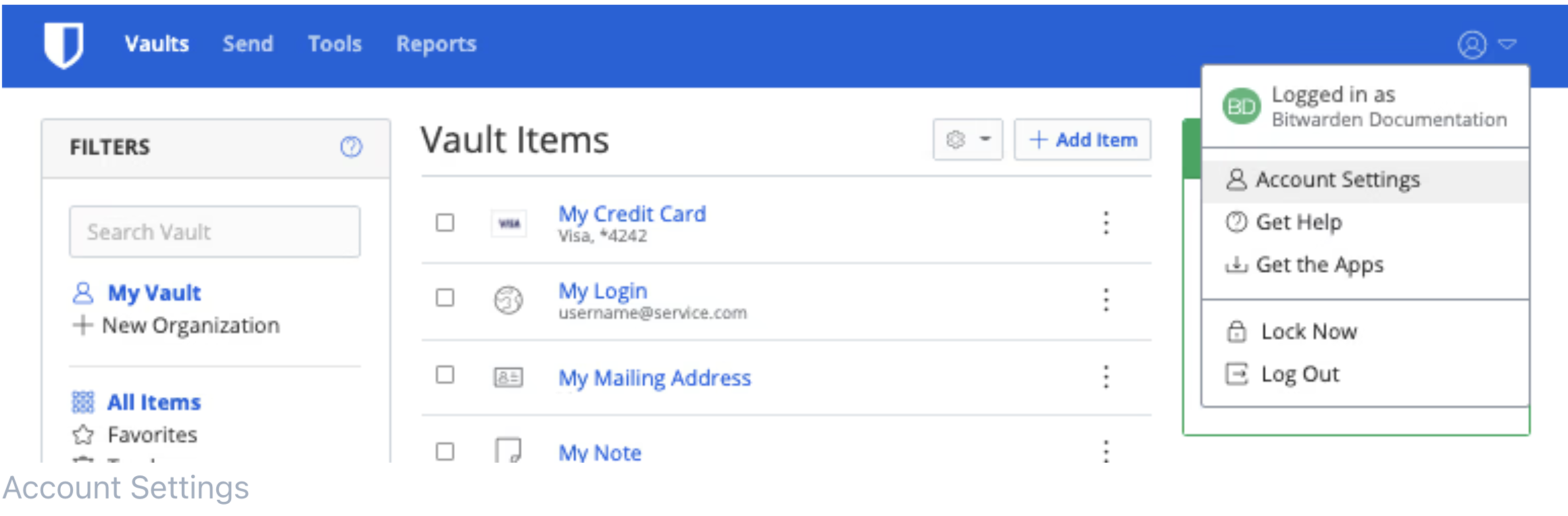
1. In the [Web Vault](https://bitwarden.com/help/getting-started-webvault/), select the profile icon > **Account Settings** from the dropdown menu.
 2. From the Account Setting menu, select the **Security** page > **Keys** tab.
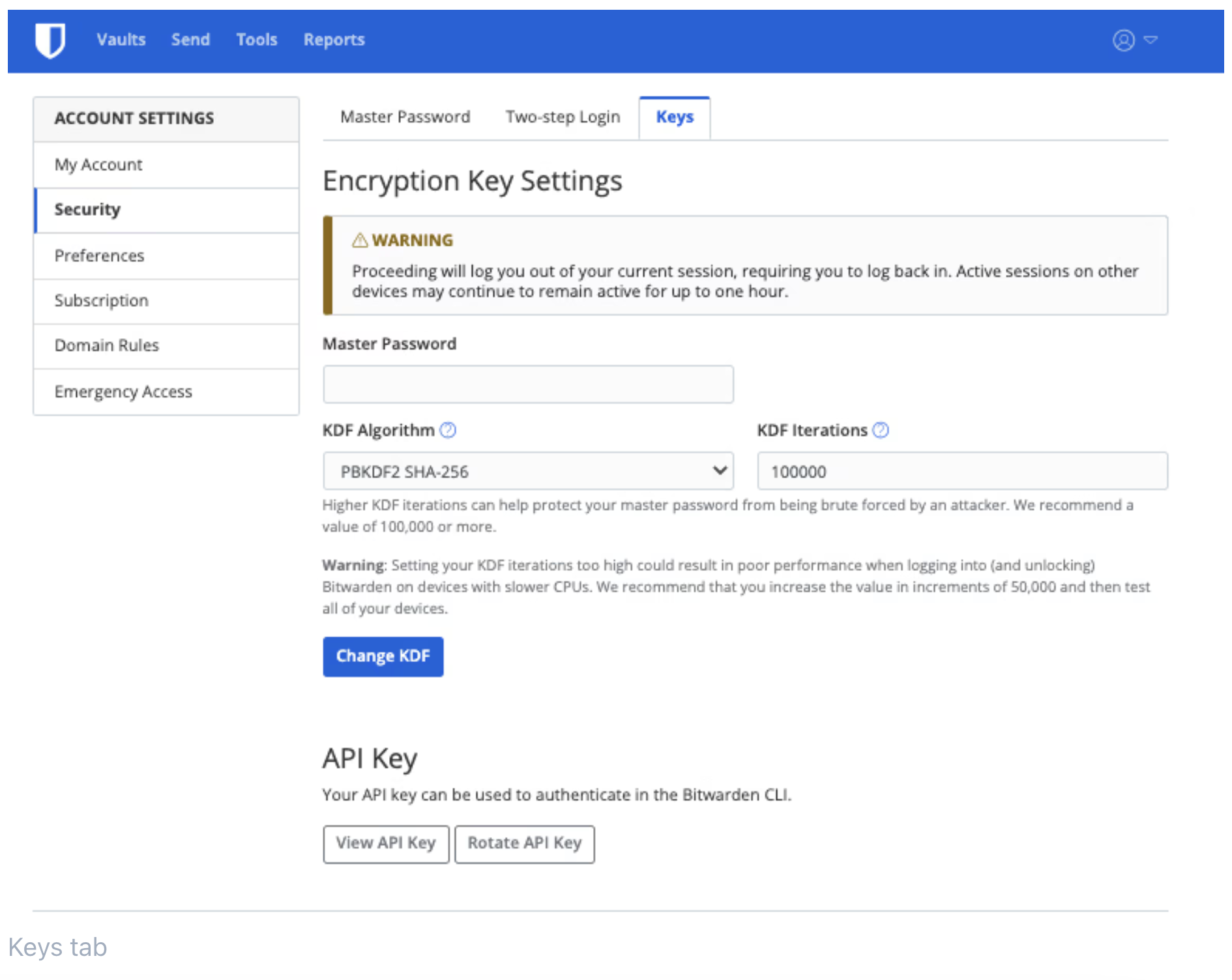 3. Select **View API Key** and enter your Master Password. Once correctly entered, you will be provided the following:
* `client_id: "user.clientId"` (This value is unique to your account and does not change.)
* `client_secret: "clientSecret"` (This value is unique and can be rotated.)
* `scope: "api"` (This value will always be "api".)
* `grant_type: "client_credentials"` (This value will always be "client\_credentials".)
Copy and save your `client_id` and `client_secret`.
### Creating your connection[](#creating-your-connection "Direct link to Creating your connection")
1. In the Blink platform, navigate to the **Connections** page > **Add connection**. A New Connection dialog box opens displaying icons of external service providers available.
2. Select the **Bitwarden** icon. A dialog box with name of the connection and connection methods appear.
3. (Optional) Edit the name of the connection. At a later stage you cannot edit the name.
4. Select **API Key** as the method to create the connection.
5. Fill in the parameters:
* The **Client ID** obtained from the API Key
* The **Client Secret** obtained from the API Key
* The **Master Password**
6. (Optional) Click **Test Connection** to test it.
7. Click **Create connection**. The new connection appears on the **Connections** page.
3. Select **View API Key** and enter your Master Password. Once correctly entered, you will be provided the following:
* `client_id: "user.clientId"` (This value is unique to your account and does not change.)
* `client_secret: "clientSecret"` (This value is unique and can be rotated.)
* `scope: "api"` (This value will always be "api".)
* `grant_type: "client_credentials"` (This value will always be "client\_credentials".)
Copy and save your `client_id` and `client_secret`.
### Creating your connection[](#creating-your-connection "Direct link to Creating your connection")
1. In the Blink platform, navigate to the **Connections** page > **Add connection**. A New Connection dialog box opens displaying icons of external service providers available.
2. Select the **Bitwarden** icon. A dialog box with name of the connection and connection methods appear.
3. (Optional) Edit the name of the connection. At a later stage you cannot edit the name.
4. Select **API Key** as the method to create the connection.
5. Fill in the parameters:
* The **Client ID** obtained from the API Key
* The **Client Secret** obtained from the API Key
* The **Master Password**
6. (Optional) Click **Test Connection** to test it.
7. Click **Create connection**. The new connection appears on the **Connections** page.