> ## Documentation Index
> Fetch the complete documentation index at: https://docs.blinkops.com/llms.txt
> Use this file to discover all available pages before exploring further.
# Bitdefender
> Bitdefender's software acts as a digital shield for devices, guarding against malicious programs like viruses, ransomware, and spyware. It scans files, blocks suspicious websites, and monitors online activity to help keep your data and your identity safe.
## Creating a Bitdefender connection[](#creating-a-bitdefender-connection "Direct link to Creating a Bitdefender connection")
## Using API Key[](#using-api-key "Direct link to Using API Key")
To create the connection you need:
* An API Address
* An API Key
### Obtaining the credentials[](#obtaining-the-credentials "Direct link to Obtaining the credentials")
#### Obtaining the API Address[](#obtaining-the-api-address "Direct link to Obtaining the API Address")
1. Click on your username in the upper right side of the console and select **My Account**.
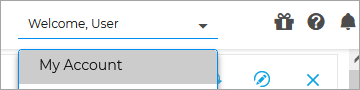 2. Click on **Control Center API** > copy the shown **URL**.
 #### Obtaining the API Key[](#obtaining-the-api-key "Direct link to Obtaining the API Key")
1. Click on your username in the upper right side of the console and select **My Account**.
2. Click on **API keys** > **Add**.
#### Obtaining the API Key[](#obtaining-the-api-key "Direct link to Obtaining the API Key")
1. Click on your username in the upper right side of the console and select **My Account**.
2. Click on **API keys** > **Add**.
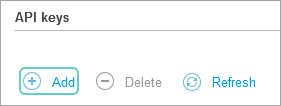 3. Enter the required permissions and click Generate. We recommend assigning the scopes which will suffice for all of the out-of-the-box Blink actions:
* `Quarantine`
* `Incidents`
* `Network`
4. Copy the generated API key.
### Creating your connection[](#creating-your-connection "Direct link to Creating your connection")
1. In the Blink platform, navigate to the **Connections** page > **Add connection**. A New Connection dialog box opens displaying icons of external service providers available.
2. Select the **Bitdefender** icon. A dialog box with name of the connection and connection methods appear.
3. (Optional) Edit the name of the connection. At a later stage you cannot edit the name.
4. Select **API Key** as the method to create the connection.
5. Fill in the parameters:
* The API Address
* The API Key
6. (Optional) Click **Test Connection** to test it.
7. Click **Create connection**. The new connection appears on the **Connections** page.
3. Enter the required permissions and click Generate. We recommend assigning the scopes which will suffice for all of the out-of-the-box Blink actions:
* `Quarantine`
* `Incidents`
* `Network`
4. Copy the generated API key.
### Creating your connection[](#creating-your-connection "Direct link to Creating your connection")
1. In the Blink platform, navigate to the **Connections** page > **Add connection**. A New Connection dialog box opens displaying icons of external service providers available.
2. Select the **Bitdefender** icon. A dialog box with name of the connection and connection methods appear.
3. (Optional) Edit the name of the connection. At a later stage you cannot edit the name.
4. Select **API Key** as the method to create the connection.
5. Fill in the parameters:
* The API Address
* The API Key
6. (Optional) Click **Test Connection** to test it.
7. Click **Create connection**. The new connection appears on the **Connections** page.