> ## Documentation Index
> Fetch the complete documentation index at: https://docs.blinkops.com/llms.txt
> Use this file to discover all available pages before exploring further.
# BigPanda
> BigPanda is a software platform that helps IT operations teams to detect, investigate, and resolve IT incidents faster. It does this by aggregating and correlating data from various monitoring and management tools, such as Nagios, Zabbix, New Relic, and Splunk, and turning that data into actionable insights.
## Creating a BigPanda connection[](#creating-a-bigpanda-connection "Direct link to Creating a BigPanda connection")
## Using Access Token[](#using-access-token "Direct link to Using Access Token")
To create the connection you need:
* An Access Token
### Obtaining the credentials[](#obtaining-the-credentials "Direct link to Obtaining the credentials")
1. [Login](https://a.bigpanda.io/login) to your BigPanda account
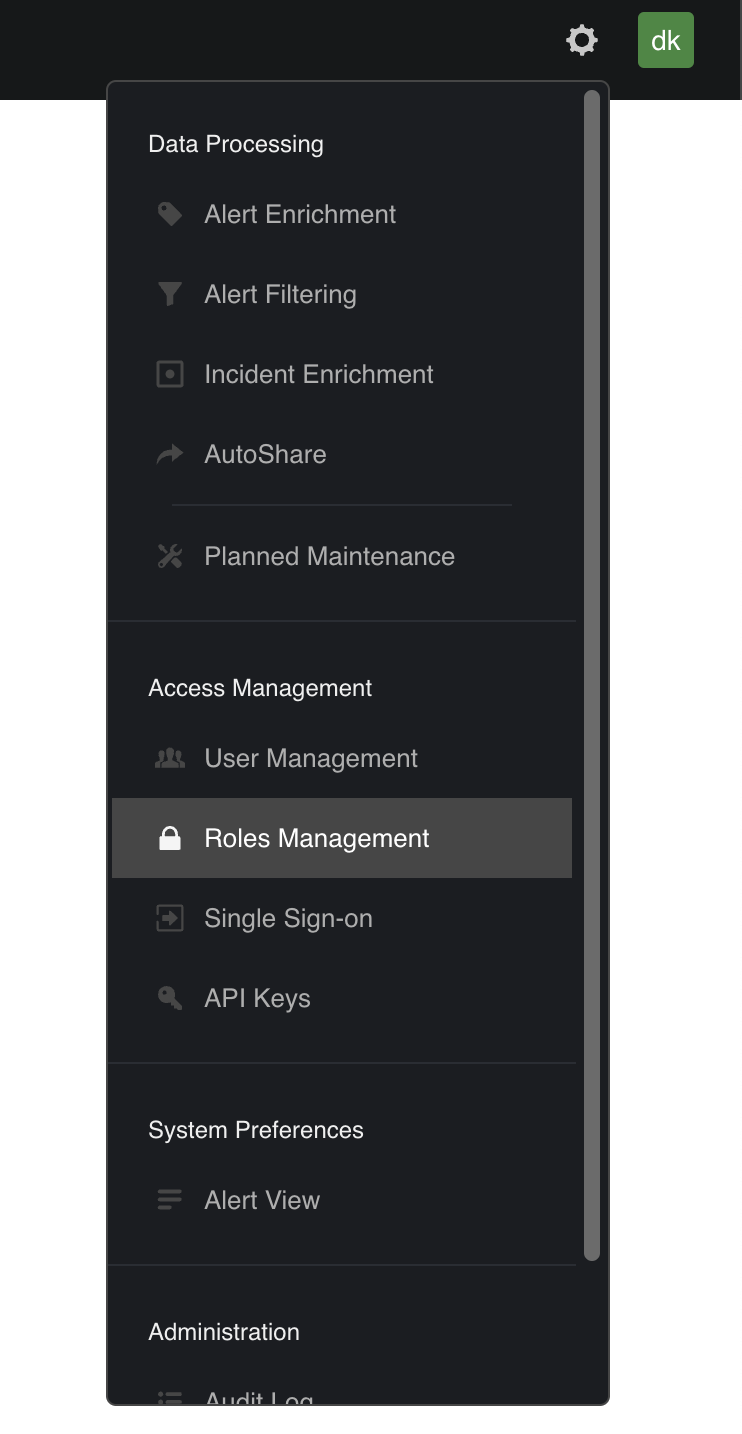
2. On the right side of your screen, click **Roles Management**
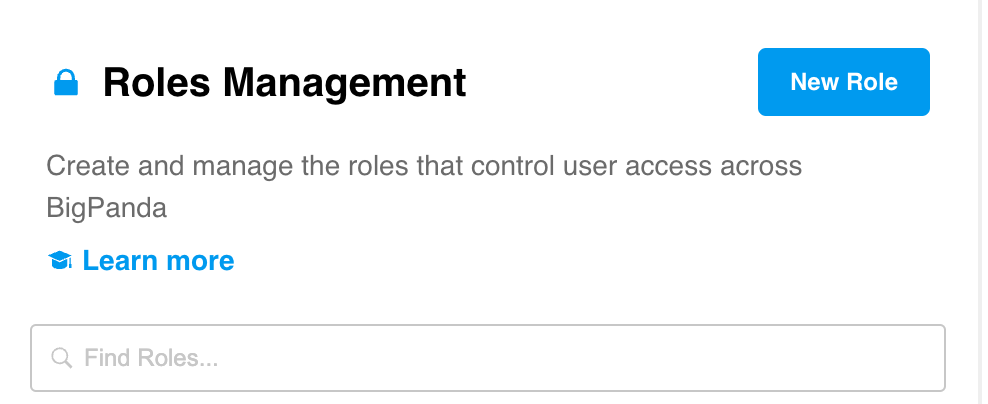
 3. Click **New Role**
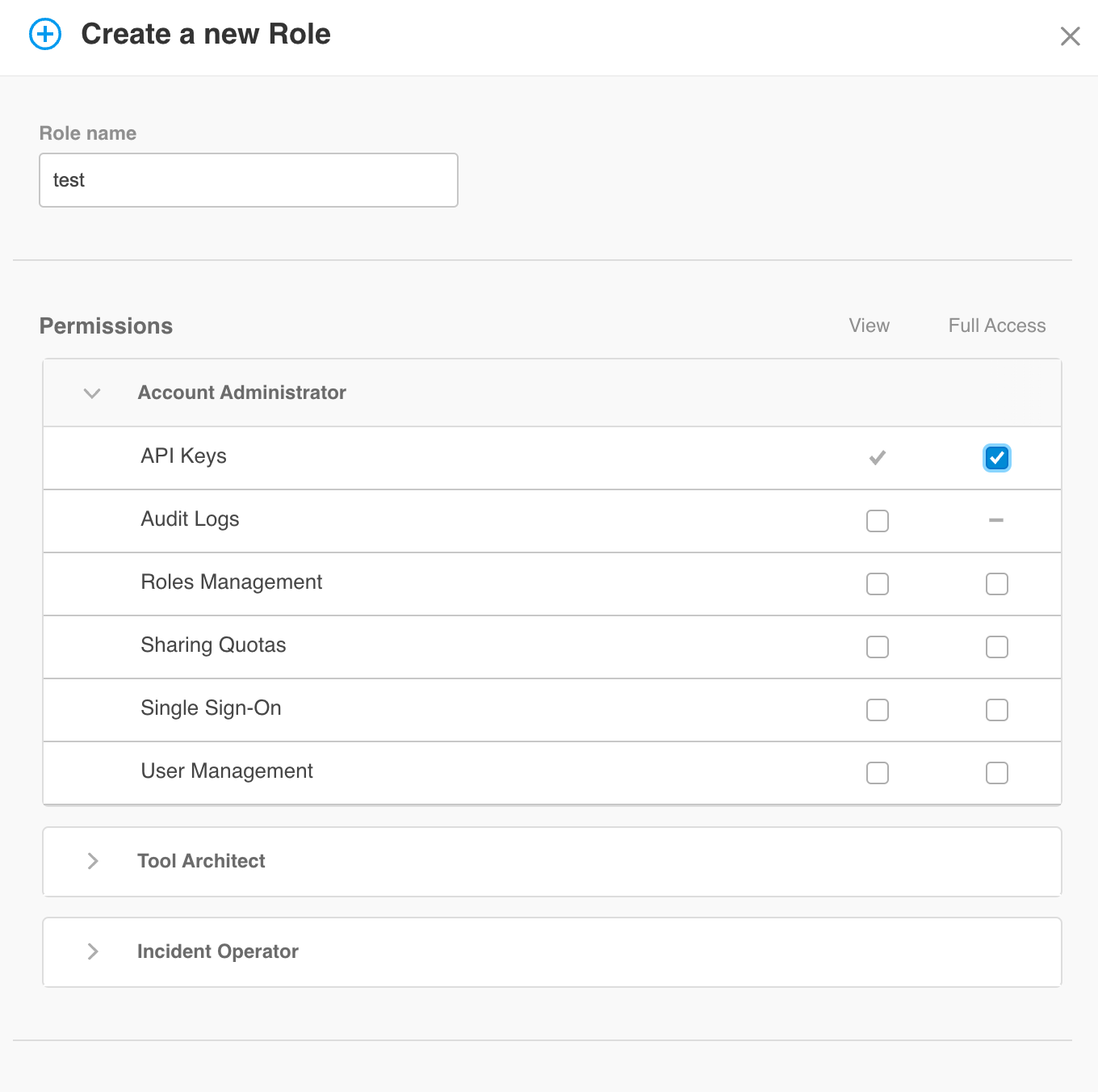
 4. *Name* your new role and add *permissions*
Select the next permissions with the *full access* option:
* API Keys
* User Management
* Manage Environments
* Dashboards
* Unified Search
* Alert View Customization
* Alert Filtering & Planned Maintenance
* Alert Enrichment
4. *Name* your new role and add *permissions*
Select the next permissions with the *full access* option:
* API Keys
* User Management
* Manage Environments
* Dashboards
* Unified Search
* Alert View Customization
* Alert Filtering & Planned Maintenance
* Alert Enrichment
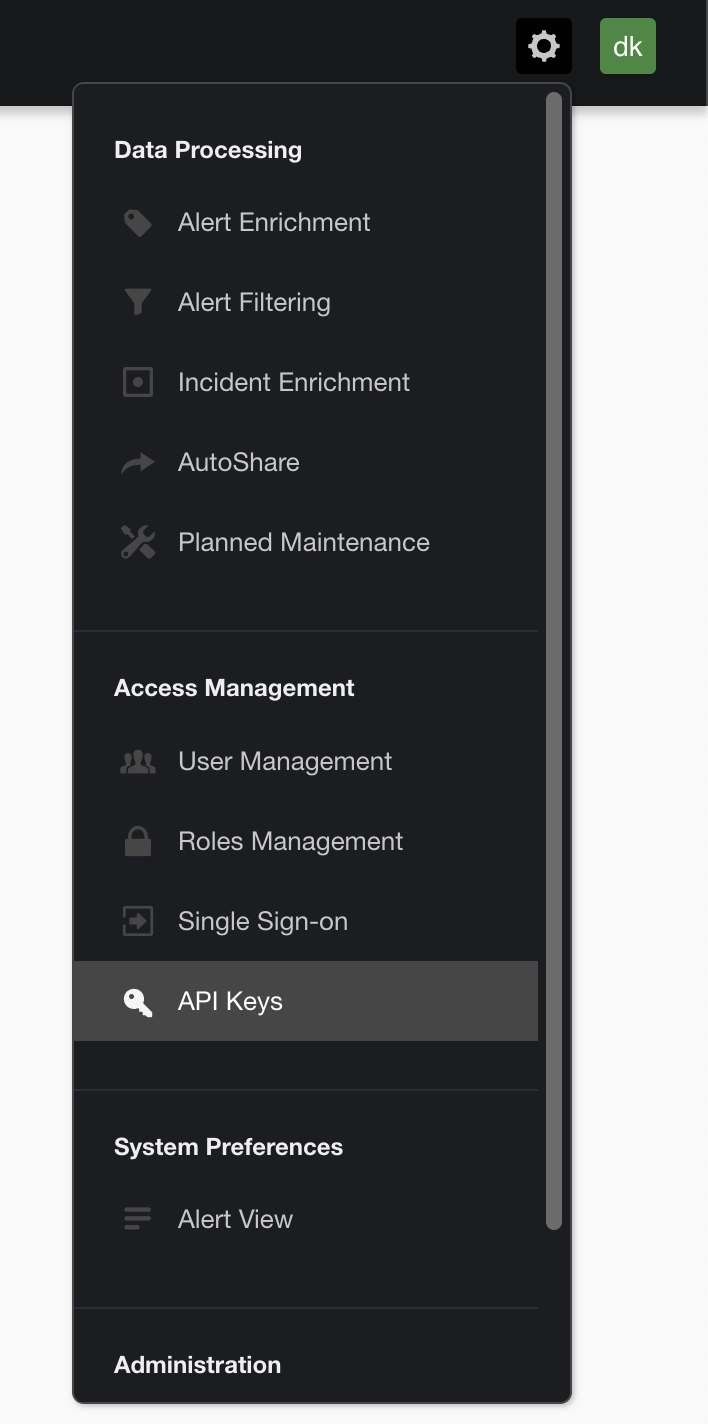
 5. On the right side of your screen, click **API Keys**
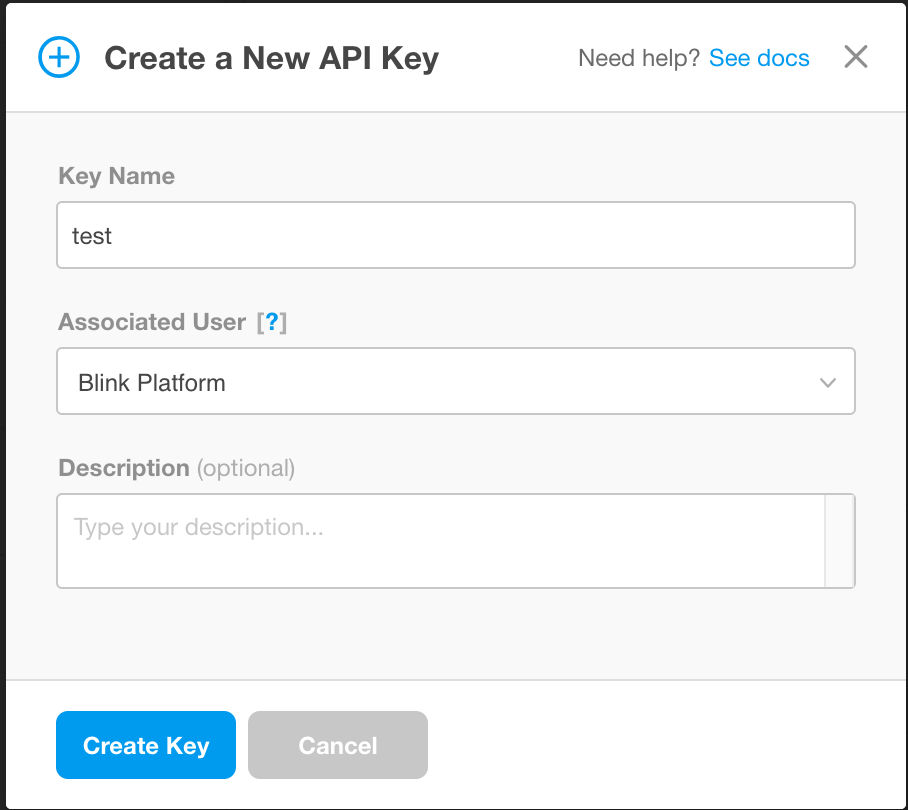
 6. Click **New Key**
 7. Add a name to your new key and select an associated user
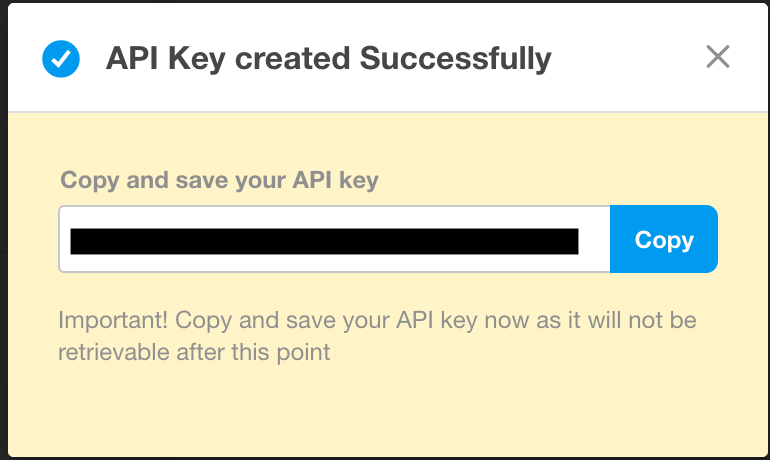
 8. **Copy** your newly generated API key
 ### Creating your connection[](#creating-your-connection "Direct link to Creating your connection")
1. In the Blink platform, navigate to the **Connections** page > **Add connection**. A New Connection dialog box opens displaying icons of external service providers available.
2. Select the **BigPanda** icon. A dialog box with name of the connection and connection methods appear.
3. (Optional) Edit the name of the connection. At a later stage you cannot edit the name.
4. Select **Access Token** as the method to create the connection.
5. Fill in the parameters:
* The Access Token
6. (Optional) Click **Test Connection** to test it.
7. Click **Create connection**. The new connection appears on the **Connections** page.
### Creating your connection[](#creating-your-connection "Direct link to Creating your connection")
1. In the Blink platform, navigate to the **Connections** page > **Add connection**. A New Connection dialog box opens displaying icons of external service providers available.
2. Select the **BigPanda** icon. A dialog box with name of the connection and connection methods appear.
3. (Optional) Edit the name of the connection. At a later stage you cannot edit the name.
4. Select **Access Token** as the method to create the connection.
5. Fill in the parameters:
* The Access Token
6. (Optional) Click **Test Connection** to test it.
7. Click **Create connection**. The new connection appears on the **Connections** page.