> ## Documentation Index
> Fetch the complete documentation index at: https://docs.blinkops.com/llms.txt
> Use this file to discover all available pages before exploring further.
# Need Admin Approval
## How an Admin can give permissions
### Option 1: Allow users to give their consent
1. Go to the Microsoft [Entra admin center](https://entra.microsoft.com).
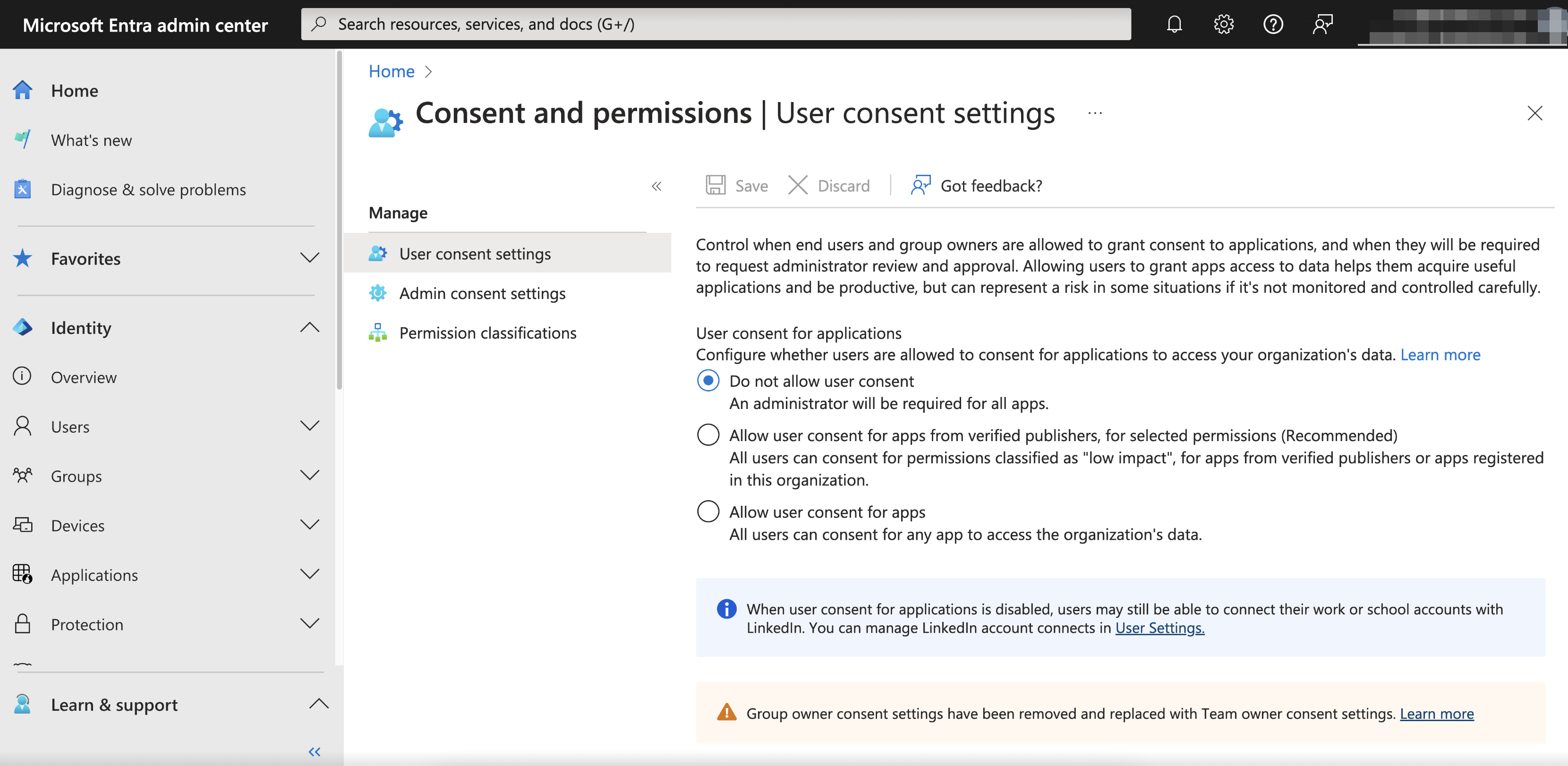
2. On the left hand menu, choose **Applications** > **Enterprise applications** > **Consent and Permissions** > **User consent settings**.
3. There are three settings that control the authentication for the user:
a. Do not allow user consent
b. Allow user consent for apps from verified publishers, for selected permissions (Recommended)
c. Allow user consent for apps
 ### Option 2: Allow Users to Request Admin Consent
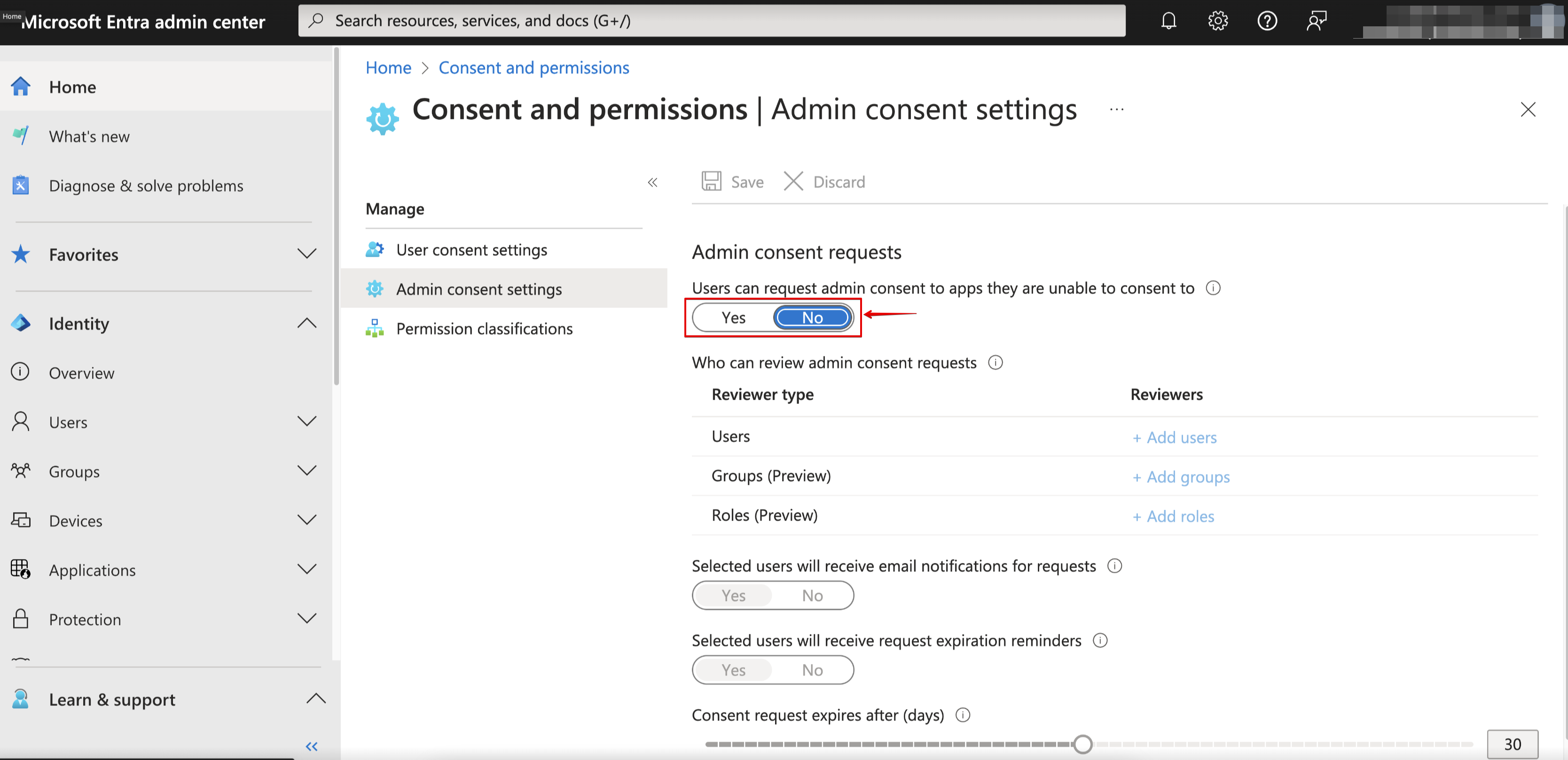
1. Navigate to the **Admin consent settings**.
2. Toggle the button to “yes” to enable "Users can request Admin consent to apps they are unable to consent to".
### Option 2: Allow Users to Request Admin Consent
1. Navigate to the **Admin consent settings**.
2. Toggle the button to “yes” to enable "Users can request Admin consent to apps they are unable to consent to".
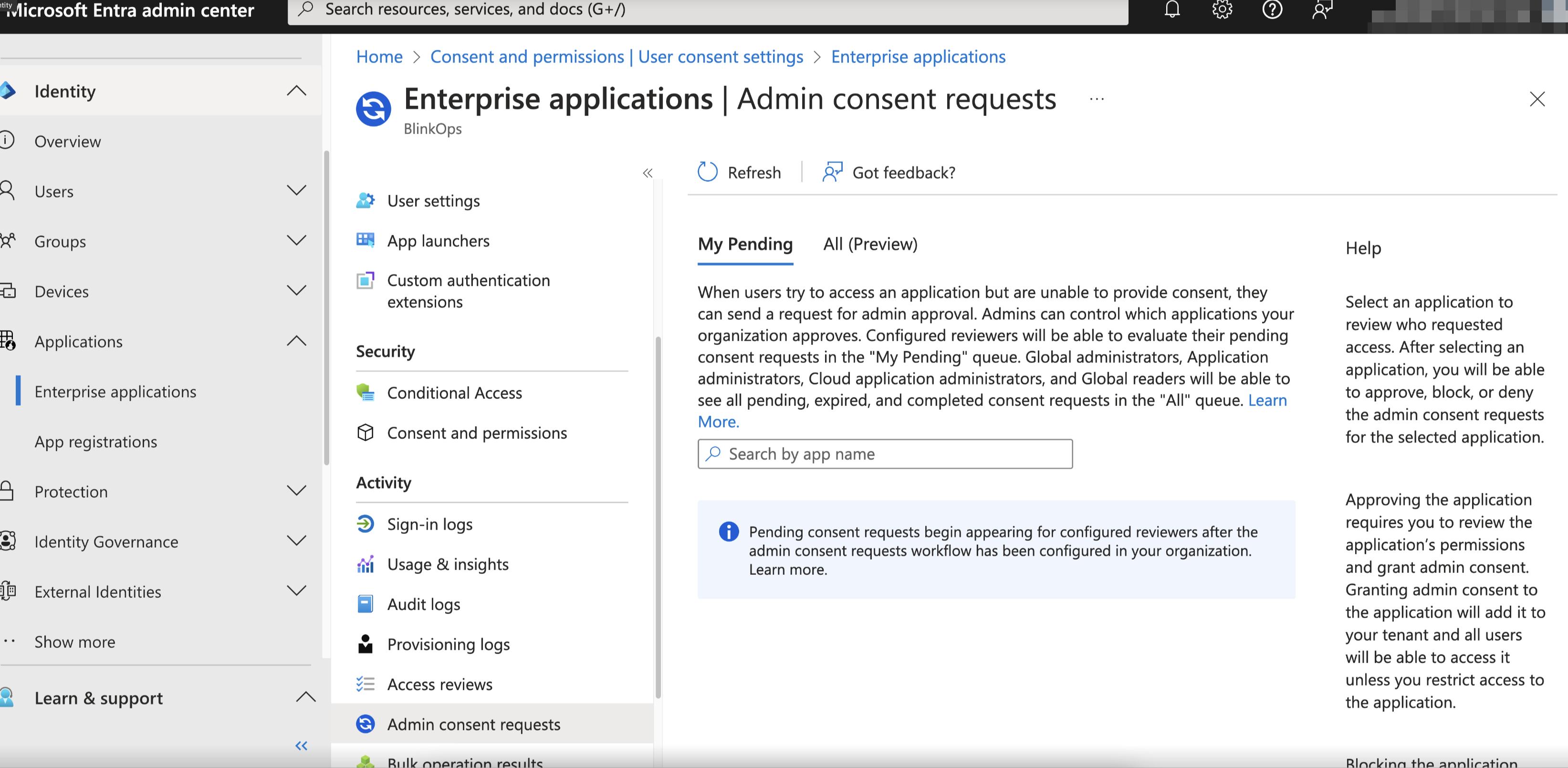
 3. Next, go to the **Admin Consent Requests** section. All your requests will be listed on the pending page, where you can manage them.
 4. **Optional** - Add more users who can review admin consent request.
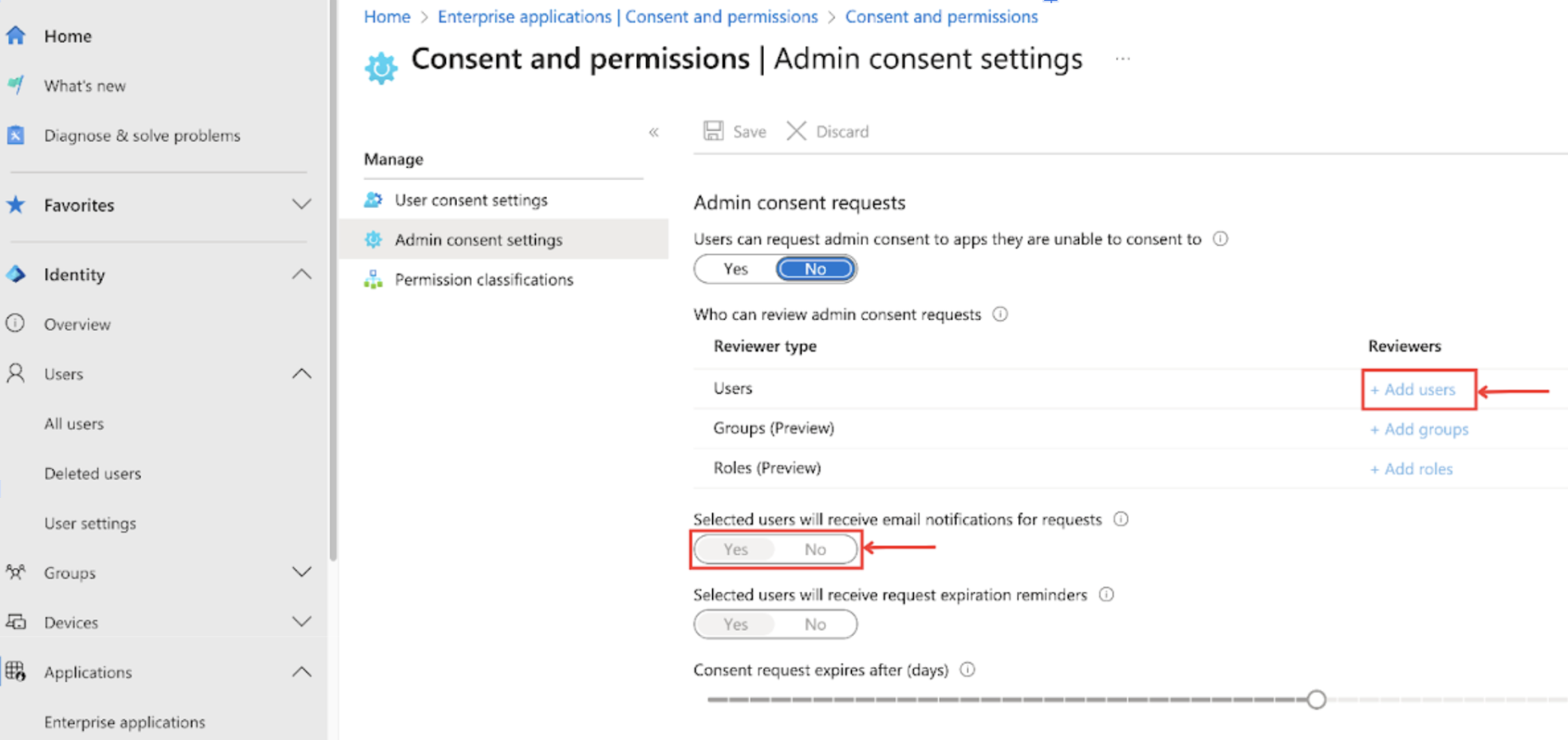 a. Register user(s) who has an email inbox as a reviewer by pressing the **+ Add users** button.
b. This step is **optional** - Toggle the button to “Yes” to enable the following setting: “Selected users will receive email notifications for request”.
c. This step is **optional** - Toggle the button to “Yes” to enable the following setting: “Selected users will receive request expiration reminders”.
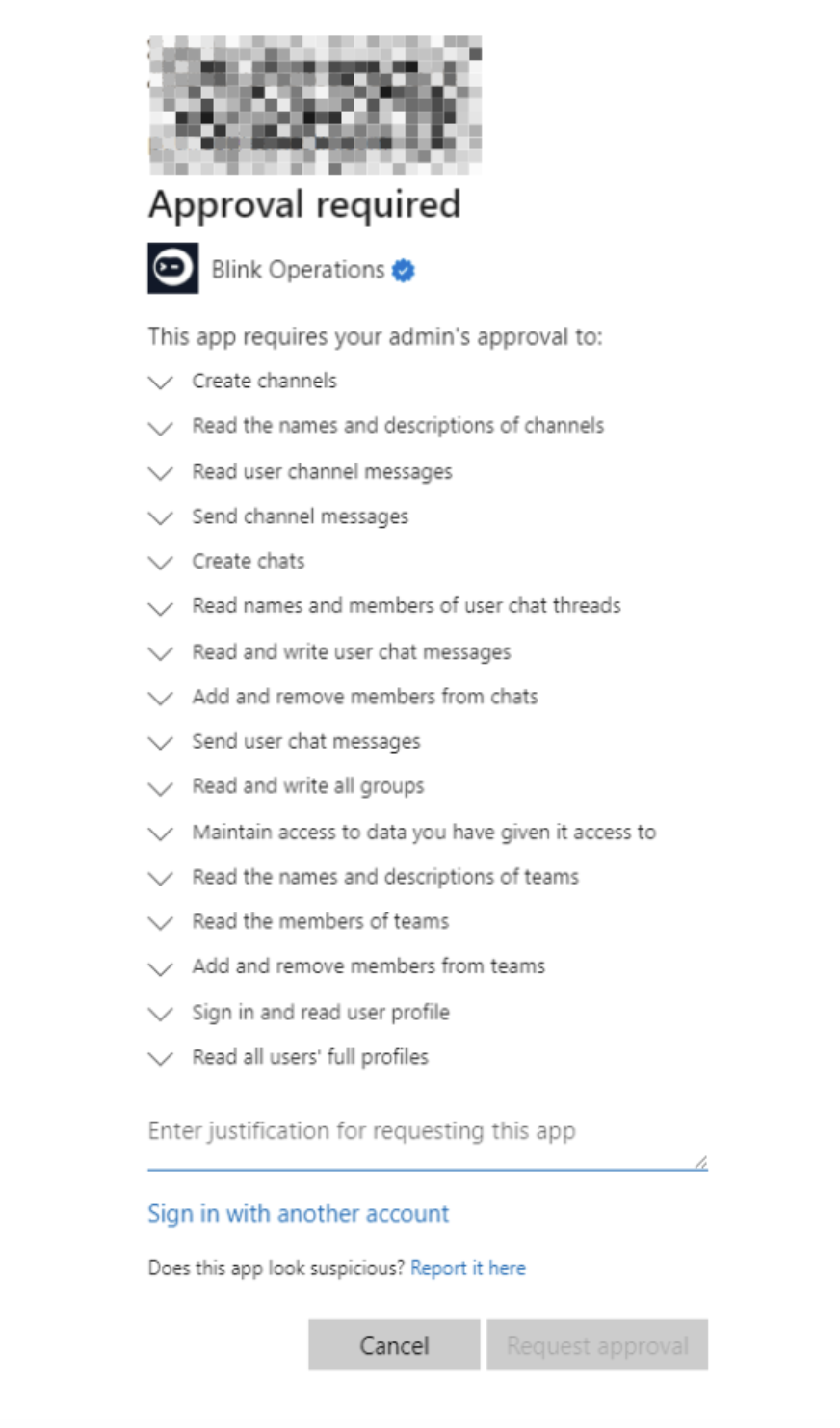
5. After completing the above steps, the below notification will appear for users who cannot give admin consent themselves.
a. Register user(s) who has an email inbox as a reviewer by pressing the **+ Add users** button.
b. This step is **optional** - Toggle the button to “Yes” to enable the following setting: “Selected users will receive email notifications for request”.
c. This step is **optional** - Toggle the button to “Yes” to enable the following setting: “Selected users will receive request expiration reminders”.
5. After completing the above steps, the below notification will appear for users who cannot give admin consent themselves.