> ## Documentation Index
> Fetch the complete documentation index at: https://docs.blinkops.com/llms.txt
> Use this file to discover all available pages before exploring further.
# Axonius
> Axonius is a cybersecurity asset management platform that acts as a single source of truth for all digital infrastructure.
## Creating an Axonius connection[](#creating-an-axonius-connection "Direct link to Creating an Axonius connection")
## Using API Key and Secret[](#using-api-key-and-secret "Direct link to Using API Key and Secret")
To create the connection you need:
* An API Address
* An API Key
* An API Secret
### Obtaining the credentials[](#obtaining-the-credentials "Direct link to Obtaining the credentials")
1. In the bottom left corner, click on your account avatar.
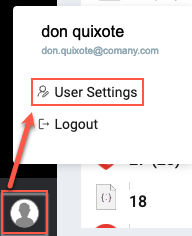 2. Click on **User Settings** > **API Key**.
### Enable API access permission[](#enable-api-access-permission "Direct link to Enable API access permission")
1. Navigate to the system settings page by clicking the gear wheel icon at the top right corner.
2. Click on **User Settings** > **API Key**.
### Enable API access permission[](#enable-api-access-permission "Direct link to Enable API access permission")
1. Navigate to the system settings page by clicking the gear wheel icon at the top right corner.
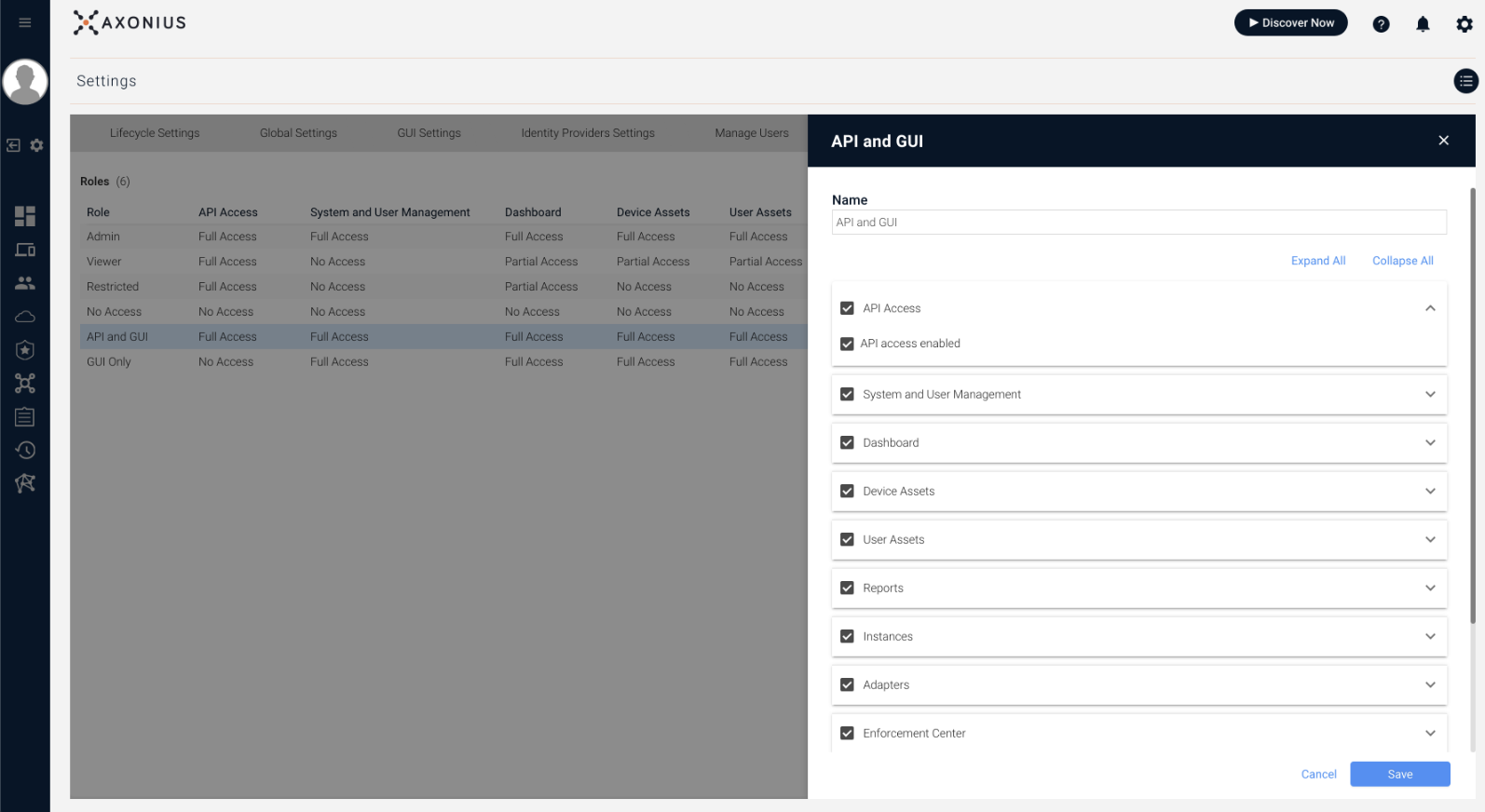
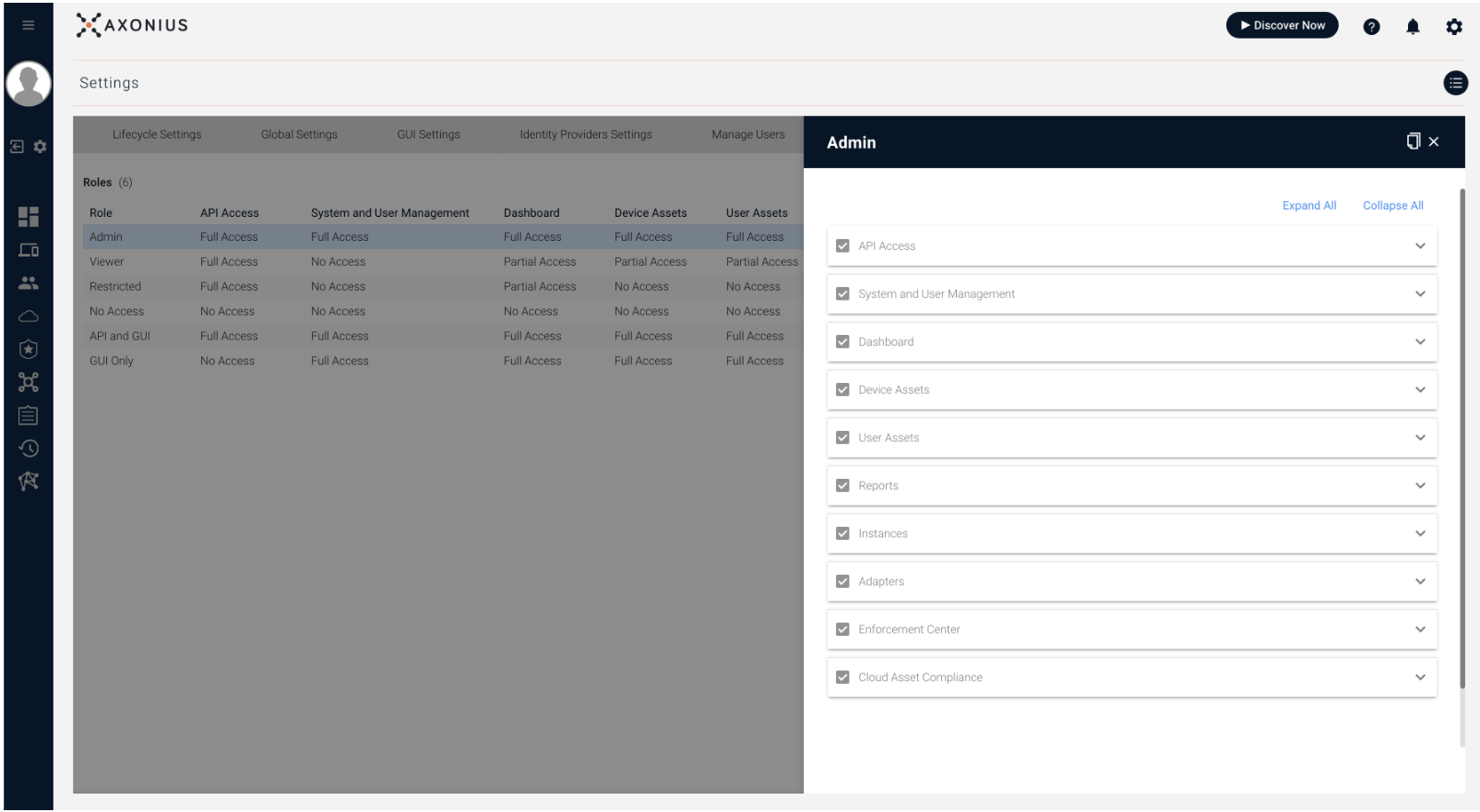 2. Select the relevant role as described in [Axonius Manage Roles](https://docs.axonius.com/docs/manage-roles). For the selected role, under the API Access category, select the **API access enabled** checkbox.
 ### Creating your connection[](#creating-your-connection "Direct link to Creating your connection")
1. In the Blink platform, navigate to the **Connections** page > **Add connection**. A New Connection dialog box opens displaying icons of external service providers available.
2. Select the **Axonius** icon. A dialog box with name of the connection and connection methods appear.
3. (Optional) Edit the name of the connection. At a later stage you cannot edit the name.
4. Select **API Key and Secret** as the method to create the connection.
5. Fill in the parameters:
* The API Address
* The API Key
* The API Secret
6. (Optional) Click **Test Connection** to test it.
7. Click **Create connection**. The new connection appears on the **Connections** page.
### Creating your connection[](#creating-your-connection "Direct link to Creating your connection")
1. In the Blink platform, navigate to the **Connections** page > **Add connection**. A New Connection dialog box opens displaying icons of external service providers available.
2. Select the **Axonius** icon. A dialog box with name of the connection and connection methods appear.
3. (Optional) Edit the name of the connection. At a later stage you cannot edit the name.
4. Select **API Key and Secret** as the method to create the connection.
5. Fill in the parameters:
* The API Address
* The API Key
* The API Secret
6. (Optional) Click **Test Connection** to test it.
7. Click **Create connection**. The new connection appears on the **Connections** page.