> ## Documentation Index
> Fetch the complete documentation index at: https://docs.blinkops.com/llms.txt
> Use this file to discover all available pages before exploring further.
# AWS
> AWS (Amazon Web Services) is a comprehensive, evolving cloud computing platform provided by Amazon that includes a mixture of infrastructure as a service (IaaS), platform as a service (PaaS) and packaged software as a service (SaaS) offerings.
## Creating an AWS connection[](#creating-an-aws-connection "Direct link to Creating an AWS connection")
### Method 1: AWS Assume Role[](#method-1-aws-assume-role "Direct link to Method 1: AWS Assume Role")
1. In your AWS account, create a new AWS role.
2. Set up your trusted identity to allow Blink AWS account permission to assume your role, using Blink's account ID: `508219855436`. Select the **Require external ID** checkbox > Fill in the **External ID** provided in the connection creation in step 1.
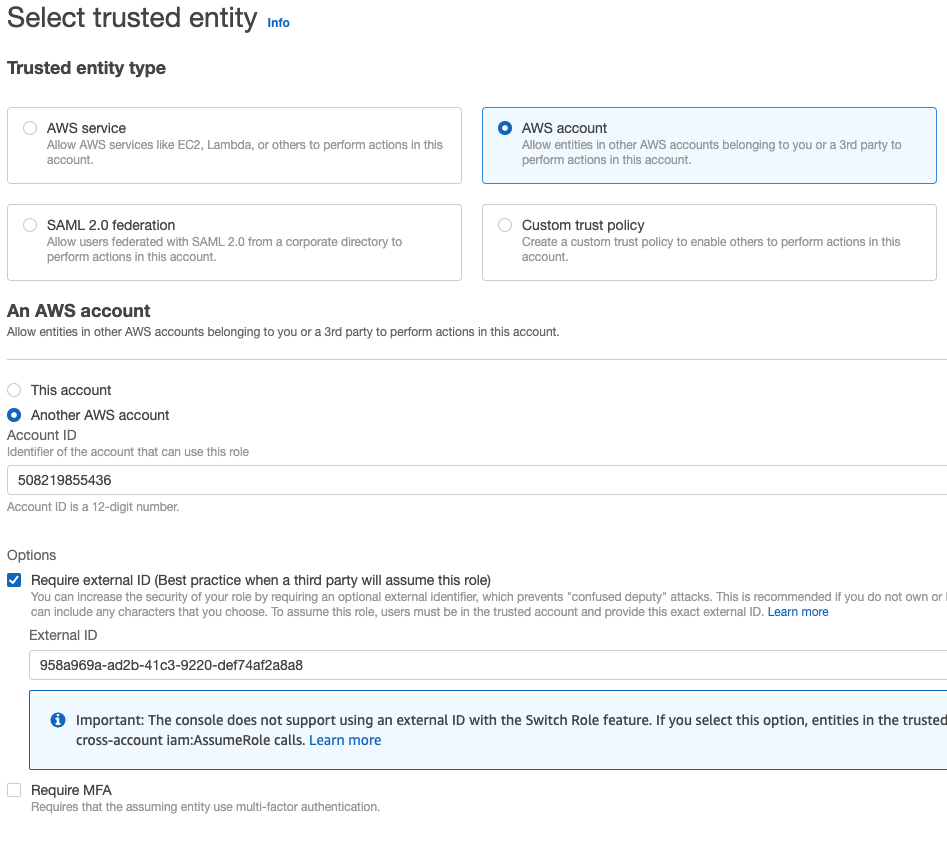 The **External ID** is ignored on **self-hosted runners** unless it is explicitly configured in the runner's trust policy.
3. In the Blink platform, add the permissions required for your AWS actions.
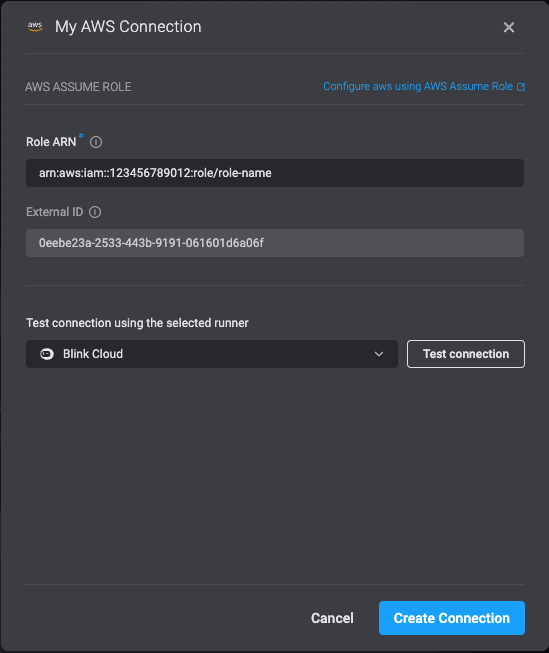
4. Create the connection by completing the **My Connection** form, filling in the created Role's ARN.
The **External ID** is ignored on **self-hosted runners** unless it is explicitly configured in the runner's trust policy.
3. In the Blink platform, add the permissions required for your AWS actions.
4. Create the connection by completing the **My Connection** form, filling in the created Role's ARN.
 ### Method 2: AWS Assume Role + Key[](#method-2-aws-assume-role--key "Direct link to Method 2: AWS Assume Role + Key")
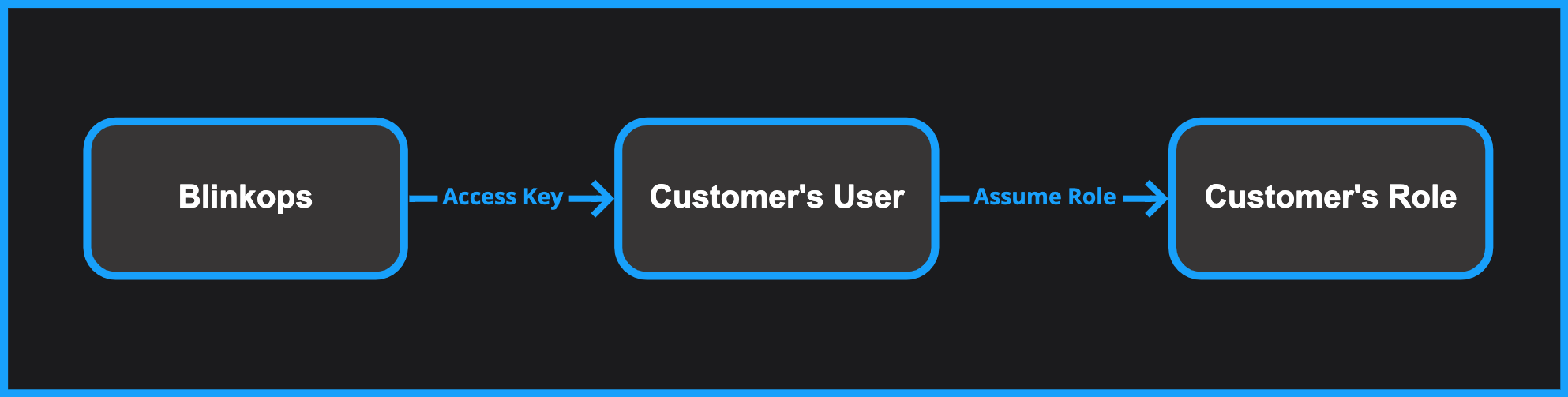 This authentication method should be used when:
1. You prefer to connect Blink to your account using an access key (similar to [method #3](#method-3-aws-access-key)).
2. Unlike [method #3](#method-3-aws-access-key), the permissions you want to grant in Blink are not assigned directly to the access key's identity, but instead to an AWS role.
To use this option, first follow the steps in [method #3](#method-3-aws-access-key) to create an access key. Then, proceed with the steps in [method #1](#method-1-aws-assume-role) to create a role and associate it with the access key's identity.
## Advanced connection options[](#advanced-connection-options "Direct link to Advanced connection options")
### Method 3: AWS Access Key[](#method-3-aws-access-key "Direct link to Method 3: AWS Access Key")
To create an access key and secret access key, follow [these instructions](https://docs.aws.amazon.com/powershell/latest/userguide/pstools-appendix-sign-up.html).
### Method 4: Connection by Runner's Identity[](#method-4-connection-by-runners-identity "Direct link to Method 4: Connection by Runner's Identity")
This method is only available for **self-hosted** Runner installations, and
**not** for the Blink Cloud Runner.
This authentication method should be used when:
1. You prefer to connect Blink to your account using an access key (similar to [method #3](#method-3-aws-access-key)).
2. Unlike [method #3](#method-3-aws-access-key), the permissions you want to grant in Blink are not assigned directly to the access key's identity, but instead to an AWS role.
To use this option, first follow the steps in [method #3](#method-3-aws-access-key) to create an access key. Then, proceed with the steps in [method #1](#method-1-aws-assume-role) to create a role and associate it with the access key's identity.
## Advanced connection options[](#advanced-connection-options "Direct link to Advanced connection options")
### Method 3: AWS Access Key[](#method-3-aws-access-key "Direct link to Method 3: AWS Access Key")
To create an access key and secret access key, follow [these instructions](https://docs.aws.amazon.com/powershell/latest/userguide/pstools-appendix-sign-up.html).
### Method 4: Connection by Runner's Identity[](#method-4-connection-by-runners-identity "Direct link to Method 4: Connection by Runner's Identity")
This method is only available for **self-hosted** Runner installations, and
**not** for the Blink Cloud Runner.
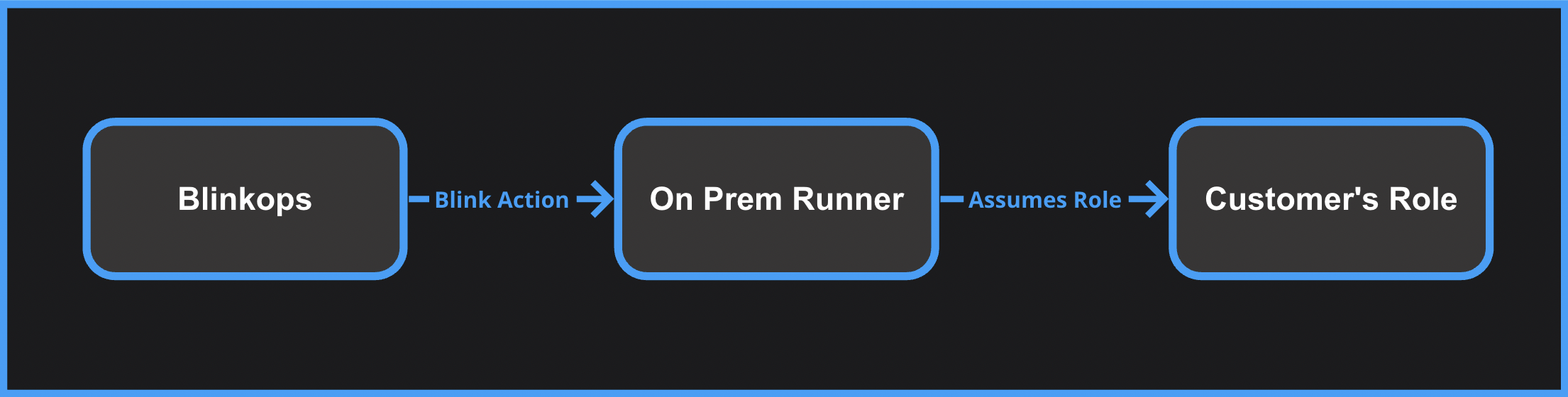 You can perform authenticated AWS actions by assigning a role to a self-hosted Blink Runner.
When using this method, you can assume a role without an **External ID**. See the note in [Method 1](#method-1-aws-assume-role) above for more details.
To configure this authentication method, follow these steps:
1. If you haven't already, [install a self-hosted Blink runner](/docs/blink-platform/runners/secret-managers/hashicorp-vault) within your AWS environment.
2. Assign an AWS role to your Runner, using one of these methods:
* For an EC2 Based Runner, [assign a role to the EC2 instance](https://docs.aws.amazon.com/AWSEC2/latest/UserGuide/iam-roles-for-amazon-ec2.html).
* For a K8S Based Runner, [assign the role to the pod's service account](https://docs.aws.amazon.com/eks/latest/userguide/associate-service-account-role.html).
3. In a Blink workflow, use AWS steps without specifying a particular connection (leave the connection dropdown unselected) to leverage identity-based authentication.
## Security Best Practices[](#security-best-practices "Direct link to Security Best Practices")
* We advise you to periodically rotate your **AWS Access Keys** if you are choosing it as a method to establish a connection.
- We recommend scoping the associated **IAM Policies** tightly and grant access only to required actions and resources.
You can perform authenticated AWS actions by assigning a role to a self-hosted Blink Runner.
When using this method, you can assume a role without an **External ID**. See the note in [Method 1](#method-1-aws-assume-role) above for more details.
To configure this authentication method, follow these steps:
1. If you haven't already, [install a self-hosted Blink runner](/docs/blink-platform/runners/secret-managers/hashicorp-vault) within your AWS environment.
2. Assign an AWS role to your Runner, using one of these methods:
* For an EC2 Based Runner, [assign a role to the EC2 instance](https://docs.aws.amazon.com/AWSEC2/latest/UserGuide/iam-roles-for-amazon-ec2.html).
* For a K8S Based Runner, [assign the role to the pod's service account](https://docs.aws.amazon.com/eks/latest/userguide/associate-service-account-role.html).
3. In a Blink workflow, use AWS steps without specifying a particular connection (leave the connection dropdown unselected) to leverage identity-based authentication.
## Security Best Practices[](#security-best-practices "Direct link to Security Best Practices")
* We advise you to periodically rotate your **AWS Access Keys** if you are choosing it as a method to establish a connection.
- We recommend scoping the associated **IAM Policies** tightly and grant access only to required actions and resources.