> ## Documentation Index
> Fetch the complete documentation index at: https://docs.blinkops.com/llms.txt
> Use this file to discover all available pages before exploring further.
# Apex One
> Apex One is a security solution offered by Trend Micro as part of its Apex One endpoint security platform, which is designed to protect enterprise endpoints (such as desktops, laptops, and servers) from various types of cyber threats, including viruses, malware, ransomware, and advanced targeted attacks.
## Using API token based authentication[](#using-api-token-based-authentication "Direct link to Using API token based authentication")
To create the connection you need:
* An application ID
* An API key
### Obtaining the credentials[](#obtaining-the-credentials "Direct link to Obtaining the credentials")
1. Login to your Apex Central console.
2. At the top right of the page, click **Administration** -> **Settings** -> **Automation API Access Settings**.
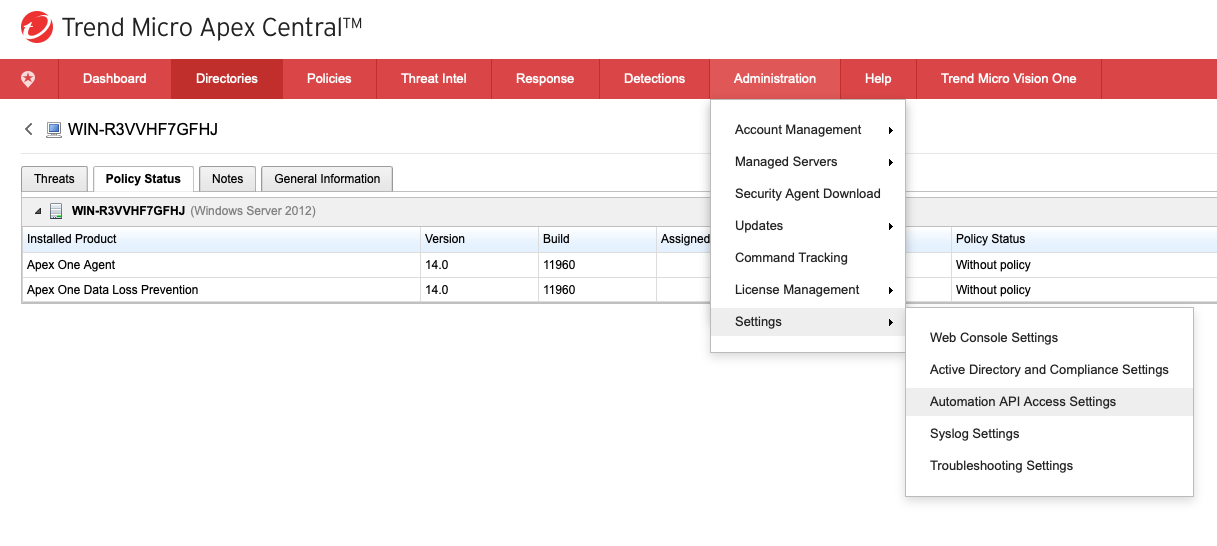 3. Click **ADD** and fill in *Blink* as the **application name**. Make sure *Enable application integration using Apex Central Automation APIs* is selected.
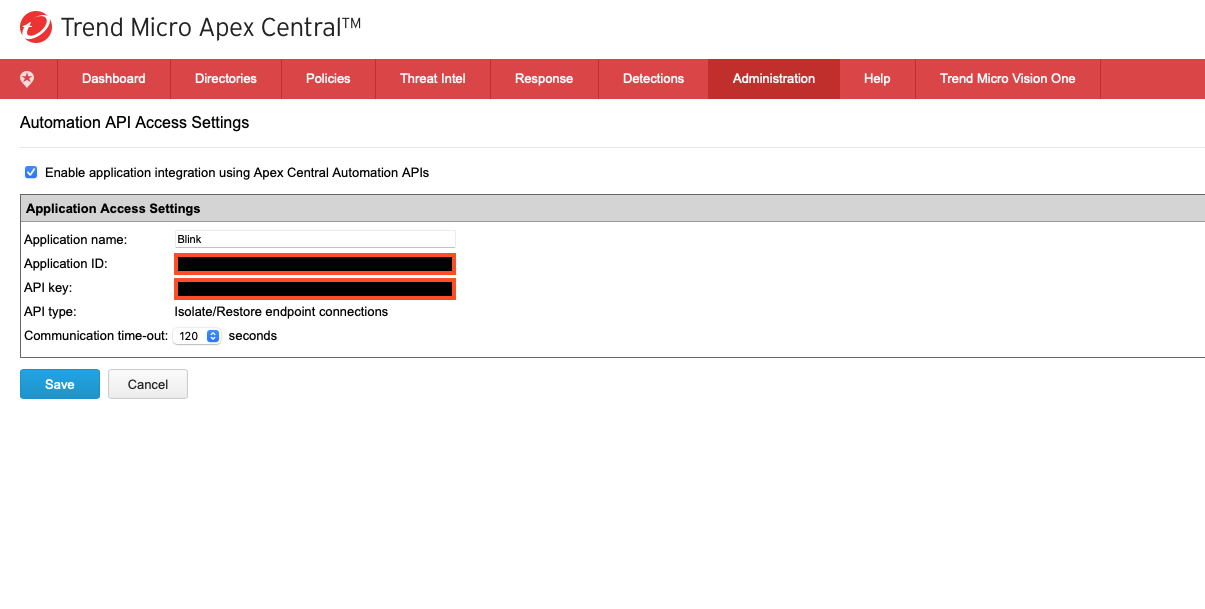 4. Click save and use the generated **application ID** and **API key** in Blink.
### Creating your connection[](#creating-your-connection "Direct link to Creating your connection")
1. In the Blink platform, navigate to the **Connections** page > **Add connection**. A New Connection dialog box opens displaying icons of external service providers available.
2. Select the **Apex One** icon. A dialog box with name of the connection and connection methods appears.
3. (Optional) Edit the name of the connection. At a later stage you cannot edit the name.
4. Select **API Key** as the method to create the connection.
5. Fill in the parameters:
* The server address
* The API key
* The application ID
6. (Optional) Click **Test Connection** to test it.
7. Click **Create connection**. The new connection appears on the **Connections** page.
4. Click save and use the generated **application ID** and **API key** in Blink.
### Creating your connection[](#creating-your-connection "Direct link to Creating your connection")
1. In the Blink platform, navigate to the **Connections** page > **Add connection**. A New Connection dialog box opens displaying icons of external service providers available.
2. Select the **Apex One** icon. A dialog box with name of the connection and connection methods appears.
3. (Optional) Edit the name of the connection. At a later stage you cannot edit the name.
4. Select **API Key** as the method to create the connection.
5. Fill in the parameters:
* The server address
* The API key
* The application ID
6. (Optional) Click **Test Connection** to test it.
7. Click **Create connection**. The new connection appears on the **Connections** page.