> ## Documentation Index
> Fetch the complete documentation index at: https://docs.blinkops.com/llms.txt
> Use this file to discover all available pages before exploring further.
# AbuseIPDB
> AbuseIPDB is an online platform that allows users to report and track instances of IP address abuse.
## Creating an AbuseIPDB connection[](#creating-an-abuseipdb-connection "Direct link to Creating an AbuseIPDB connection")
## Using API Key[](#using-api-key "Direct link to Using API Key")
To create the connection you need:
* An API Key
### Obtaining the credentials[](#obtaining-the-credentials "Direct link to Obtaining the credentials")
1. Login to your AbuseIPDB user.
2. Click on your username at the top right of the screen.
 3. Click on **Account**.
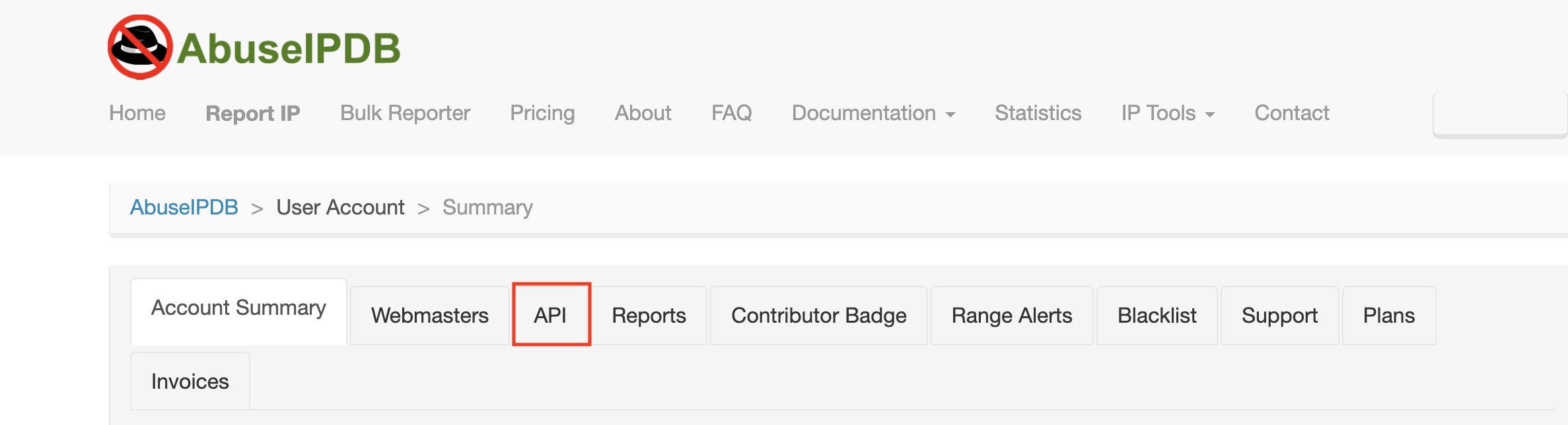
 4. Click on the **API** tab.
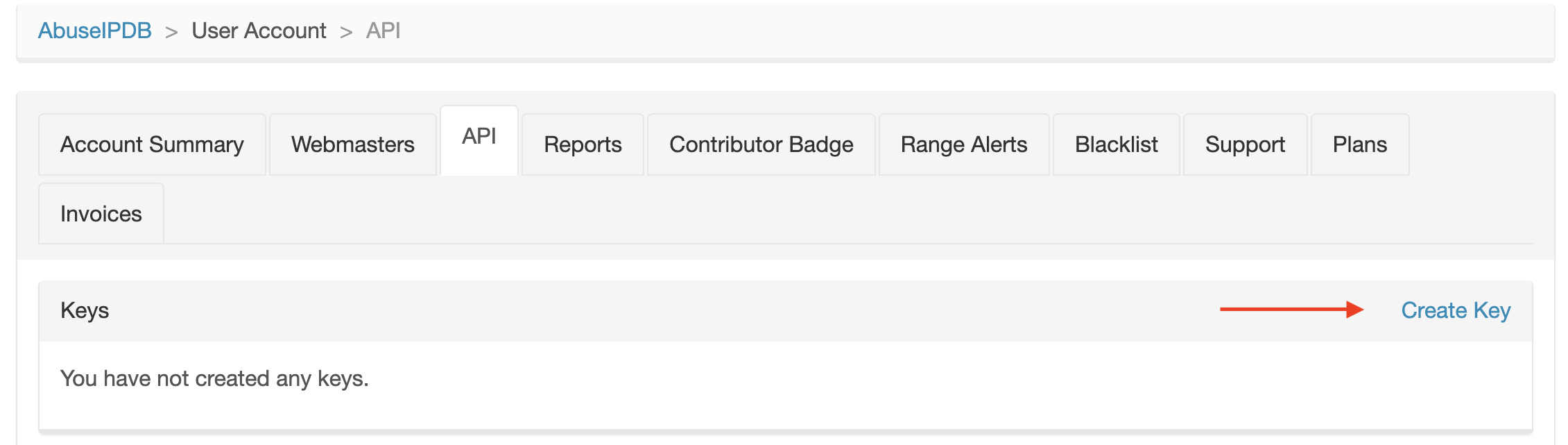
 5. Click on **Create Key** and copy your API key.
 ### Creating your connection[](#creating-your-connection "Direct link to Creating your connection")
1. In the Blink platform, navigate to the **Connections** page > **Add connection**. A New Connection dialog box opens displaying icons of external service providers available.
2. Select the **AbuseIPDB** icon. A dialog box with name of the connection and connection methods appear.
3. (Optional) Edit the name of the connection. At a later stage you cannot edit the name.
4. Select **API Key** as the method to create the connection.
5. Fill in the parameters:
* The API Key
6. (Optional) Click **Test Connection** to test it.
7. Click **Create connection**. The new connection appears on the **Connections** page.
### Creating your connection[](#creating-your-connection "Direct link to Creating your connection")
1. In the Blink platform, navigate to the **Connections** page > **Add connection**. A New Connection dialog box opens displaying icons of external service providers available.
2. Select the **AbuseIPDB** icon. A dialog box with name of the connection and connection methods appear.
3. (Optional) Edit the name of the connection. At a later stage you cannot edit the name.
4. Select **API Key** as the method to create the connection.
5. Fill in the parameters:
* The API Key
6. (Optional) Click **Test Connection** to test it.
7. Click **Create connection**. The new connection appears on the **Connections** page.