> ## Documentation Index
> Fetch the complete documentation index at: https://docs.blinkops.com/llms.txt
> Use this file to discover all available pages before exploring further.
# 1Password
> 1Password is a subscription-based password management service that securely stores and organizes sensitive information, including website credentials, credit card details, and personal notes, in an encrypted vault. Known for its user-friendly interface and robust security features, 1Password offers both individual and team plans with advanced encryption to ensure the privacy of its users' data.
## Creating a 1Password connection
Create the connection by using one of the following methods:
* [Manual Sign In](#using-manual-sign-in)
* [Service Account](#using-service-account)
### Using Manual Sign In
1. Open and unlock 1Password.
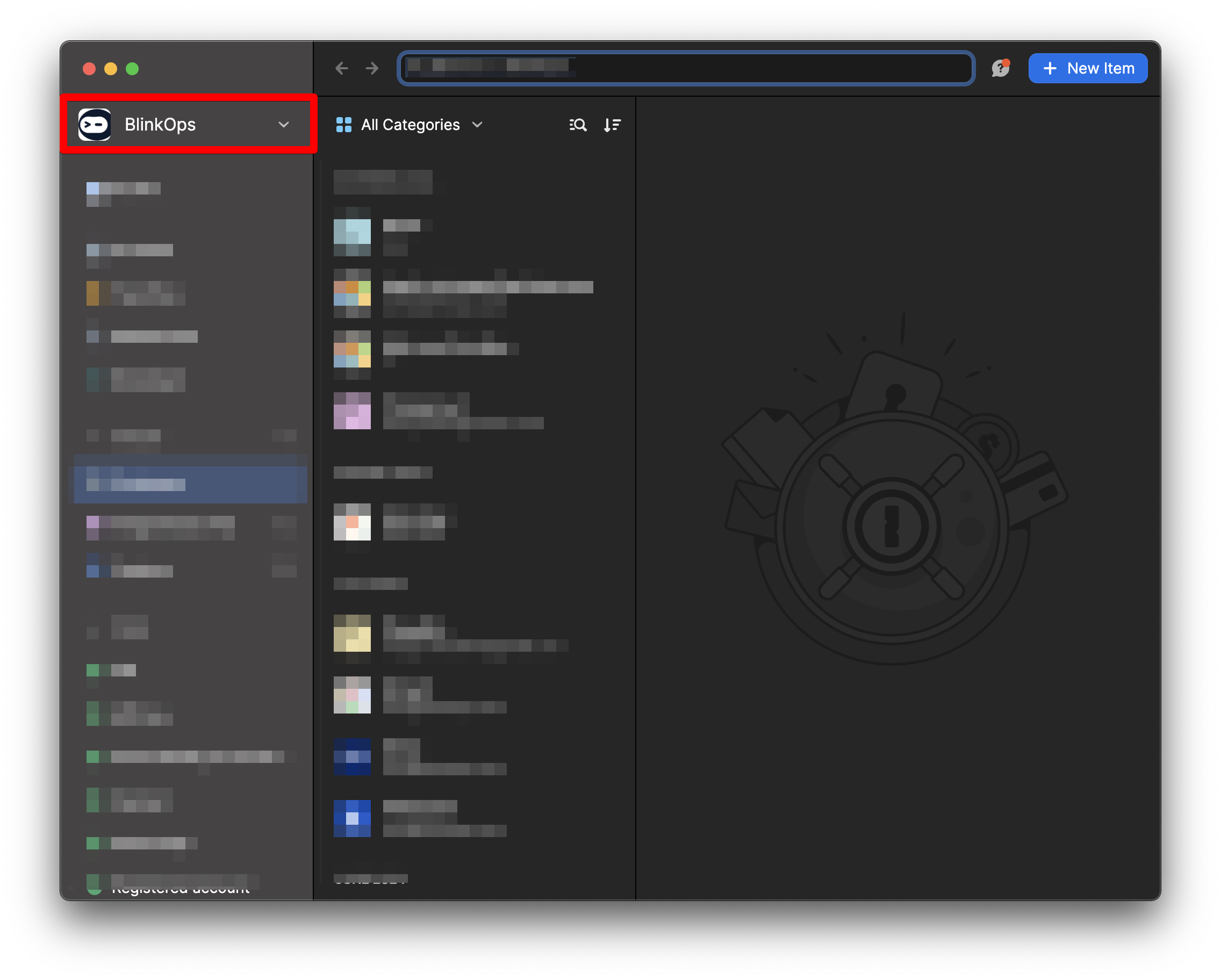
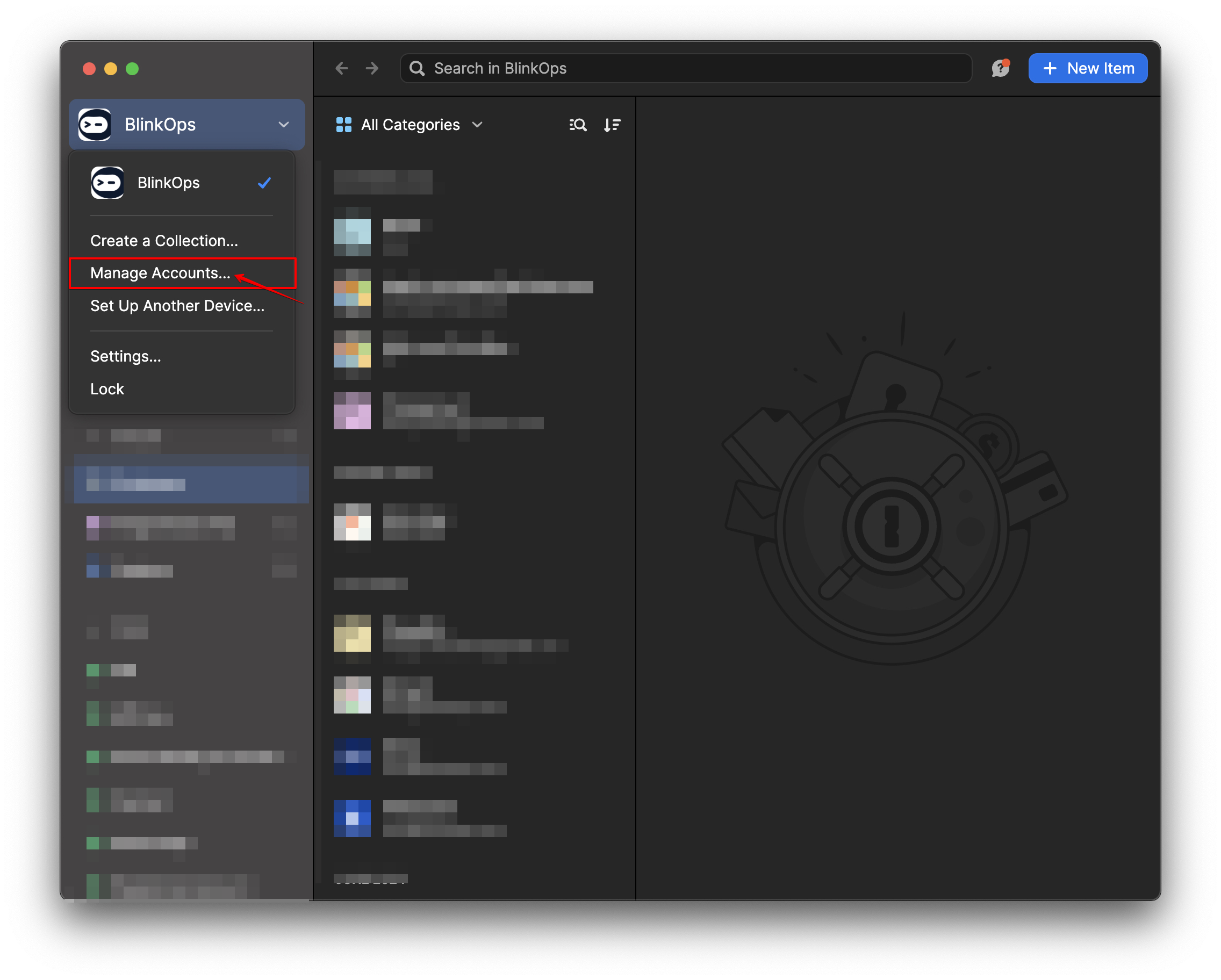
2. Select your account or collection at the top of the sidebar and choose `Manage Accounts`.
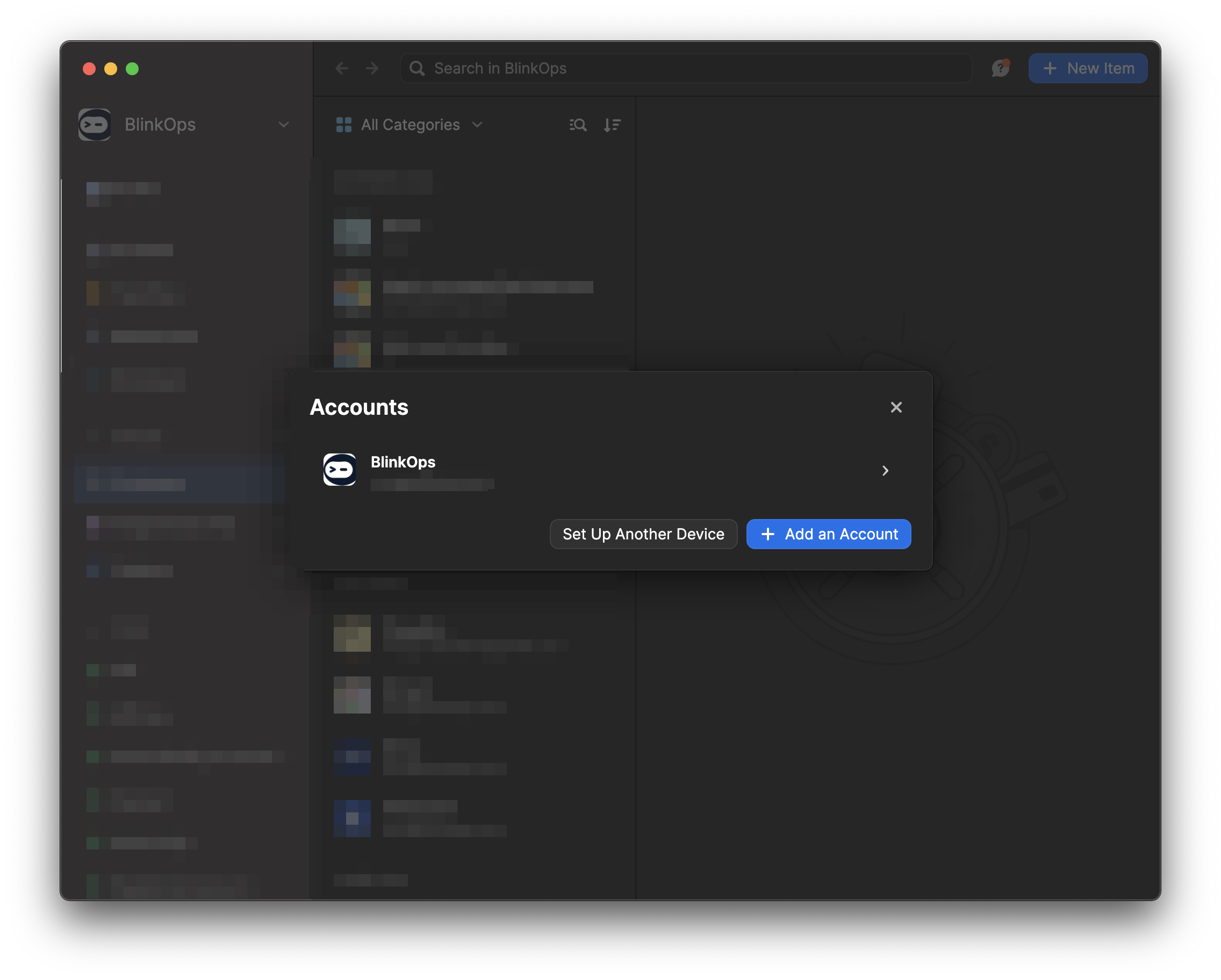
 3. Select your account.
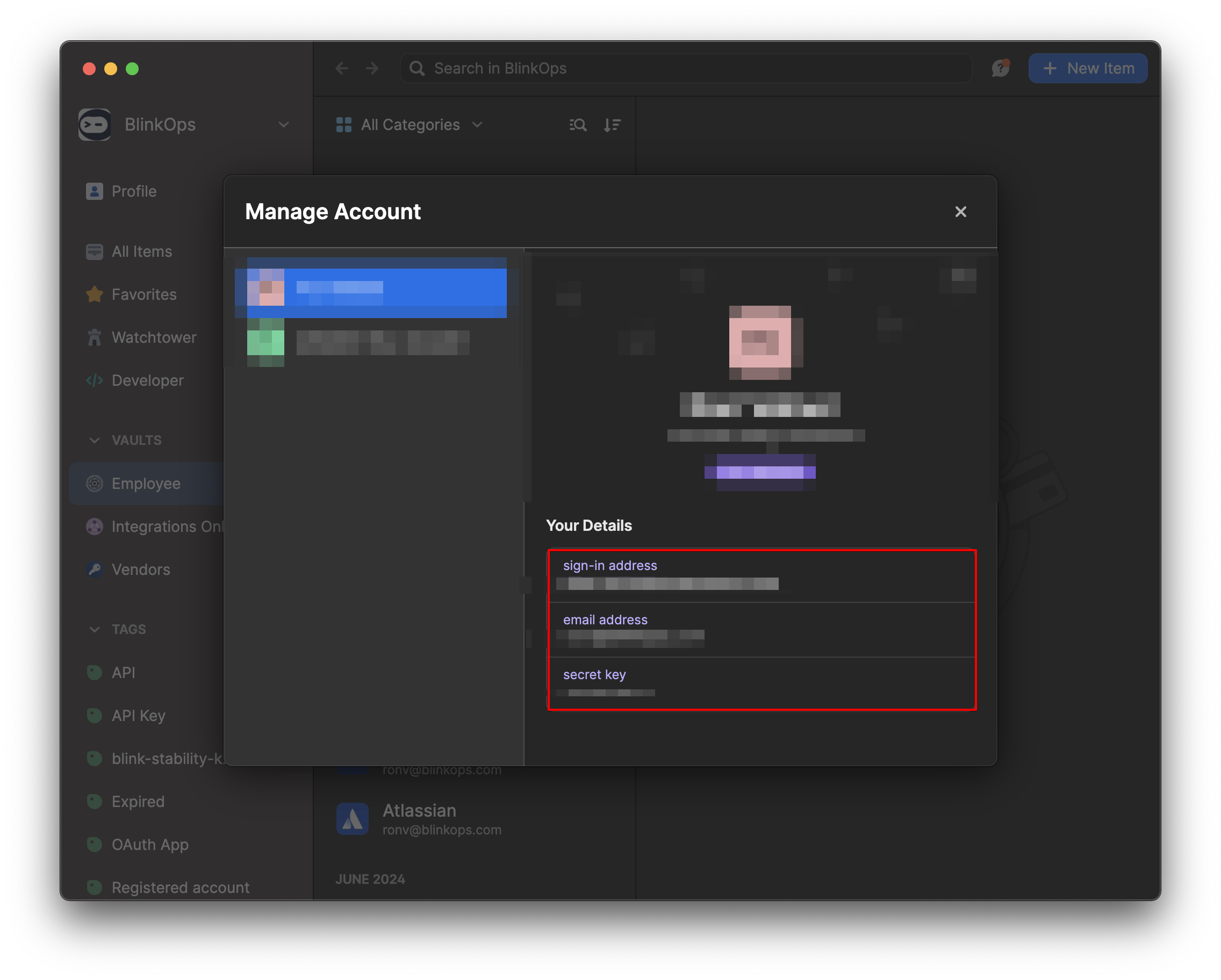
 4. Copy the credentials.
 #### Creating your connection
1. In the Blink platform, navigate to the **Connections** page > **Add connection**. A New Connection dialog box opens displaying icons of external service providers available.
2. Select the **1Password** icon. A dialog box with name of the connection and connection methods appear.
3. (Optional) Edit the name of the connection. At a later stage you cannot edit the name.
4. Select **Manual Sign In** as the method to create the connection.
5. Fill in the parameters:
* Sign In Address
* Email Address
* Master Password
* Secret Key
6. (Optional) Click **Test Connection** to test it.
7. Click **Create connection**. The new connection appears on the **Connections** page.
### Using Service Account
**Note: Only the 1Password team admin can allow a person to create a service account and allow users to access a specific vault.**
#### Allow A Person To Create Service Accounts
1. Login To Your 1Password account in the browser.
2. Select `Developer Tools` on the right-hand panel.
#### Creating your connection
1. In the Blink platform, navigate to the **Connections** page > **Add connection**. A New Connection dialog box opens displaying icons of external service providers available.
2. Select the **1Password** icon. A dialog box with name of the connection and connection methods appear.
3. (Optional) Edit the name of the connection. At a later stage you cannot edit the name.
4. Select **Manual Sign In** as the method to create the connection.
5. Fill in the parameters:
* Sign In Address
* Email Address
* Master Password
* Secret Key
6. (Optional) Click **Test Connection** to test it.
7. Click **Create connection**. The new connection appears on the **Connections** page.
### Using Service Account
**Note: Only the 1Password team admin can allow a person to create a service account and allow users to access a specific vault.**
#### Allow A Person To Create Service Accounts
1. Login To Your 1Password account in the browser.
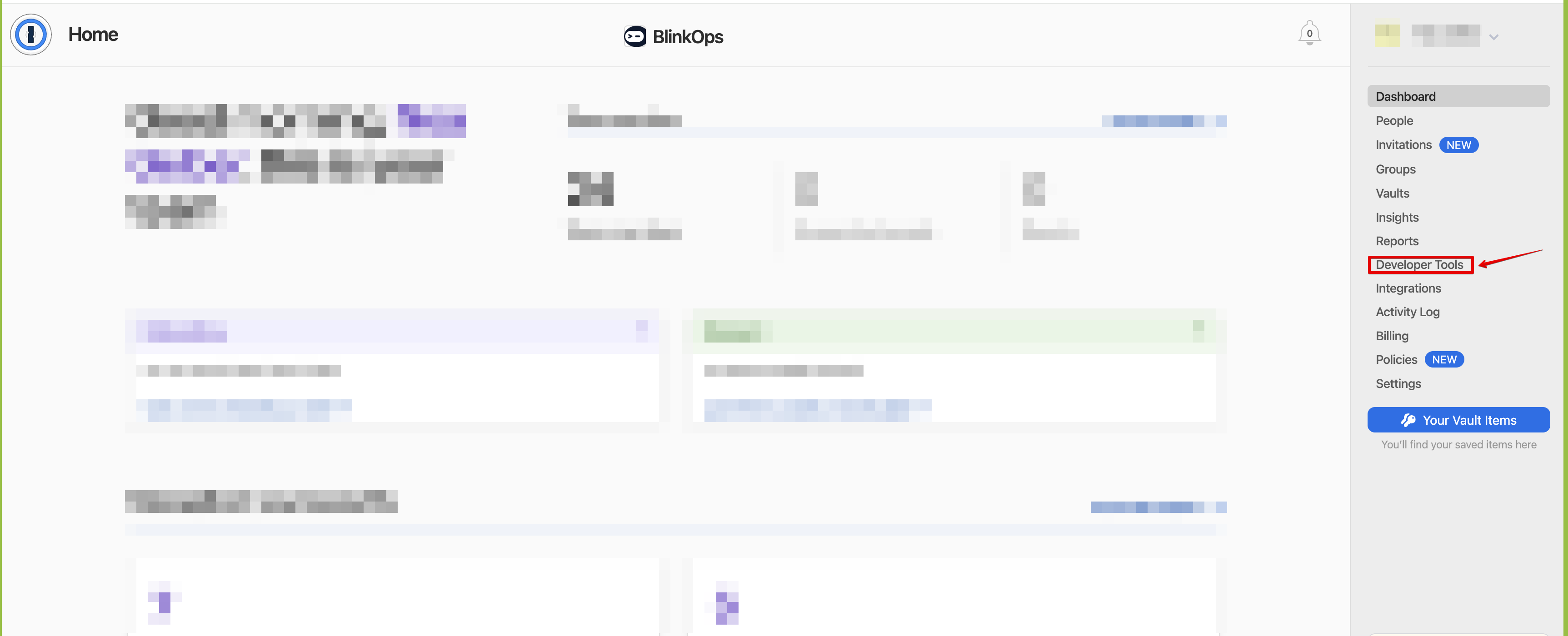
2. Select `Developer Tools` on the right-hand panel.
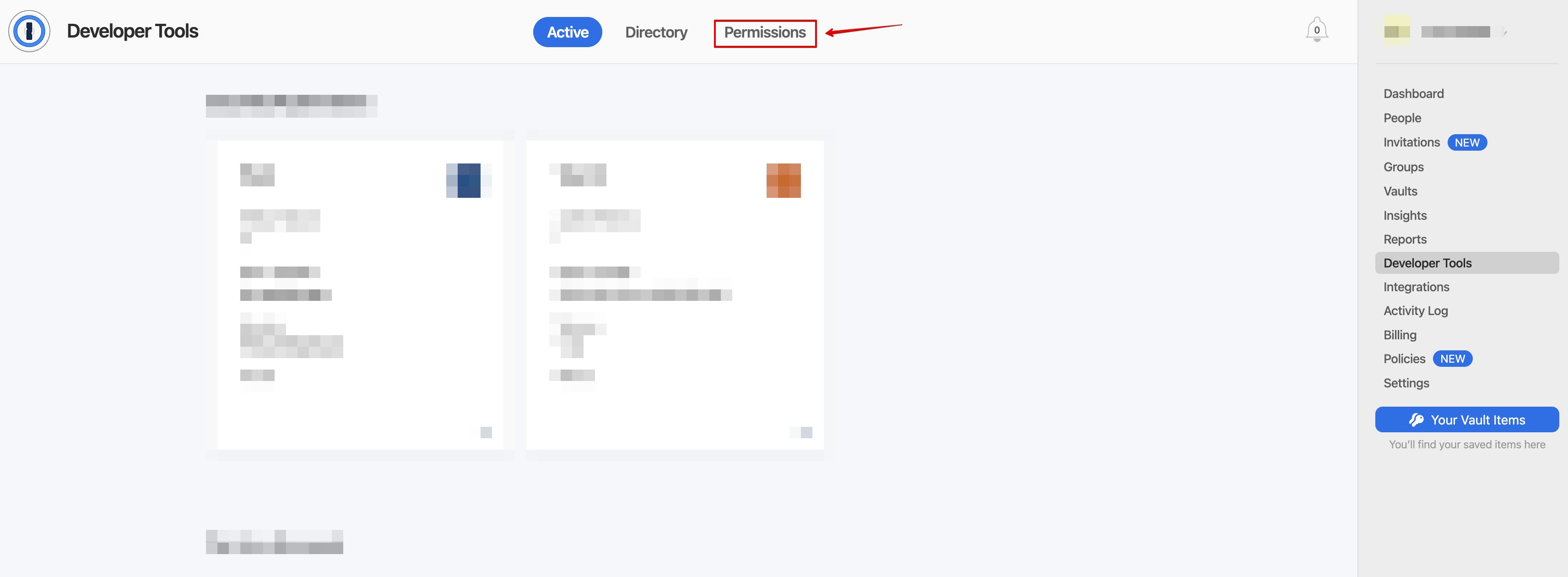
 3. Select `Permissions`.
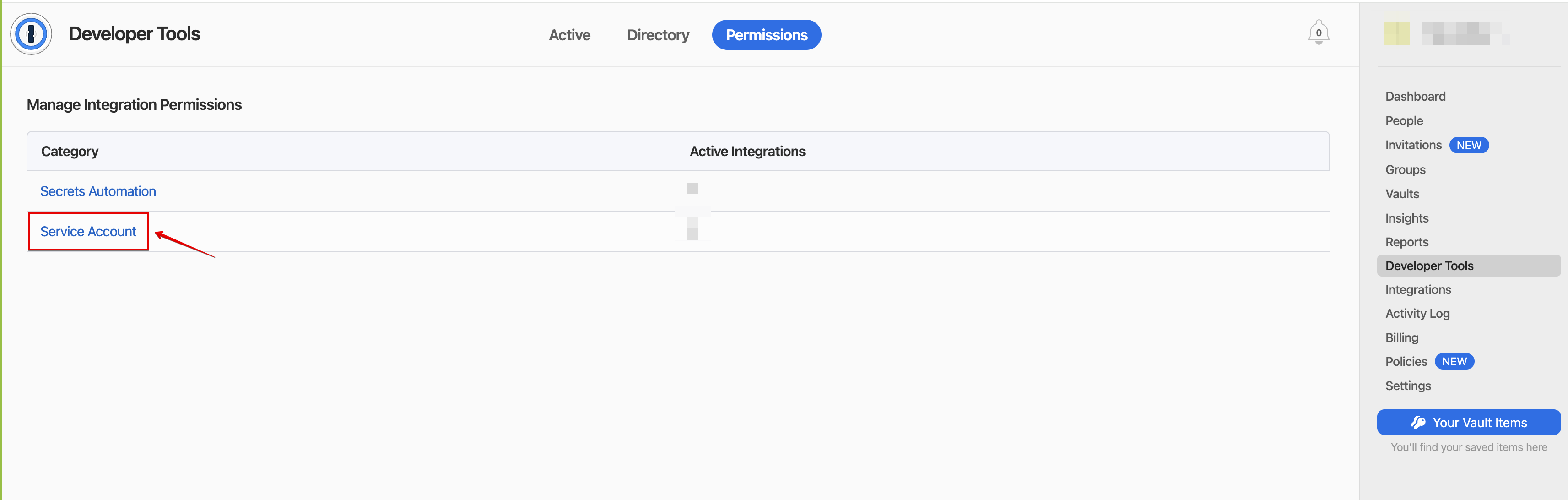
 4. Select `Service Account`.
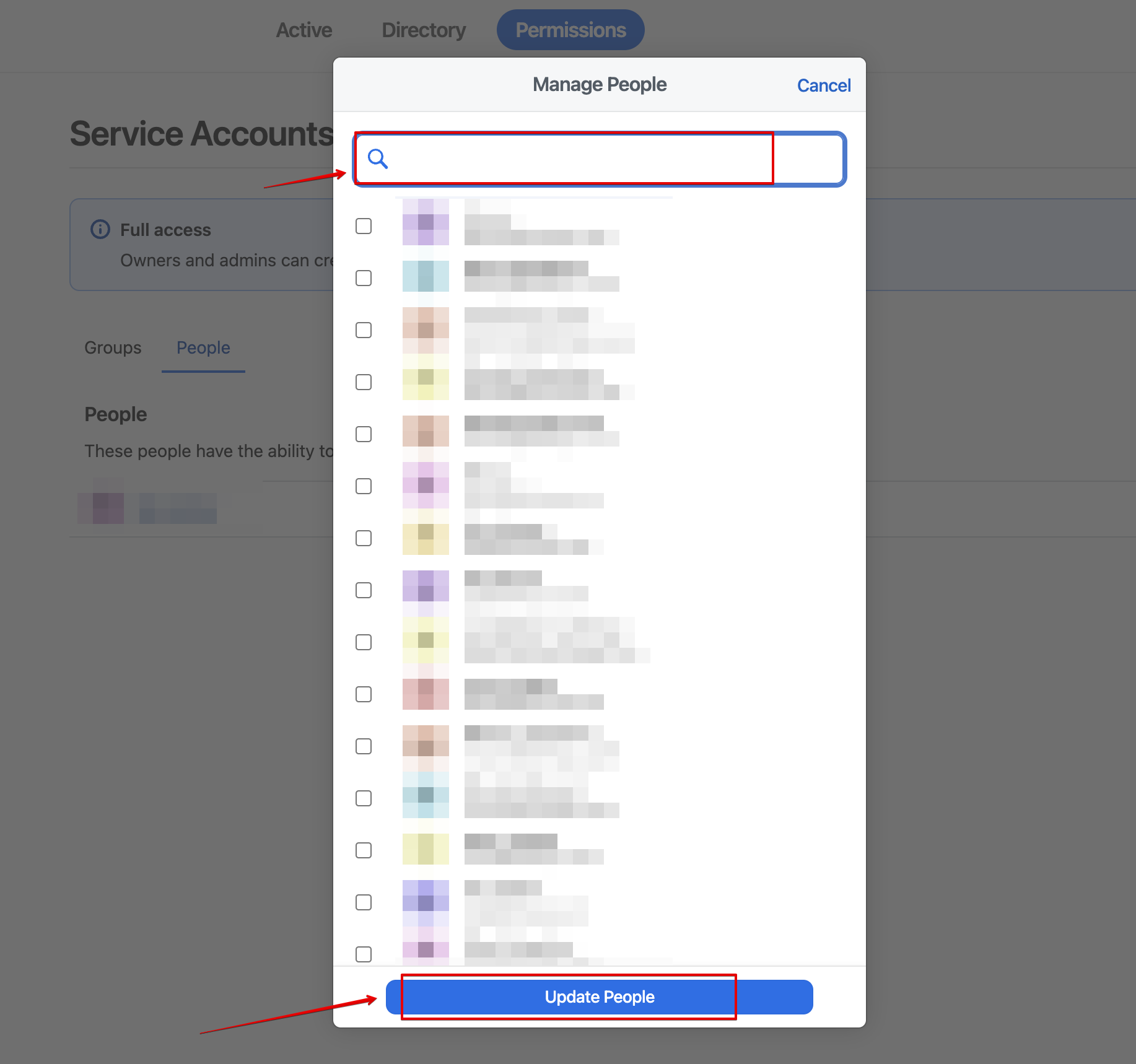
 5. Select `Manage People`.
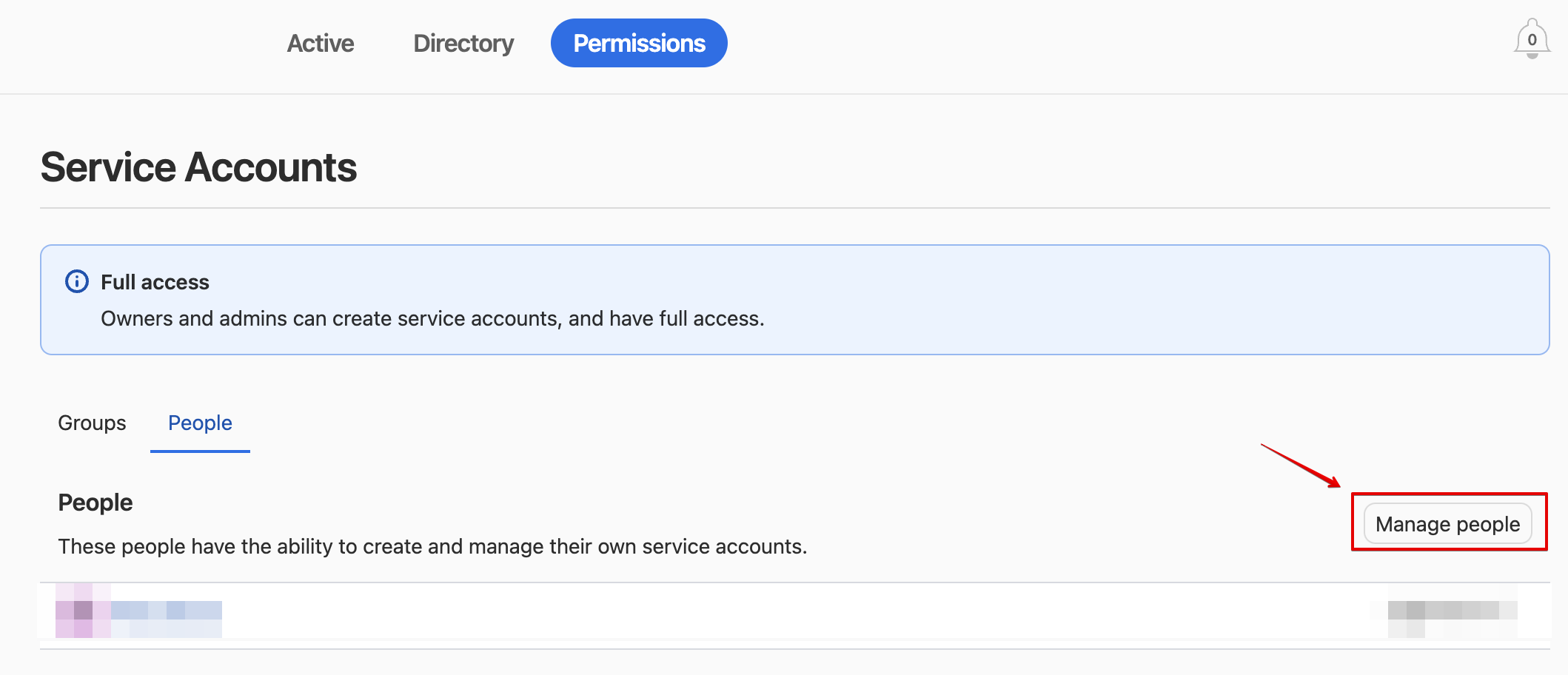 6. Add the person that you wish to be able to create service accounts.
 #### Allow Service Accounts To Access A Specific Vault[](#allow-service-accounts-to-access-a-specific-vault "Direct link to Allow Service Accounts To Access A Specific Vault")
1. Login To Your 1Password account in the browser.
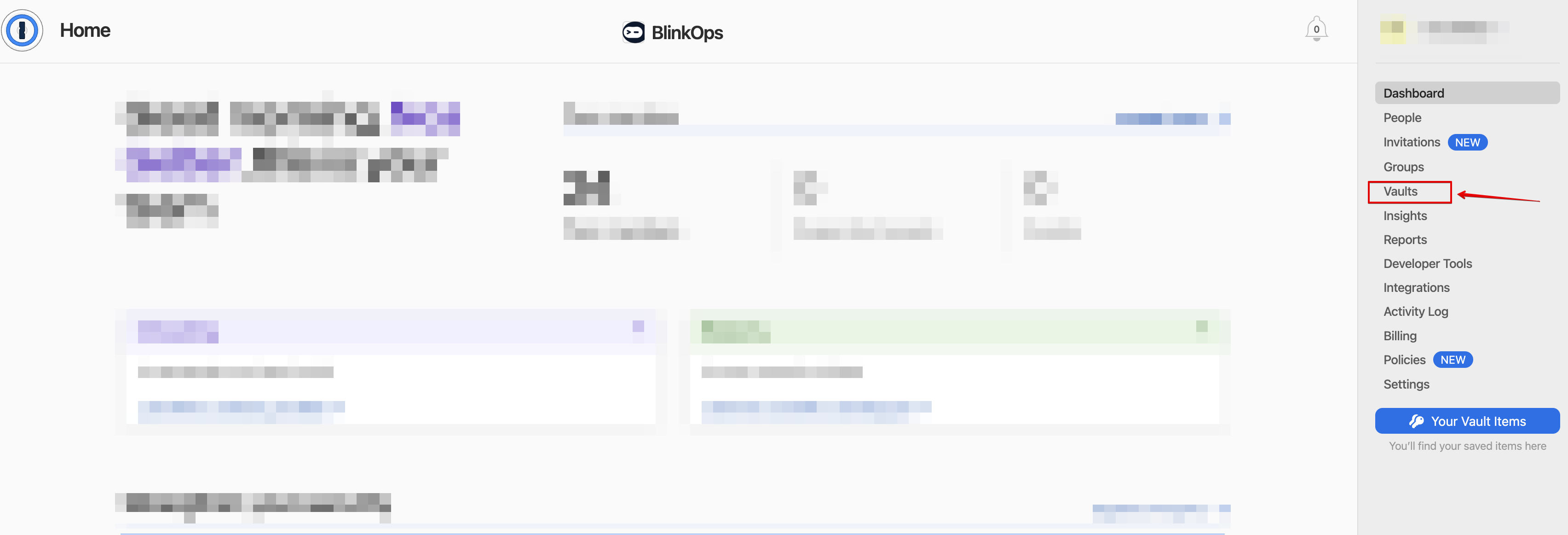
2. Select `Vaults`.
#### Allow Service Accounts To Access A Specific Vault[](#allow-service-accounts-to-access-a-specific-vault "Direct link to Allow Service Accounts To Access A Specific Vault")
1. Login To Your 1Password account in the browser.
2. Select `Vaults`.
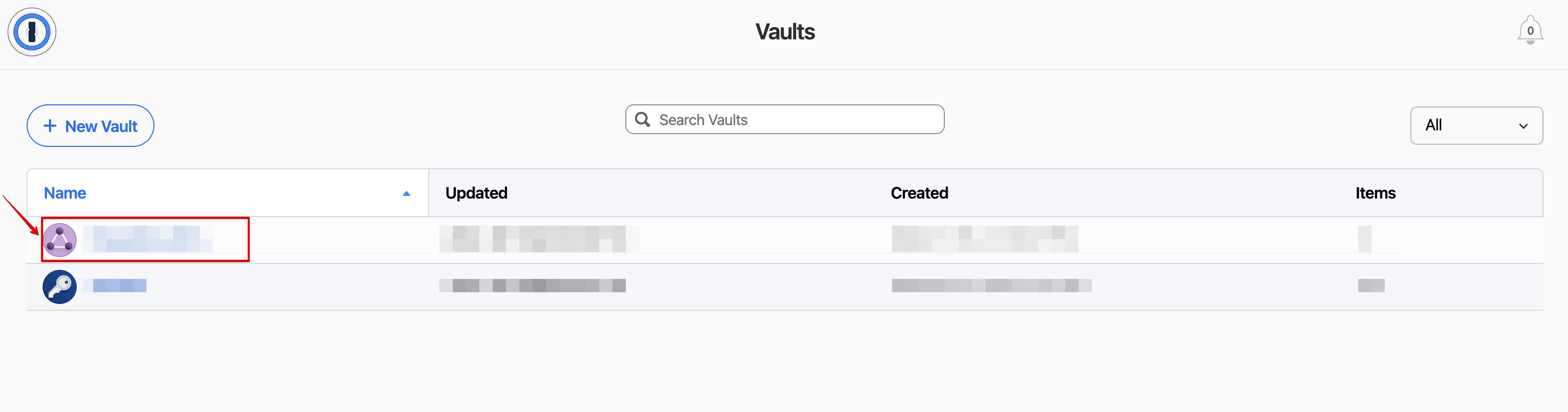
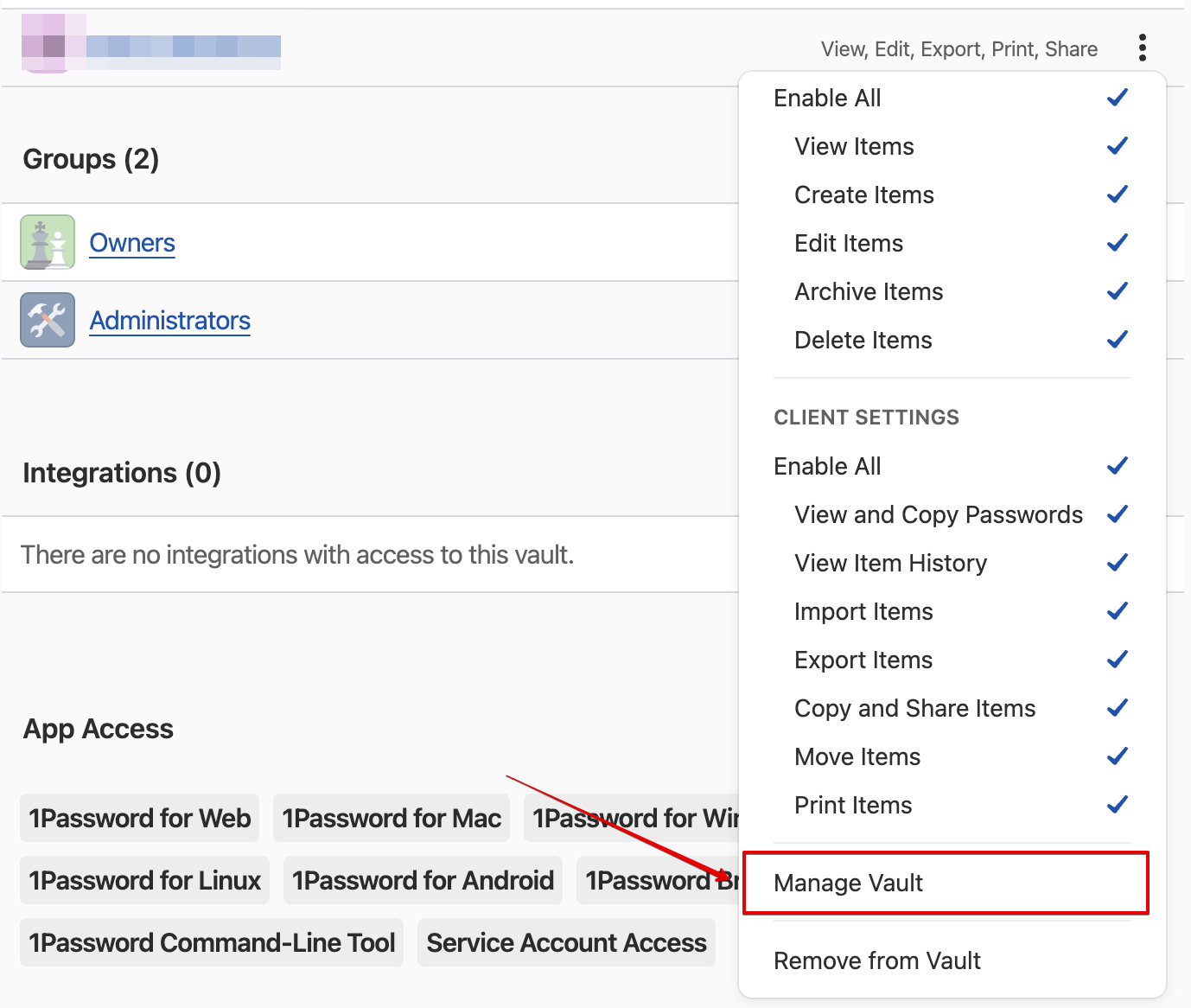
 3. Click on the vault you wish to access from a service account.
 4. Click on the 3 dots beside the vault.
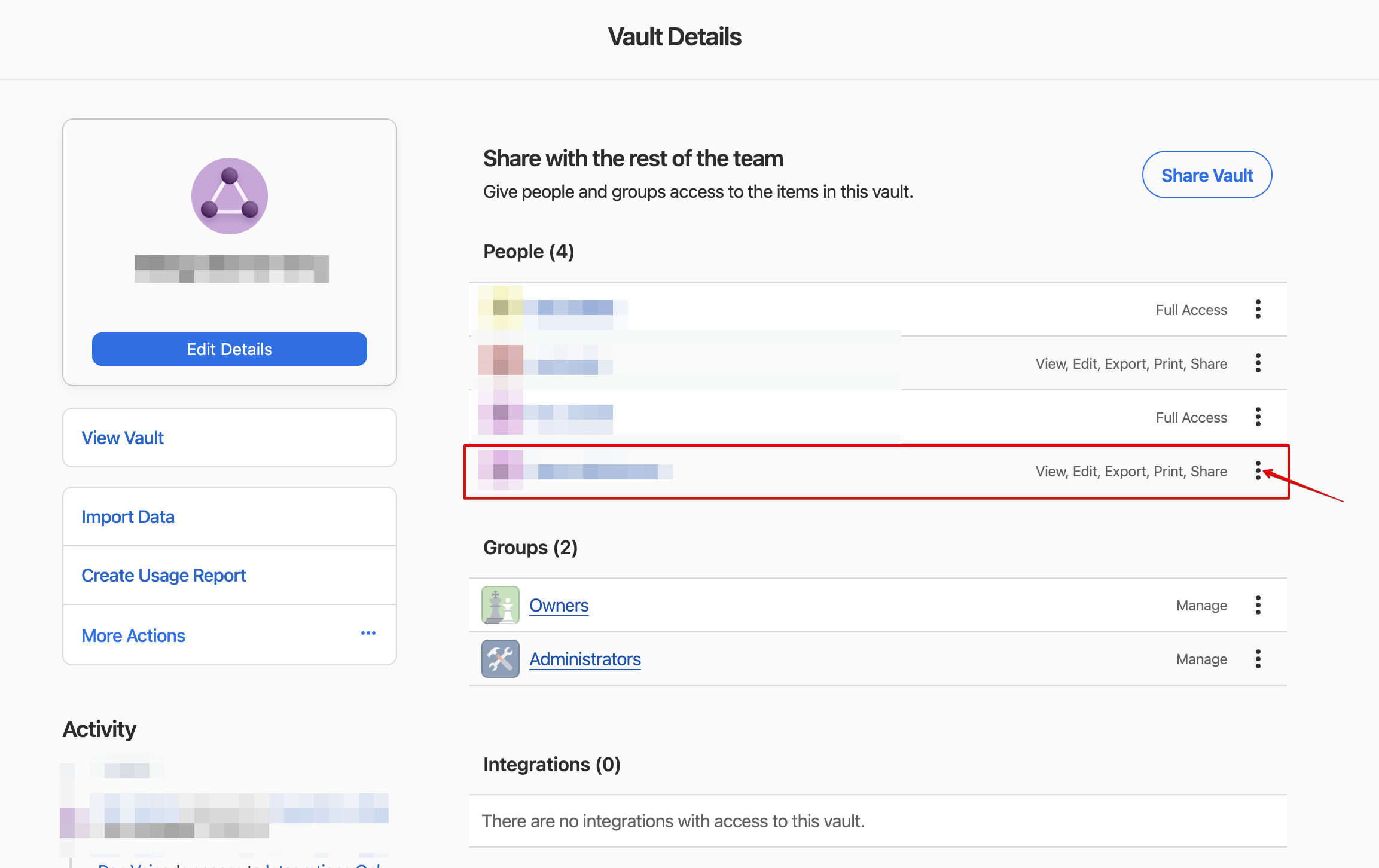 5. Give them the \`Manage Vault' permission.
 #### Create A Service Account[](#create-a-service-account "Direct link to Create A Service Account")
1. Log into your 1Password account in the browser.
2. Select `Developer Tools` on the right-hand panel.
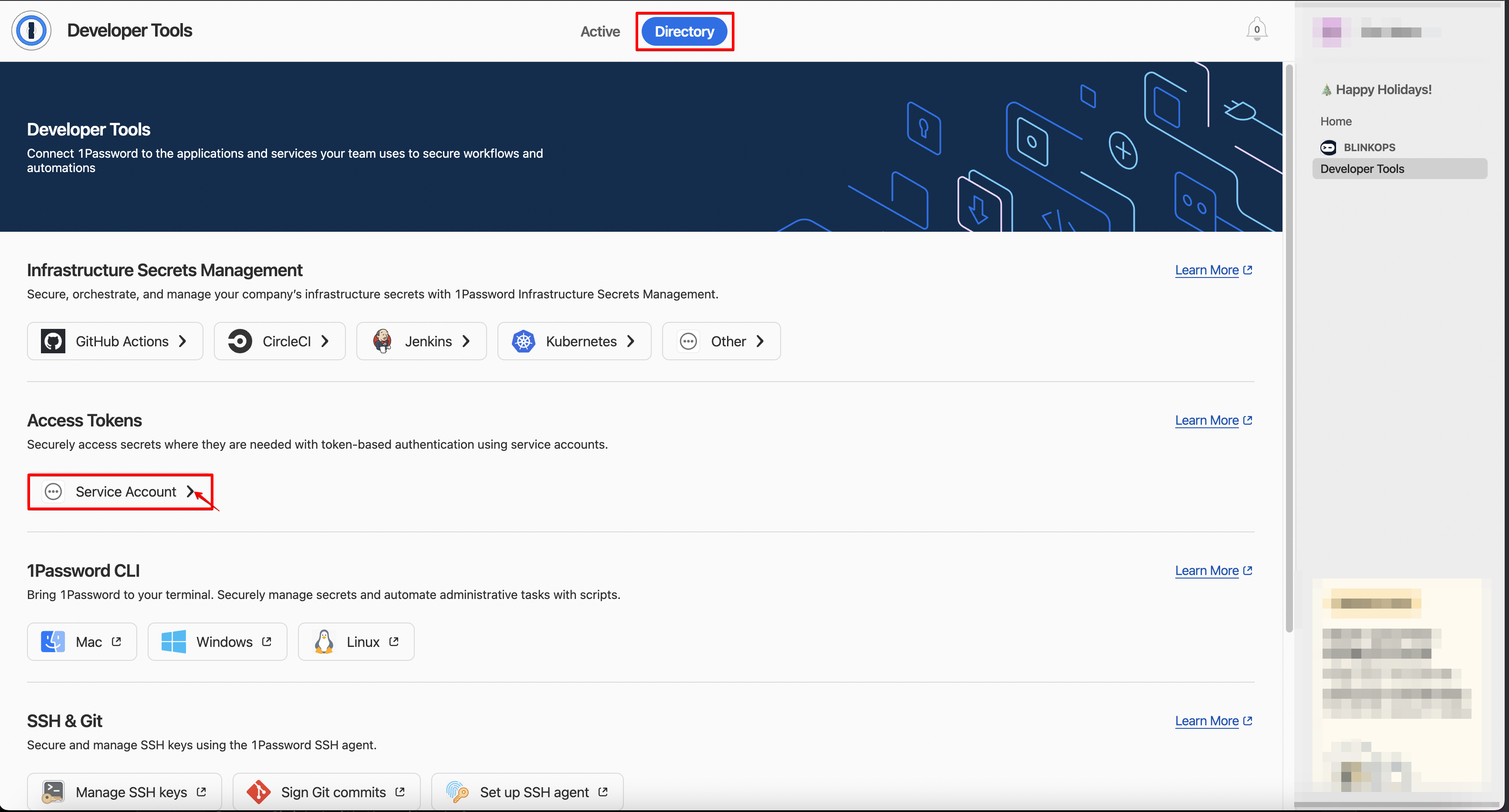
3. Click on `Directory` -> `Service Account`.
#### Create A Service Account[](#create-a-service-account "Direct link to Create A Service Account")
1. Log into your 1Password account in the browser.
2. Select `Developer Tools` on the right-hand panel.
3. Click on `Directory` -> `Service Account`.
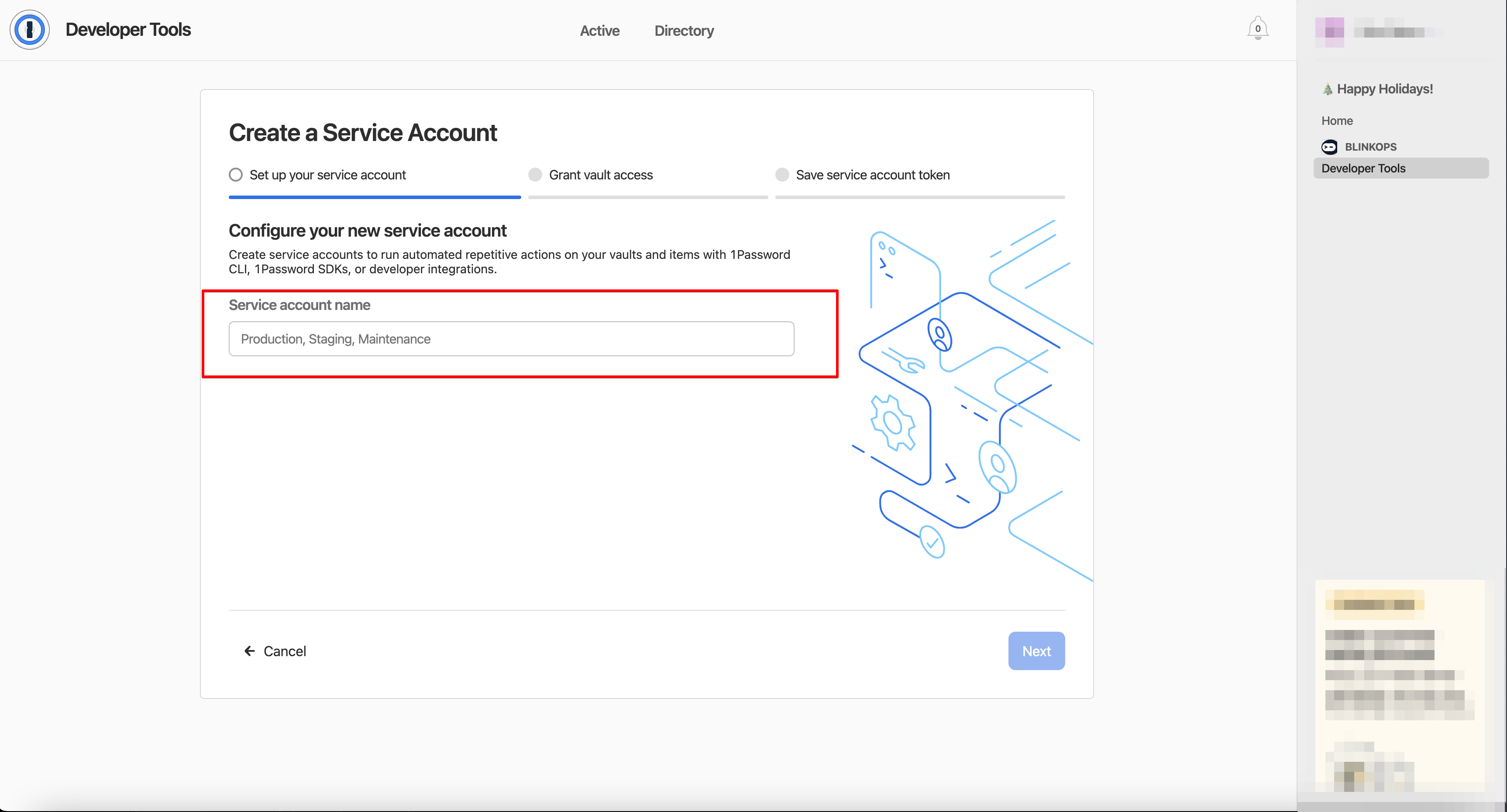
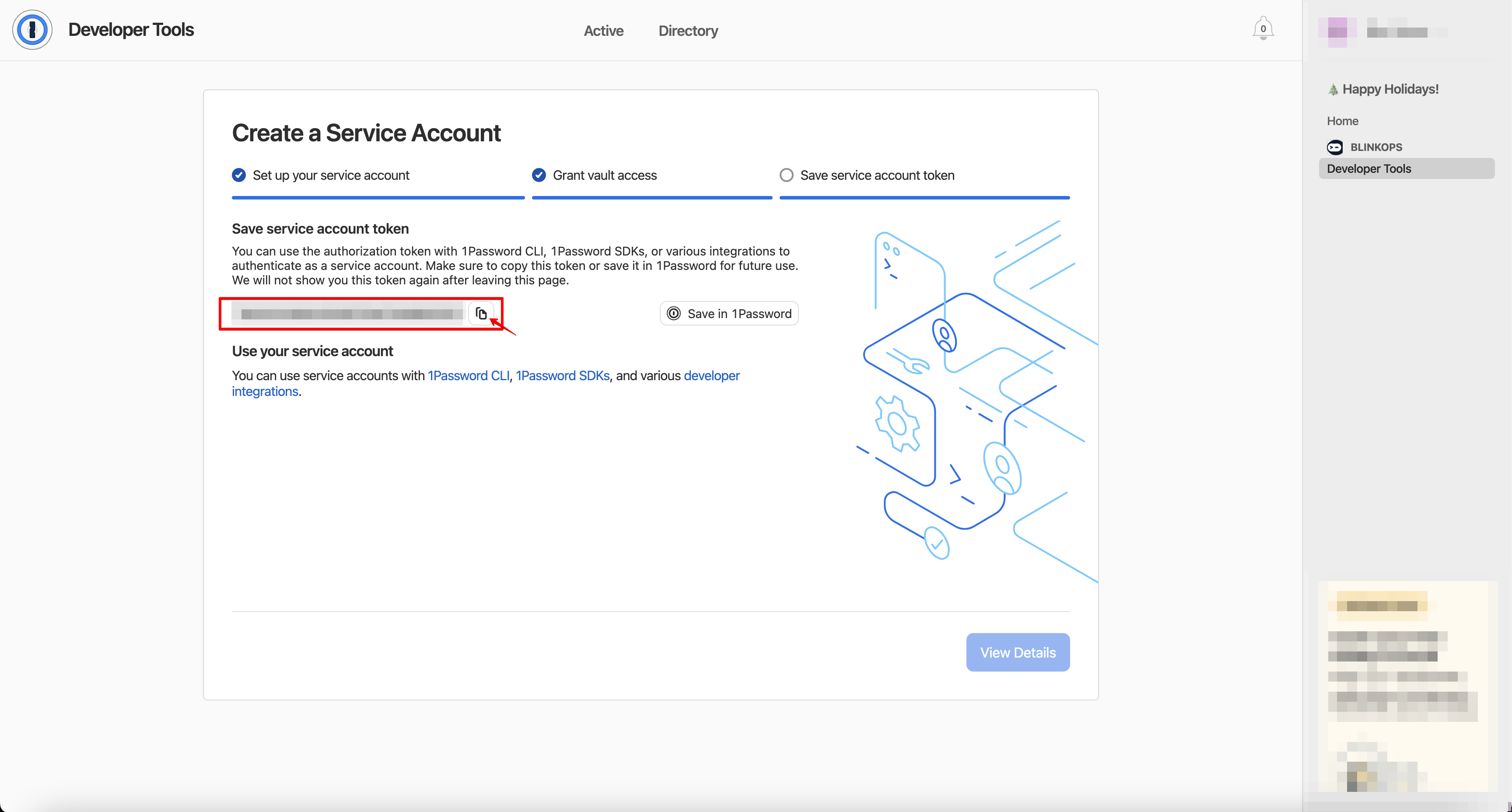
 4. Give your service account a name.
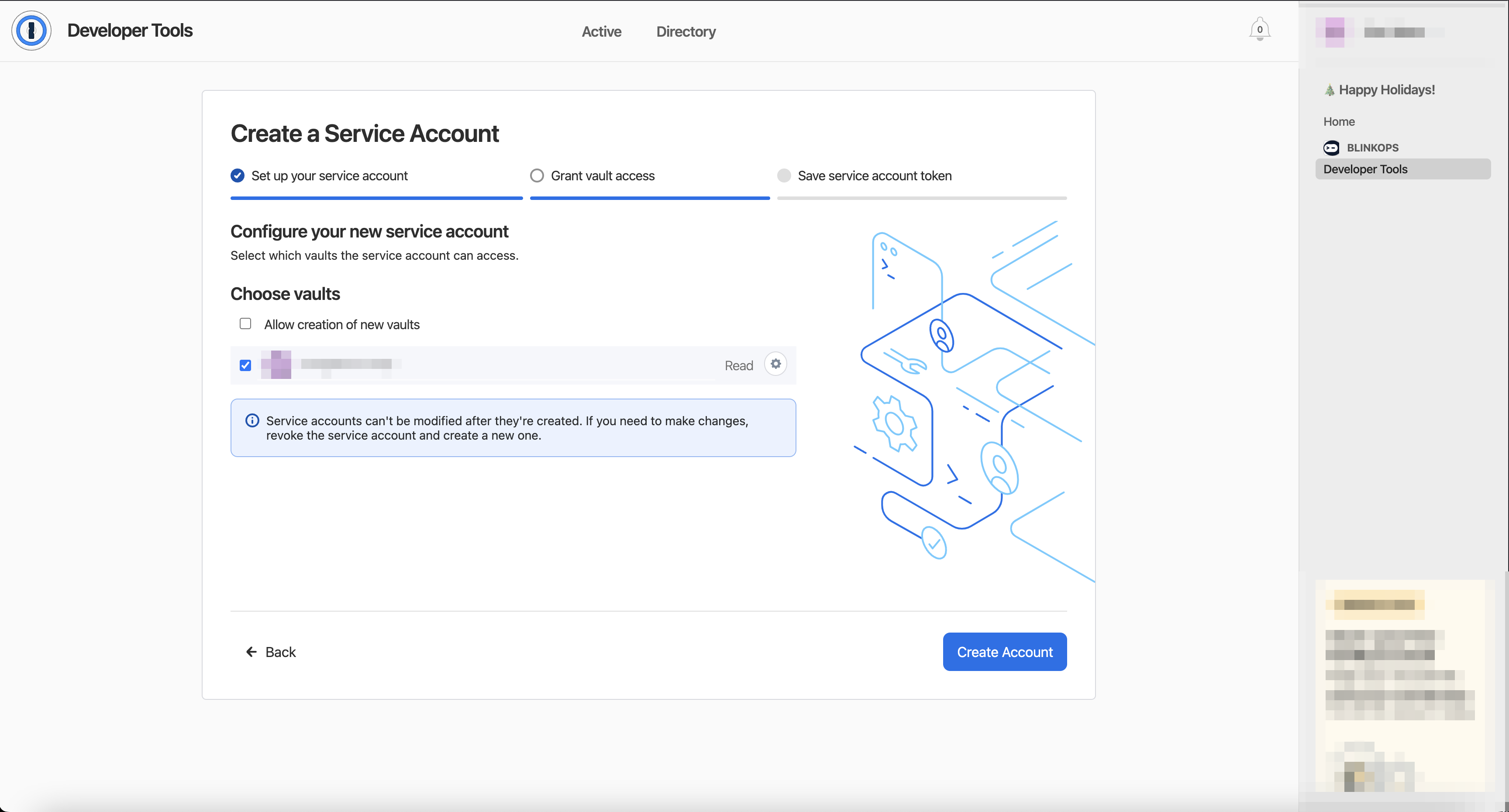
 5. Grant access to the needed vaults.
 6. Copy the service account token.
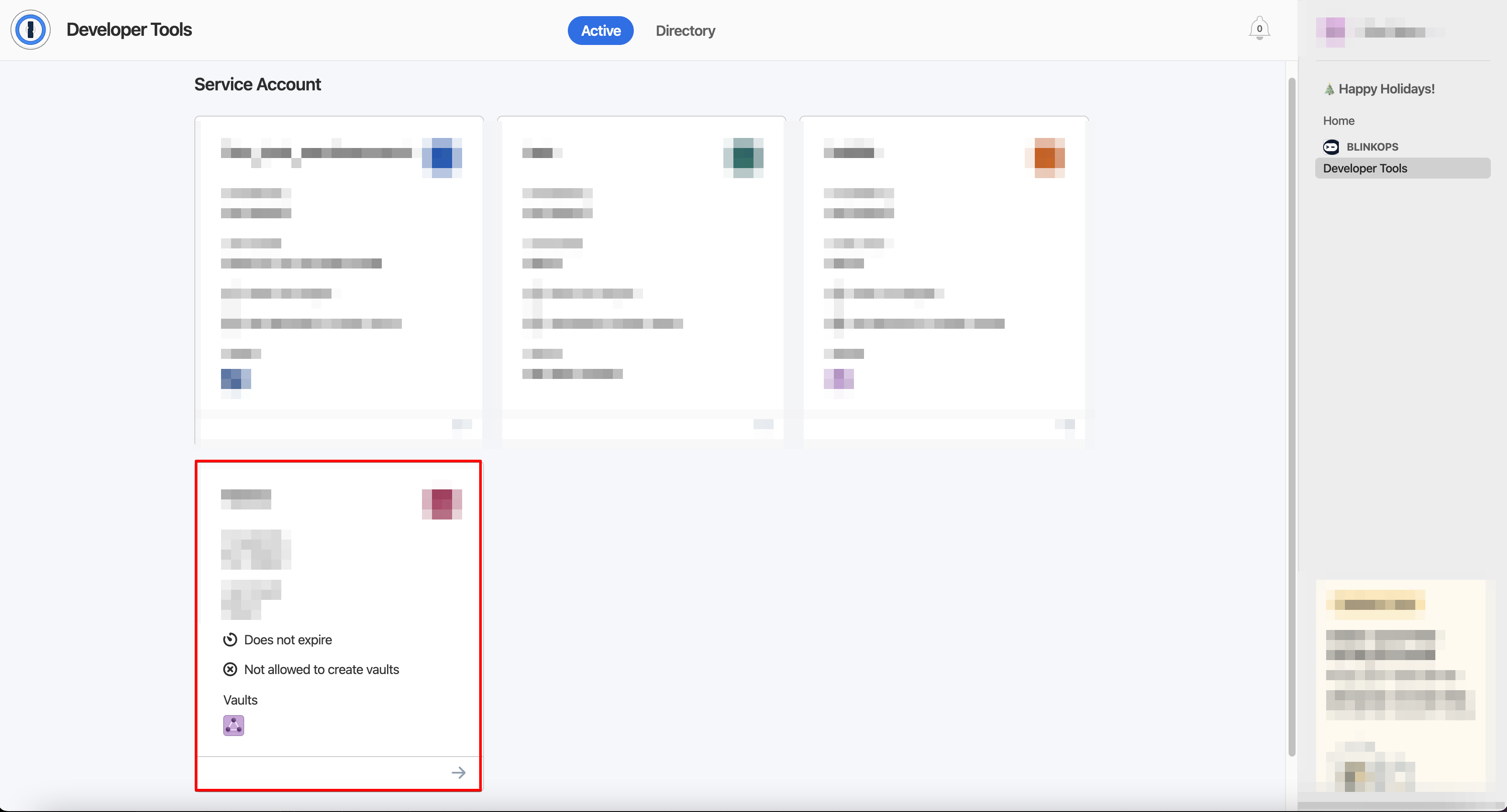
 7. You can access the service account from the `Active` tab.
 #### Creating your connection[](#creating-your-connection-1 "Direct link to Creating your connection")
1. In the Blink platform, navigate to the **Connections** page > **Add connection**. A New Connection dialog box opens displaying icons of external service providers available.
2. Select the **1Password** icon. A dialog box with name of the connection and connection methods appear.
3. (Optional) Edit the name of the connection. At a later stage you cannot edit the name.
4. Select **Manual Sign In** or **Service Account** as the method to create the connection.
5. Fill in the parameter:
* Service Account
6. (Optional) Click **Test Connection** to test it.
7. Click **Create connection**. The new connection appears on the **Connections** page.
#### Creating your connection[](#creating-your-connection-1 "Direct link to Creating your connection")
1. In the Blink platform, navigate to the **Connections** page > **Add connection**. A New Connection dialog box opens displaying icons of external service providers available.
2. Select the **1Password** icon. A dialog box with name of the connection and connection methods appear.
3. (Optional) Edit the name of the connection. At a later stage you cannot edit the name.
4. Select **Manual Sign In** or **Service Account** as the method to create the connection.
5. Fill in the parameter:
* Service Account
6. (Optional) Click **Test Connection** to test it.
7. Click **Create connection**. The new connection appears on the **Connections** page.