> ## Documentation Index
> Fetch the complete documentation index at: https://docs.blinkops.com/llms.txt
> Use this file to discover all available pages before exploring further.
# 1Password Users
> 1Password is a password manager for documents, credit card information, and addresses.
## Creating a 1Password Users connection
### Using Client Secret
To create the connection you need:
* An API Address
* A Client ID
* A Client Secret
#### Obtaining the credentials
1. Sign in to your account on 1Password.
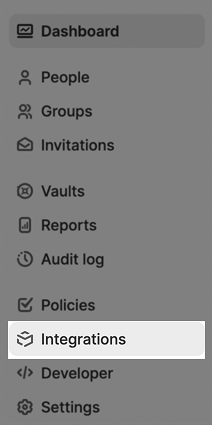
2. Click on **Integrations**.
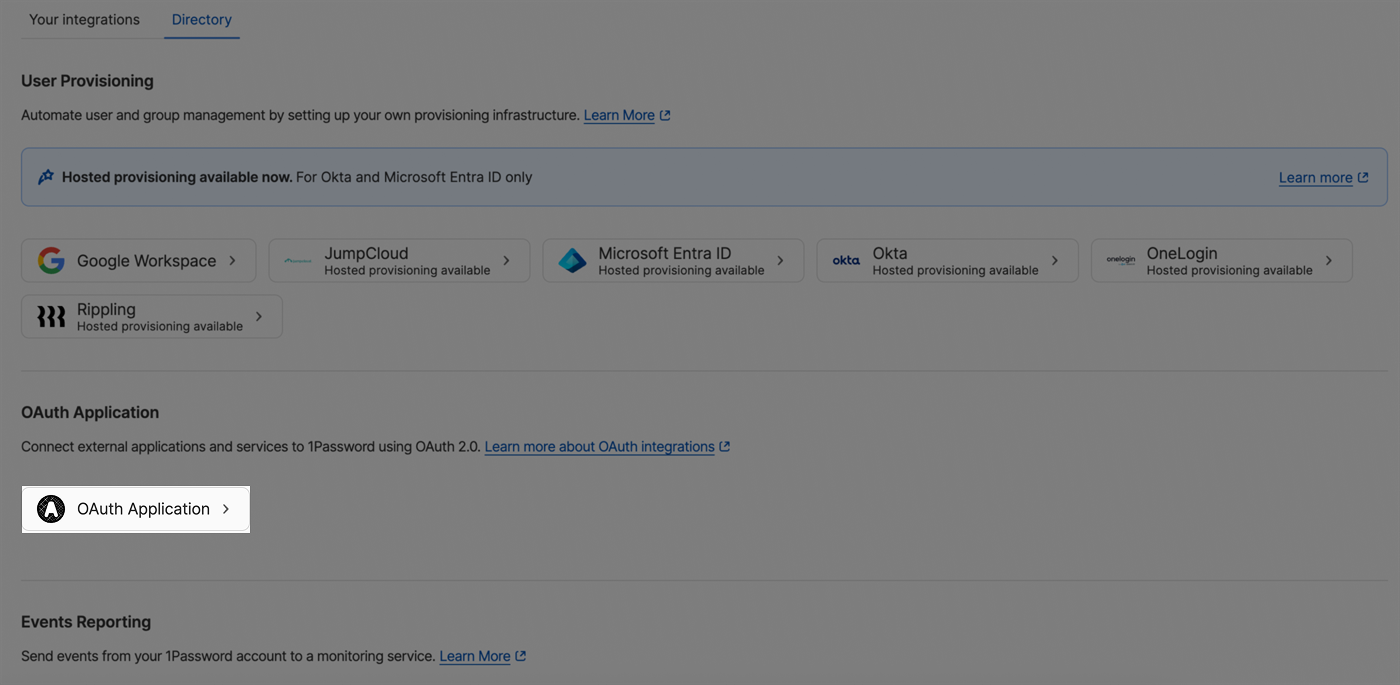
 3. Click on **OAuth Application**.
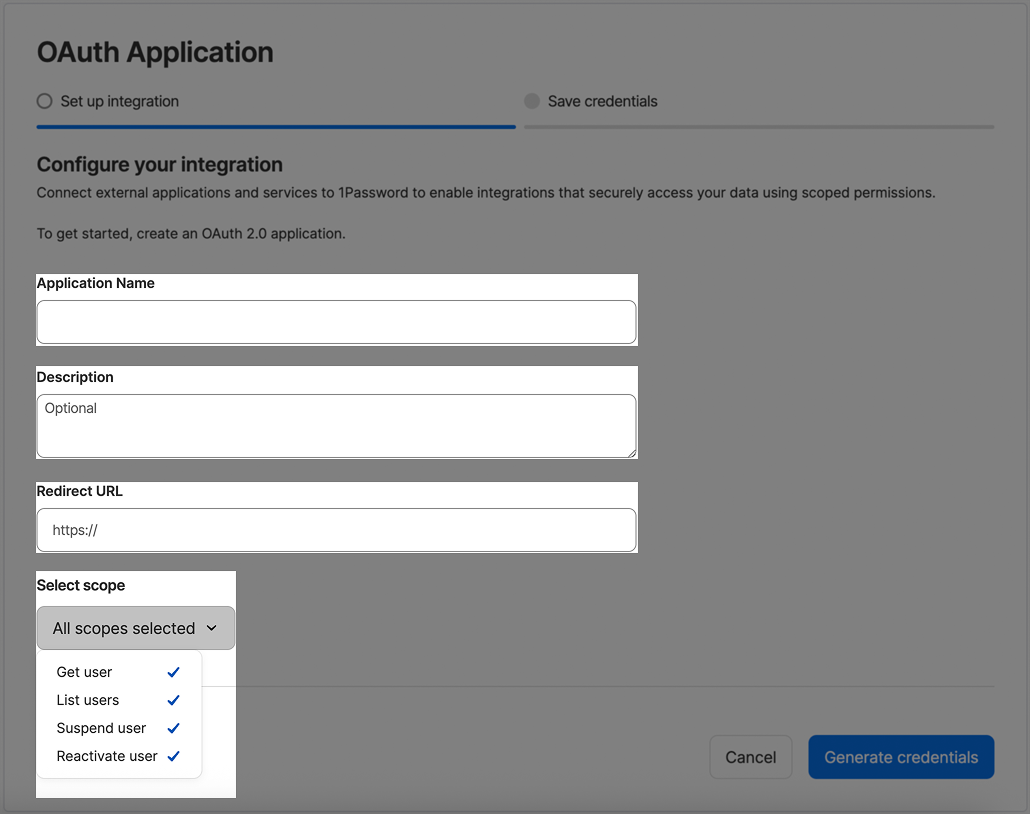
 4. Fill the following fields :
* **Application Name**
* **Description**
* **Redirect URL** (You can use **[https://example.com](https://example.com)** since this field is not relevant for this type of OAuth but it's still required).
* Select the following scopes : **Get User**, **List Users**, **Suspend User**, **Reactivate User**.
4. Fill the following fields :
* **Application Name**
* **Description**
* **Redirect URL** (You can use **[https://example.com](https://example.com)** since this field is not relevant for this type of OAuth but it's still required).
* Select the following scopes : **Get User**, **List Users**, **Suspend User**, **Reactivate User**.
 5. Click on **Generate Credentials**
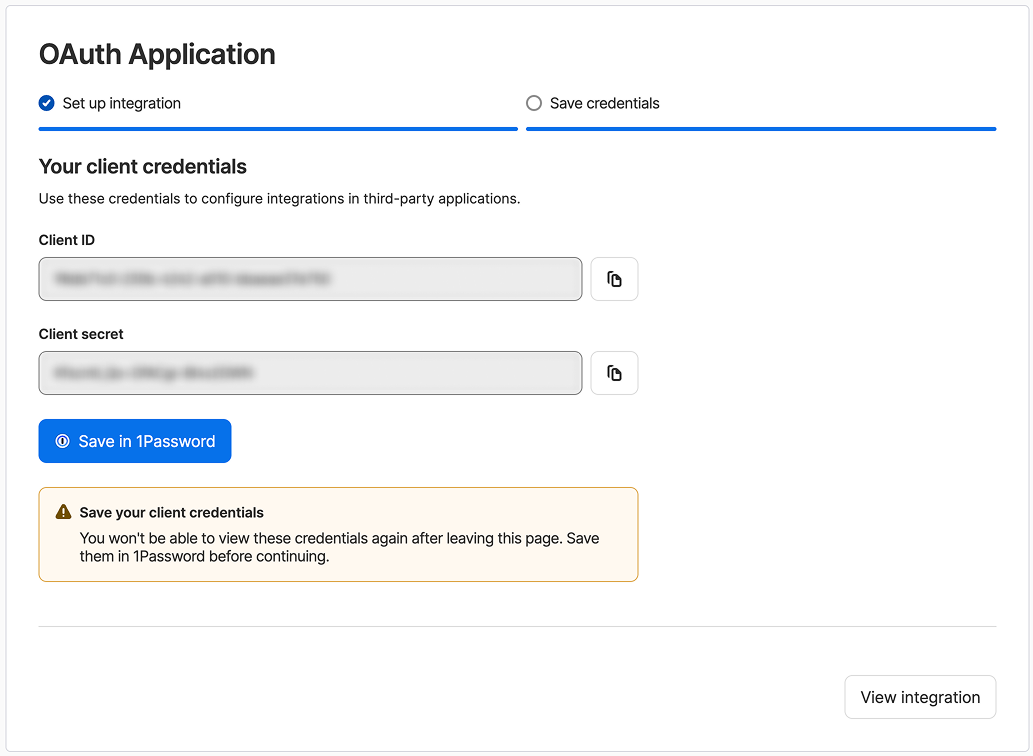
6. Copy your credentials and use them to create a connection on Blink.
5. Click on **Generate Credentials**
6. Copy your credentials and use them to create a connection on Blink.
 #### Creating your connection
1. In the Blink platform, navigate to the **Connections** page > **Add connection**. A New Connection dialog box opens displaying icons of external service providers available.
2. Select the **1Password Users** icon. A dialog box with name of the connection and connection methods appear.
3. (Optional) Edit the name of the connection. At a later stage you cannot edit the name.
4. Select **Client Secret** as the method to create the connection.
5. Fill in the parameters:
* The API Address
* The Client ID
* The Client Secret
6. (Optional) Click **Test Connection** to test it.
7. Click **Create connection**. The new connection appears on the **Connections** page.
#### Creating your connection
1. In the Blink platform, navigate to the **Connections** page > **Add connection**. A New Connection dialog box opens displaying icons of external service providers available.
2. Select the **1Password Users** icon. A dialog box with name of the connection and connection methods appear.
3. (Optional) Edit the name of the connection. At a later stage you cannot edit the name.
4. Select **Client Secret** as the method to create the connection.
5. Fill in the parameters:
* The API Address
* The Client ID
* The Client Secret
6. (Optional) Click **Test Connection** to test it.
7. Click **Create connection**. The new connection appears on the **Connections** page.