> ## Documentation Index
> Fetch the complete documentation index at: https://docs.blinkops.com/llms.txt
> Use this file to discover all available pages before exploring further.

# About Tasks

> Create and manage investigation tasks within cases to track remediation activities in Blink.

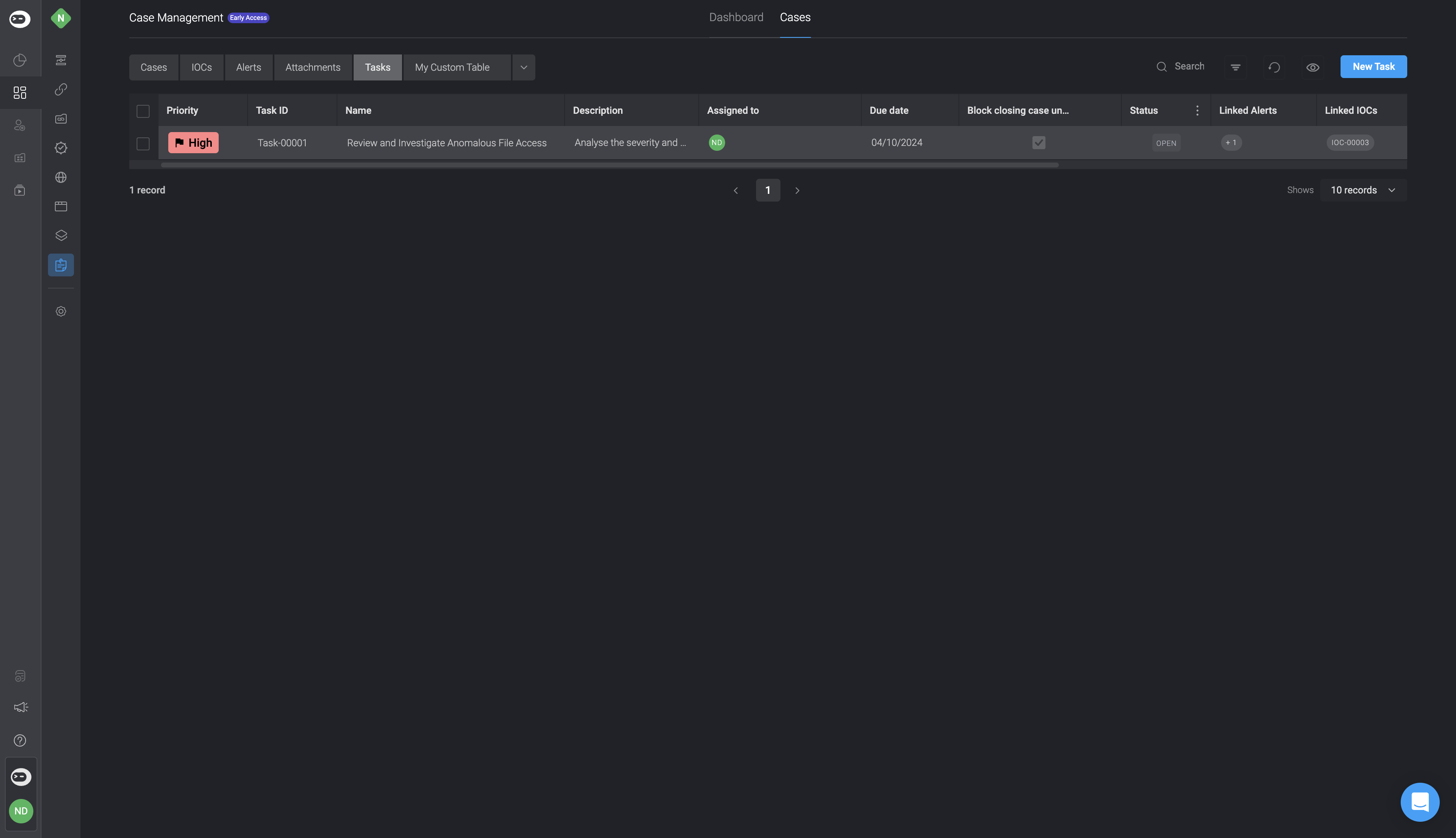
Tasks help you track and manage specific actions that need to be completed during an investigation or incident response. Each Task can be assigned to a user, prioritized, given a due date, and linked to relevant records such as Cases, Alerts, Observables, and Attachments.

Using Tasks ensures accountability, streamlines collaboration, and keeps your case progress organized and actionable from start to finish.

***

## Create a New Task

<Note>
  You can create Tasks directly within a Case or from the main 'Tasks' tab, and optionally configure them to block case closure until they are completed.
</Note>

<Steps>
  <Step title="Navigate to the Tasks Tab">
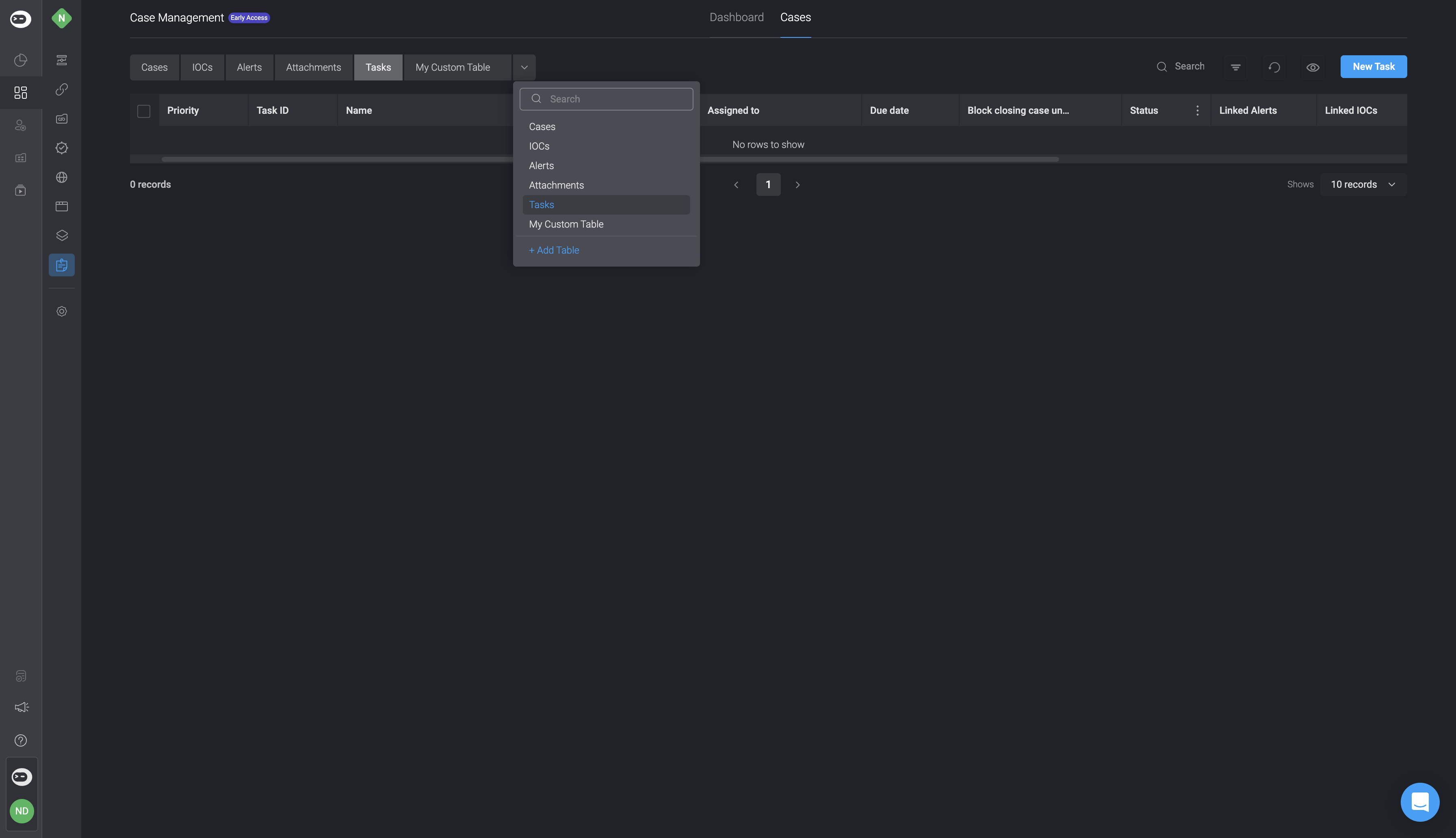
    <p> Navigate to the 'Tasks' tab, by clicking on the downward arrow <Icon icon="angle-down" color="gray" /> icon and selecting the 'Tasks' option. </p>
    <Frame>
      <img src="https://mintcdn.com/blinkops-2/sb7Z70HzlwQjgWp7/img/CaseManagement/Tasks.png?fit=max&auto=format&n=sb7Z70HzlwQjgWp7&q=85&s=32049cc1386288c99d075199b7b84b5f" width="3584" height="2062" data-path="img/CaseManagement/Tasks.png" />
    </Frame>
  </Step>

  <Step title="Open the New Record Form">
    Create a **New Task** by selecting the **New Task** button in the top-right corner.

    <Frame>
      <img src="https://mintcdn.com/blinkops-2/sb7Z70HzlwQjgWp7/img/CaseManagement/TasksTable.png?fit=max&auto=format&n=sb7Z70HzlwQjgWp7&q=85&s=15156e032861bdb1e7f46d36315ee04d" width="3582" height="2062" data-path="img/CaseManagement/TasksTable.png" />
    </Frame>
  </Step>

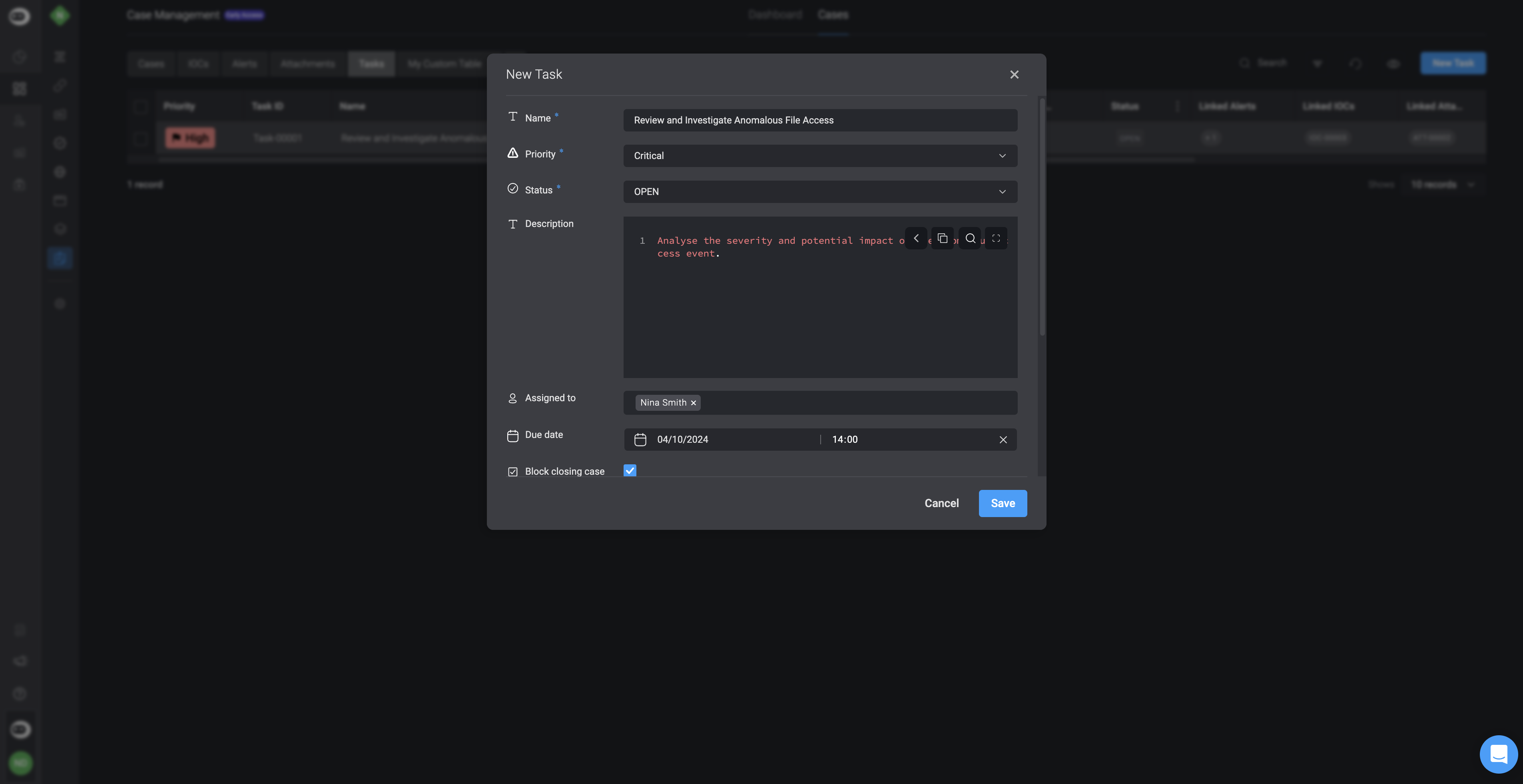
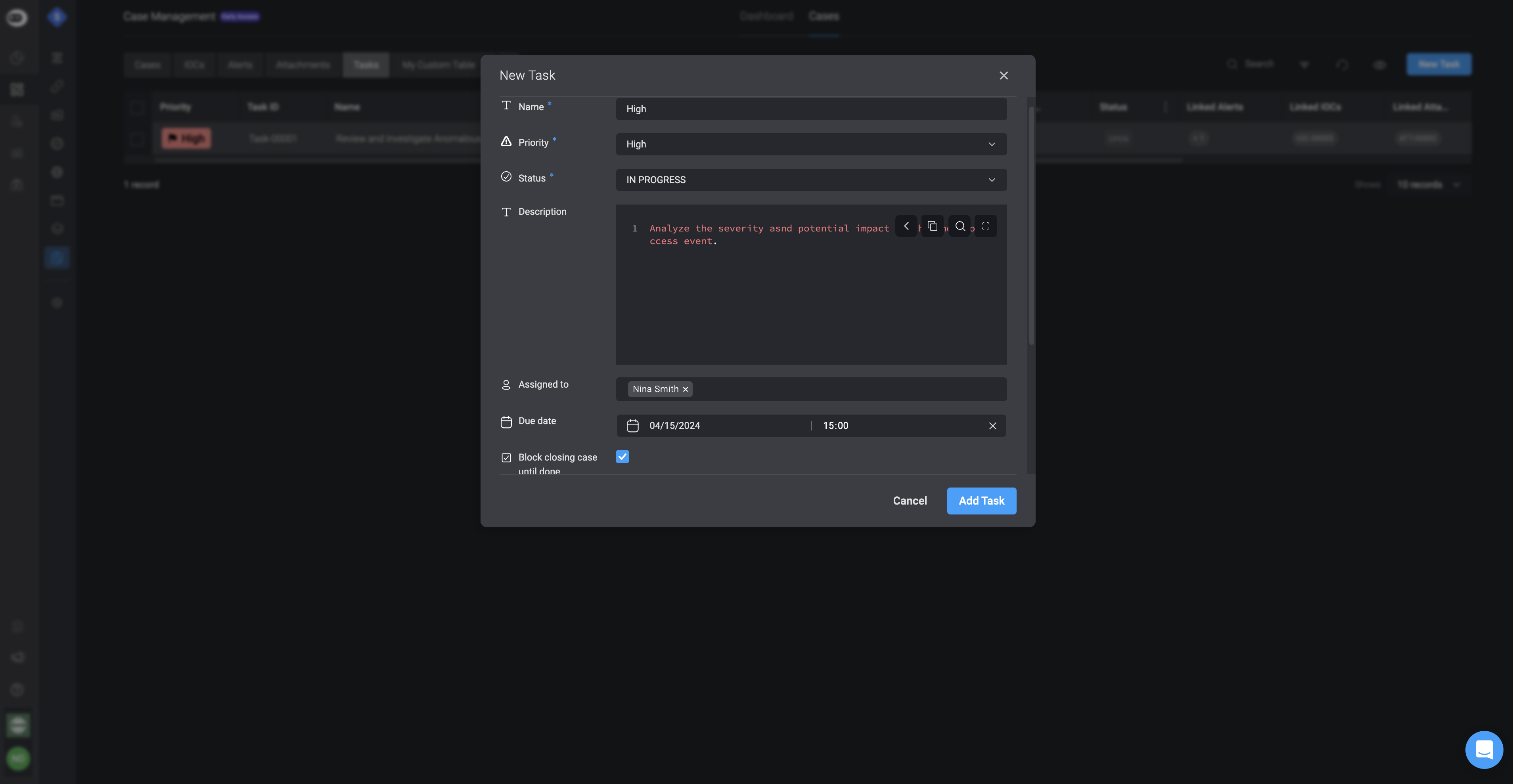
  <Step title="Fill in all the necessary fields">
    Once completed, select the **Add Task** button in the bottom-right corner.

    <div className="integrations-table">
      | Parameter                           | Description                                                                       |
      | ----------------------------------- | --------------------------------------------------------------------------------- |
      | Name                                | The name given to the Task.                                                       |
      | Status                              | The status of the Task                                                            |
      | Task Type                           | The type of the Task.                                                             |
      | Priority                            | The **priority** rank of the Task- **Low**, **Medium**, **High** or **Critical**. |
      | Description                         | A brief **description** describing the Task.                                      |
      | Assigned to                         | The user you are **assigning the Task to**.                                       |
      | Due Date                            | A **date and time** for when the Task is **due**.                                 |
      | Block Closing Case Until it is Done | Checking the box will **block the closing case until it is done**.                |
      | Linked Alerts                       | The Name and ID of the Alert(s) you want to link to this current Task.            |
      | Linked Observables                  | The Name and ID of the Observable(s) you want to link to this current Task        |
      | Linked Attachments                  | The Name and ID of the Attachment(s) you want to link to this current Task.       |
      | Linked Tasks                        | The Name and ID of the Task(s) you want to link to this current Task.             |
      | Linked Cases                        | The Name and ID of the Case(s) you want to link to this current Task.             |
    </div>

    <Frame>
      <img src="https://mintcdn.com/blinkops-2/UGyZ3yX79lqyx4Hr/img/CaseManagement/AddTask.png?fit=max&auto=format&n=UGyZ3yX79lqyx4Hr&q=85&s=cf91cffa468520a46450d2bf1eb744e0" width="3816" height="1978" data-path="img/CaseManagement/AddTask.png" />
    </Frame>
  </Step>
</Steps>

***

## Editing a Task

To **edit a task**, double click on the task you would like to edit, make the desired changes and then proceed by clicking the **save** button.

<Frame>
  <img src="https://mintcdn.com/blinkops-2/sb7Z70HzlwQjgWp7/img/CaseManagement/UpdateTask.png?fit=max&auto=format&n=sb7Z70HzlwQjgWp7&q=85&s=35cea597ab491dc6d5e34f8a44de2182" width="3810" height="1962" data-path="img/CaseManagement/UpdateTask.png" />
</Frame>

***

## Deleting a Task

<Steps>
  <Step title="Choose a Task to Delete">
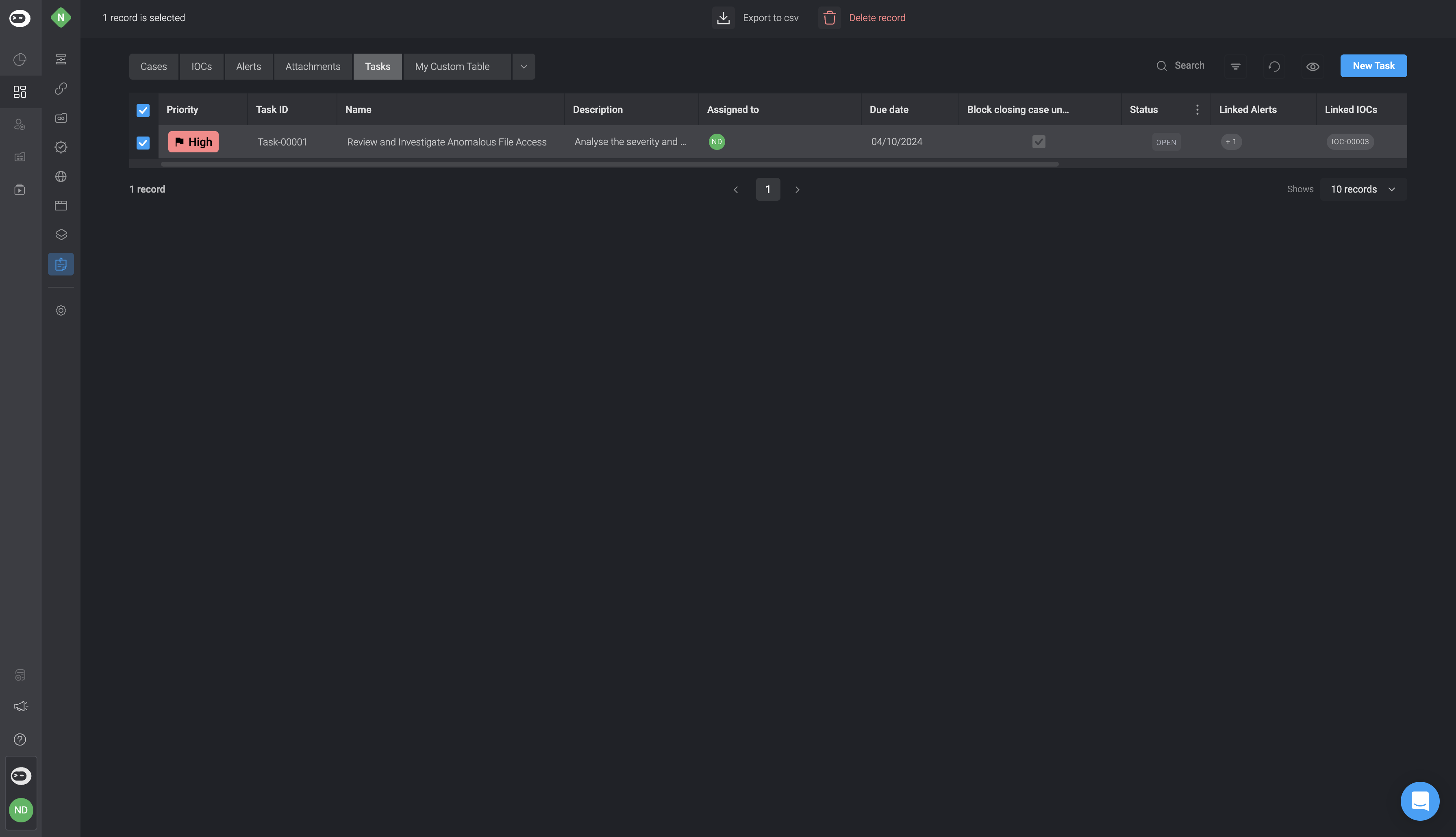
    Navigate to the **Task** you want to delete and select the checkbox.
  </Step>

  <Step title="Delete the Task">
    A floating bar will appear at the top of the screen with the options to export the selected records to **CSV** or to **delete** the selected records. Select the **delete the selected records** option.

    <Frame>
      <img src="https://mintcdn.com/blinkops-2/BRfSL_EOO1Uh43ic/img/CaseManagement/DeleteTask.png?fit=max&auto=format&n=BRfSL_EOO1Uh43ic&q=85&s=7dff83ba1492b3c0dc8d78e40c9f1ed8" width="3582" height="2060" data-path="img/CaseManagement/DeleteTask.png" />
    </Frame>
  </Step>
</Steps>