> ## Documentation Index
> Fetch the complete documentation index at: https://docs.blinkops.com/llms.txt
> Use this file to discover all available pages before exploring further.

# About Observables

> Track and manage observables like IP addresses, domains, and file hashes in Blink case management.

Observables refer to data that indicates a system may have been infiltrated by a cyber threat. They provide cybersecurity teams with crucial knowledge after a data breach or another breach in security. In this section, you can create and manage Observables for your Cases.

<Tip>To learn more about Observables and their role in Alerts and Case Management, please refer to our detailed guide available [here](/docs/case-management/blinks-automated-case-management/blinks-automated-case-management).</Tip>

***

## Types of Observables

<Accordion icon="list" title="Types of Observables">
  1. Unknown
  2. Hostname
  3. IP Address
  4. MAC Address
  5. URL String
  6. Username
  7. Email Address
  8. URL String
  9. File Name
  10. Hash
  11. Process Name
  12. Resource UID
  13. Port
  14. Subnet
  15. Command Line
  16. Country
  17. Process ID
  18. HTTP User Agent
  19. CWE Object : uid
  20. CVE Object: uid
  21. User Credential ID
  22. Endpoint
  23. User
  24. Email
  25. Uniform Resource Locator
  26. File
  27. Process
  28. Geo Location
  29. Container
  30. Registry Key
  31. Registry Value
  32. Fingerprint
  33. Other
</Accordion>

***

## Creating a New Observable

<Note>
  **Note:**

  * You can assign multiple observables to a single case or a single observable to many cases.
  * You can also create observables directly from the main Observable table. Simply navigate to the Observable table and click on the 'New Observable' button located in the top-right corner and fill out the required parameters.
</Note>

<Steps>
  <Step title="Navigate to the 'Observables' tab">
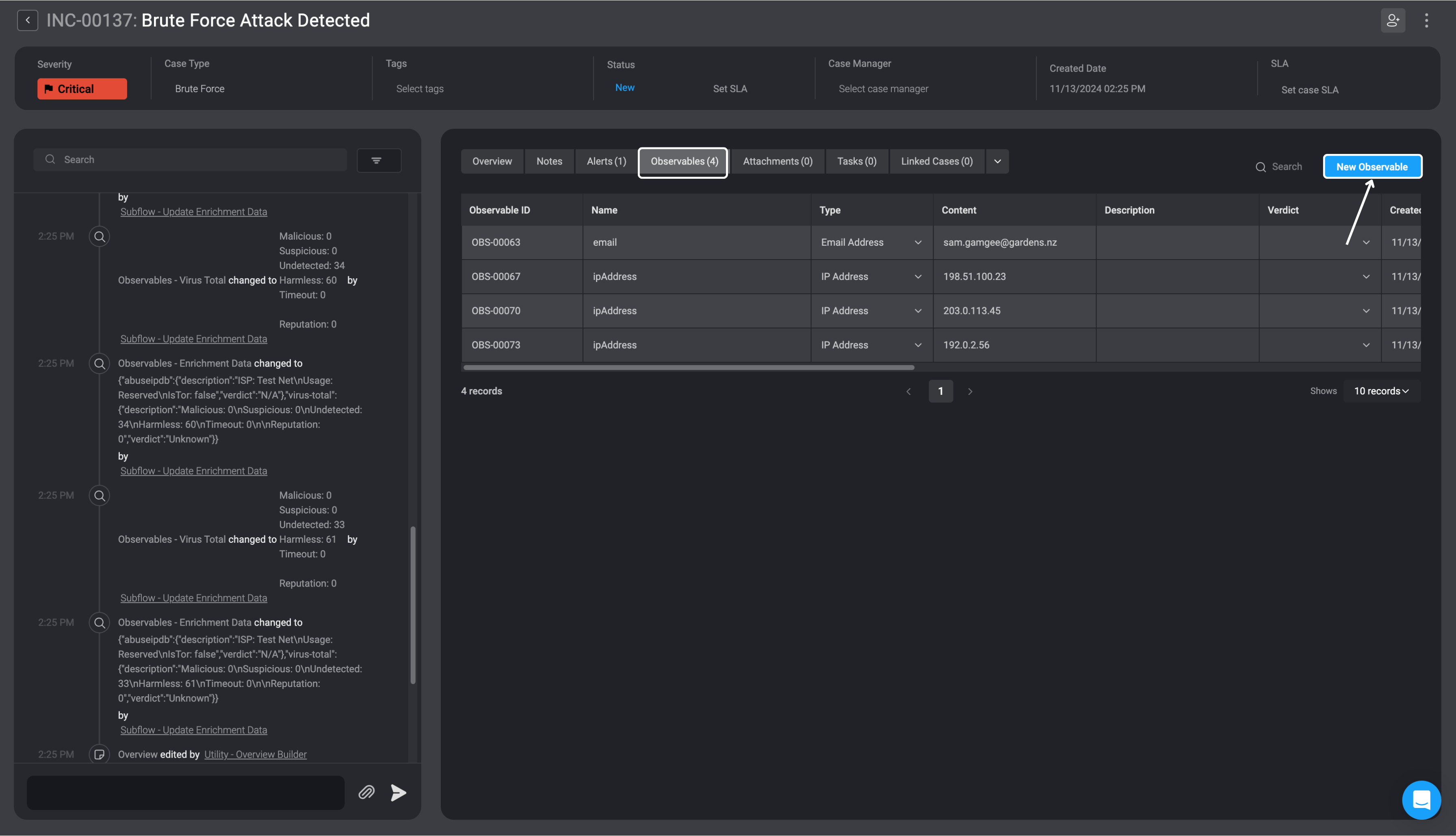
    To attach an Observable to a Case, first double-click on the desired Case. In the [overview section](/docs/case-management/cases/case-overview#case-overview) of the selected Case, go to the ['Observables' tab](/docs/case-management/cases/case-overview#linked-observable). Then, click the "New Record" button in the top-right corner.

    <Frame>
      <img src="https://mintcdn.com/blinkops-2/UGyZ3yX79lqyx4Hr/img/CaseManagement/AddNewIoc.png?fit=max&auto=format&n=UGyZ3yX79lqyx4Hr&q=85&s=c384c4575f5bb63659e504f8a821675c" width="3584" height="2058" data-path="img/CaseManagement/AddNewIoc.png" />
    </Frame>
  </Step>

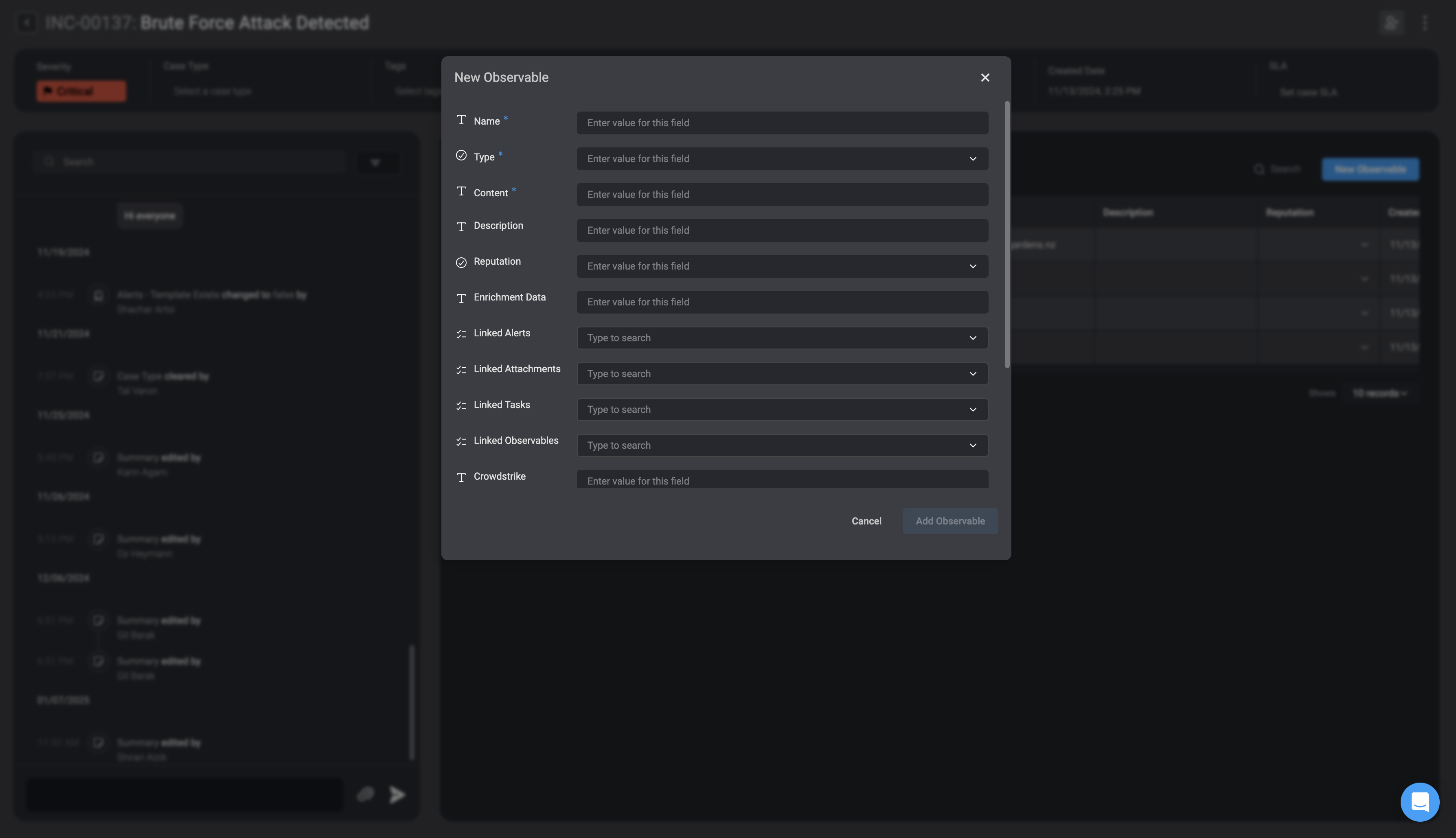
  <Step title="Open the New Record Form">
    <Frame>
      <img src="https://mintcdn.com/blinkops-2/UGyZ3yX79lqyx4Hr/img/CaseManagement/AddIoc.png?fit=max&auto=format&n=UGyZ3yX79lqyx4Hr&q=85&s=b8fe0d881add3d3c43711e00296bd2e3" width="3576" height="2058" data-path="img/CaseManagement/AddIoc.png" />
    </Frame>
  </Step>

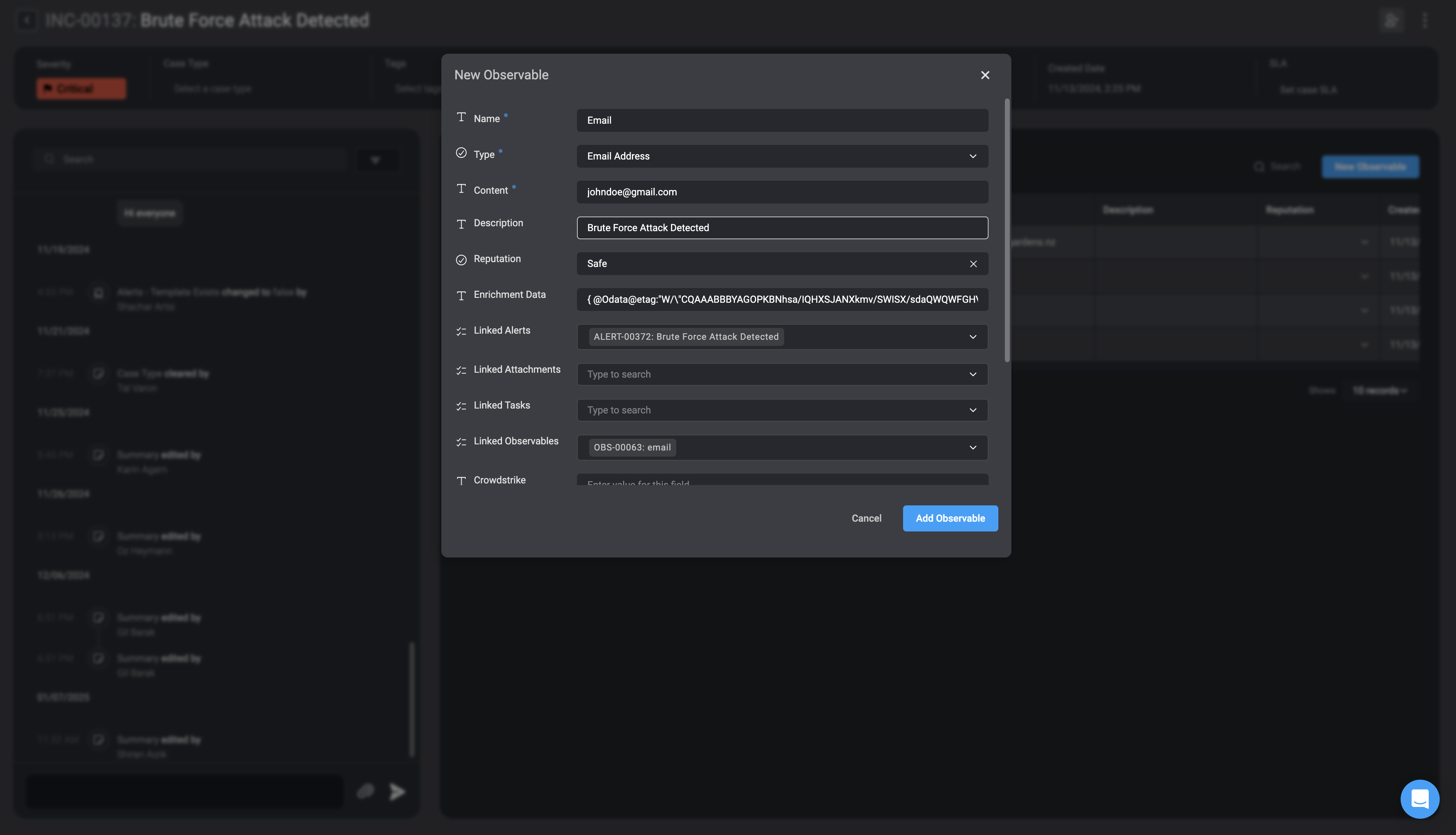
  <Step title="Fill in all the necessary fields">
    <div className="integrations-table">
      | Fields                 | Description                                                                                                                                                                                                                                                                                                                                                                                                                                       |
      | ---------------------- | ------------------------------------------------------------------------------------------------------------------------------------------------------------------------------------------------------------------------------------------------------------------------------------------------------------------------------------------------------------------------------------------------------------------------------------------------- |
      | Name                   | The name of the Observable.                                                                                                                                                                                                                                                                                                                                                                                                                       |
      | Observable Type        | The type of the Observable.                                                                                                                                                                                                                                                                                                                                                                                                                       |
      | Content Type           | The content value of the Observable                                                                                                                                                                                                                                                                                                                                                                                                               |
      | Description (Optional) | A written description for the Observable                                                                                                                                                                                                                                                                                                                                                                                                          |
      | Reputation             | An observable's reputation is a rating that shows how safe or risky it is based on its actions or traits. This helps users decide if they can trust the observable or if they should be cautious. The reputation options range from **Unknown** (no information) to **Malicious** (potentially harmful), with levels like **Very Safe**, **Safe**, **Exercise Caution**, and **Suspicious/Risky** to indicate varying degrees of trustworthiness. |
      | Enrichment Data        | The enrichment data that provides additional information and context on the Observable                                                                                                                                                                                                                                                                                                                                                            |
      | Linked Cases           | The Name and ID of the Case(s) you want to link to this current Observable.                                                                                                                                                                                                                                                                                                                                                                       |
      | Linked Attachments     | The Name and ID of the Attachment(s) you want to link to this current Observable.                                                                                                                                                                                                                                                                                                                                                                 |
      | Linked Tasks           | The Name and ID of the Task(s) you want to link to this current Observable.                                                                                                                                                                                                                                                                                                                                                                       |
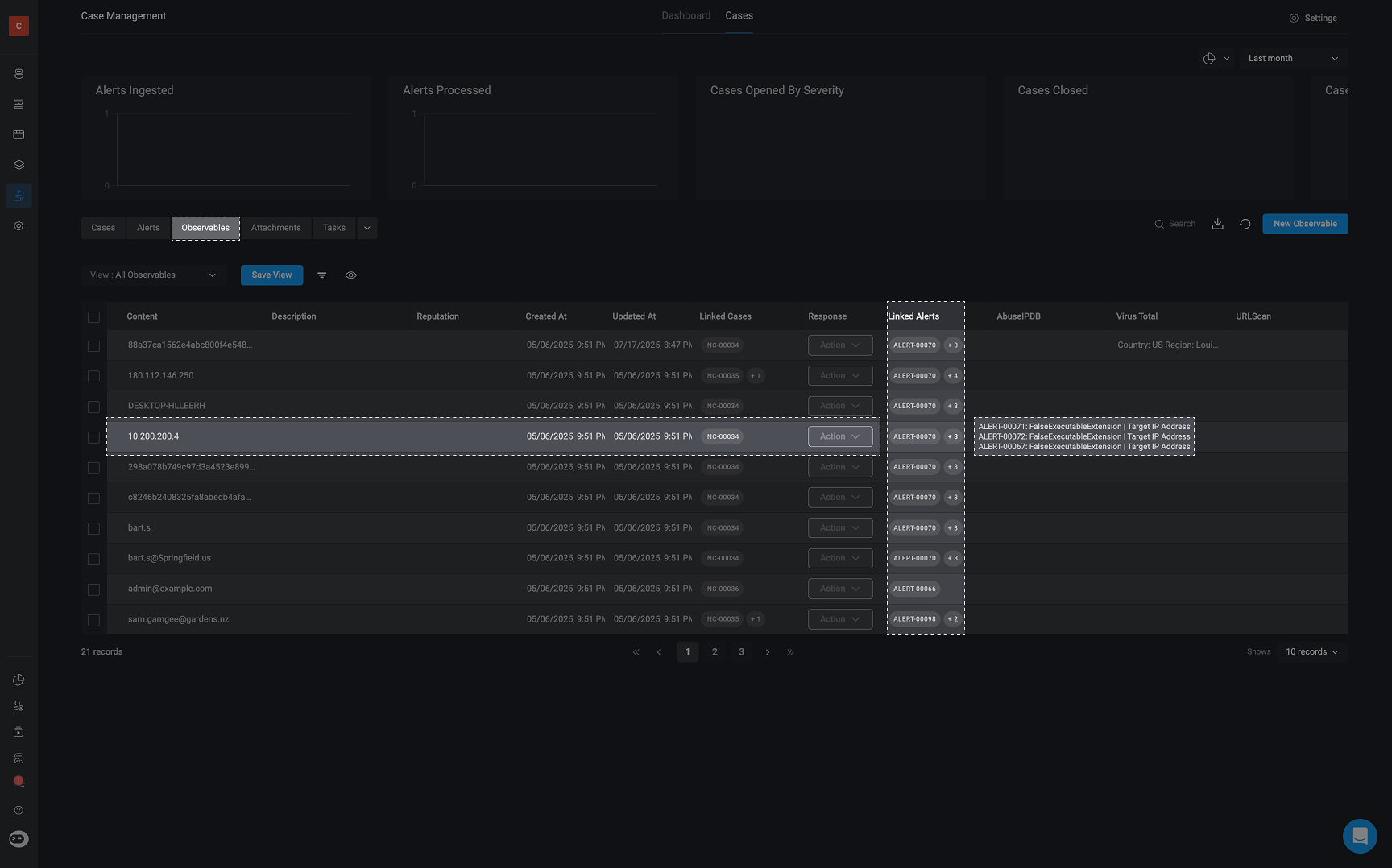
      | Linked Alerts          | The Name and ID of the Alerts(s) you want to link to this current Observable. <Tip>Hover over the 'Linked Alerts' column in the observables table to see the relations associated with each observable.</Tip>                                                                                                                                                                                                                                     |
      | Linked Observables     | The Name and ID of the Observable(s) you want to link to this current Observable.                                                                                                                                                                                                                                                                                                                                                                 |
    </div>
  </Step>

  <Step title="Save and add the Observable">
    Once completed, select the **Add Observables** button in the bottom-right corner.

    <Frame>
      <img src="https://mintcdn.com/blinkops-2/UGyZ3yX79lqyx4Hr/img/CaseManagement/AddIocButton.png?fit=max&auto=format&n=UGyZ3yX79lqyx4Hr&q=85&s=92cb3ba545be77003e2f414692d2fc1c" width="3576" height="2052" data-path="img/CaseManagement/AddIocButton.png" />
    </Frame>
  </Step>
</Steps>

***

## Observable Relations

Hover over the 'Linked Alerts' column in the observables table to see the relations associated with each observable.

<Note>Please note, you cannot make any changes directly to the relations, via the 'Linked Alerts' column in the observable table. To make any changes, you can do so via the [Add or Update Observable Relation](/docs/case-management/case-management-workflow-actions/observable-actions#add-or-update-observable-relation) action. </Note>

<Frame>
  <img src="https://mintcdn.com/blinkops-2/a1zzdVRAg2RBMsIZ/img/CaseManagement/HoverObservableRelation.png?fit=max&auto=format&n=a1zzdVRAg2RBMsIZ&q=85&s=93354a6ceb3adf5adcd3cc3d520e4546" width="1728" height="1078" data-path="img/CaseManagement/HoverObservableRelation.png" />
</Frame>

***

## Editing Observables

<Note>
  **NOTE**
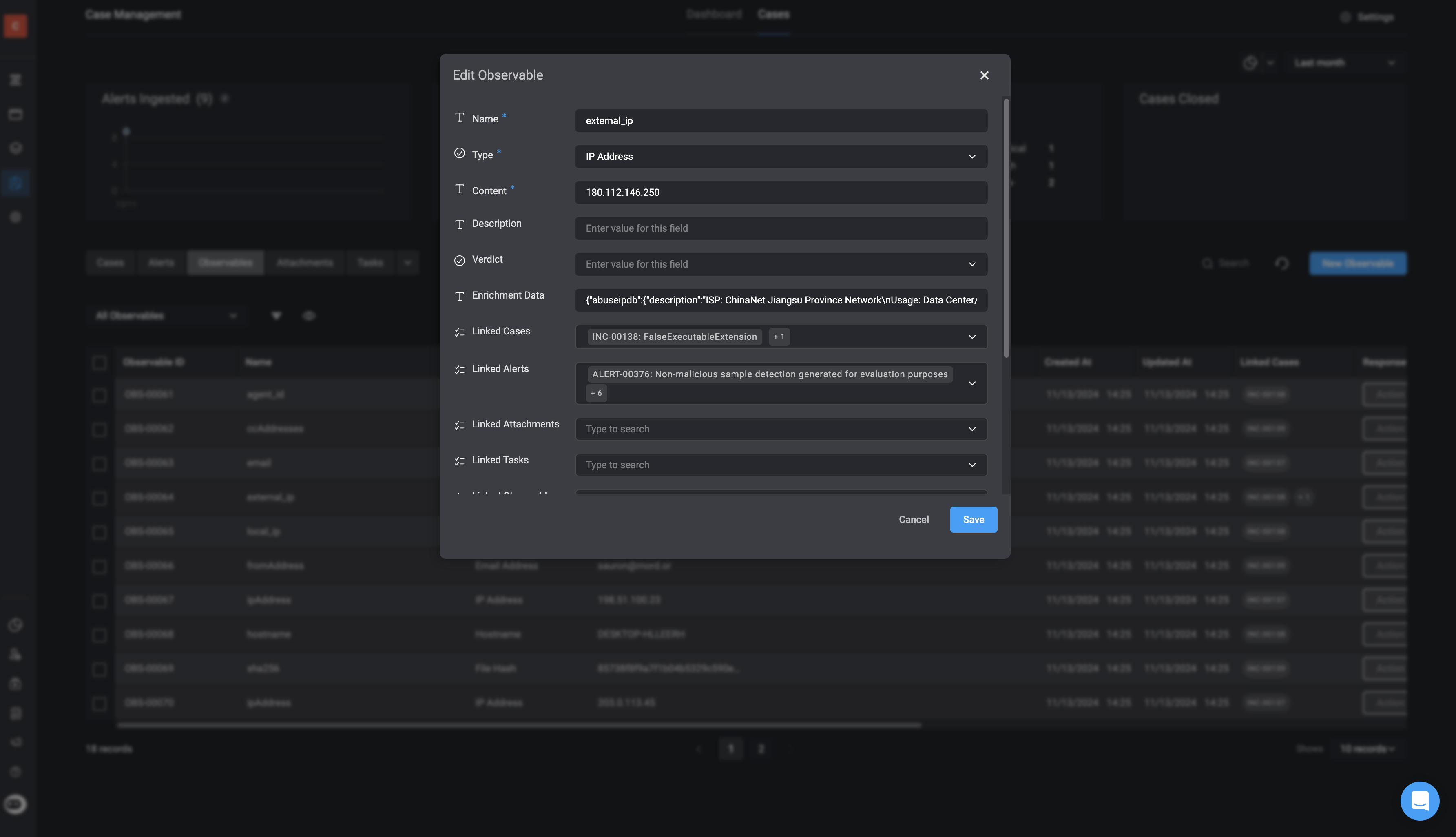
  Please note that you can also **Edit Observable(s)** directly within the **table tab** of a **case overview**. Simply double-click on the table row to make any necessary changes. Once you have completed your edits, click anywhere on the screen to save the changes.
</Note>

<Steps>
  <Step title="Select an Observable to Edit">
    Select the Observables you would like to edit and click on it.
  </Step>

  <Step title="Make Changes and Save">
    The 'Edit Record' Form will appear. Make any necessary changes to the fields, then click 'Save' in the bottom-right corner. The changes you made will be reflected in the selected observables.

    <Frame>
      <img src="https://mintcdn.com/blinkops-2/BRfSL_EOO1Uh43ic/img/CaseManagement/EditIoc.png?fit=max&auto=format&n=BRfSL_EOO1Uh43ic&q=85&s=f91a64f7bca1e01dd30cad6646c2e42f" width="3570" height="2052" data-path="img/CaseManagement/EditIoc.png" />
    </Frame>
  </Step>
</Steps>

***

## Deleting an Observable

<Steps>
  <Step title="Select an Observable to Delete">
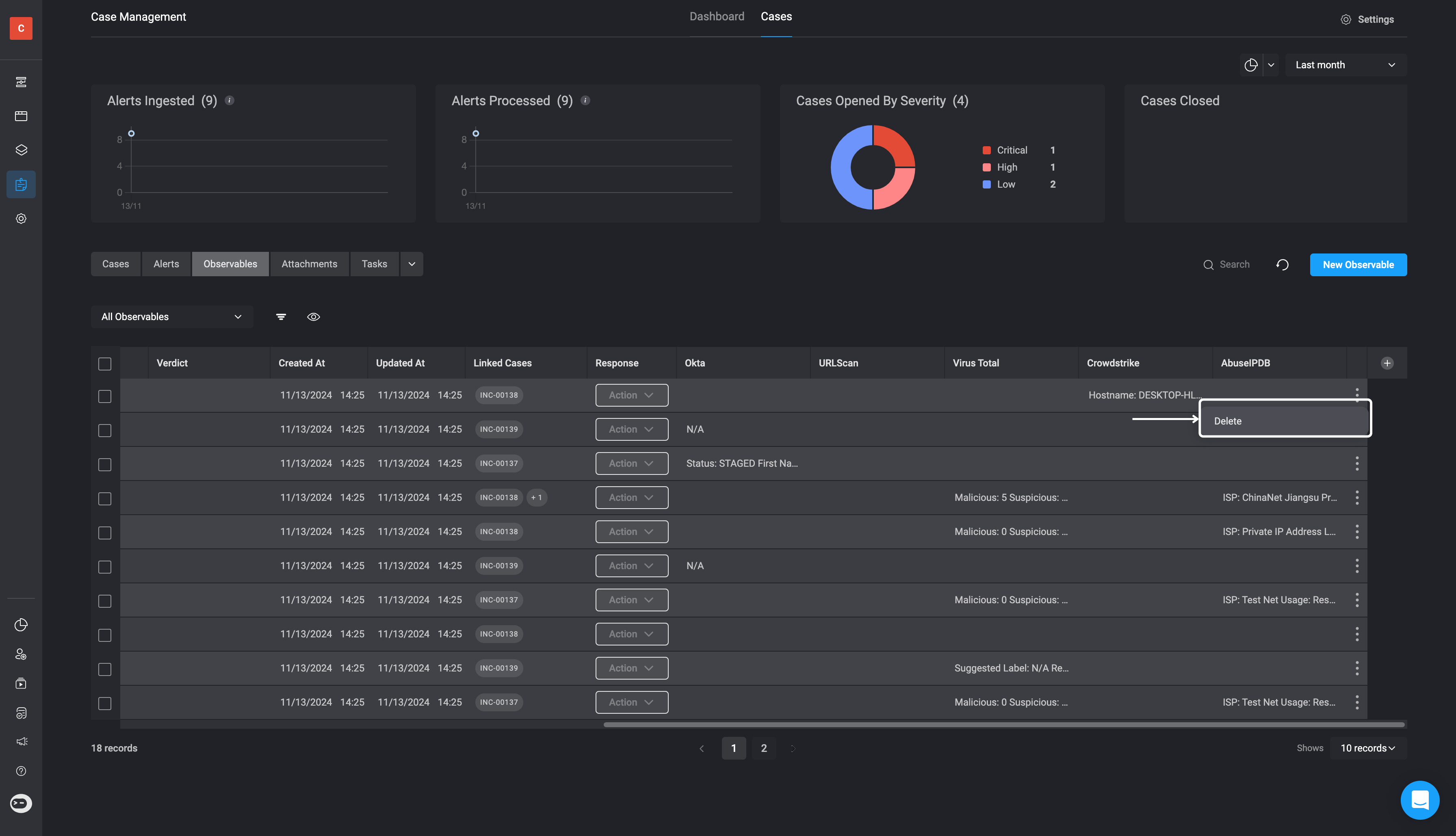
    <p> Navigate to the observable you want to delete and select <Icon icon="square-ellipsis-vertical" iconType="solid" /> icon. </p>
  </Step>

  <Step title="Delete the Observable">
    <p> The **delete** option will appear. Click 'Delete', and the selected observable will be removed from your existing observables. </p>

    <Frame>
      <img src="https://mintcdn.com/blinkops-2/BRfSL_EOO1Uh43ic/img/CaseManagement/DeletingIoc.png?fit=max&auto=format&n=BRfSL_EOO1Uh43ic&q=85&s=6bcd354180c0caeff21c39b8ad99420c" width="3584" height="2058" data-path="img/CaseManagement/DeletingIoc.png" />
    </Frame>
  </Step>
</Steps>