> ## Documentation Index
> Fetch the complete documentation index at: https://docs.blinkops.com/llms.txt
> Use this file to discover all available pages before exploring further.
# Enabling Case Management in Your Workspace
> How to enable and set up the case management feature in your Blink workspace.
To begin using Case Management in Blink, you first need to enable it within your Workspace Settings. This short guide walks you through each step. Once enabled, the Case Management feature will appear in the left-hand navigation menu, giving you access to [Cases](/docs/case-management/cases/cases), [Alerts](/docs/case-management/alerts/alerts), [Observables](/docs/case-management/observables/observables), [Attachments](/docs/case-management/attachments/attachments), [Tasks](/docs/case-management/tasks/tasks), and more.
**Note**: Only users with the [Tenant Admin](/docs/blink-platform/account-management/roles#1-admin) role have permission to perform this configuration.
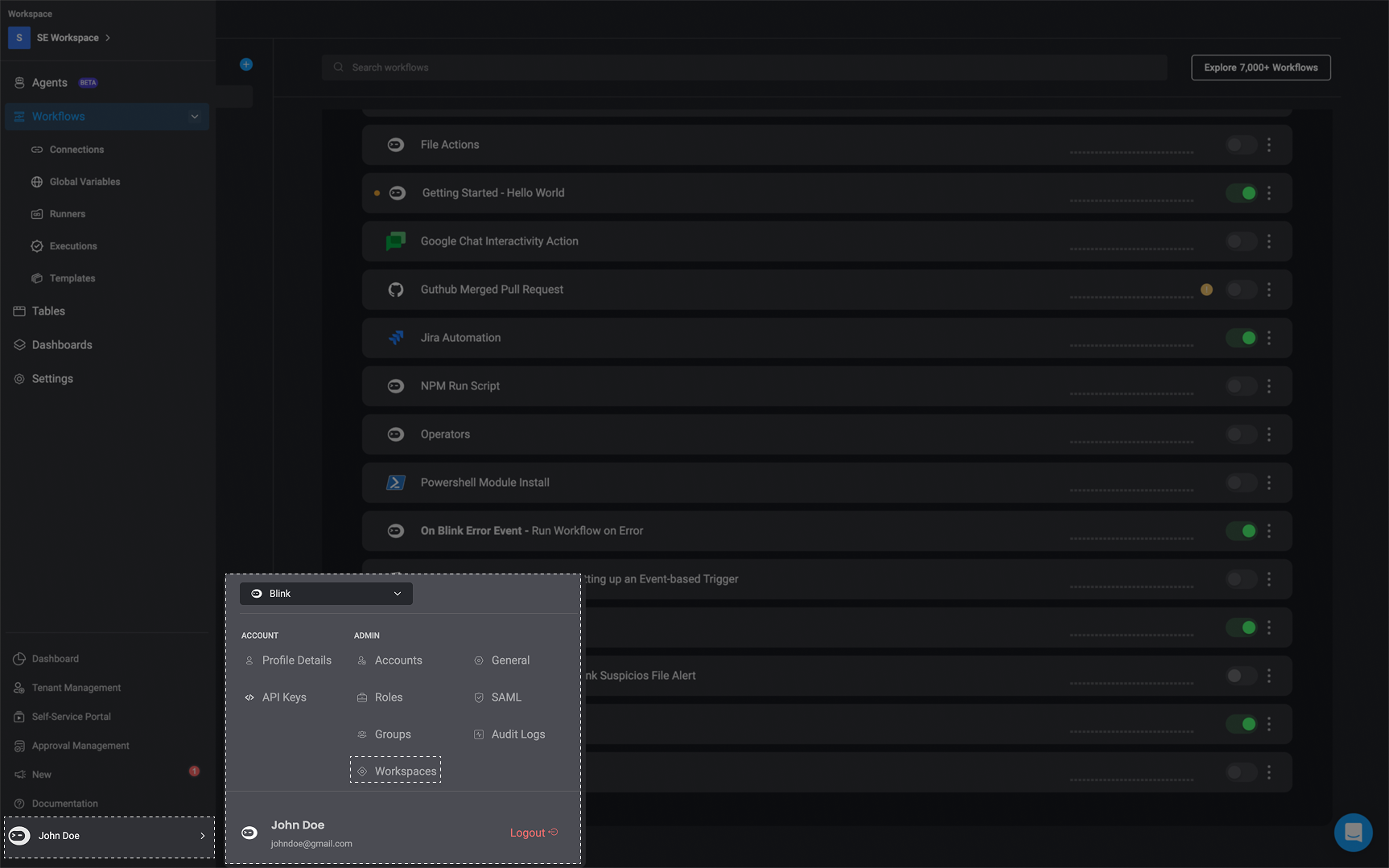
Click on your initials in the bottom-left corner of the screen to open the settings menu. Then select Workspace to view your available workspaces.
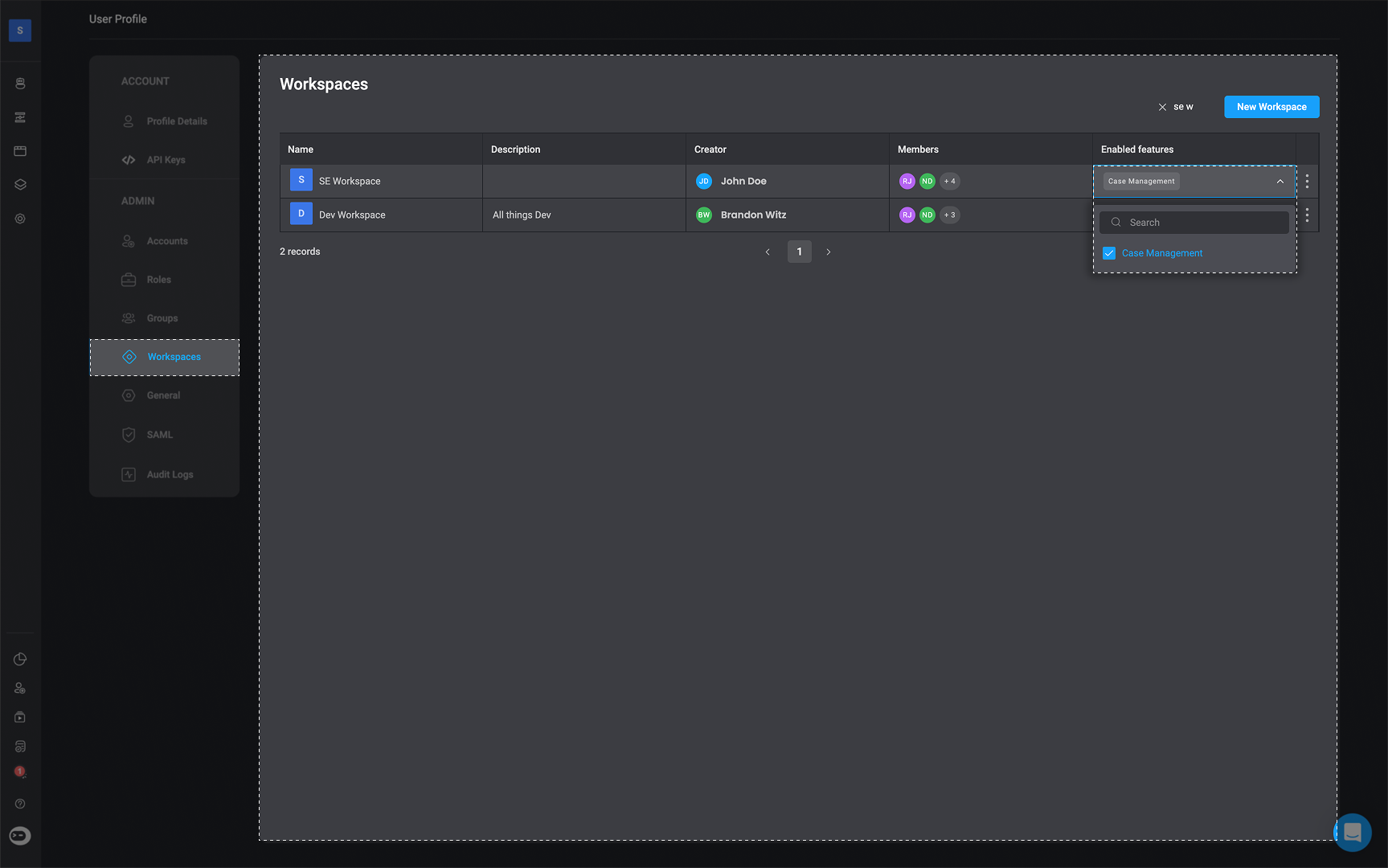
 You will be directed to your 'Workspace Settings' showing all workspaces you are a member of. Use the search bar to find the specific workspace where you want to enable Case Management.
Under the Enable Feature column, click the dropdown menu and check the box next to 'Case Management' to enable it for the selected workspace.
You will be directed to your 'Workspace Settings' showing all workspaces you are a member of. Use the search bar to find the specific workspace where you want to enable Case Management.
Under the Enable Feature column, click the dropdown menu and check the box next to 'Case Management' to enable it for the selected workspace.
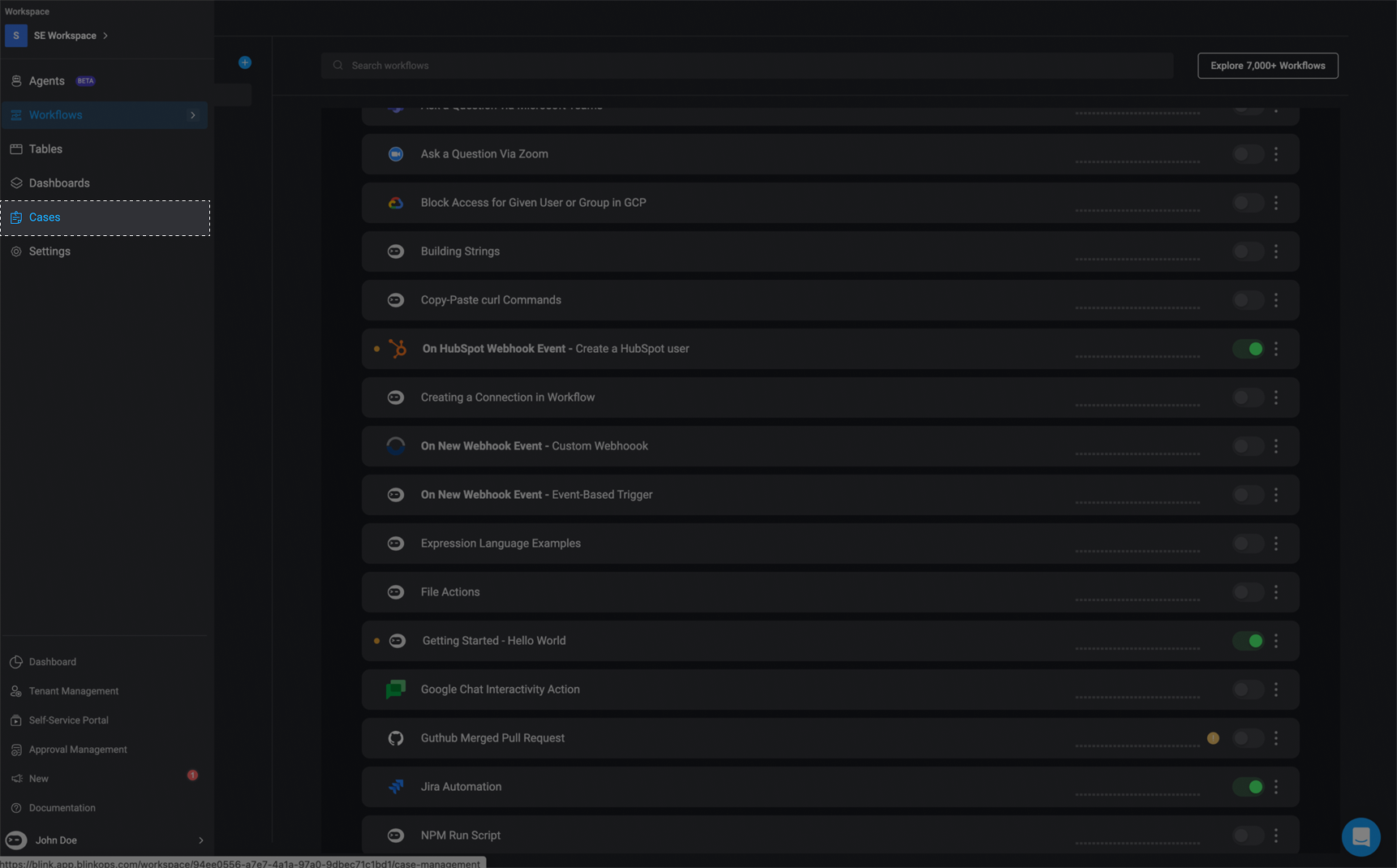
 Once enabled, the 'Cases' feature will appear in your left-hand navigation menu.
If the 'Cases' feature has not yet appeared in the navigation menu, when enabled, try refreshing the page
Once enabled, the 'Cases' feature will appear in your left-hand navigation menu.
If the 'Cases' feature has not yet appeared in the navigation menu, when enabled, try refreshing the page