> ## Documentation Index
> Fetch the complete documentation index at: https://docs.blinkops.com/llms.txt
> Use this file to discover all available pages before exploring further.
# Sharing a Case
> Share cases with other users or teams for collaborative investigation in Blink case management.
Blink users can share selected cases with both other Blink Users or Users who do not have a Blink Account.
**Note**: A "Guest" user will be created for invitees who are not included in your workspace or do not have a Blink account. If invitees are not part of your Tenant, a “Guest” user will be created for them at the Tenant scope as well. “Guest” will only be able to access shared case(s).
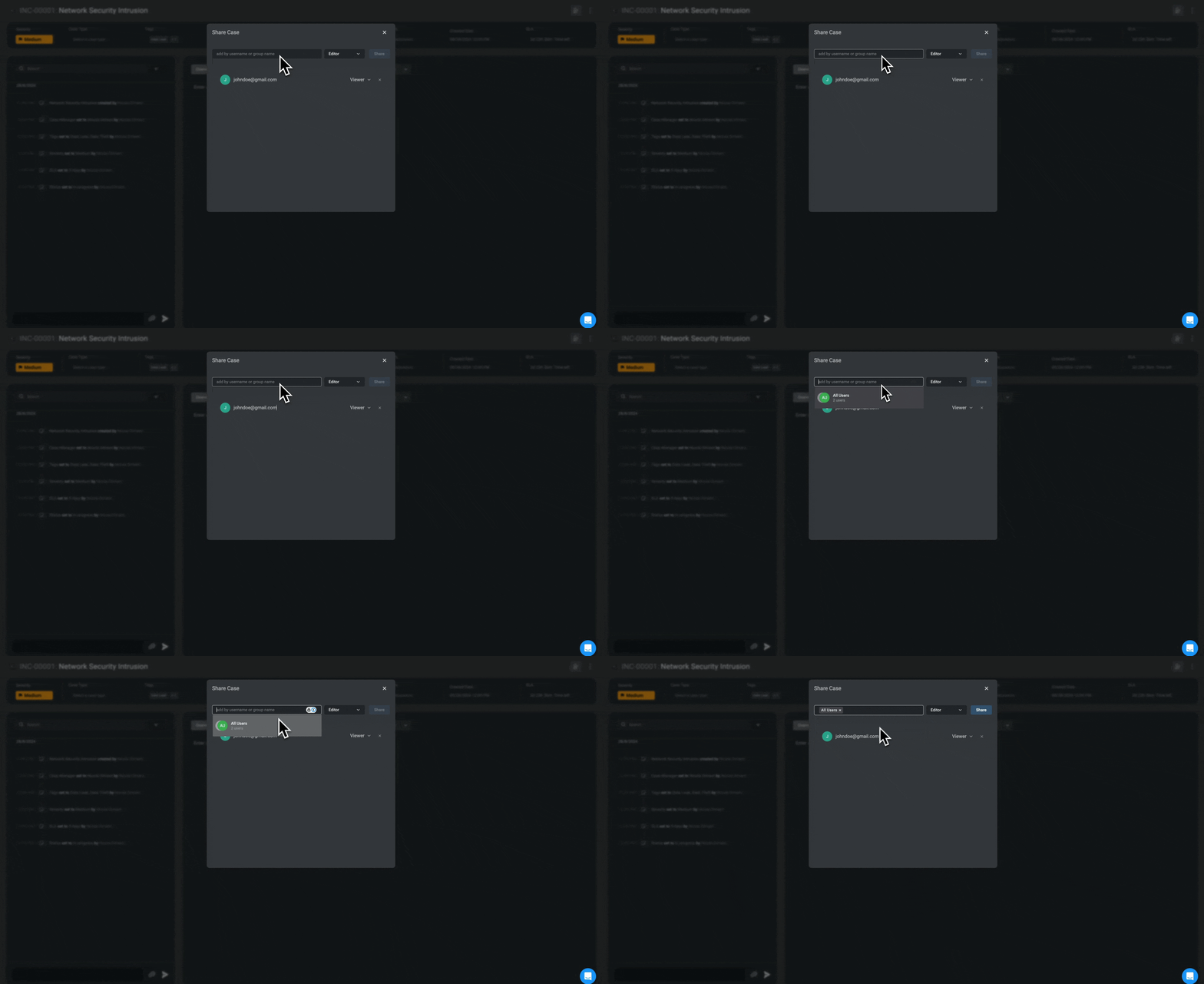
Click the icon in the top-right corner of the selected case.
In the popup, select the email address(es) of the user(s) in your tenant, you want to share the selected case with. To share the case with external users, enter their email address(es) and press enter.
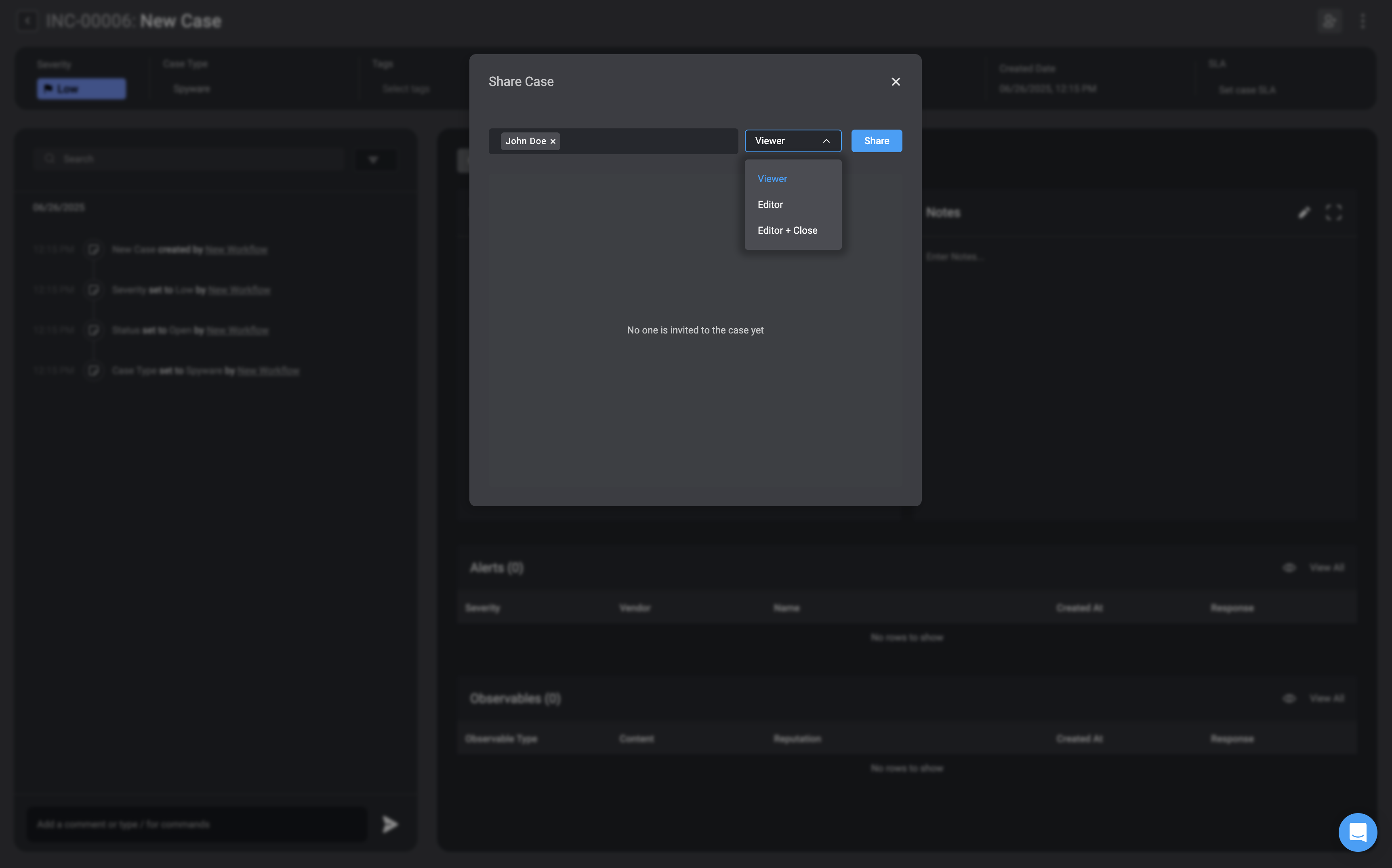
Proceed by assigning the user `Viewer`, `Editor` permissions or `Editor + Close`, permissions then click "Send."
**Note**
* If a user is invited to a case with the `Viewer` permissions, but their general user role grants more permissive permissions, such as an [Owner](/docs/blink-platform/account-management/roles#owner) with full access to case management, they will still be able to edit the case, despite being initially invited with *Viewer* permissions.
* If a user is invited to a case with `Editor` permissions, they can modify the case but cannot close or delete it.
* If a user is invited to a case with `Editor + Close` permissions, they can edit and close the case, but still cannot delete it.
**For more details on Case Management permissions, see the [Case Management Permissions](/docs/case-management/permissions) section of the documentation.**
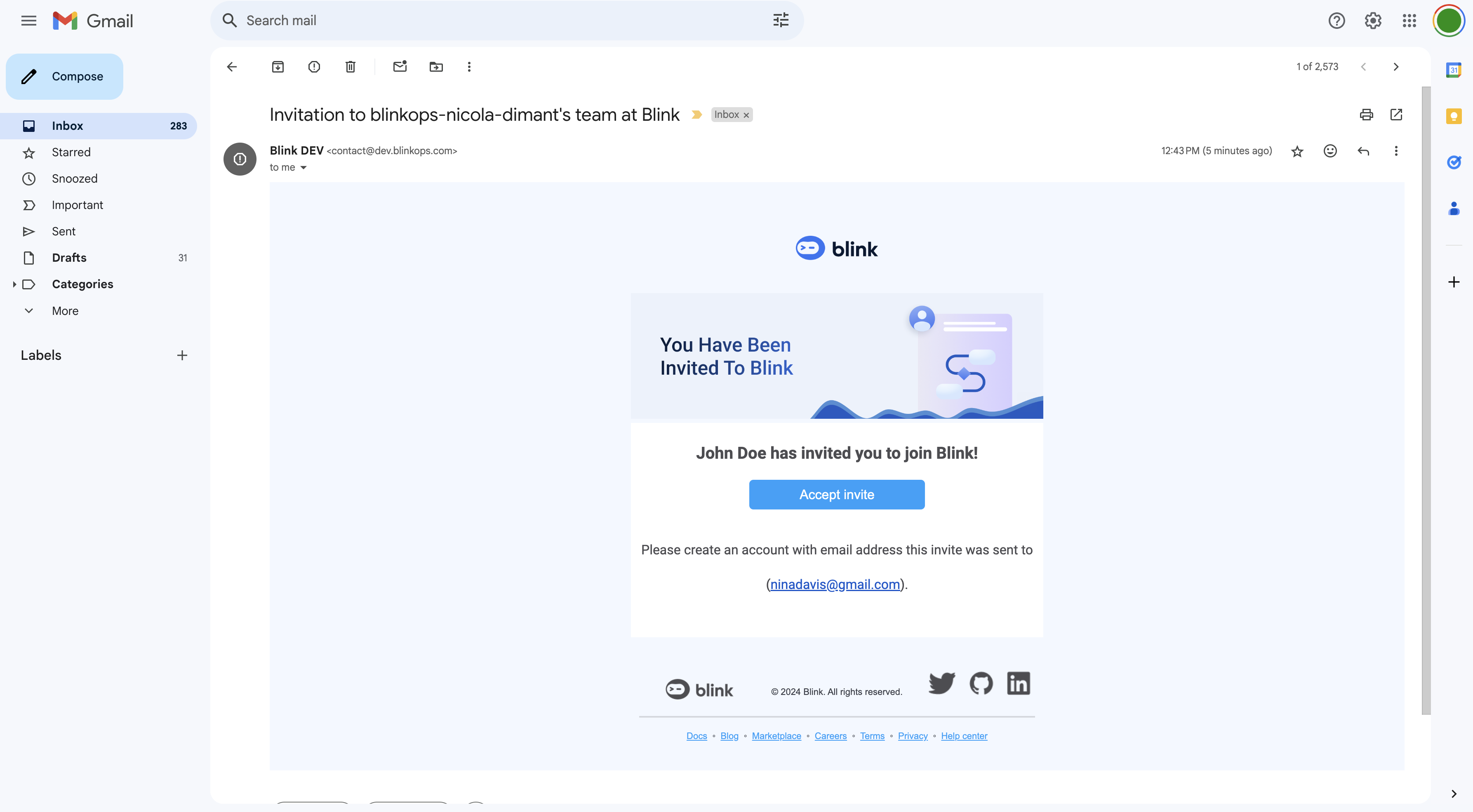
An invite will be sent to the selected people's email address, inviting them to review the Case.
First-time Blink users will have to sign up before they can access a shared case.