> ## Documentation Index
> Fetch the complete documentation index at: https://docs.blinkops.com/llms.txt
> Use this file to discover all available pages before exploring further.
# Alert Ingestion Workflows
> Configure how alerts are ingested into Blink's automated case management pipeline from external sources.
export const VersionBadges = () => {
return
v9.0
;
};
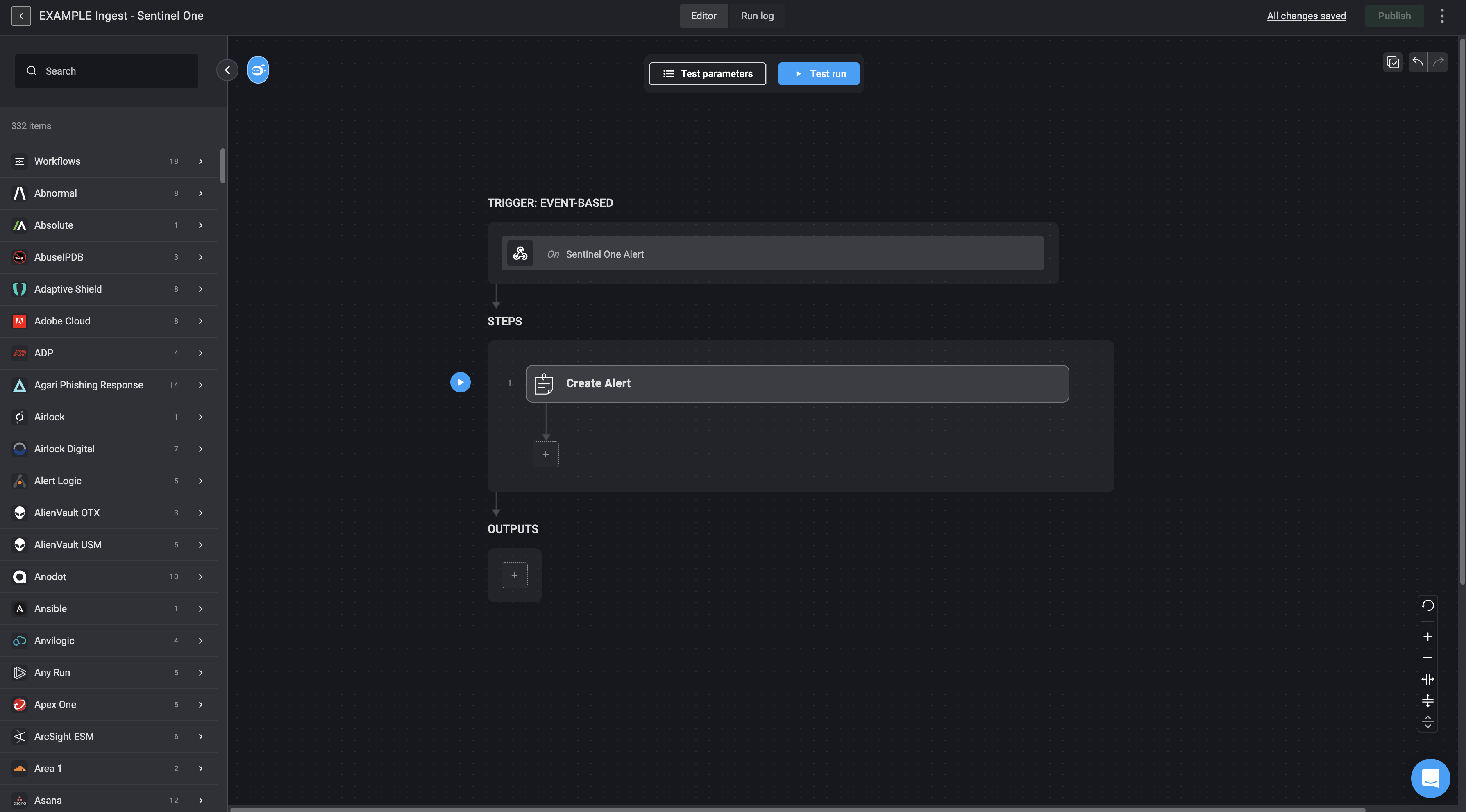
Alert ingestion workflows are event-based workflows which are set up to trigger in real-time, meaning it responds as soon as an alert is available. It can be activated either by a webhook event (an automatic push from the vendor’s system) or by polling (Blink’s system periodically checks for new alerts). This setup allows the workflow to immediately capture alerts as they happen, maintaining continuous, up-to-date alert monitoring. Once triggered, it creates an alert record in Blink’s Case Management, obtaining or logging the alert payload as received from the selected vendor.
***
### Alert Ingestion Workflows Structure
Each alert ingestion workflow consists of one or two key steps:
**Event-Based Trigger:** Initiates the workflow when a new alert is detected, either via webhook or polling. Webhooks provide real-time notification without delay, while polling ensures alerts are retrieved on a regular schedule if webhooks are not available.
**Alert Retrieval (Optional):**
In some cases, the initial event does not include all necessary alert details. When this happens, an additional API call is made to the vendor’s platform to retrieve the full alert payload. For example, with integrations like CrowdStrike, the webhook only provides a reference ID, requiring a follow-up request to gather complete alert information.
**Create Alert:** Once the alert data is collected, this step creates a new alert record within Blink’s Case Management system, ensuring the alert is properly logged for tracking, investigation, and response.
| Parameter | Description |
| --------------------------------------- | ----------------------------------------------------------------------------------------------------------------------------------------------------------------------------------------------------------------------------------------------------------------- |
| Name | The name of the Alert |
| Vendor | The Vendor associated with the alert |
| Event | The Alert Event |
| Alert Type | The alert type defines the classification or category assigned to the alert. |
| Add New Values To The Alert Types List | When checked, a new alert type will be added to the [alert types list](/docs/case-management/case-management-settings#alert-type) in the Case Management Settings. |
| Severity | This is the severity rank of your Case. If you don't want to use the built-in severity levels, you can map severity values from an incoming alert payloads to Blink's system severity levels (e.g., '10' → 'Low'). Use the mapping settings in Advanced Settings. |
| Link Cases | The Name and ID of the Case you want to add to this Alert to |
| Description | A brief explanation explaining the Alert |
| Custom Fields (JSON Format) | Add a Custom Field in JSON format. Please note that this applies only if you have manually added a [custom record column](/docs/case-management/manage-tables#adding-custom-column) to the subject table. |
| **Advanced**- Dedup Table | The selected table to evaluate the duplicated condition (Dedup Condition) against. |
| **Advanced**- Dedup Condition | The duplicate condition to check whether to insert the record or not. When the condition is met, the record will not be inserted. |
| **Advanced**- Linked Observables | The Name and ID of the Observable you want to link to this Alert |
| **Advanced**- Linked Alerts | The Name and ID of the Alert you want to link to this Alert. |
| **Advanced**- Linked Attachments | The Name and ID of the Attachment you want to link to this Alert. |
| **Advanced**- Linked Tasks | The Name and ID of the Tasks you want to link to this Alert. |
| **Advanced**- Default Severity | Default severity for un-resolved severities. |
| **Advanced**- Low Severity Mapping | A comma-separated list of vendor-specific severity values that map to Blink's Case Management's Low severity level. |
| **Advanced**- Medium Severity Mapping | A comma-separated list of vendor-specific severity values that map to Blink's Case Management's Medium severity level. |
| **Advanced**- High Severity Mapping | A comma-separated list of vendor-specific severity values that map to Blink's Case Management's High severity level. |
| **Advanced**- Critical Severity Mapping | A comma-separated list of vendor-specific severity values that map to Blink's Case Management's Critical severity level. |
***
### Mapping Alert Severity to Blink's System
Different security tools often report severity using their own scales—numeric values, labels, or custom levels. To ensure consistent prioritization in Blink, you can map these varying severity values, in the advanced settings of the Create Alert action, to Blink’s standardized severity levels (Low=1, Medium=2, High=3, Critical=4). For Example:
**Example Payload:**
```json theme={"dark"}
{
"id": "ind:bc44a7a3e758465f857867dcf4ac8c17:565469335361356727",
"name": "FalseExecutableExtension",
"description": "An executable was run with a contradicting file extension",
"cmdline": "./whoami.rtf",
"filename": "whoami.rtf",
"filepath": "/Users/wilder/whoami.rtf",
"alleged_filetype": "rtf",
"platform": "Mac",
"os_version": "Monterey (12)",
"hostname": "DT-BART-SIMPSON",
"user_name": "sam.gamgee",
"md5": "32ff28d4fdb4b244c355d7f8378fa2b1",
"sha256": "8d3f68b16f0710f858d8c1d2c699260e6f43161a5510abb0e7ba567bd72c965b",
"severity": 50,
"tactic": "Defense Evasion",
"technique": "Masquerading",
"timestamp": "2024-07-24T15:25:00Z",
"falcon_host_link": "https://falcon.us-2.crowdstrike.com/activity-v2/detections/..."
}
```
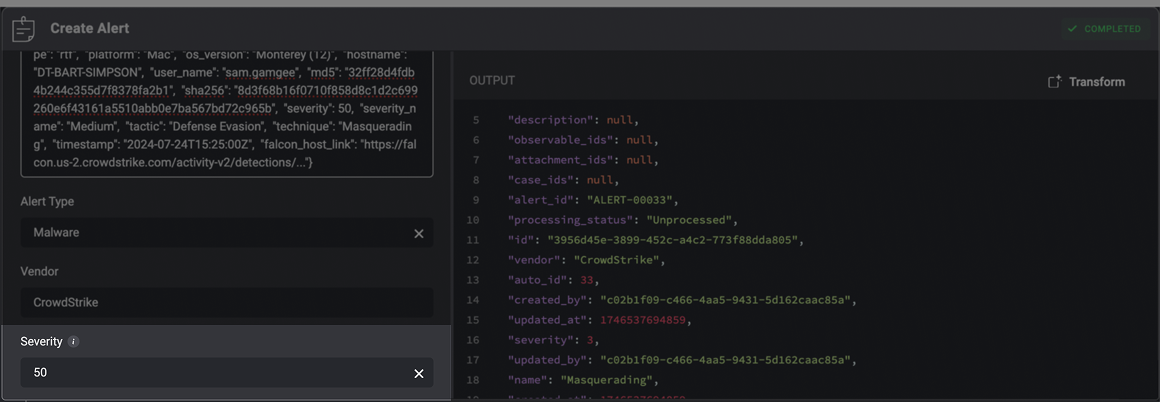
**In the Severity Parameter:**
The incoming alert payload specifies a severity of `50`.
 **In Advanced Settings:**
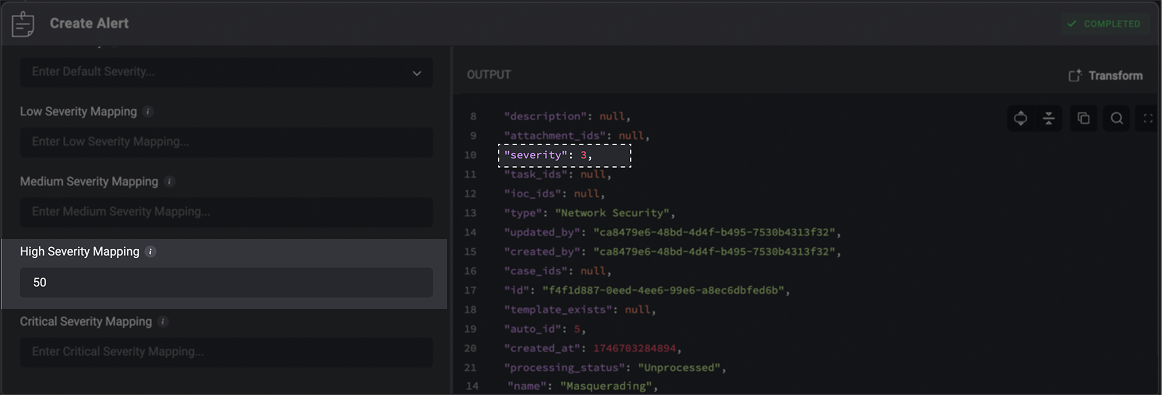
A severity value of `50` is mapped to Blink’s **High** severity level, which corresponds to a severity rank of `3` in the output.You can customize these mappings to ensure external alert severity levels align with your internal triage and prioritization standards.
**In Advanced Settings:**
A severity value of `50` is mapped to Blink’s **High** severity level, which corresponds to a severity rank of `3` in the output.You can customize these mappings to ensure external alert severity levels align with your internal triage and prioritization standards.
 Blink’s severity levels are ranked as:
* Low = `1`
* Medium = `2`
* High = `3`
* Critical = `4`
***
## Example of an Alert Ingestion Workflow
The alert ingestion workflow for Wiz, as shown in the image, follows this logic:
1. **Trigger Type – Event-Based (Polling)**:
The workflow is triggered by polling [Wiz](/docs/integrations/wiz) every 1 minute for **new issues**.
2. **Step – Create Alert**:
Once a new issue is detected from [Wiz](/docs/integrations/wiz):
* It captures the full **payload** of the issue.
* Extracts relevant fields like `name`, `event`, and `severity`, `vendor` etc. See [Create Alert Action Fields](#create-alert-action-fields) table for all fields extracted.
* Sets the alert **type** as “Network Intrusion” and identifies **Wiz** as the vendor.
* Creates a new alert record in Blink’s **Case Management** system with the status marked as “Unprocessed,” meaning it will proceed to further processing stages (i.e., [observable extraction](/docs/case-management/cm-v9.0/alert-processing/extract-observables-action), [case deduplication](/docs/case-management/cm-v9.0/alert-processing/case-deduplication-action), [enrichment](/docs/case-management/cm-v9.0/alert-processing/enrich-observable-subflow) and [response](/docs/case-management/cm-v9.0/alert-processing/responses)).
This setup ensures that any security issue reported by Wiz is automatically captured and logged in the case management system with essential metadata, ready for follow-up processing and response.
Blink’s severity levels are ranked as:
* Low = `1`
* Medium = `2`
* High = `3`
* Critical = `4`
***
## Example of an Alert Ingestion Workflow
The alert ingestion workflow for Wiz, as shown in the image, follows this logic:
1. **Trigger Type – Event-Based (Polling)**:
The workflow is triggered by polling [Wiz](/docs/integrations/wiz) every 1 minute for **new issues**.
2. **Step – Create Alert**:
Once a new issue is detected from [Wiz](/docs/integrations/wiz):
* It captures the full **payload** of the issue.
* Extracts relevant fields like `name`, `event`, and `severity`, `vendor` etc. See [Create Alert Action Fields](#create-alert-action-fields) table for all fields extracted.
* Sets the alert **type** as “Network Intrusion” and identifies **Wiz** as the vendor.
* Creates a new alert record in Blink’s **Case Management** system with the status marked as “Unprocessed,” meaning it will proceed to further processing stages (i.e., [observable extraction](/docs/case-management/cm-v9.0/alert-processing/extract-observables-action), [case deduplication](/docs/case-management/cm-v9.0/alert-processing/case-deduplication-action), [enrichment](/docs/case-management/cm-v9.0/alert-processing/enrich-observable-subflow) and [response](/docs/case-management/cm-v9.0/alert-processing/responses)).
This setup ensures that any security issue reported by Wiz is automatically captured and logged in the case management system with essential metadata, ready for follow-up processing and response.