> ## Documentation Index
> Fetch the complete documentation index at: https://docs.blinkops.com/llms.txt
> Use this file to discover all available pages before exploring further.

# About Alerts

> Manage and investigate security alerts within Blink's case management system.

Alerts serve as the initial indicators of potential security incidents. They are generated by third-party security systems or through custom detection workflows. By providing early warning signals, alerts play a crucial role in case management, helping teams identify, investigate, and respond to threats swiftly and effectively.

<Tip>To learn more about Alerts and their role in Case Management, please refer to our detailed guide available [here](/docs/case-management/blinks-automated-case-management/blinks-automated-case-management).</Tip>

***

## Creating a New Alert

<Note> Please note that you can assign multiple alerts to a single case or a single alert to many cases.</Note>

<Steps>
  <Step title="Open the Case and Add a New Record ">
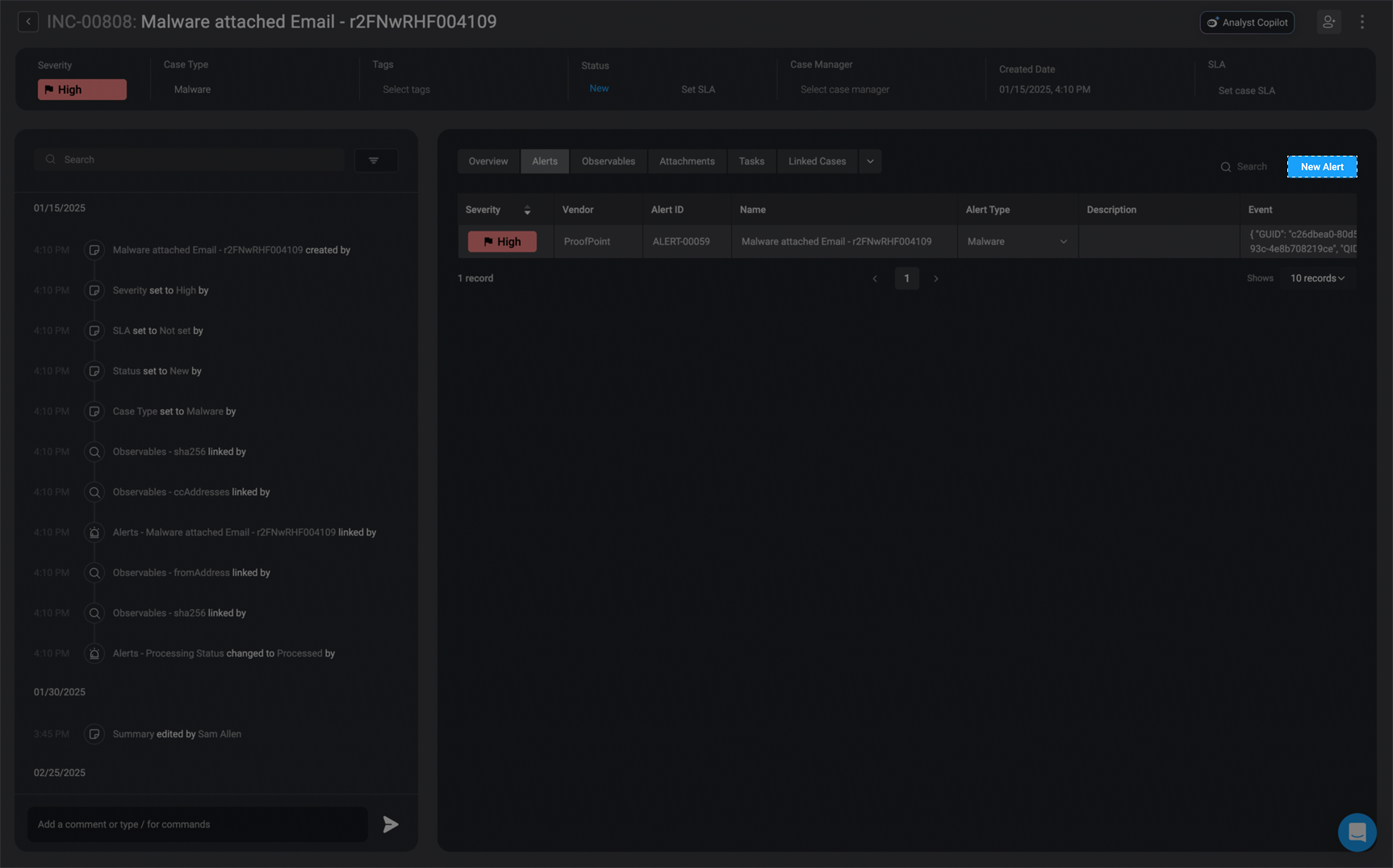
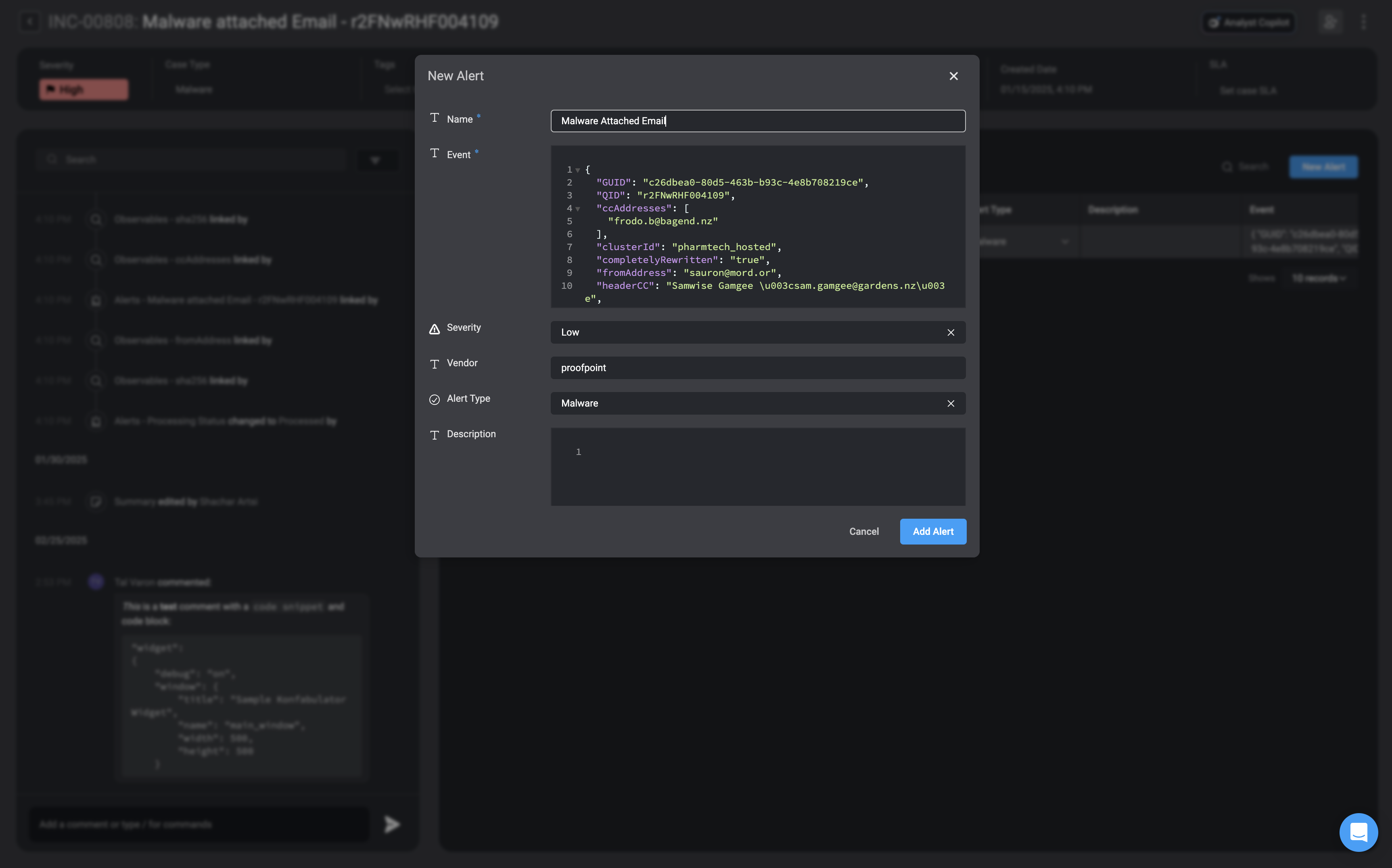
    To attach an Alert to a Case, first double-click on the desired Case. In the [overview section](/docs/case-management/cases/case-overview#case-overview) of the selected Case, go to the ["Alerts" tab](/docs/case-management/cases/case-overview#alerts-section). Then, click the "New Record" button in the top-right corner.

    <Frame>
      <img src="https://mintcdn.com/blinkops-2/UGyZ3yX79lqyx4Hr/img/CaseManagement/AddNewAlert.png?fit=max&auto=format&n=UGyZ3yX79lqyx4Hr&q=85&s=d3bd4991d4dee2119677b34ec7c56039" width="1726" height="1076" data-path="img/CaseManagement/AddNewAlert.png" />
    </Frame>
  </Step>

  <Step title="Open the New Record Form">
    <Frame>
      <img src="https://mintcdn.com/blinkops-2/UGyZ3yX79lqyx4Hr/img/CaseManagement/AddAlert.png?fit=max&auto=format&n=UGyZ3yX79lqyx4Hr&q=85&s=eecc86cfedafb352c8feb6ab60c2ff4f" width="3450" height="2152" data-path="img/CaseManagement/AddAlert.png" />
    </Frame>
  </Step>

  <Step title="Fill in all the necessary fields">
    <div className="integrations-table">
      | Parameter          | Description                                                                                                                                                                                                         |
      | ------------------ | ------------------------------------------------------------------------------------------------------------------------------------------------------------------------------------------------------------------- |
      | Name               | The name assigned to the alert.                                                                                                                                                                                     |
      | Event              | The event associated with the alert.                                                                                                                                                                                |
      | Severity           | The severity rank of your Case. It can be: Low, Medium, High or Critical                                                                                                                                            |
      | Vendor             | The Vendor associated with the alert.                                                                                                                                                                               |
      | Alert Type         | The alert category type.                                                                                                                                                                                            |
      | Description        | A brief explanation explaining the alert.                                                                                                                                                                           |
      | Processed          | A checkbox to mark the alert as processed; check to mark as processed, uncheck to mark as unprocessed.                                                                                                              |
      | Template Exists    | Indicates whether the alert has been ingested into the system.                                                                                                                                                      |
      | Linked Cases       | The Name and ID of the Case(s) you want to link to this current alert.                                                                                                                                              |
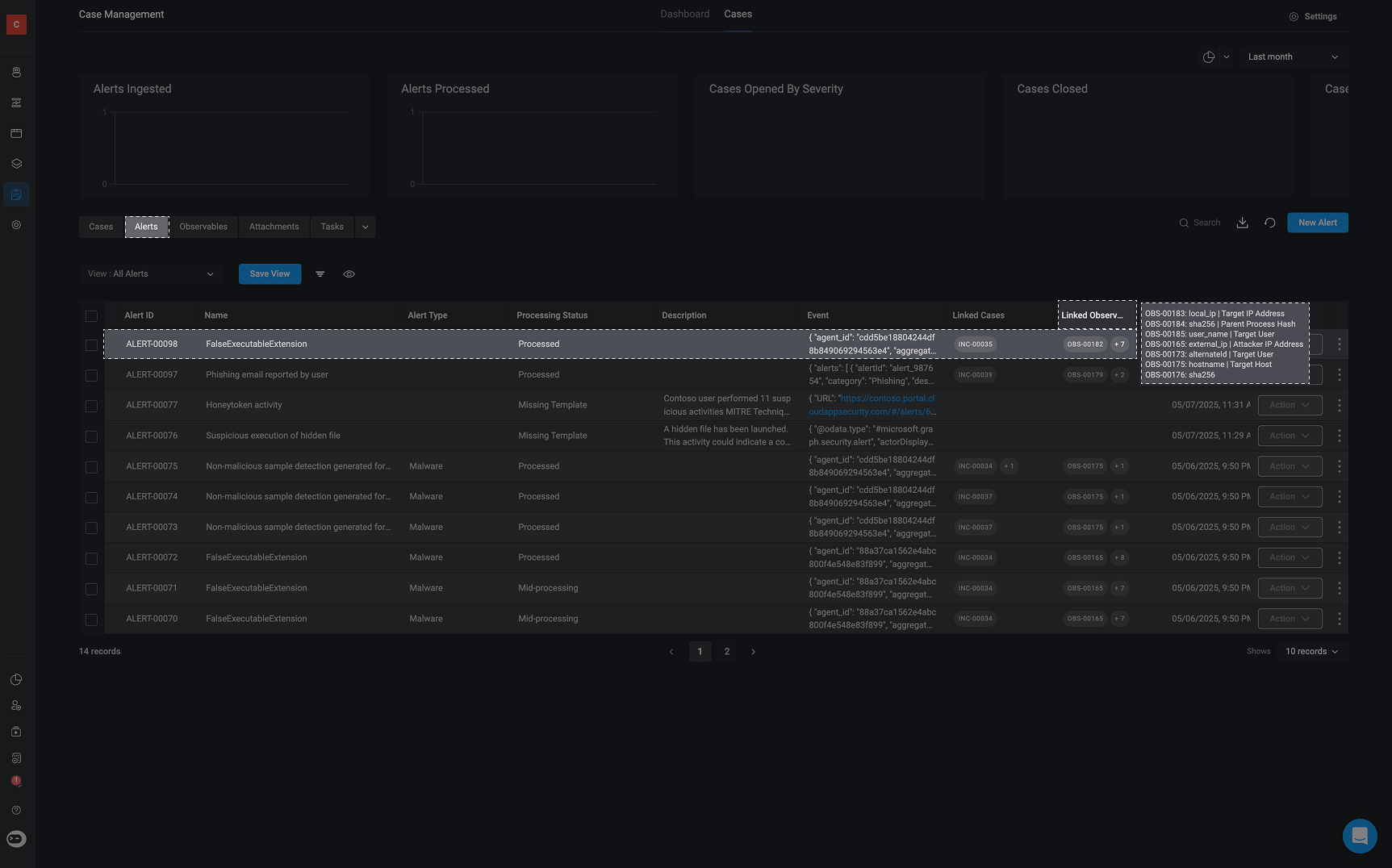
      | Linked Observables | The Name and ID of the Observable(s) you want to link to this current alert. <Tip>Hover over the 'Linked Observables' column in the alerts table to see the relations associated with each linked observable.</Tip> |
      | Linked Attachments | The Name and ID of the Attachment(s) you want to link to this current alert.                                                                                                                                        |
      | Linked Tasks       | The Name and ID of the Task(s) you want to link to this current alert.                                                                                                                                              |
    </div>
  </Step>

  <Step title="Save the Alert">
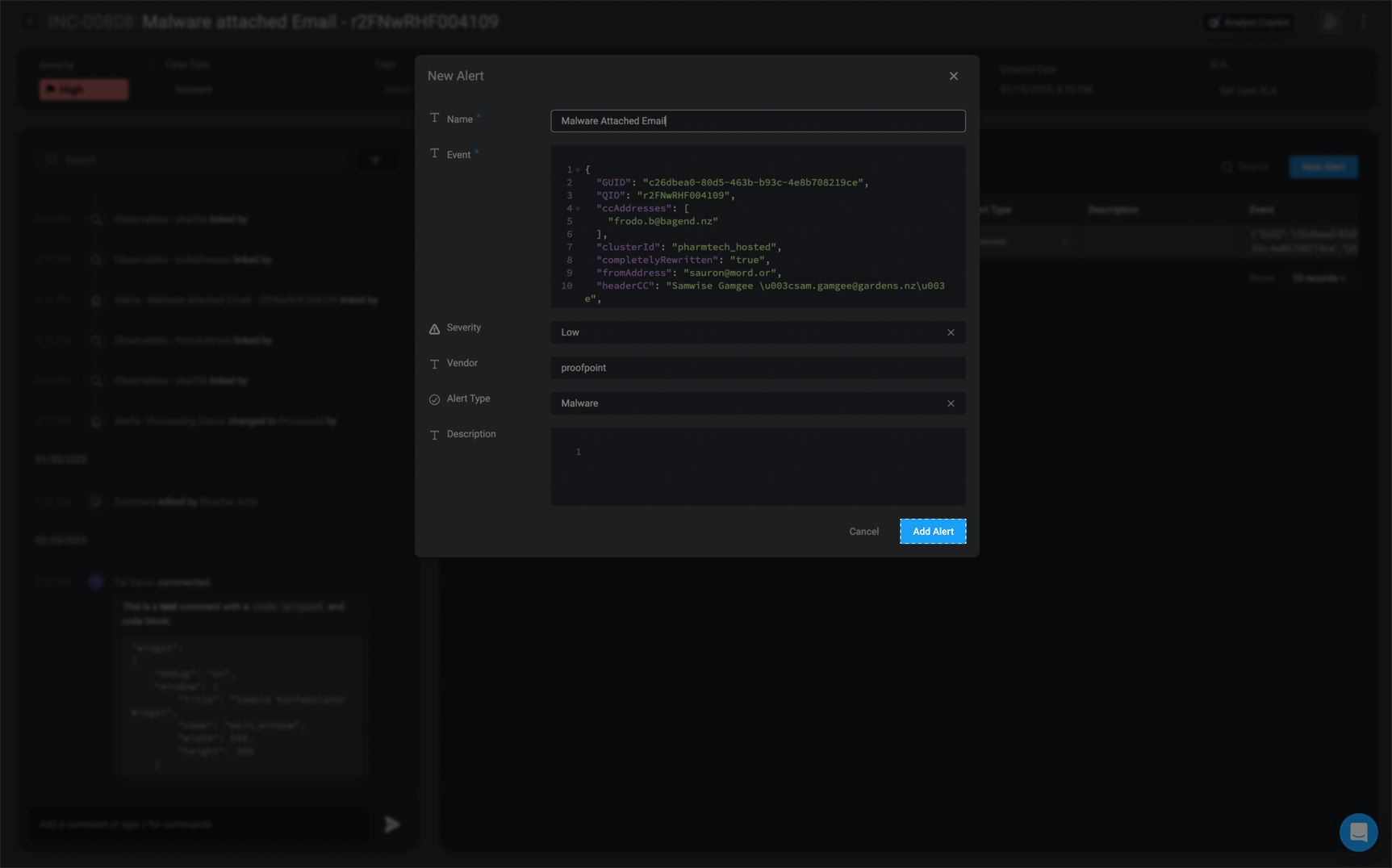
    Once completed, select the **Add Record** button in the bottom-right corner.

    <Frame>
      <img src="https://mintcdn.com/blinkops-2/UGyZ3yX79lqyx4Hr/img/CaseManagement/AddAlertButton.png?fit=max&auto=format&n=UGyZ3yX79lqyx4Hr&q=85&s=b28b925a5173f34be4f910998fcaf99f" width="1725" height="1076" data-path="img/CaseManagement/AddAlertButton.png" />
    </Frame>
  </Step>
</Steps>

***

## Editing an Alert

<Note> Please note that you can **Edit Alert(s)** directly within the **alerts tab** of a **case overview**. Simply double-click on the table row to make any necessary changes. Once you have completed your edits, click anywhere on the screen to save the changes.</Note>

<Steps>
  <Step title="Select an Alert to Edit">
    Select the **Alert** you would like to edit and click on it.
  </Step>

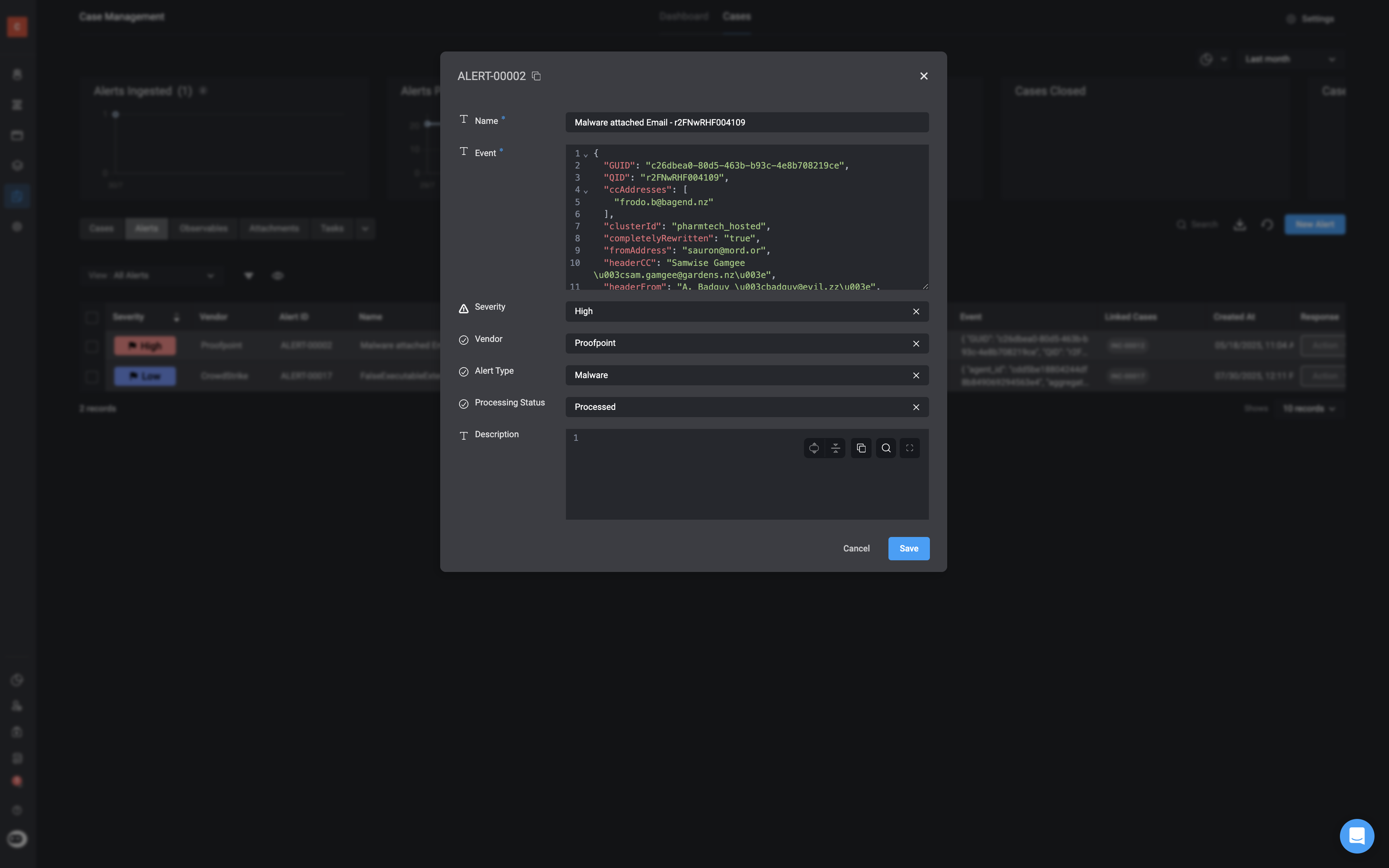
  <Step title="The 'Edit Record' Form will appear">
    <Frame>
      <img src="https://mintcdn.com/blinkops-2/BRfSL_EOO1Uh43ic/img/CaseManagement/EditAlertPopup.png?fit=max&auto=format&n=BRfSL_EOO1Uh43ic&q=85&s=1a4e59d4b016db04d6e8cbdb10dfb73c" width="3452" height="2158" data-path="img/CaseManagement/EditAlertPopup.png" />
    </Frame>
  </Step>

  <Step title="Update Alert Details">
    Make any necessary changes you would like to the **Alert** fields and then click **Save** in the bottom-right corner.
  </Step>

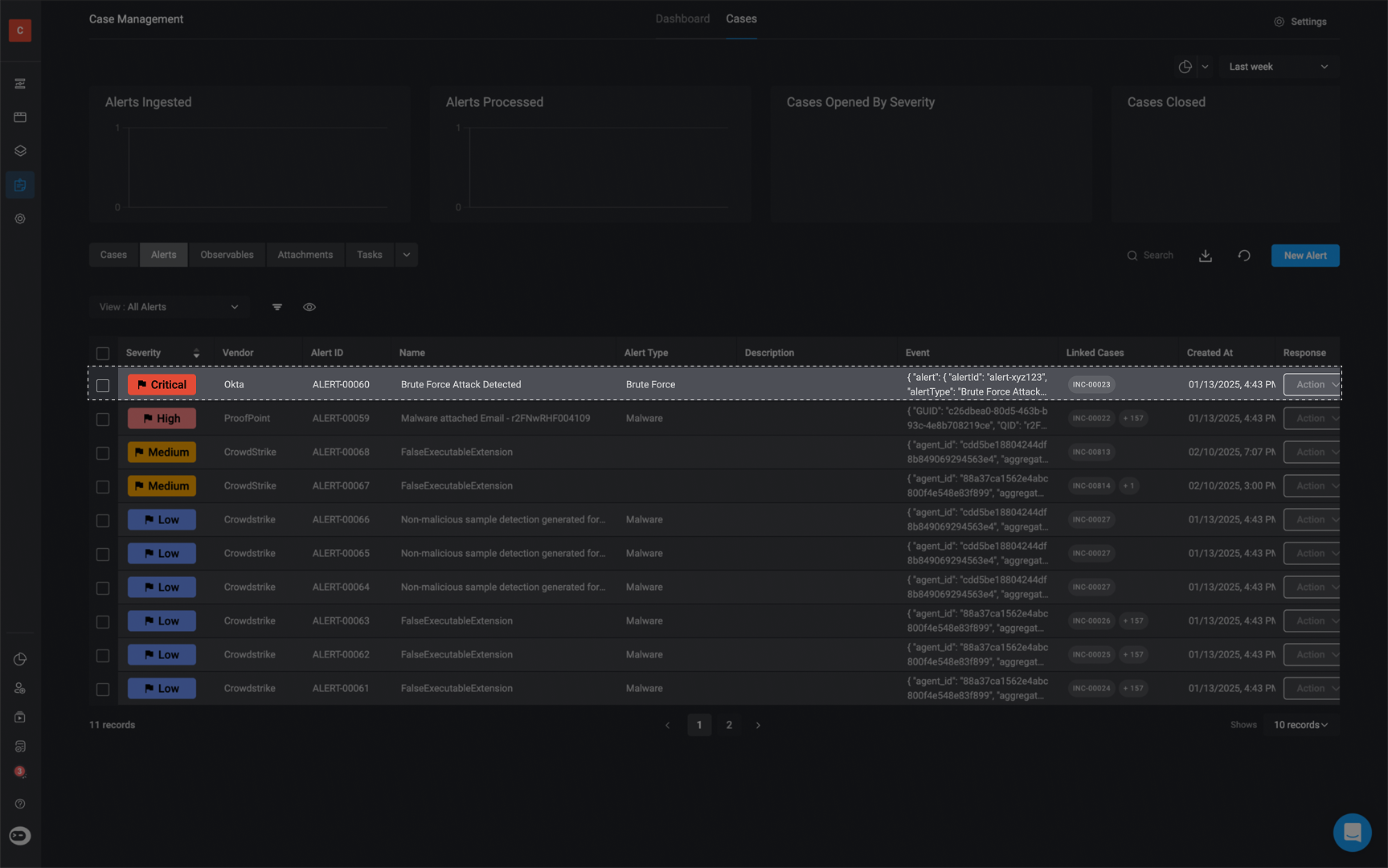
  <Step title="View Updated Alert">
    The newly made changes will reflect in the selected Alerts

    <Frame>
      <img src="https://mintcdn.com/blinkops-2/Fevyj7fZxoPHa6A-/img/CaseManagement/AlertsOverview.png?fit=max&auto=format&n=Fevyj7fZxoPHa6A-&q=85&s=25aa412f39226f9872fcbc30909c6ff4" width="1727" height="1080" data-path="img/CaseManagement/AlertsOverview.png" />
    </Frame>
  </Step>
</Steps>

***

## Observable Relations

Hover over the 'Linked Observables' column in alert table to see the relations associated with each observable.

<Note>Please note, you cannot make any changes directly to the relations, via the 'Linked Observables' column in the alert table. To make any changes, you can do so via the [Add or Update Observable Relation](/docs/case-management/case-management-workflow-actions/observable-actions#add-or-update-observable-relation) action. </Note>

<Frame>
  <img src="https://mintcdn.com/blinkops-2/UGyZ3yX79lqyx4Hr/img/CaseManagement/AlertHoverObservableRelation.png?fit=max&auto=format&n=UGyZ3yX79lqyx4Hr&q=85&s=026693639b6cb04c7213f0b297ebd550" width="1725" height="1076" data-path="img/CaseManagement/AlertHoverObservableRelation.png" />
</Frame>

***

## Deleting an Alert

<Steps>
  <Step title="Choose Alert to Delete">
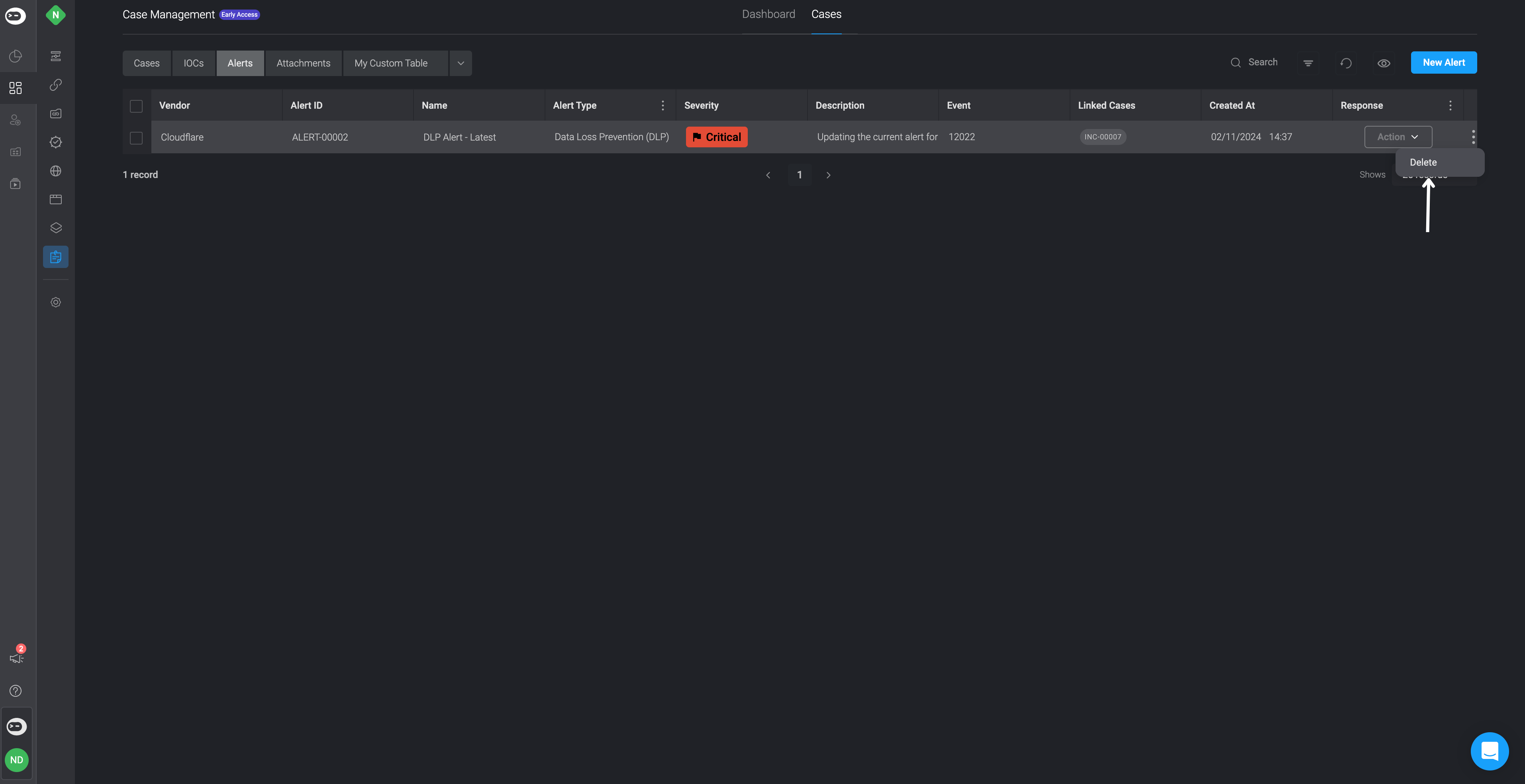
    <p>Navigate to the **Alert** you want to delete and select the three dots icon <Icon icon="square-ellipsis-vertical" iconType="solid" />.</p>
  </Step>

  <Step title="Delete Alert">
    The **delete** option will appear. Click **Delete**, and the selected **Alert** will be removed from your existing **Alerts**.

    <Frame>
      <img src="https://mintcdn.com/blinkops-2/BRfSL_EOO1Uh43ic/img/CaseManagement/DeletingAlert.png?fit=max&auto=format&n=BRfSL_EOO1Uh43ic&q=85&s=9f51241db464007d1e0c09e094f1e479" width="3828" height="1969" data-path="img/CaseManagement/DeletingAlert.png" />
    </Frame>
  </Step>
</Steps>