> ## Documentation Index
> Fetch the complete documentation index at: https://docs.blinkops.com/llms.txt
> Use this file to discover all available pages before exploring further.
# Using Tables in Workflows
> How to use Blink table actions in workflows to automate data management and record operations.
## Table Actions
Blink provides powerful workflow actions that allow you to automate the management of table records. These actions enable you to add, update, retrieve, and delete records dynamically within your workflows.
All Table-related actions can be found under the **'Tables' collection** in the action panel of the [workflow editor](/docs/workflows/building-workflows/workflow-editor)
Please note: **SQL** queries are supported only in the [Get Records](#get-a-record) action. **SQL** is **not supported** for other table-related actions, such as [Create Record or Update Record](#create-or-update-record).
***
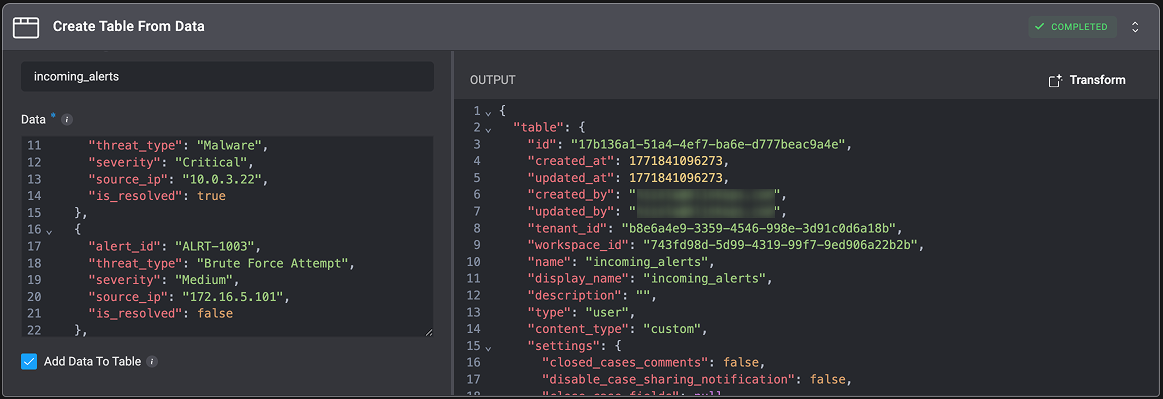
### Create Table from Data
| Parameter | Description |
| ----------------- | -------------------------------------------------------------------------------------------------------------------------------------------------------------------------------------- |
| Table Name | Specifies the name of the table to be created. This name will be used to identify and reference the table within the system. |
| Data | The structured data to populate the table, provided in valid JSON format. Each `JSON` object represents a row, and each `key-value` pair defines a column and its corresponding value. |
| Add Data to Table | When enabled, the provided JSON data will be populated into the newly created table. If disabled, the table will be created without any initial data. |
 **Important Limitations & Behavior**
* **Large Text Handling**: Any text value exceeding `40KB` will automatically be stored as a **long-text** column type.
* **Column Display Names**: The `JSON` key provided in each record is used directly as the column’s display name. For example, if you pass `user_name` as the key, the column will be created and displayed as `user_name`.
* **Duplicate Column Names**: If a column name conflicts with an existing system column (e.g., `created_at`), a new column will still be created with a randomly generated suffix (e.g., `created_at_123`) to avoid overwriting the original column.
* **Mixed Data Types**: If the same key contains different data types across records (for example, a number in one record and text in another), the column type will automatically fall back to text to accommodate all values.
To avoid unexpected schema changes, ensure consistent key naming and data types across all records before submitting your JSON data.
***
### Add a Record
Add new records to a table by entering field names and values or by providing data in `JSON` format.`JSON` input supports bulk creation, allowing multiple records to be added simultaneously in a single action.
You can also use the [Variable Picker](/docs/workflows/building-workflows/dynamic-variables/variable-picker) to easily insert [dynamic variables](/docs/workflows/building-workflows/dynamic-variables/variable-picker#dynamic-variables-types) into the 'Add Record' action's input fields.
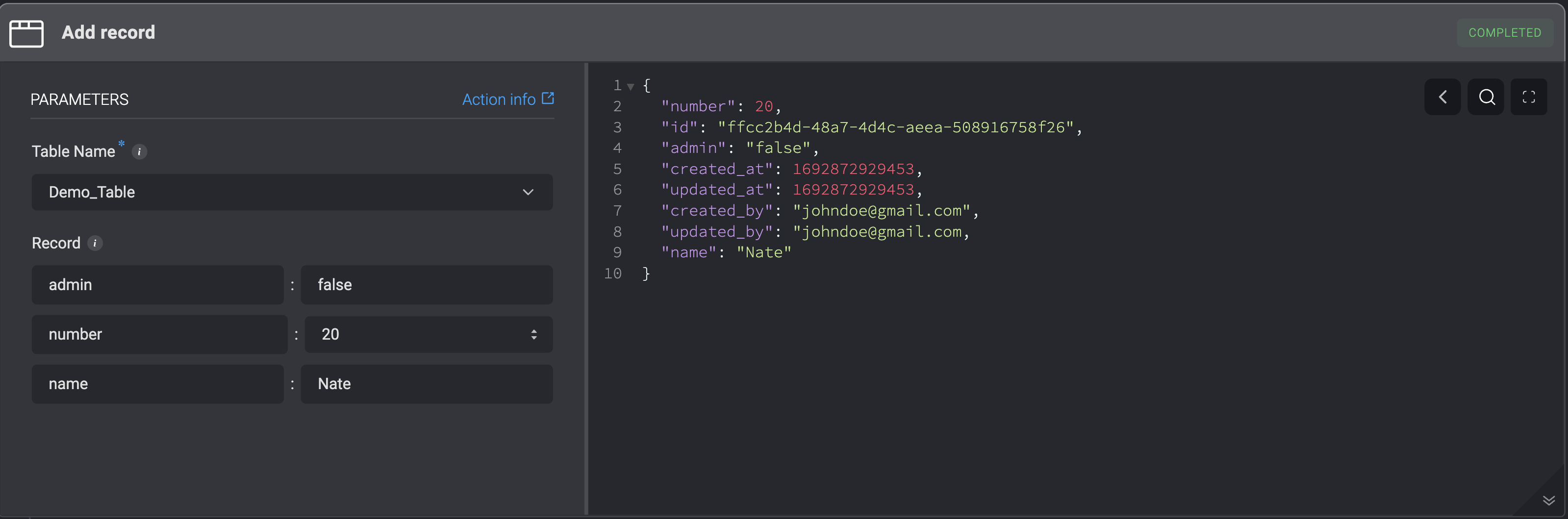
Add a record to a table by entering the table field name and the table field value.
**Important Limitations & Behavior**
* **Large Text Handling**: Any text value exceeding `40KB` will automatically be stored as a **long-text** column type.
* **Column Display Names**: The `JSON` key provided in each record is used directly as the column’s display name. For example, if you pass `user_name` as the key, the column will be created and displayed as `user_name`.
* **Duplicate Column Names**: If a column name conflicts with an existing system column (e.g., `created_at`), a new column will still be created with a randomly generated suffix (e.g., `created_at_123`) to avoid overwriting the original column.
* **Mixed Data Types**: If the same key contains different data types across records (for example, a number in one record and text in another), the column type will automatically fall back to text to accommodate all values.
To avoid unexpected schema changes, ensure consistent key naming and data types across all records before submitting your JSON data.
***
### Add a Record
Add new records to a table by entering field names and values or by providing data in `JSON` format.`JSON` input supports bulk creation, allowing multiple records to be added simultaneously in a single action.
You can also use the [Variable Picker](/docs/workflows/building-workflows/dynamic-variables/variable-picker) to easily insert [dynamic variables](/docs/workflows/building-workflows/dynamic-variables/variable-picker#dynamic-variables-types) into the 'Add Record' action's input fields.
Add a record to a table by entering the table field name and the table field value.
| Parameter | Description |
| --------- | ----------------------------------------------------- |
| Table | The name of the table. |
| Record | Data of record, enter the field name and field value. |
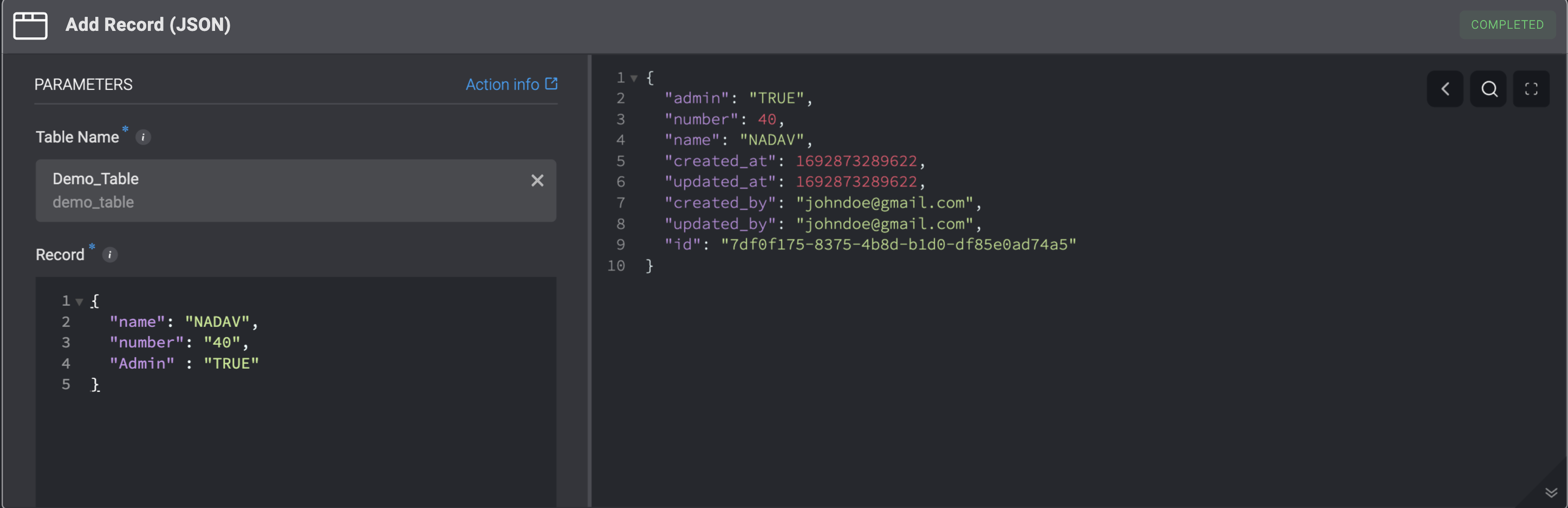
 Records can be added by inputting values in JSON format. Bulk creation is also supported, allowing the input of a list of JSON objects.
| Parameter | Description |
| --------- | --------------------------------------------------------------------------------------------------- |
| Table | The name of the table. |
| Record | Data of record, a JSON format containing `Key : Value` pairs. Can also be a list of `JSON` objects. |
 ***
### Create or Update Record
Ensure data consistency by either updating an **existing record** or creating a new one if no match is found. You can define specific conditions to determine whether a record should be updated or newly inserted. Supports both direct value input and JSON formatting for structured updates.
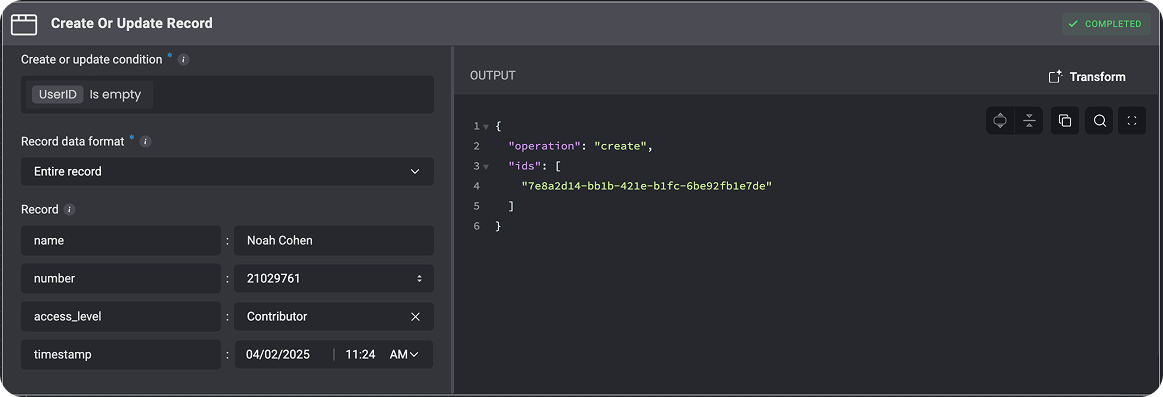
Create or Update an entire Record in a table by selecting the entire record option.
**Note:** Please note that if you leave any fields empty in the **Create or Update Record** action, the existing values in the table will remain unchanged.
***
### Create or Update Record
Ensure data consistency by either updating an **existing record** or creating a new one if no match is found. You can define specific conditions to determine whether a record should be updated or newly inserted. Supports both direct value input and JSON formatting for structured updates.
Create or Update an entire Record in a table by selecting the entire record option.
**Note:** Please note that if you leave any fields empty in the **Create or Update Record** action, the existing values in the table will remain unchanged.
| Parameter | Description |
| -------------------------- | ----------------------------------------------------------------------------------------------------------------------------------------------------------------------------------------------------------------------------------------------------------------------------------------------------------------------------------------------------------------------------------------------------------------------------------------------------------------------------------------------------------------------------------------------------------------------------------------------------------------------------------------------------------------------------- |
| Table | The name of the table. |
| Create or Update Condition | Define the criteria that determine whether a table record should be created or updated. You can also use [nested conditions](/docs/blink-platform/condition-builder/condition-builder#the-advanced-condition-builder-and-nested-conditions), groups of conditions within other conditions, to build more complex rules for your table data. [Nested conditions](/docs/blink-platform/condition-builder/condition-builder#the-advanced-condition-builder-and-nested-conditions) let you apply operators like AND or OR to a specific subset of conditions independently from the main group, giving you precise control over how your table records are filtered and evaluated |
| Record Data Format | Entire Record |
| Record | The value of the record you want to create or update |
**Scenario:** You need to track users with privileged access in a security system. If a user is added to the list of privileged users, you want to update their access record; if the user is already on the list, their record should be updated instead of adding a duplicate.
**Solution:** Use the Create or Update Records action to ensure that any changes to a privileged user’s access rights are properly reflected in the table without creating duplicate record.
In the 'Create or Update Records' action, a condition to check for users who already have access listed in the table.
* If the user is not found (i.e., their record does not exist), create a new record with their user ID, access level, and timestamp.
* If the user’s record already exists, update the record with the new access level or other relevant information.
 **Scenario:** You are building a system to monitor user login attempts. If a user fails to log in multiple times within a short period, you want to flag their account as potentially compromised, but you don’t want to duplicate records for each failed attempt.
**Solution:** Use the Create or Update Records action to update the record for failed login attempts instead of creating a new record for every failure.
Set a condition in the Create or Update Records action to check if the user already has a record of failed login attempts.
* If a failed login attempt is detected and the user has a record, update the record by incrementing the failed attempt counter and updating the timestamp.
* If no record exists for the user’s failed attempt, create a new record with the user’s details and an initial failed attempt count.
**Scenario:** You are building a system to monitor user login attempts. If a user fails to log in multiple times within a short period, you want to flag their account as potentially compromised, but you don’t want to duplicate records for each failed attempt.
**Solution:** Use the Create or Update Records action to update the record for failed login attempts instead of creating a new record for every failure.
Set a condition in the Create or Update Records action to check if the user already has a record of failed login attempts.
* If a failed login attempt is detected and the user has a record, update the record by incrementing the failed attempt counter and updating the timestamp.
* If no record exists for the user’s failed attempt, create a new record with the user’s details and an initial failed attempt count.
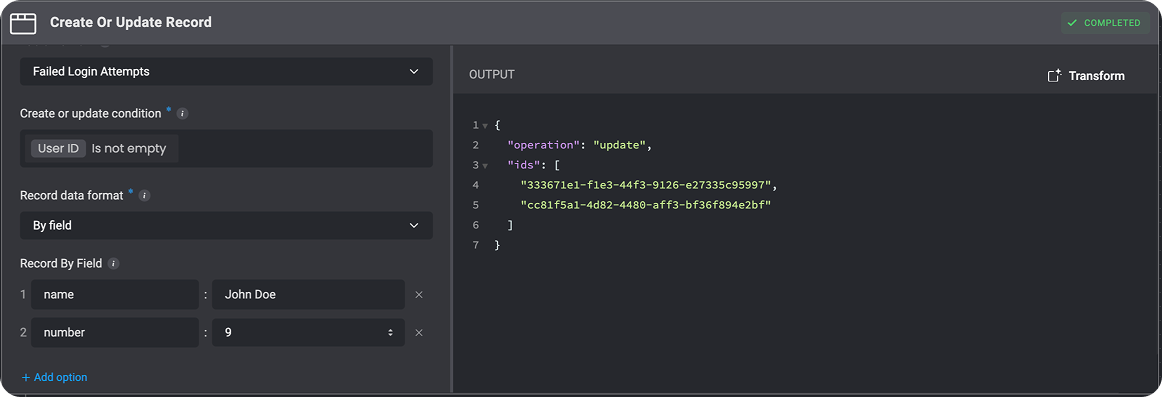 Create or Update a Record in a table by entering values in JSON format.
**Note:**
Please note that if you leave any fields empty in the **Create or Update Record** action, the existing values in the table will remain unchanged.
Create or Update a Record in a table by entering values in JSON format.
**Note:**
Please note that if you leave any fields empty in the **Create or Update Record** action, the existing values in the table will remain unchanged.
| Parameter | Description |
| -------------------------- | ----------------------------------------------------------------------------------------------------------------------------------------------------------------------------------------------------------------------------------------------------------------------------------------------------------------------------------------------------------------------------------------------------------------------------------------------------------------------------------------------------------------------------------------------------------------------------------------------------------------------------------------------------------------------------- |
| Table | The name of the table. |
| Create or Update Condition | Define the criteria that determine whether a table record should be created or updated. You can also use [nested conditions](/docs/blink-platform/condition-builder/condition-builder#the-advanced-condition-builder-and-nested-conditions), groups of conditions within other conditions, to build more complex rules for your table data. [Nested conditions](/docs/blink-platform/condition-builder/condition-builder#the-advanced-condition-builder-and-nested-conditions) let you apply operators like AND or OR to a specific subset of conditions independently from the main group, giving you precise control over how your table records are filtered and evaluated |
| Record Data Format | JSON |
| Record | The value of the record you want to create or update in JSON format |
**Scenario:** A security system monitors unauthorized attempts to access sensitive files. When a user repeatedly tries to access a restricted file, the system should update the record for that file access attempt with the latest timestamp and IP address, rather than creating multiple entries.
**Solution:** Use the Create or Update Records action to track unauthorized file access attempts. The action checks if a record exists for a specific combination of user and file; if it does, it updates the record with the latest timestamp and IP address. If no matching record is found, a new record is created.
* If a record exists where the `Name` and the `FileID` value matches the requested file, the system will update the record with the latest timestamp and IP address.
* If no match is found, it will create a new record for that combination.
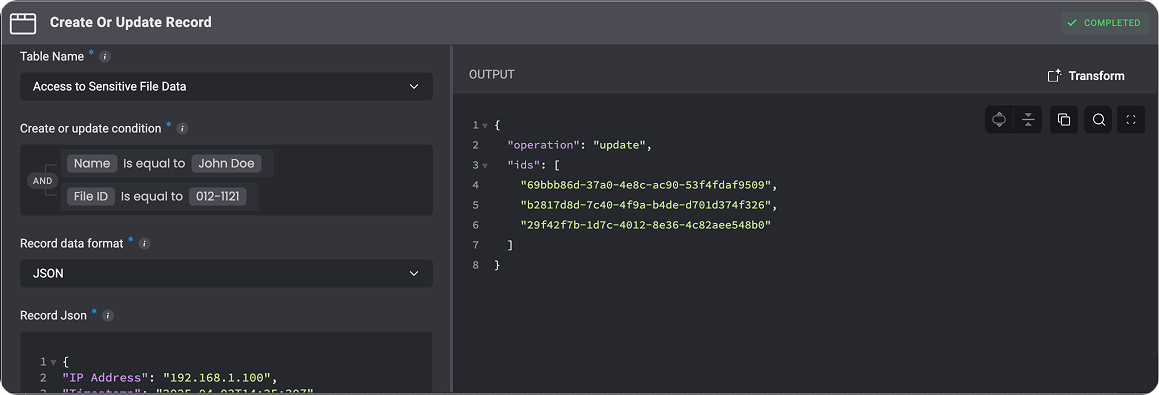 Create or update specific records in a table by selecting a particular field to determine which records should be modified.
| Parameter | Description |
| -------------------------- | ----------------------------------------------------------------------------------------------------------------------------------------------------------------------------------------------------------------------------------------------------------------------------------------------------------------------------------------------------------------------------------------------------------------------------------------------------------------------------------------------------------------------------------------------------------------------------------------------------------------------------------------------------------------------------- |
| Table | The name of the table. |
| Create or Update Condition | Define the criteria that determine whether a table record should be created or updated. You can also use [nested conditions](/docs/blink-platform/condition-builder/condition-builder#the-advanced-condition-builder-and-nested-conditions), groups of conditions within other conditions, to build more complex rules for your table data. [Nested conditions](/docs/blink-platform/condition-builder/condition-builder#the-advanced-condition-builder-and-nested-conditions) let you apply operators like AND or OR to a specific subset of conditions independently from the main group, giving you precise control over how your table records are filtered and evaluated |
| Record Data Format | By Field |
| Record By Field | Decide which records in the fields will be updated. If a new record is created, all fields not selected will set their default value. |
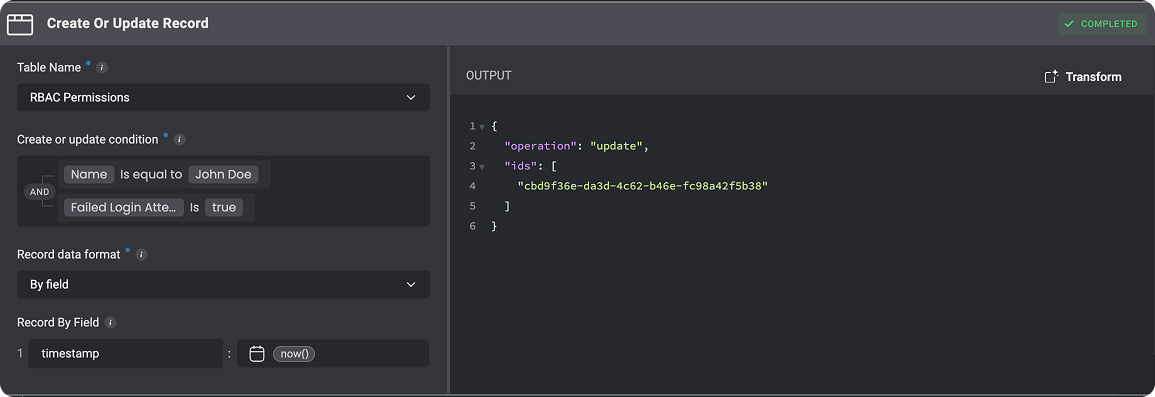
**Scenario**: A company's security team is monitoring user login activity to detect suspicious behavior. When a user experiences a failed login attempt, the system should capture and update the timestamp of that failure. This helps in identifying patterns of unauthorized access without cluttering the database with redundant entries.
**Solution**: Use the Create or Update Record action to ensure that only the latest failed login attempt is recorded for each user.
* If a match is found: The system updates the existing record's **timestamp field** to reflect the time the most recent failed login attempt.
* If no match is found: The system creates a new record for that failed login event.
 ***
#### "Add Records" Action vs. "Create or Update Records" Action
When adding data to a table, choosing the right action ensures accuracy and prevents duplication. Use **"Add Records"** when you need to insert new data without verifying existing entries. If you want to update existing records or avoid duplicates, **"Create or Update Records"** is the better choice, as it checks for a match before adding new data. The table below outlines the key differences between these actions.
***
#### "Add Records" Action vs. "Create or Update Records" Action
When adding data to a table, choosing the right action ensures accuracy and prevents duplication. Use **"Add Records"** when you need to insert new data without verifying existing entries. If you want to update existing records or avoid duplicates, **"Create or Update Records"** is the better choice, as it checks for a match before adding new data. The table below outlines the key differences between these actions.
| Action | Behavior | Key Difference |
| --------------------------------------------------- | ------------------------------------------------------------------------------------------- | ------------------------------------------------------------------------- |
| [Add Record](#add-a-record) | When you need to insert new data without checking for existing records | Adds records without checking for duplicates |
| [Create or Update Record](#create-or-update-record) | When you want to prevent duplicates or update existing records based on specific conditions | Checks for a matching record before adding; updates if found, adds if not |
You can manually set certain field types (`Text`, `Numbers`, `Users`, `Time`) as unique in the table. This ensures that each entry in a specific column is distinct, preventing duplicate values. For more details, visit [this guide](/docs/blink-platform/tables/create-your-first-table#table-field-types-with-unique-values).
***
### Update Records (In Bulk)
This action allows you to update multiple records in a table in a single operation.
| Parameter | Description |
| ----------- | ------------------------------------------------------------------------------------------------------------------------------------------------------------------------------------------------------------------------------------------------ |
| **Table** | The table in which you want to update multiple records. |
| **Records** | Provide a `JSON` array containing the records to update. Each object **must** include the record `id` and the multiple fields you want to update. All records in the array should follow the same structure and include the same set of columns. |
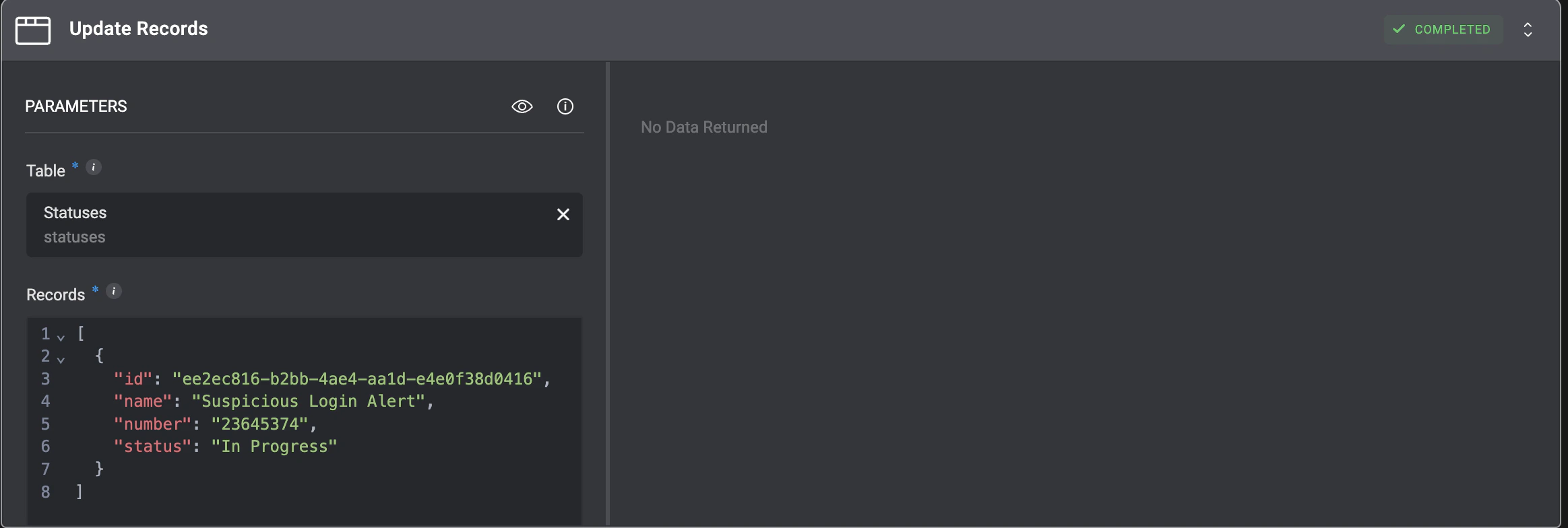 **Please Note:**
* All records in the array must follow the same structure and include the same set of columns.
* `Reference` and `Files` field types are **not allowed** for updates.
* The `Records` input is limited to **1,000** per operation
***
## Update File Column
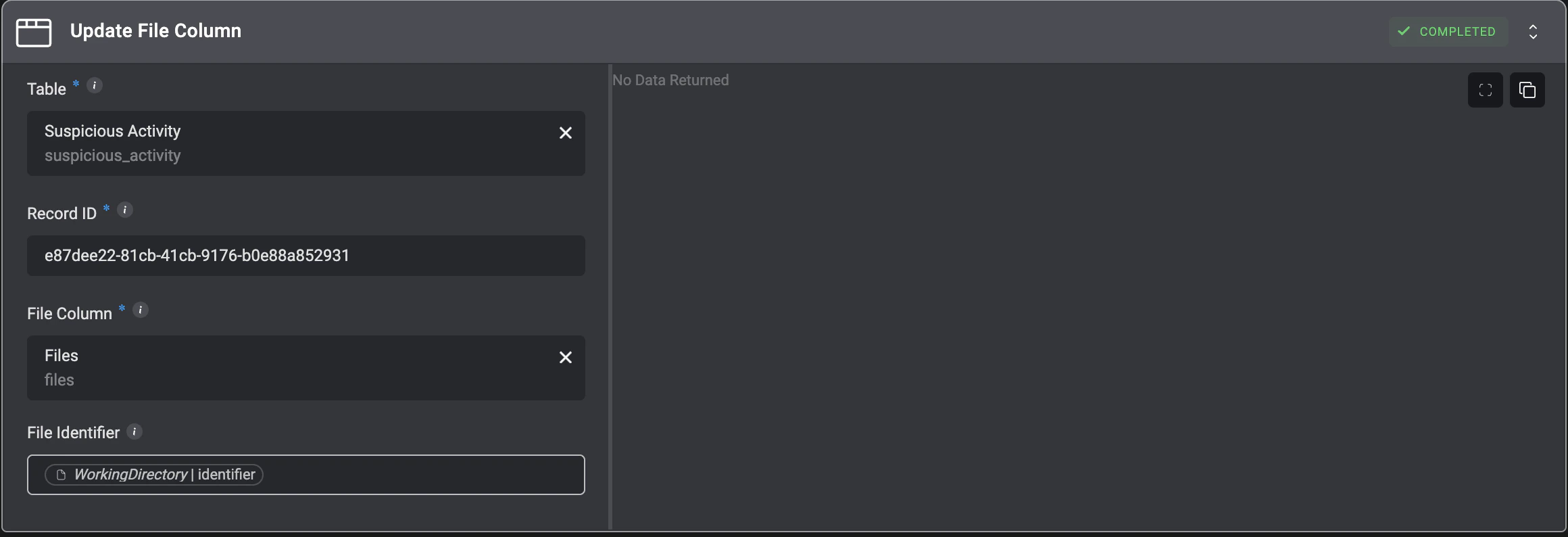
The 'Update File Column' action updates the file stored in a table’s file column.
**Please Note:**
* All records in the array must follow the same structure and include the same set of columns.
* `Reference` and `Files` field types are **not allowed** for updates.
* The `Records` input is limited to **1,000** per operation
***
## Update File Column
The 'Update File Column' action updates the file stored in a table’s file column.
| Parameter | Description |
| ----------------------------------------------------------------------------------------------------------- | --------------------------------------------------------------------------------- |
| Table Name | The name of the table from which the record will be unlinked from another record. |
| Record ID | The ID of the record to update |
| File Column | The name of the file column |
| [File Identifier](/docs/workflows/building-workflows/files#expression-language-and-variable-picker-support) | The identifier of the file. Leave empty to clear the file column |
 ***
### Get a Record
Fetch table data based on specified criteria using conditions, RQL queries, or SQL queries. Choose how the data is structured in the output (Table, JSON, or CSV) and refine results by applying filters, sorting, limits, and pagination options.
Each query method is designed for different use cases, depending on the complexity of your query and the level of filtering or customization required. Here are our recommendations on when to use each query method.
#### **By Condition**
**Best For: Simple Queries with Basic Filtering**
* Use this method when you need to retrieve records based on straightforward conditions, such as **checking if a user has a specific access level** or **finding all records created after a certain date**.
* Conditions are easy to configure without needing complex query syntax.
**Use Case Example:**
* Retrieve all users with `AccessLevel = "Administrator"` to audit privileged accounts.
***
#### **RQL Format**
**Best For: Flexible Queries with Advanced Filtering**
* Use RQL when you need more precise filtering with operators like `$gte`, `$lte`, `$contains_any`, or `$like`.
* Ideal for dynamic queries where conditions may change based on user input or external events.
**Use Case Example:**
* Fetch all users who have accessed the system **in the past 24 hours**:
```json theme={"dark"}
{
"filter": {
"Timestamp": { "$gt": "{{ to_epoch(now() - '24h') * 1000 }}" }
}
}
```
* Retrieve all users with an **AccessLevel of "Administrator" or "Manager"**:
```json theme={"dark"}
{
"filter": {
"AccessLevel": { "$contains_any": ["Administrator", "Manager"] }
}
}
```
***
#### **SQL Query**
**Best For: Complex Queries, Joins, and Aggregations**
* Use SQL when you need to perform **multi-table joins, grouping, aggregation, or subqueries**.
* Ideal for reporting and analytics, such as tracking security incidents over time.
**Use Case Example:**
* **Detect Privilege Escalation Attempts** by finding users who had an access level change in the last 7 days:
```sql theme={"dark"}
SELECT UserID, AccessLevel, Timestamp
FROM PrivilegedUserAccess
WHERE Timestamp >= NOW() - INTERVAL '7 days'
ORDER BY Timestamp DESC;
```
* **Cross-reference users with recent failed login attempts**:
```sql theme={"dark"}
SELECT u.UserID, u.AccessLevel, f.FailedAttempts
FROM PrivilegedUserAccess u
JOIN FailedLogins f ON u.UserID = f.UserID
WHERE f.Timestamp >= NOW() - INTERVAL '1 day'
```
Get a Record from a table by using a `condition`. All records that match the condition will be returned.
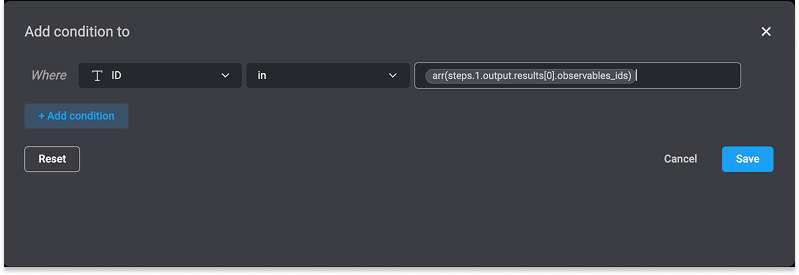
When querying a table using a condition, and you are using both the `in` operator, it is essential to use the `arr() function` when working with arrays. Failing to do so will cause the workflow action to fail.
**For Example**:
***
### Get a Record
Fetch table data based on specified criteria using conditions, RQL queries, or SQL queries. Choose how the data is structured in the output (Table, JSON, or CSV) and refine results by applying filters, sorting, limits, and pagination options.
Each query method is designed for different use cases, depending on the complexity of your query and the level of filtering or customization required. Here are our recommendations on when to use each query method.
#### **By Condition**
**Best For: Simple Queries with Basic Filtering**
* Use this method when you need to retrieve records based on straightforward conditions, such as **checking if a user has a specific access level** or **finding all records created after a certain date**.
* Conditions are easy to configure without needing complex query syntax.
**Use Case Example:**
* Retrieve all users with `AccessLevel = "Administrator"` to audit privileged accounts.
***
#### **RQL Format**
**Best For: Flexible Queries with Advanced Filtering**
* Use RQL when you need more precise filtering with operators like `$gte`, `$lte`, `$contains_any`, or `$like`.
* Ideal for dynamic queries where conditions may change based on user input or external events.
**Use Case Example:**
* Fetch all users who have accessed the system **in the past 24 hours**:
```json theme={"dark"}
{
"filter": {
"Timestamp": { "$gt": "{{ to_epoch(now() - '24h') * 1000 }}" }
}
}
```
* Retrieve all users with an **AccessLevel of "Administrator" or "Manager"**:
```json theme={"dark"}
{
"filter": {
"AccessLevel": { "$contains_any": ["Administrator", "Manager"] }
}
}
```
***
#### **SQL Query**
**Best For: Complex Queries, Joins, and Aggregations**
* Use SQL when you need to perform **multi-table joins, grouping, aggregation, or subqueries**.
* Ideal for reporting and analytics, such as tracking security incidents over time.
**Use Case Example:**
* **Detect Privilege Escalation Attempts** by finding users who had an access level change in the last 7 days:
```sql theme={"dark"}
SELECT UserID, AccessLevel, Timestamp
FROM PrivilegedUserAccess
WHERE Timestamp >= NOW() - INTERVAL '7 days'
ORDER BY Timestamp DESC;
```
* **Cross-reference users with recent failed login attempts**:
```sql theme={"dark"}
SELECT u.UserID, u.AccessLevel, f.FailedAttempts
FROM PrivilegedUserAccess u
JOIN FailedLogins f ON u.UserID = f.UserID
WHERE f.Timestamp >= NOW() - INTERVAL '1 day'
```
Get a Record from a table by using a `condition`. All records that match the condition will be returned.
When querying a table using a condition, and you are using both the `in` operator, it is essential to use the `arr() function` when working with arrays. Failing to do so will cause the workflow action to fail.
**For Example**:
| Parameter | Description |
| ------------------------------------------- | ------------------------------------------------------------------------------------------------------------------------------------------------------------------------------------------------------------------------------------------------------------------------------------------------------------------------------------------------------------------------------------------------------------------------ |
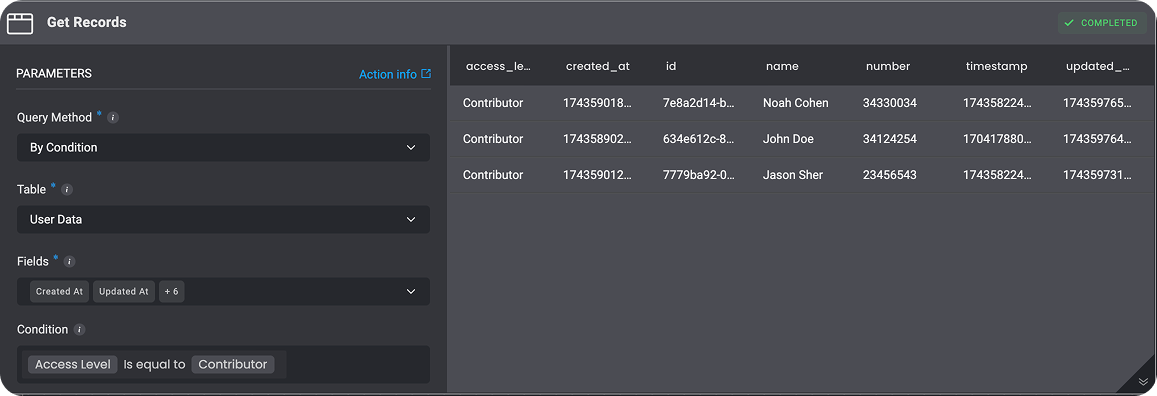
| Query Method | **By Condition**- The query method to get records |
| Table | The table you want to get records from. |
| Fields | [Table Fields](/docs/blink-platform/tables/create-your-first-table#table-field-types). |
| Condition | Condition that compares two table field values – Use this condition to compare the values of two fields in a table. You can also include [nested conditions](/docs/blink-platform/condition-builder/condition-builder#the-advanced-condition-builder-and-nested-conditions) to compare multiple values or sets of fields, allowing you to build more complex rules and control exactly how your table data is evaluated. |
| Output Format | The format of the output the records are returned- Table, JSON or CSV. |
| Limit (optional) | Limit the amount of records returned by the query. |
| Offset (optional) | Choose the offset from the data to start querying the table from. |
| Order By (optional) | Choose what field to order the results by. |
| Sort (optional) | Sort the records by ascending or descending order. |
| Include Query Metadata In Output (optional) | Check the box to include Query Metadata in the Output. |
| All Pages (optional) | Check the box to return all data in the table(this setting invalidates the `Limit` and `Offset` fields.) |
The action retrieves specific records from the "User Data" table using the "By Condition" method, selecting fields like Created At, Updated At, and more, while filtering for users with an Access Level of "Contributor."
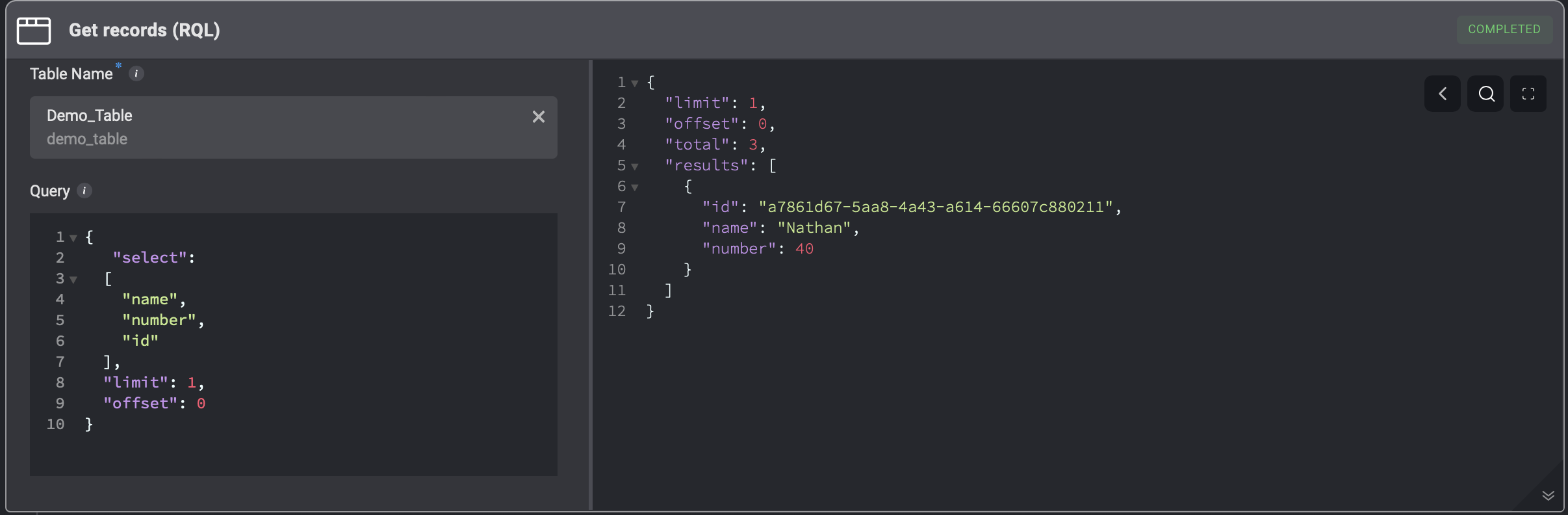
 `Get Record(s)` by querying a table for records using the `RQL` query method.
| Parameter | Description |
| ------------------------------------------- | ------------------------------------------------------------------------------------------------------------------------------------------------------------------------------------------------------------------------------------------------------------------------------------------------------------------------------------------------------------------------------------------------------------------------ |
| Query Method | **RQL Format**- The query method to get records |
| Table | The table you want to get records from. |
| RQL Query | The RQL query to run against the table. |
| Condition | Condition that compares two table field values – Use this condition to compare the values of two fields in a table. You can also include [nested conditions](/docs/blink-platform/condition-builder/condition-builder#the-advanced-condition-builder-and-nested-conditions) to compare multiple values or sets of fields, allowing you to build more complex rules and control exactly how your table data is evaluated. |
| Output Format | The format of the output the records are returned- Table, JSON or CSV. |
| Limit (optional) | Limit the amount of records returned by the query. |
| Offset (optional) | Choose the offset from the data to start querying the table from. |
| Include Query Metadata In Output (optional) | Check the box to include Query Metadata in the Output. |
| All Pages (optional) | Check the box to return all data in the table(this setting invalidates the `Limit` and `Offset` fields.) |
* Get a Record by using RQL format lets you query a table for record(s) using the `Select`, `Filter`, or `Sort` actions on the tables' collection.
* **Select** - Specify which fields to return by specifying fields name using the **Select** option.
* **Filter** - Specify which records to return using the **Filter** option - only records where the `Is Admin` value is false.
* **Sort** - Define the sorting criteria by designating the relevant field and order. For ascending order, use `+` before the field name; for descending order, use `-` instead. For Example: `"sort": [+"updated_at"]`
```jsx theme={"dark"}
{
"select": [] // list of fields to select.
"limit": 100 // limit the amount of records that will return (max is 1000).
"offset": 0 // the offset from where to return the data.
"sort": [+"updated_at"] // In this example we are sorting the "updated_at" value in ascending order as there is a + before the field value.
"filter": {
key: value // this option lets you filter a specific key with its value
// for example "name": "Public"
key: {
"$gt", "$gte", "$lt", "$lte",
"$contains_any", "$contains_all", "$like": value
// this options lets you do more advanced filtering, for example checking
// if a record was created in the past 25 minutes.
// "$gt": {{ to_epoch(now() - '25m') * 1000 }}
}
}
}
```
 `Get Record(s)` by querying a table for records using the `SQL` query method.
| Parameter | Description |
| ------------------------------------------- | ------------------------------------------------------------------------------------------------------------------------------------------------------------------------------------------------------------------------------------------------------------------------------------------------------------------------------------------------------------------------------------------------------------------------ |
| Query Method | **SQL Format** The query method to get records |
| Table | The table you want to get records from. |
| SQL Query | The SQL query to run against the table. |
| Condition | Condition that compares two table field values – Use this condition to compare the values of two fields in a table. You can also include [nested conditions](/docs/blink-platform/condition-builder/condition-builder#the-advanced-condition-builder-and-nested-conditions) to compare multiple values or sets of fields, allowing you to build more complex rules and control exactly how your table data is evaluated. |
| Output Format | The format of the output the records are returned- Table, JSON or CSV. |
| Limit (optional) | Limit the amount of records returned by the query. |
| Offset (optional) | Choose the offset from the data to start querying the table from. |
| Include Query Metadata In Output (optional) | Check the box to include Query Metadata in the Output. |
| All Pages (optional) | Check the box to return all data in the table(this setting invalidates the `Limit` and `Offset` fields.) |
**SQL Format Example:**
```sql theme={"dark"}
select
table_1.number as t1_num,
table_2.number as t2_num
from
table_1
left outer join
table_2
on
table_1.name = table_2.name
```
 ***
### Delete a Record
Remove specific records from a table by referencing their unique `ID` or by setting a condition to delete multiple records that meet certain criteria. This ensures precise control over data removal while preventing accidental deletions.
Deletes a record from a table by the `Record ID`.
***
### Delete a Record
Remove specific records from a table by referencing their unique `ID` or by setting a condition to delete multiple records that meet certain criteria. This ensures precise control over data removal while preventing accidental deletions.
Deletes a record from a table by the `Record ID`.
| Parameter | Description |
| ---------- | ----------------------------------------------------------------------------------------------------- |
| Table Name | The name of the table. |
| Record ID | The record unique identifier. Can be obtained via the [Select](#query-a-table-select-records) action. |
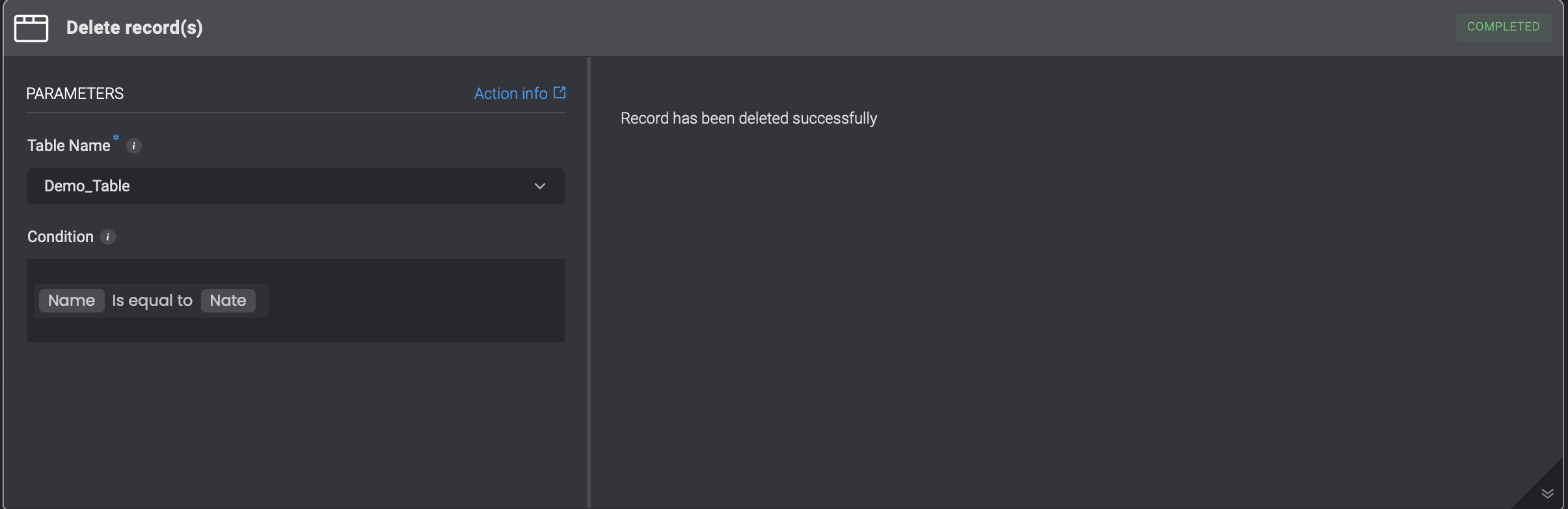
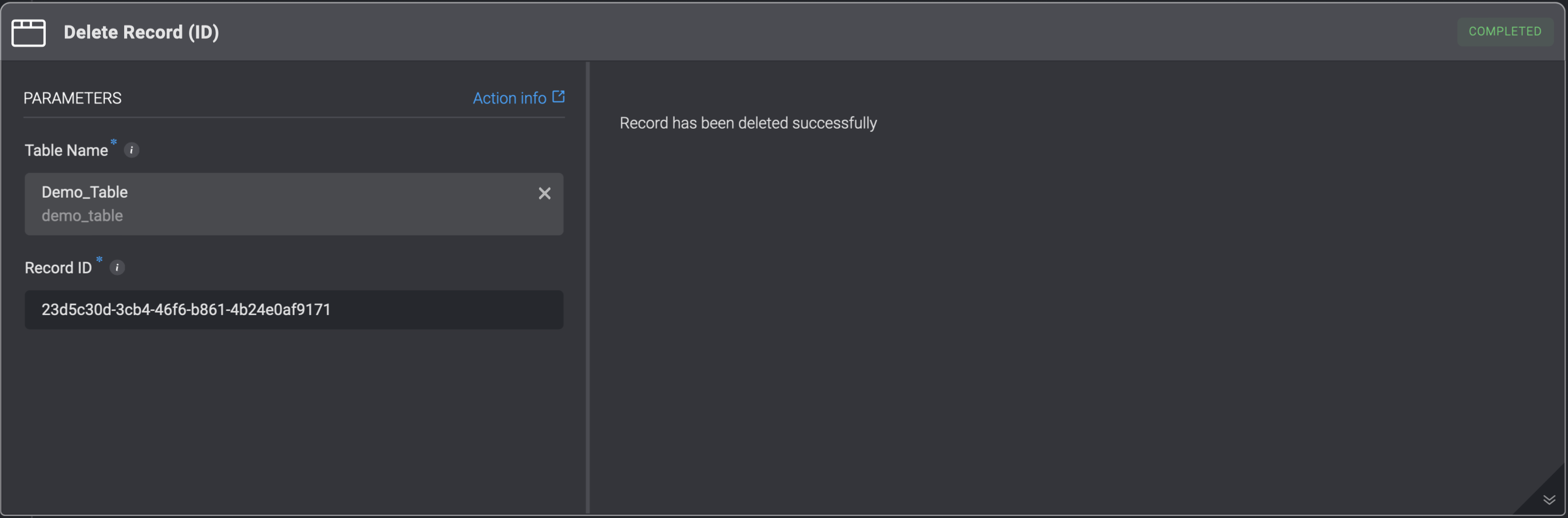 Deletes a record or multiple records from a table only when a certain `condition` is met.
| Parameter | Description |
| -------------------- | ------------------------------------------------------------------------------------------------------------------------------------------------------------------------------------------------------------------------------------------------------------------------------------------------------------------------------------------------------------------------------------------------------------------------ |
| Table Name | The name of the table. |
| Condition (Optional) | Condition that compares two table field values – Use this condition to compare the values of two fields in a table. You can also include [nested conditions](/docs/blink-platform/condition-builder/condition-builder#the-advanced-condition-builder-and-nested-conditions) to compare multiple values or sets of fields, allowing you to build more complex rules and control exactly how your table data is evaluated. |
 ***
## Managing [Tables](/docs/blink-platform/tables/tables) with Workflow Actions
Blink provides powerful workflow actions that allow you to automate the management of [tables](/docs/blink-platform/tables/tables). These actions enable you to create, clear, retrieve, copy and delete tables dynamically within your workflows.
***
### Create a Table
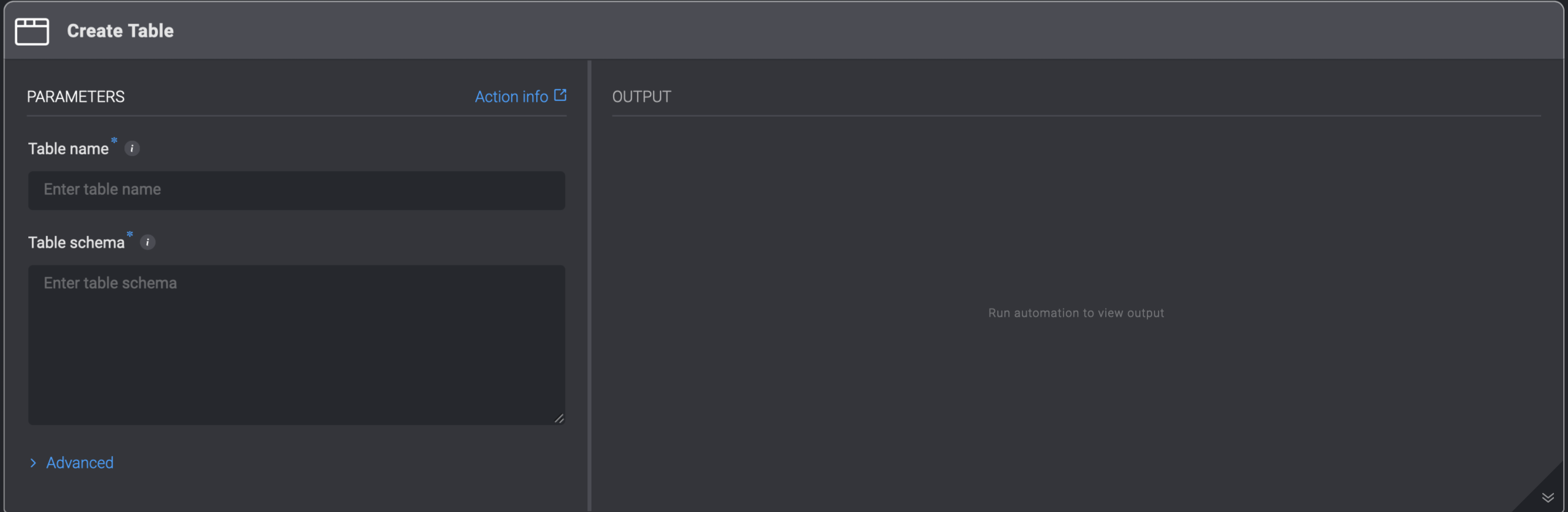
Create a table based on a schema.
***
## Managing [Tables](/docs/blink-platform/tables/tables) with Workflow Actions
Blink provides powerful workflow actions that allow you to automate the management of [tables](/docs/blink-platform/tables/tables). These actions enable you to create, clear, retrieve, copy and delete tables dynamically within your workflows.
***
### Create a Table
Create a table based on a schema.
| Parameter | Description |
| -------------- | --------------------------------------------------------------------------------------------------------------------- |
| Table Name | The name of the table. |
| Table Schema | The schema of the table in `JSON` format.
For more information, see the [Copy table schema](#copy-table-schema). |
| Skip if Exists | Skips table creation if a table with the same name already exists. |
 ***
### Copy Table Schema
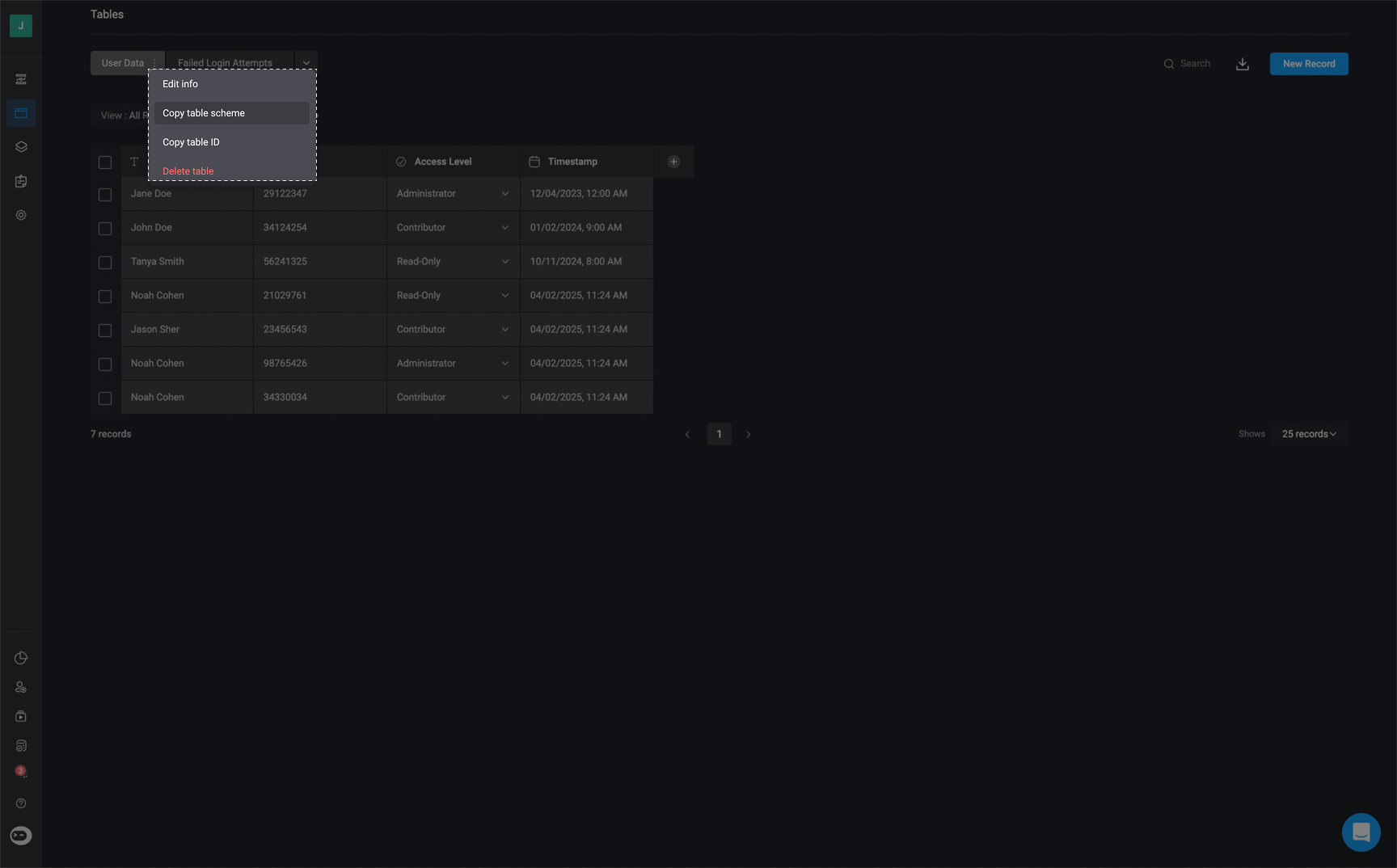
For each table that is created, there is a table schema.
Click the 3 dots menu of the table > **Copy table scheme**.
***
### Copy Table Schema
For each table that is created, there is a table schema.
Click the 3 dots menu of the table > **Copy table scheme**.
 **Example of a Table Schema:**
```json theme={"dark"}
{
"fields": [
{
"display_name": "Date",
"description": "",
"type": "date",
"attributes": {
"hidden": false,
"include_time": false,
"options": [],
"required": false,
"width": 165
}
},
{
"display_name": "Action",
"description": "",
"type": "text",
"attributes": {
"hidden": false,
"options": [],
"required": false,
"width": 165
}
},
{
"display_name": "User",
"description": "",
"type": "user",
"attributes": {
"hidden": false,
"options": [],
"required": false,
"width": 165
}
}
]
}
```
***
### Does Table Exist
Check if a table with a given display name exists.
When using the [Create Table](#create-a-table) action, and the chosen name of a table already exists, the [Create Table](#create-a-table) action will fail.
In order to prevent this scenario, you are recommended to use the `Does Table Exist` Action before the [Create Table](#create-a-table) step.
**Example of a Table Schema:**
```json theme={"dark"}
{
"fields": [
{
"display_name": "Date",
"description": "",
"type": "date",
"attributes": {
"hidden": false,
"include_time": false,
"options": [],
"required": false,
"width": 165
}
},
{
"display_name": "Action",
"description": "",
"type": "text",
"attributes": {
"hidden": false,
"options": [],
"required": false,
"width": 165
}
},
{
"display_name": "User",
"description": "",
"type": "user",
"attributes": {
"hidden": false,
"options": [],
"required": false,
"width": 165
}
}
]
}
```
***
### Does Table Exist
Check if a table with a given display name exists.
When using the [Create Table](#create-a-table) action, and the chosen name of a table already exists, the [Create Table](#create-a-table) action will fail.
In order to prevent this scenario, you are recommended to use the `Does Table Exist` Action before the [Create Table](#create-a-table) step.
| Parameter | Description |
| ---------- | -------------------------------------------------------------------- |
| Table Name | The name of the table. |
| Search By | Search by `name`, `display name` or both. Default is `display name`. |
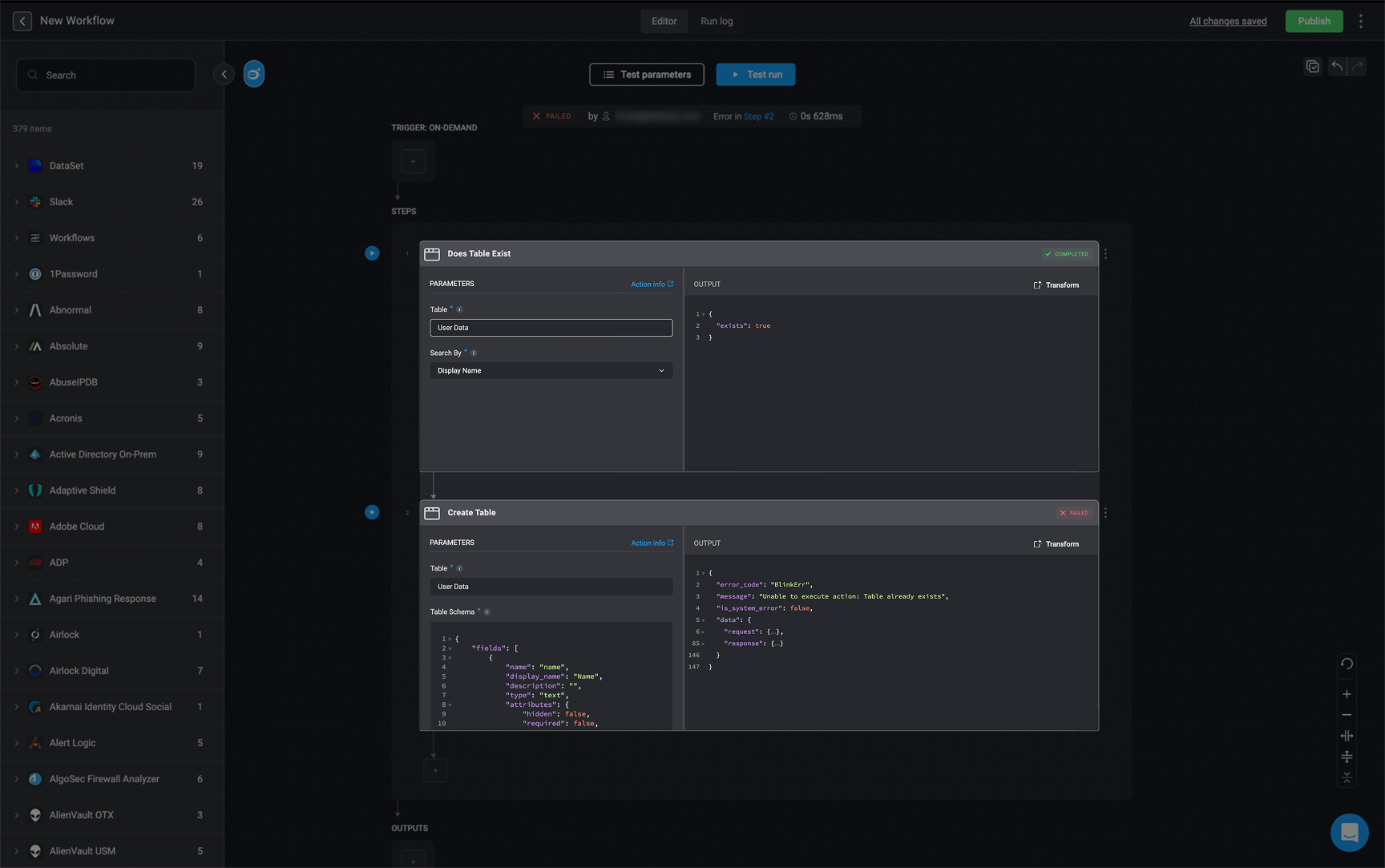
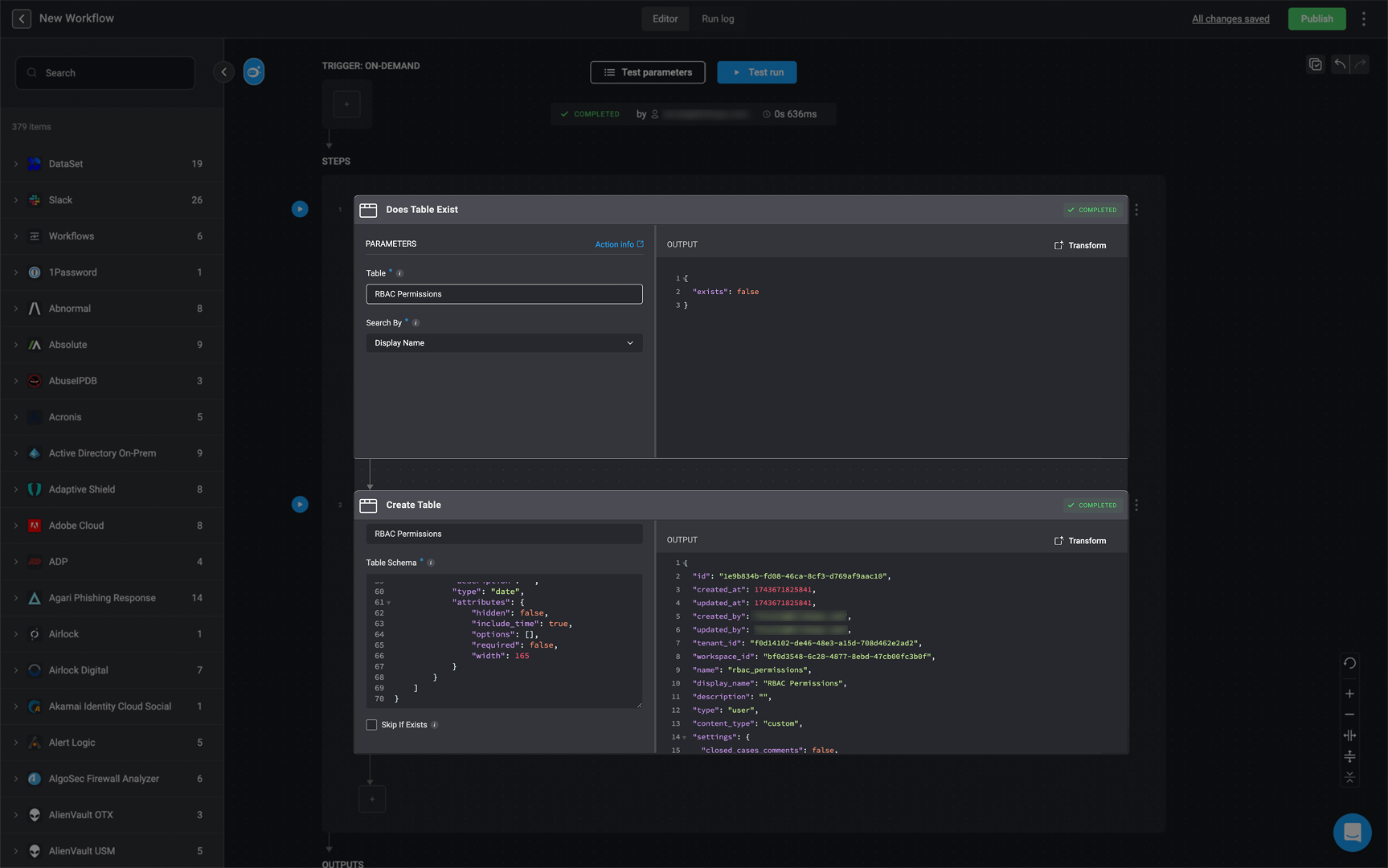
Before creating a new table, it is important to check whether a table with the same name already exists to avoid failures.
* If the table name already exists, the workflow will fail.
 * If the table name does not exist, a new table will be created successfully.
 ***
### Clear a Table
Clear all table records.
***
### Clear a Table
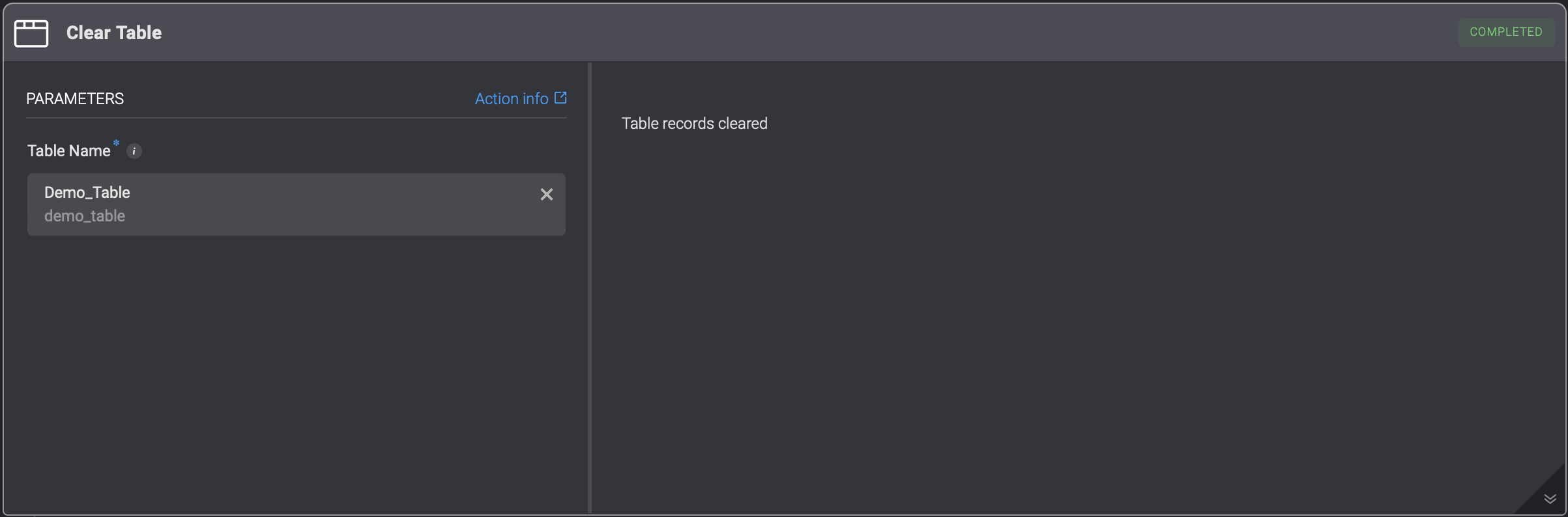
Clear all table records.
| Parameter | Description |
| ---------- | ---------------------- |
| Table Name | The name of the table. |
 ***
### Delete a Table
Deletes the entire table.
***
### Delete a Table
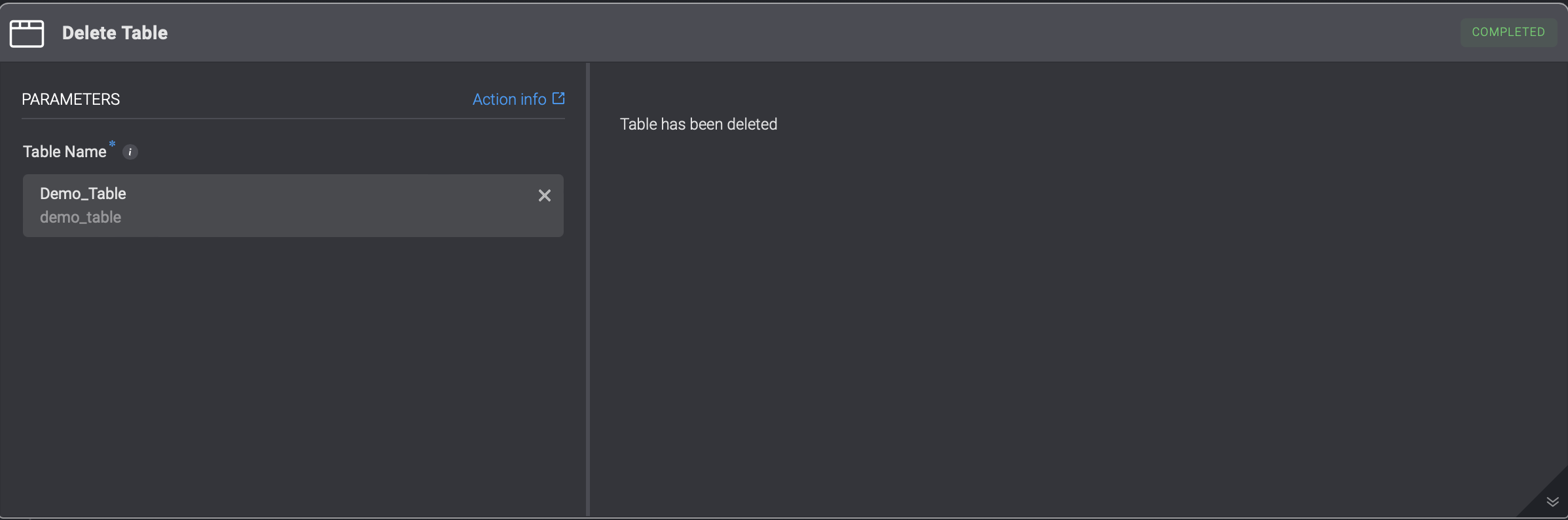
Deletes the entire table.
| Parameter | Description |
| ---------- | ---------------------- |
| Table Name | The name of the table. |
 ***
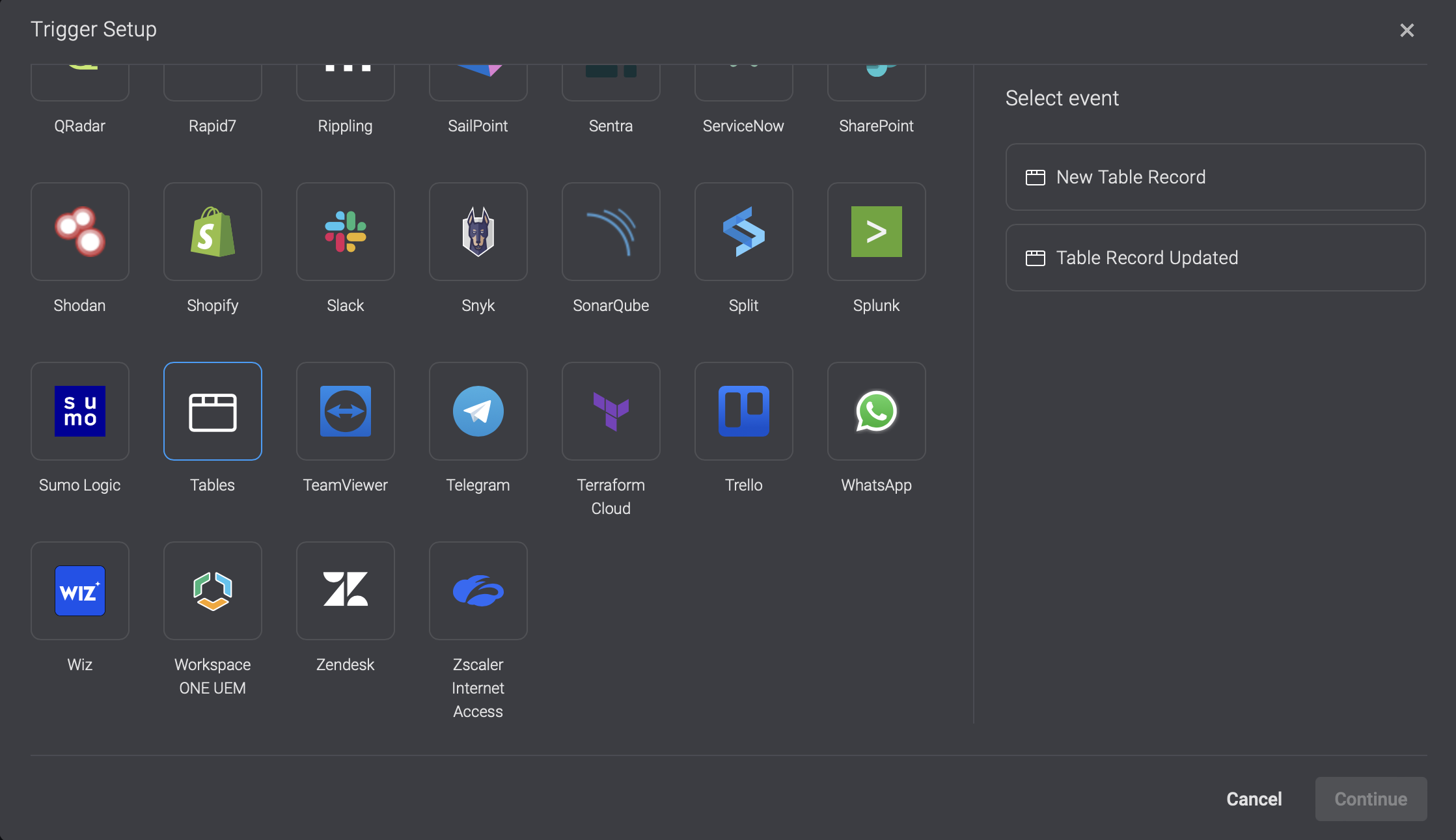
## Event-Based Triggers for Table Events
### New Table Record
The **New Table Record** option is an [Event-Based Trigger](/docs/workflows/building-workflows/triggers/event-based-triggers/event-based-triggers) event that executes the workflow every time a **new record** is added to the selected table.
### Table Record Updated
The **Table Record Updated** option is an [Event-Based Trigger](/docs/workflows/building-workflows/triggers/event-based-triggers/event-based-triggers) event that executes the workflow every time a record in the selected table is **updated**.
Make sure the **"Table Name"** in the trigger setup exactly matches the name of your table. Even small differences, like extra spaces or capitalization, can cause the trigger to fail.
***
## Event-Based Triggers for Table Events
### New Table Record
The **New Table Record** option is an [Event-Based Trigger](/docs/workflows/building-workflows/triggers/event-based-triggers/event-based-triggers) event that executes the workflow every time a **new record** is added to the selected table.
### Table Record Updated
The **Table Record Updated** option is an [Event-Based Trigger](/docs/workflows/building-workflows/triggers/event-based-triggers/event-based-triggers) event that executes the workflow every time a record in the selected table is **updated**.
Make sure the **"Table Name"** in the trigger setup exactly matches the name of your table. Even small differences, like extra spaces or capitalization, can cause the trigger to fail.
 ***
## Related Articles
Learn more about tables in the Blink Platform
Learn more about creating and using table actions in Workflows
Learn more about basic table operations
Learn more about filtering, sorting, ordering and browsing the table records
***
## Related Articles
Learn more about tables in the Blink Platform
Learn more about creating and using table actions in Workflows
Learn more about basic table operations
Learn more about filtering, sorting, ordering and browsing the table records