> ## Documentation Index
> Fetch the complete documentation index at: https://docs.blinkops.com/llms.txt
> Use this file to discover all available pages before exploring further.
# Basic Table Operations
> Learn the basic operations for working with Blink tables, including adding, editing, and deleting records.
Managing records and tables efficiently is crucial for maintaining an organized and functional database. This section explains how to edit and delete records within a table, as well as how to remove entire tables when necessary. Whether you are correcting information in a specific record or cleaning up unused data, these simple yet powerful actions ensure your data remains accurate and up-to-date.
## Editing A Record
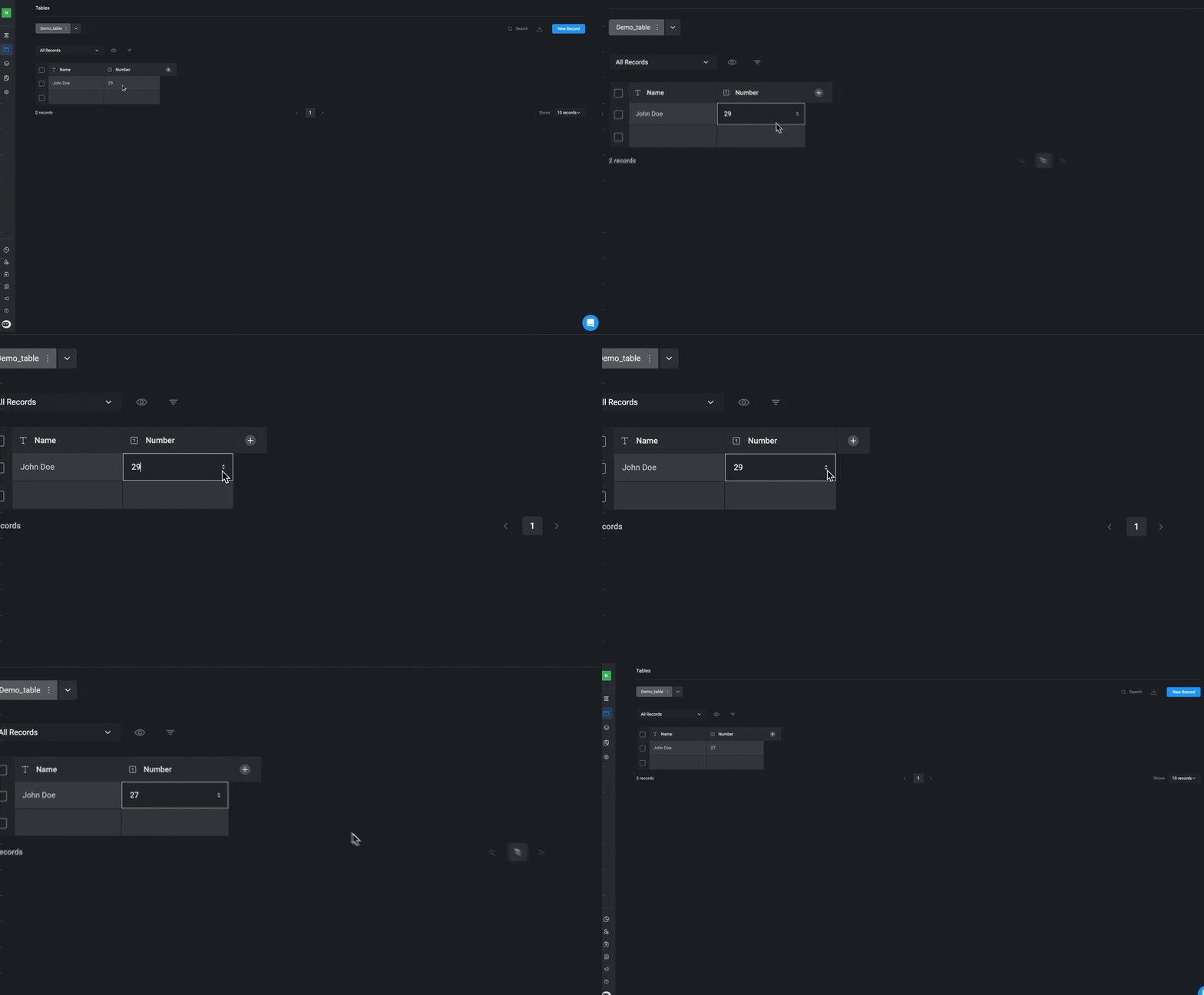
If you wish to edit any record values, simply double-click on the record you want to modify. Make the necessary changes and then click outside the cell to automatically save your updates.
**For Example:**
## Deleting A Record
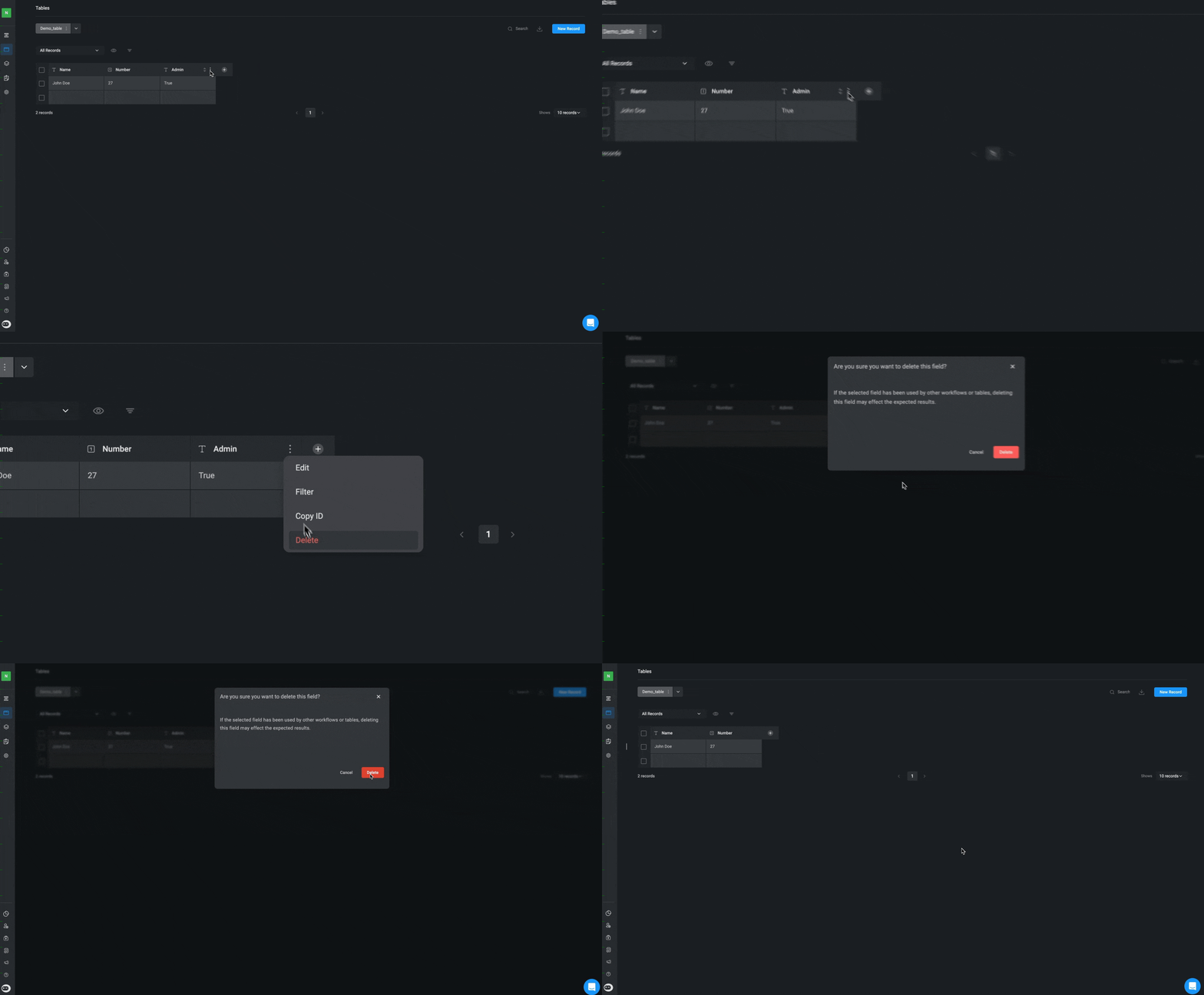
Select the specific record(s) you want to delete by clicking on the icon and selecting the "Delete" button.
A pop-up will open, asking you to confirm that you want to delete the selected record. Click the "Delete" button to remove the selected record from the table.
## Deleting A Table
Hover over the relevant name of the table you want to delete, click on the icon
and select the "Delete" button.
A pop-up will open, asking you to confirm that you want to delete the selected Table. Click the "Delete" button to remove the table.
## Related Articles
Learn how to create your first table
Learn more about creating and using table actions in Workflows
Learn more about basic table operations
Learn more about filtering, sorting, ordering and browsing the table records
 ## Deleting A Record
 ## Deleting A Table