> ## Documentation Index
> Fetch the complete documentation index at: https://docs.blinkops.com/llms.txt
> Use this file to discover all available pages before exploring further.
# Configuring A Hashicorp Vault
> Integrate HashiCorp Vault with your Blink self-hosted runner for secure secrets management.
Blink enables seamless integration with a vault established within a customer's personalized environment, guaranteeing secure management of connections within their controlled setting.
It's important to note that Blink refrains from storing any confidential data, as it is exclusively maintained within the designated secret manager. You can also authenticate [HashiCorp Vault](/docs/blink-platform/runners/secret-managers/hashicorp-vault) using the [Vault AppRole](/docs/blink-platform/runners/secret-managers/vault-approle) authentication method. For more information, navigate to the [Vault AppRole Authentication Documentation](/docs/blink-platform/runners/secret-managers/vault-approle)
To configure a Self-Hosted Vault Secret Manager you need to start a self-hosted runner with additional configuration, including the **vault URL and root token**.
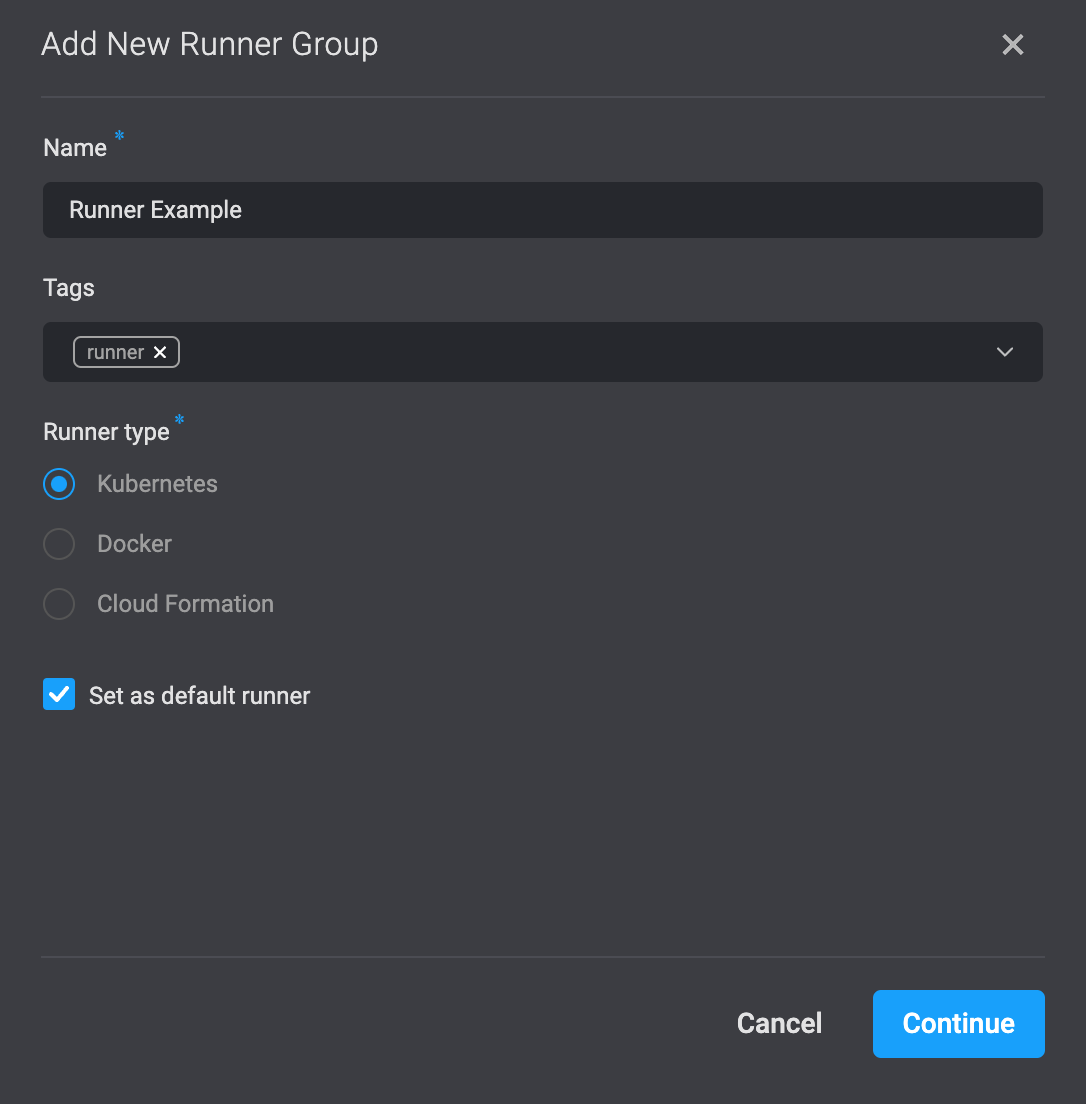
Create a new Runner in your workspace.
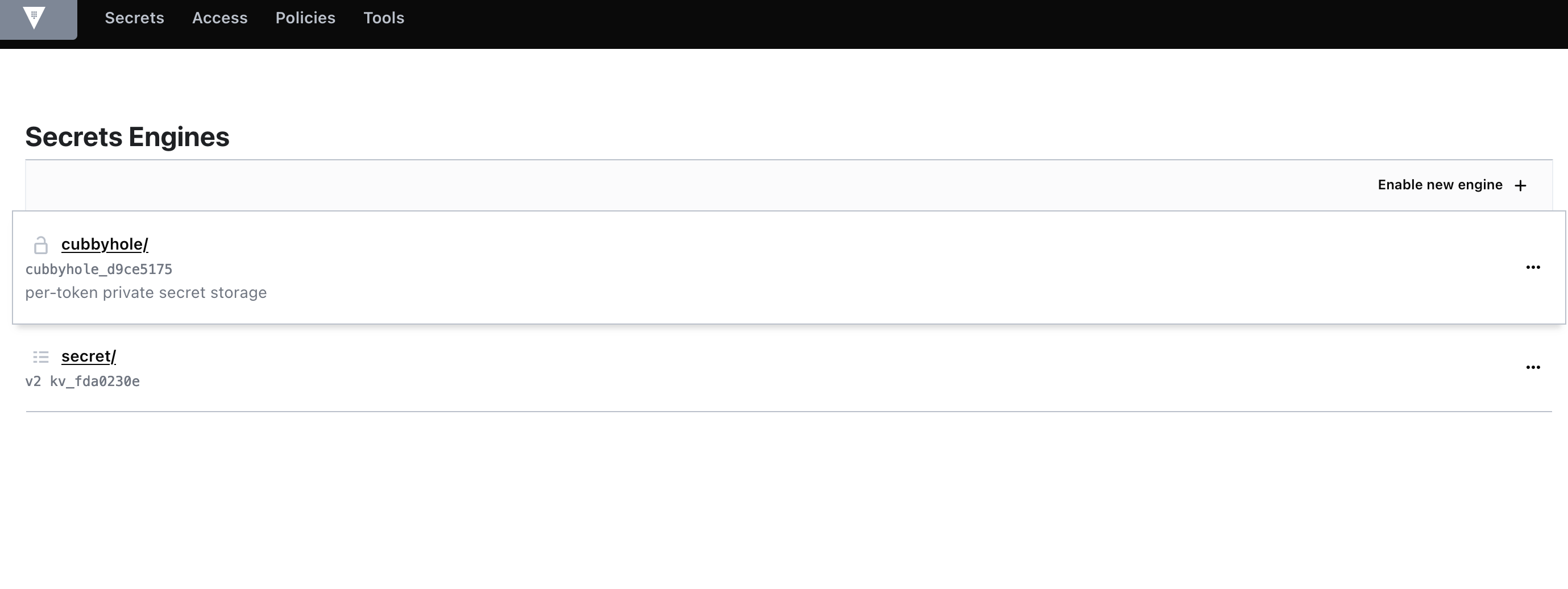
Make sure you can access the vault server using vault URL and root token. Inside vault ensure that there is a secret engine (type kv mounted on path /secret). If it does not exist, define it in the vault UI by clicking **Enable new engine**.
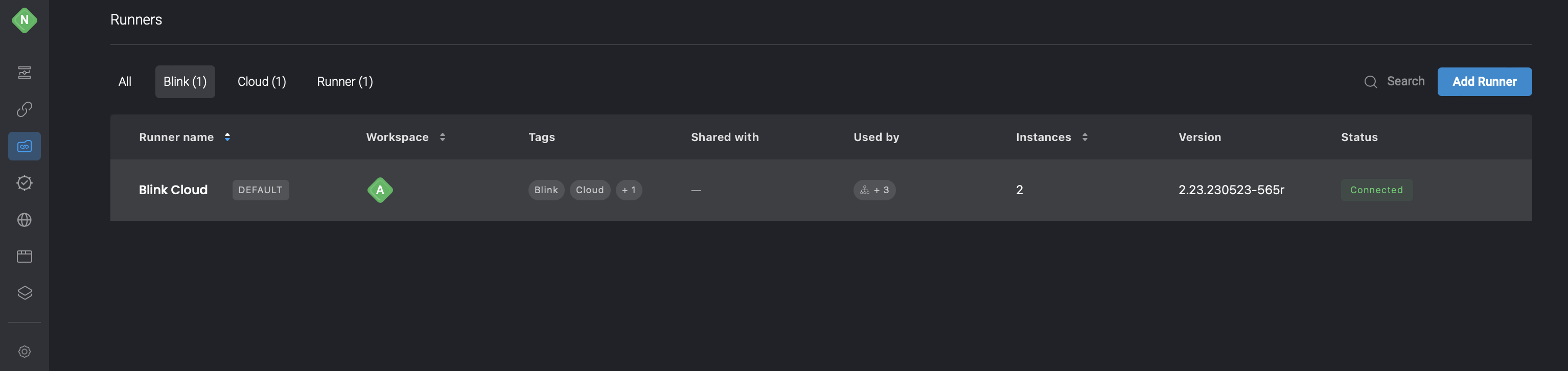
- Set new runner group as default for workspace. On the **Runners** page, click > **Set as default**.
OR
Select the checkbox **Set as default** in **Add new runner group**.
To proceed, click on the 'Continue' button located in the bottom-right corner. This will prompt the opening of a dialogue box where you can access the command required to install the Runner in your environment. Simply copy this command to your clipboard by clicking on the icon positioned in the top-right corner.
Edit the command to add the environment variables: `VAULT_URL`, `VAULT_ROOT_TOKEN` and `SECRET_MANAGER_TYPE`.
* [Docker](/docs/blink-platform/runners/deploying-runner/dockers-runner) example command:
```bash theme={"dark"}
docker run -d --name blink-runner -e VAULT_URL= -e VAULT_ROOT_TOKEN= -e SECRET_MANAGER_TYPE=vault -e CTRL_URL="https://app.blinkops.com" -e BLINK_RUNNER_CONFIG=/blink/config.yml --restart unless-stopped -v /var/run/docker.sock:/var/run/docker.sock --add-host "host.docker.internal:host-gateway" blinkops/blink-runner: ./blink-runner -auth
```
* [Kubernetes](/docs/blink-platform/runners/deploying-runner/kubernetes-runner) command example:
```bash theme={"dark"}
helm install -n blink --create-namespace --set image.tag= --set secret.appKey= --set env.SECRET_MANAGER_TYPE=vault --set config.runner.ctrl_url=https://app.blinkops.com --set env.VAULT_URL= --set env.VAULT_ROOT_TOKEN= blink-runner oci://public.ecr.aws/x9s7x6t7/blink-runner
```
When using the **CloudFormation** template, make sure to provide the **OnPremVaultUrl** and **OnPremVaultRootToken** parameters.
**Note:** The default workspace runner determines the storage location for new workspace connections. If the runner is configured with a self-hosted secret manager, the connections will be stored there. In the absence of a connected secret manager, the connections will be stored in Blink's secret manager.
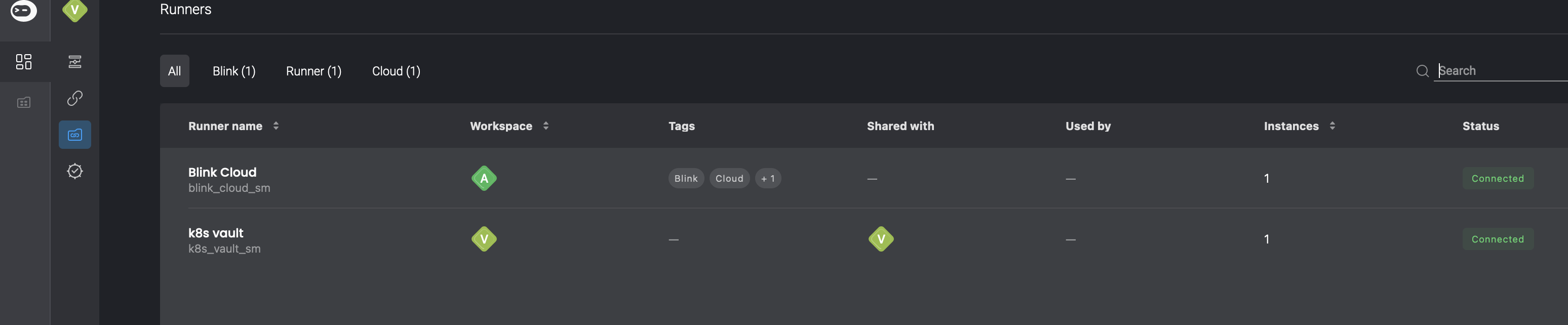
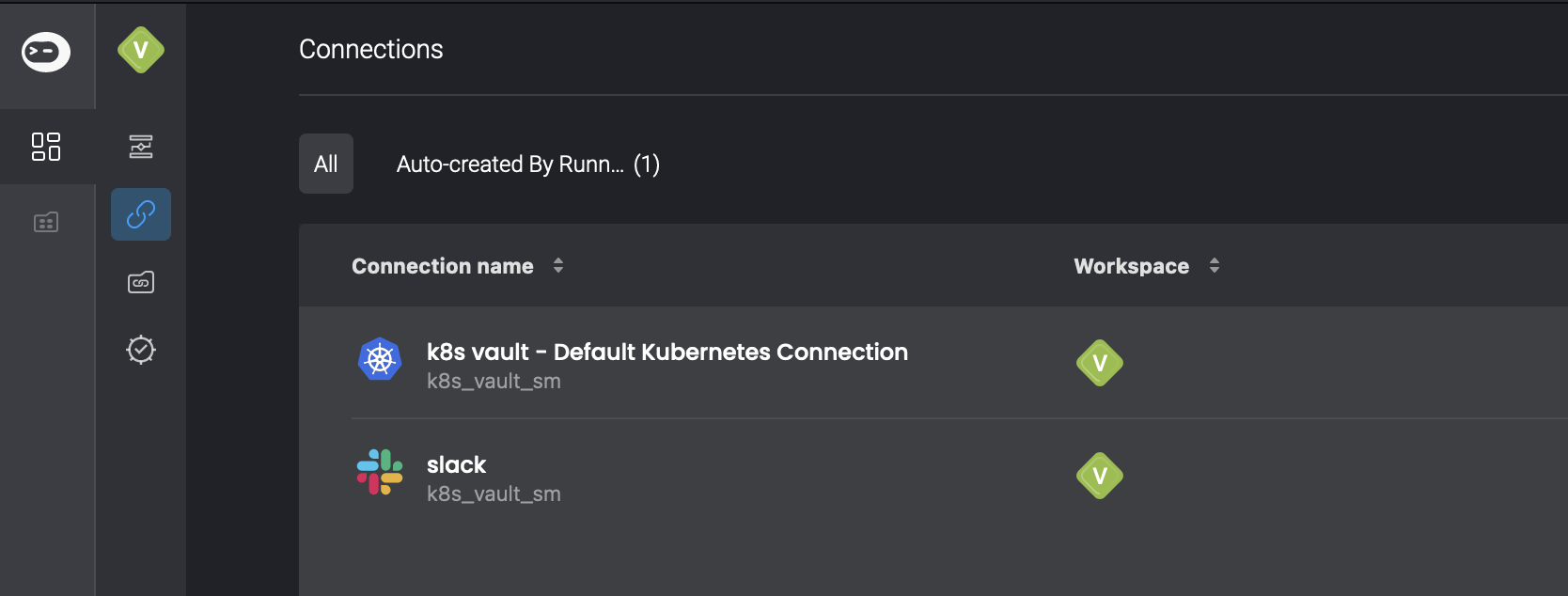
To verify where the connection is being stored look at the secret manager name below the connection name on the **Connections** page.
**blink\_cloud\_sm** indicates Blink's secret manager. Anything else indicates customer's self hosted secret manager.