> ## Documentation Index
> Fetch the complete documentation index at: https://docs.blinkops.com/llms.txt
> Use this file to discover all available pages before exploring further.
# Runner Settings
> Configure runner settings including resource limits, timeouts, and execution preferences in Blink.
The Runner Settings section allows you to manage and customize your runners. From setting a default runner to editing, updating, sharing, or deleting existing runners, these controls help you keep your runner environment aligned with your organization’s needs. You can also configure notifications to stay informed about runner status or activity.
***
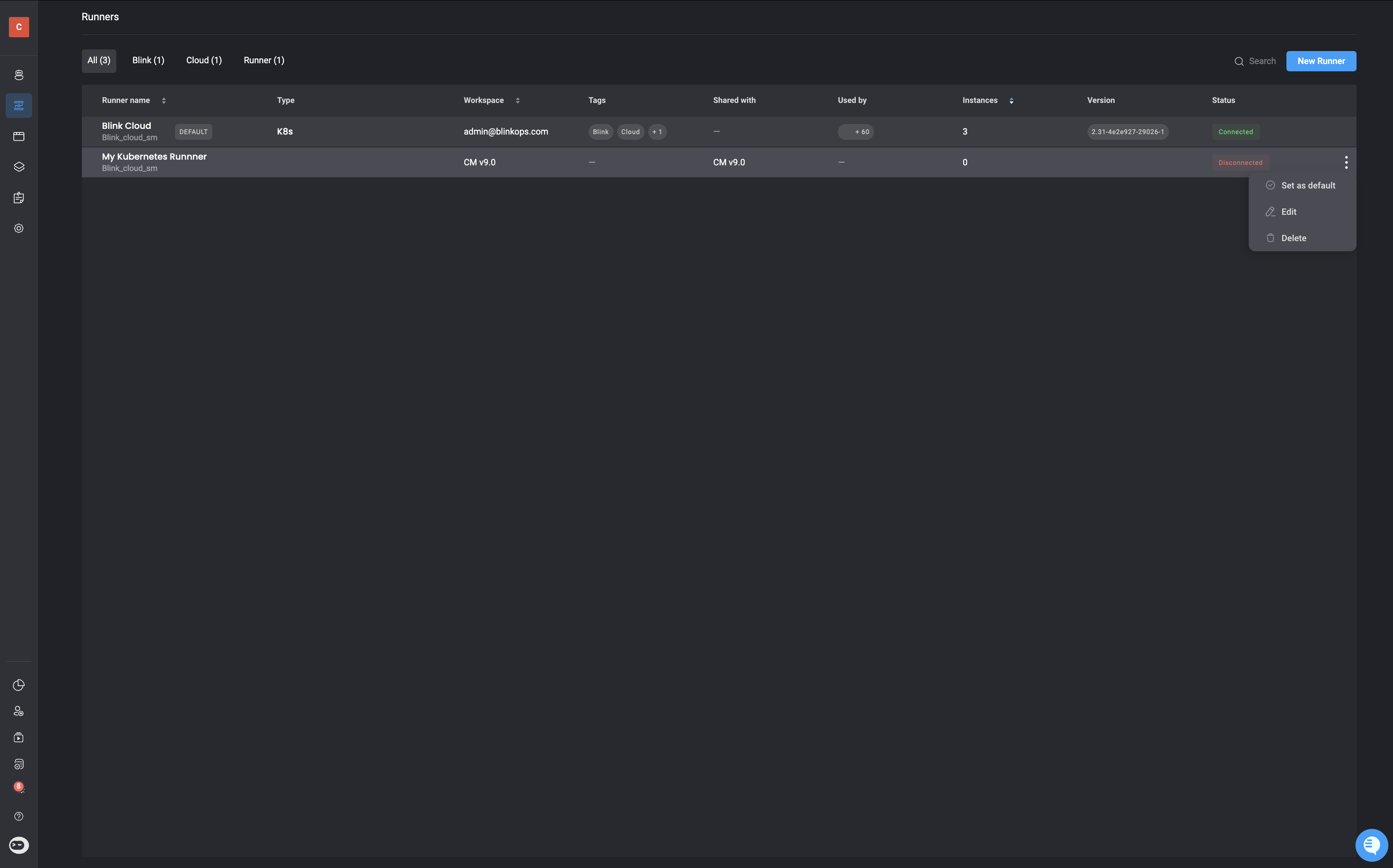
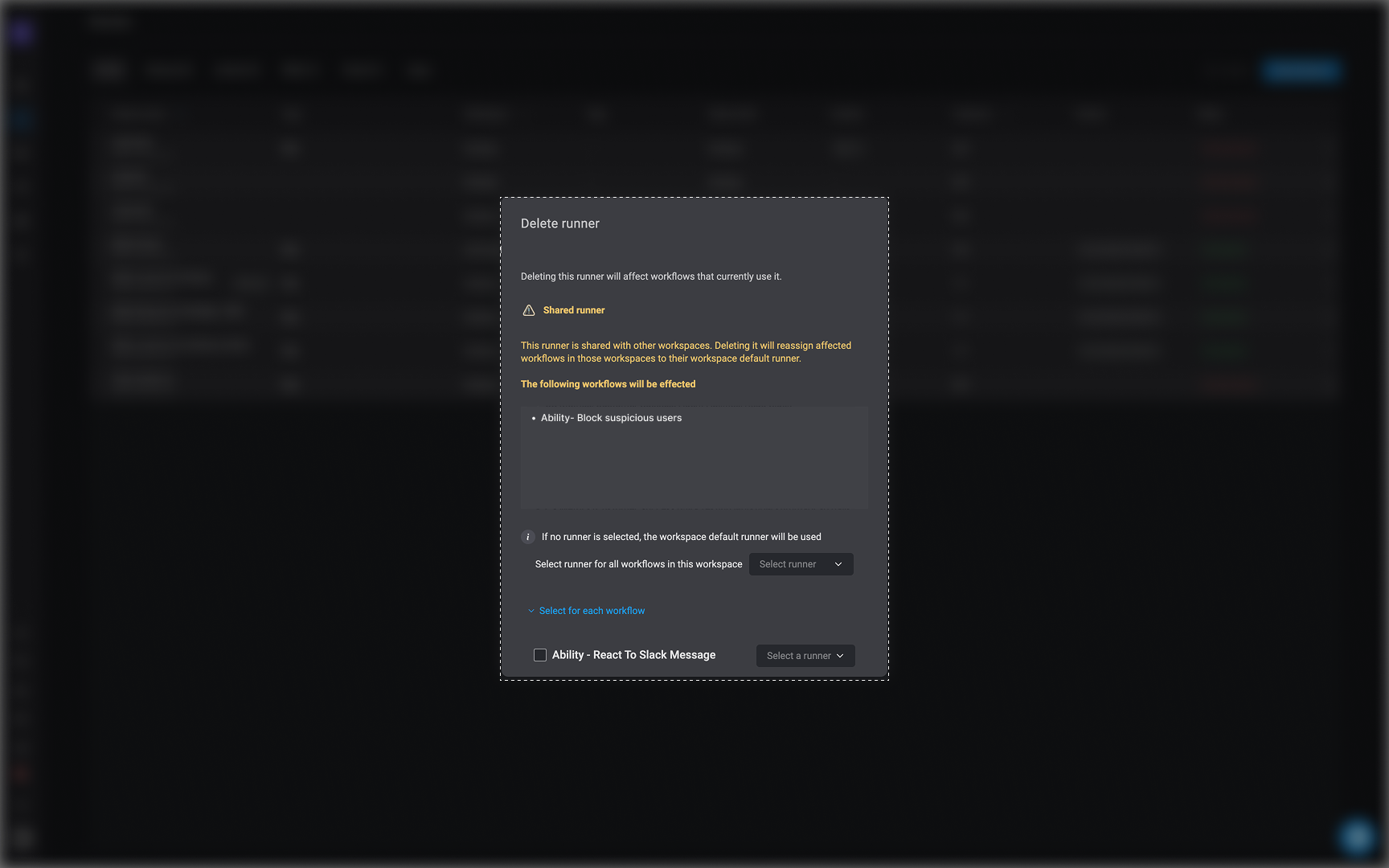
On the **Runners** Page, you can click the button beside a particular runner and then pick from these options: **set as default**, **edit**, or **delete**.
 ***
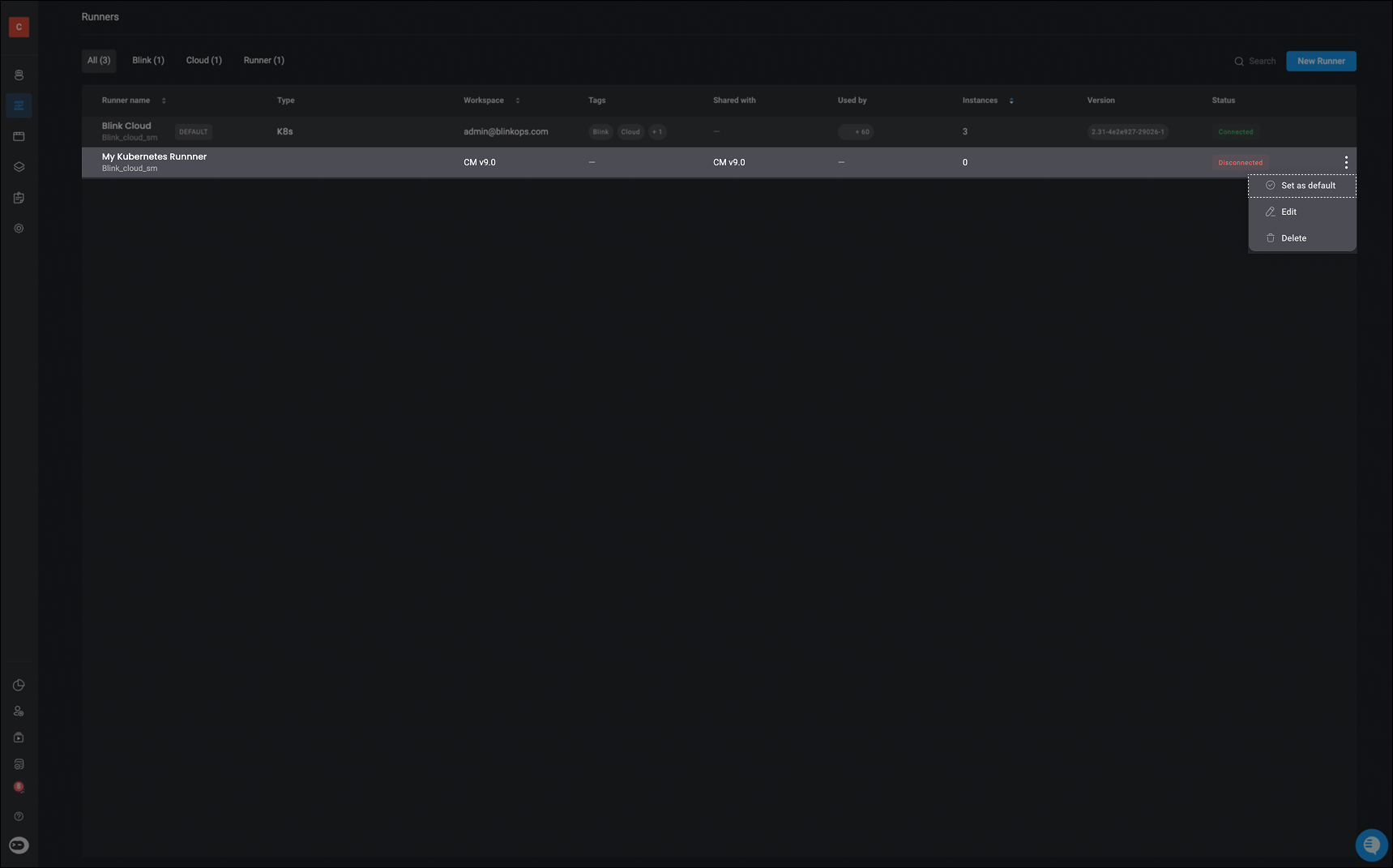
The out-of-the-box default Runner Group in each Workspace is the `Blink Cloud` Runner Group.
***
The out-of-the-box default Runner Group in each Workspace is the `Blink Cloud` Runner Group.
To designate a different runner as the default, click the icon and select the "Set as Default" option.
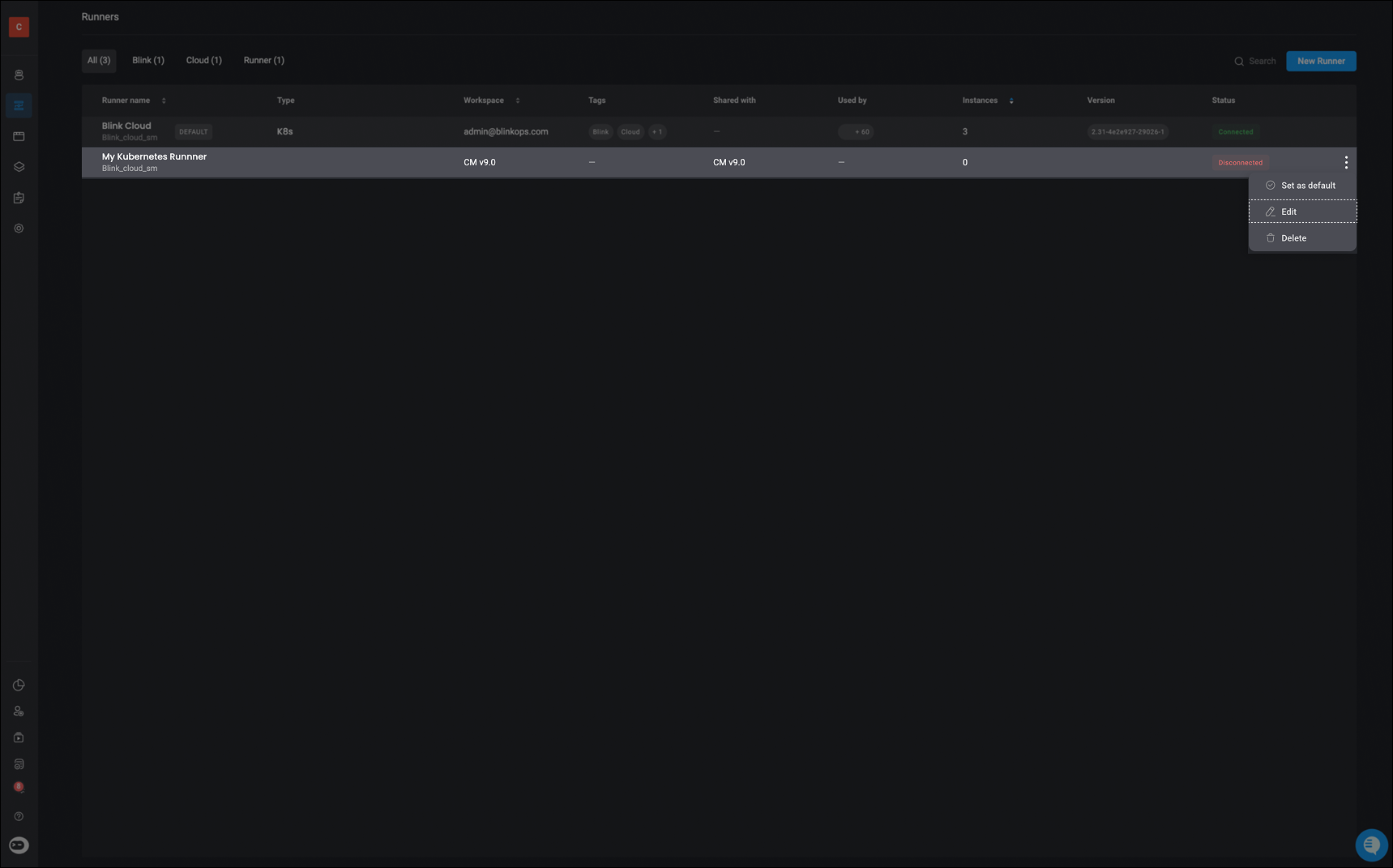
 Makes changes to a runner, by following these step-by-step instructions
Choosing for the **Edit Runner** option triggers a popup where you can conveniently modify the **details** of the **selected runner**.
Makes changes to a runner, by following these step-by-step instructions
Choosing for the **Edit Runner** option triggers a popup where you can conveniently modify the **details** of the **selected runner**.
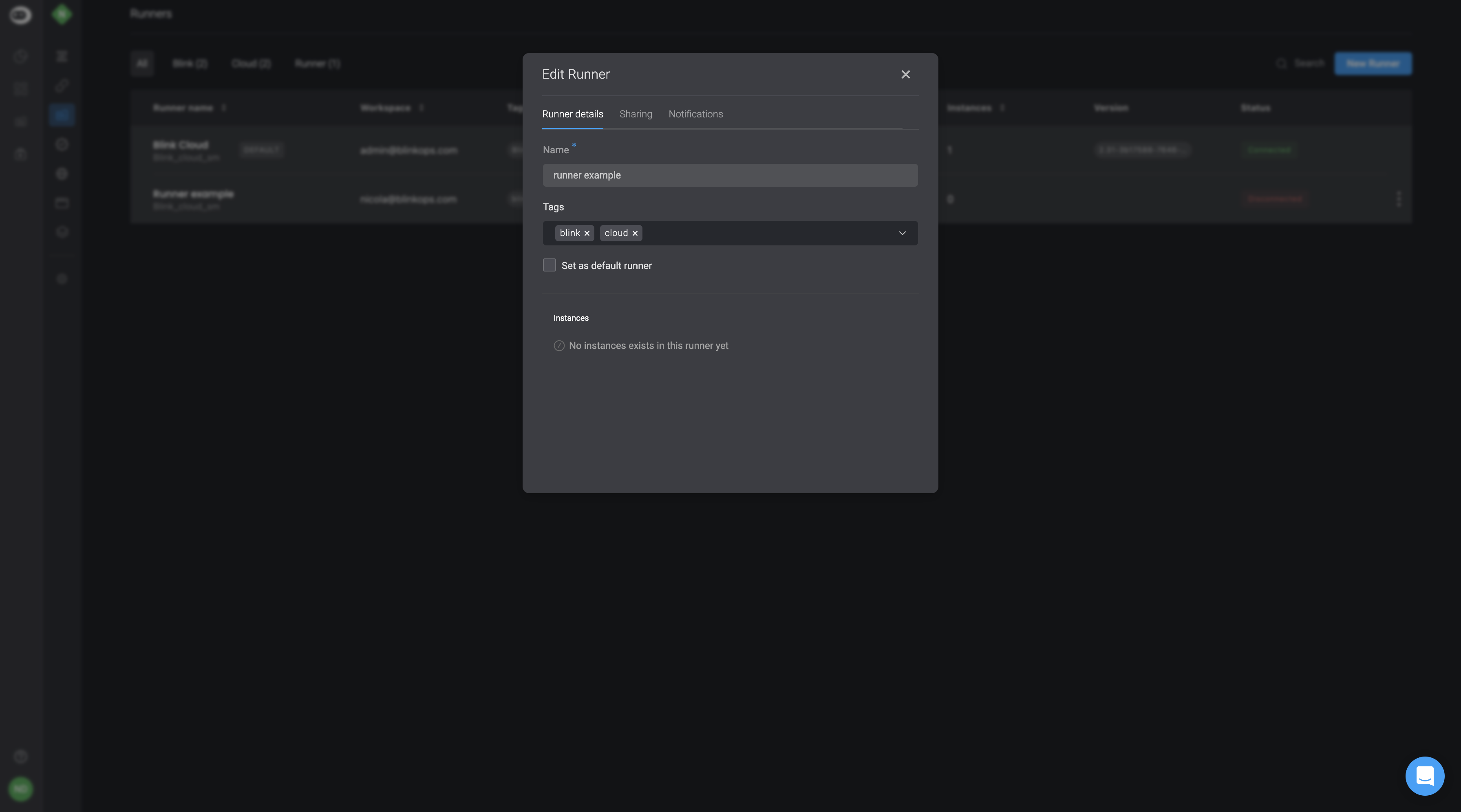
 Enhance your chosen Runner by selecting **tags** from the dynamic dropdown menu. Additionally, you can select the runner as the **Default Runner** by checking the designated checkbox.
 For the best experience and performance, ensure that you always install the latest version of the runner. Blink runners are automatically updated by default. It is possible to disable auto-updating, and alternatively update runners manually using one of the following options described below.
## Disabling Auto-Update of a Runner
Auto-updating is enabled by default. To disable, do as follows:
On the Blink platform, in the lower-left corner, click your initials > **Account Settings** > **General**.
Deselect **Enable runner auto upgrade**. Runners will not be updated as new versions are available.
## Option 1: Updating a Runner Manually
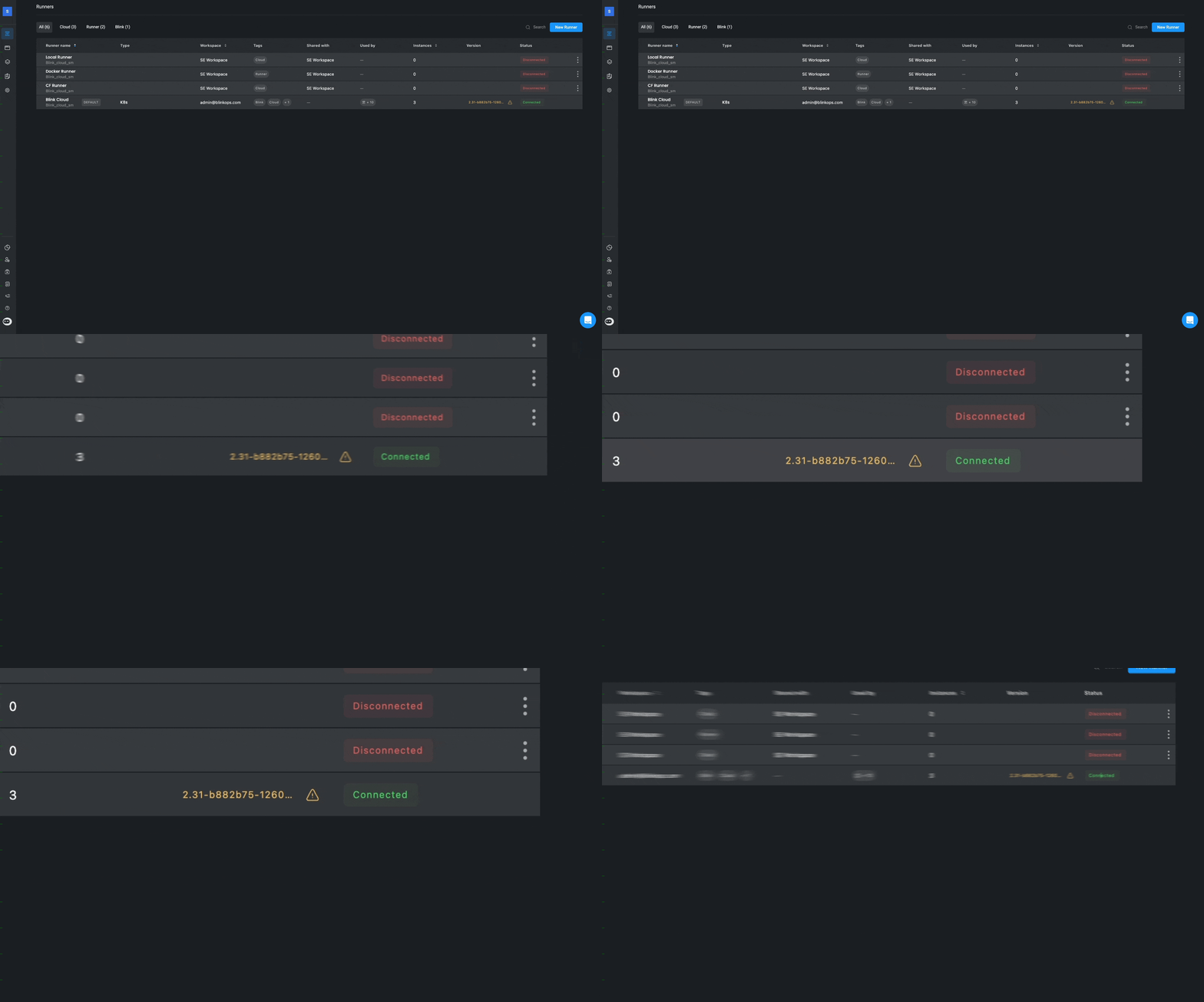
A runner can be updated manually from the **Runners** page. In the *Version* column, updated runners name and version appear in white, and runners that need to be updated have a warning sign next to their version.
To manually update a runner, navigate to the Blink Runners page. In the Version column, you'll see up-to-date runners displayed in white, while those requiring updates appear in yellow. To update a runner, simply click on the version highlighted in yellow. Once the update is complete, the runner's version will change to white, indicating it is up-to-date.
For the best experience and performance, ensure that you always install the latest version of the runner. Blink runners are automatically updated by default. It is possible to disable auto-updating, and alternatively update runners manually using one of the following options described below.
## Disabling Auto-Update of a Runner
Auto-updating is enabled by default. To disable, do as follows:
On the Blink platform, in the lower-left corner, click your initials > **Account Settings** > **General**.
Deselect **Enable runner auto upgrade**. Runners will not be updated as new versions are available.
## Option 1: Updating a Runner Manually
A runner can be updated manually from the **Runners** page. In the *Version* column, updated runners name and version appear in white, and runners that need to be updated have a warning sign next to their version.
To manually update a runner, navigate to the Blink Runners page. In the Version column, you'll see up-to-date runners displayed in white, while those requiring updates appear in yellow. To update a runner, simply click on the version highlighted in yellow. Once the update is complete, the runner's version will change to white, indicating it is up-to-date.
To see the status of the Runner, click > **Edit**. As the Runner is being updated, the status will change from *Connected* to *Shutting down*, and back to *Connected*.
 ## Option 2: Manual Update via CloudFormation
To update a runner via CloudFormation stack configuration, assuming you have a runner that was deployed via CloudFormation, follow these instructions:
Open the deployed CloudFormation stack via the AWS console.
In the **Runner Version** parameter, update the value to the new runner version.
Redeploy the CloudFormation stack.
## Option 3: Updating a Runner via CLI
### Kubernetes Manual Update via CLI
To update a Runner via the CLI in the Helm client, use the following command:
```bash theme={"dark"}
helm upgrade -n blink --reuse-values --set image.tag= blink-runner oci://public.ecr.aws/x9s7x6t7/blink-runner
```
### Docker Manual Update via CLI
To update a Runner via the CLI in the Docker client, use the following command:
```bash theme={"dark"}
docker kill -signal "SIGINT" && docker rm -f blink-runner && \
docker run -d --name blink-runner -e CTRL_URL=https://app.blinkops.com -e BLINK_RUNNER_CONFIG=/blink/config.yml \
--restart unless-stopped -v /var/run/docker.sock:/var/run/docker.sock \
--add-host "host.docker.internal:host-gateway" \
blinkops/blink-runner: ./blink-runner -auth
```
Share runners, by following these step-by-step instructions
You can give permission for another Workspace to use a Runner you created, allowing all members of that particular workspace to use the Runner.
## Option 2: Manual Update via CloudFormation
To update a runner via CloudFormation stack configuration, assuming you have a runner that was deployed via CloudFormation, follow these instructions:
Open the deployed CloudFormation stack via the AWS console.
In the **Runner Version** parameter, update the value to the new runner version.
Redeploy the CloudFormation stack.
## Option 3: Updating a Runner via CLI
### Kubernetes Manual Update via CLI
To update a Runner via the CLI in the Helm client, use the following command:
```bash theme={"dark"}
helm upgrade -n blink --reuse-values --set image.tag= blink-runner oci://public.ecr.aws/x9s7x6t7/blink-runner
```
### Docker Manual Update via CLI
To update a Runner via the CLI in the Docker client, use the following command:
```bash theme={"dark"}
docker kill -signal "SIGINT" && docker rm -f blink-runner && \
docker run -d --name blink-runner -e CTRL_URL=https://app.blinkops.com -e BLINK_RUNNER_CONFIG=/blink/config.yml \
--restart unless-stopped -v /var/run/docker.sock:/var/run/docker.sock \
--add-host "host.docker.internal:host-gateway" \
blinkops/blink-runner: ./blink-runner -auth
```
Share runners, by following these step-by-step instructions
You can give permission for another Workspace to use a Runner you created, allowing all members of that particular workspace to use the Runner.
Click on the three dot menu next to the Runner you would like to share.
Select a workspace from the dropdown menu. Members of this workspace can now use the runner.
 Remove runner from your workspace, by following these step-by-step instructions
To delete a runner, click on the button next to the desired runner and choose the **delete** option.
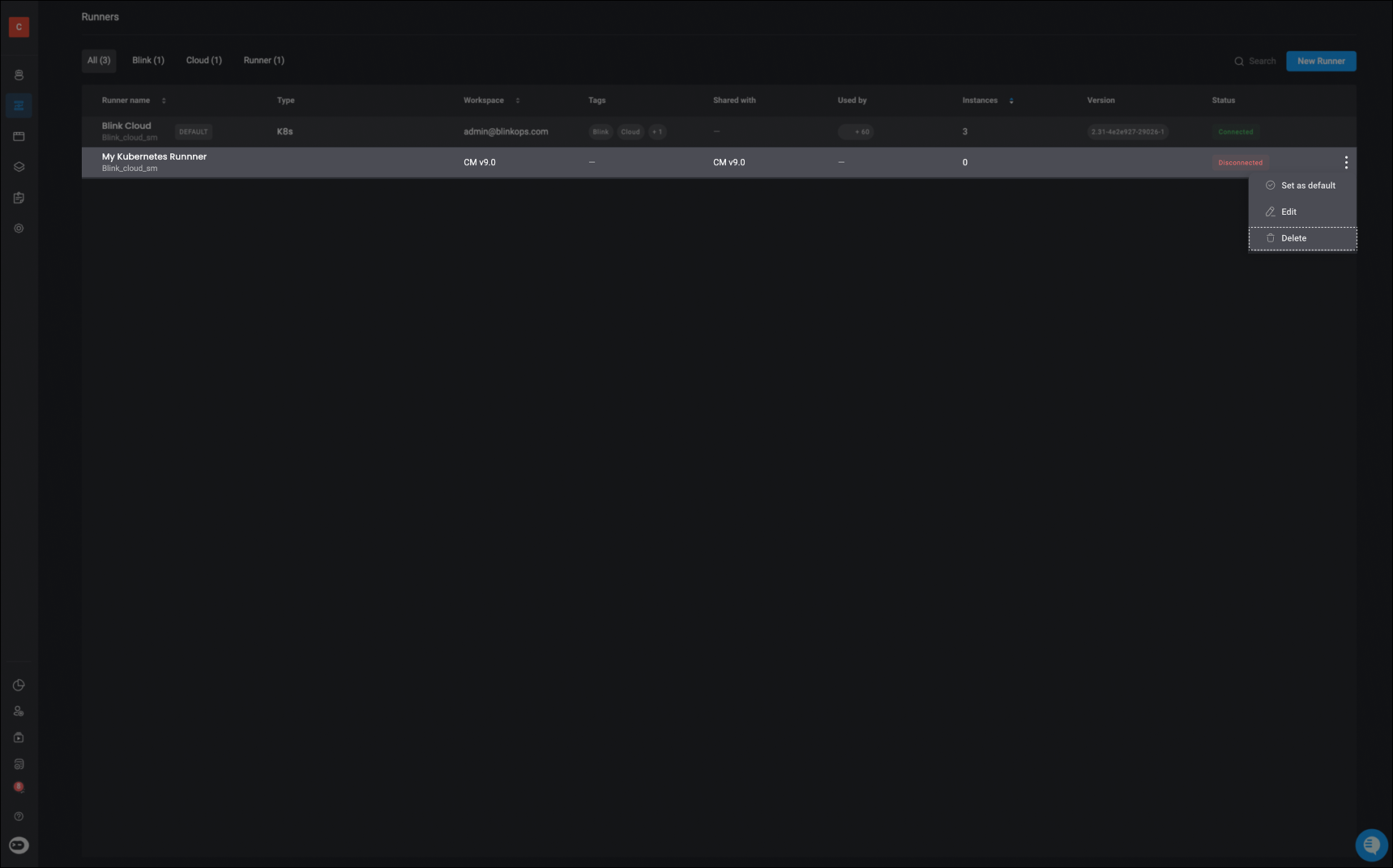 A pop-up named 'Delete Runner' will appear, informing you about potential workflow failures due to a missing runner. If you don't choose a different runner, you'll need to pick one for **all** workflows or select a runner for each workflow **individually**. After making your selections, you can then click the 'delete' button located in the bottom-right corner.
**Note**:
* If no runner is selected, the workspace's default runner will be used
* If you are trying to delete a runner that is shared across multiple workspaces, deleting it will automatically reassign any workflows using that runner in other workspaces to each workspace’s default runner.
A pop-up named 'Delete Runner' will appear, informing you about potential workflow failures due to a missing runner. If you don't choose a different runner, you'll need to pick one for **all** workflows or select a runner for each workflow **individually**. After making your selections, you can then click the 'delete' button located in the bottom-right corner.
**Note**:
* If no runner is selected, the workspace's default runner will be used
* If you are trying to delete a runner that is shared across multiple workspaces, deleting it will automatically reassign any workflows using that runner in other workspaces to each workspace’s default runner.
 ***
## The Runners Table
***
## The Runners Table
| Table Field | Description |
| ------------- | ------------------------------------------------------------------------------------------------------------------------------------------------------------------------------------------------------------------------------------------------------------------------------------------------------------------------------------------------------------- |
| Runner Name | The unique name of the runner, used to identify it across workflows and workspaces. |
| Type | The runner deployment type, such as [K8s](/docs/blink-platform/runners/deploying-runner/kubernetes-runner), [Docker](/docs/blink-platform/runners/deploying-runner/dockers-runner), [CloudFormation](/docs/blink-platform/runners/deploying-runner/cloud-formation-runner), or [Custom](/docs/blink-platform/runners/deploying-runner/deploying-self-hosted). |
| Workspace | The workspace in which the runner was originally created and is primarily managed. |
| Tags | User-defined labels applied to the runner to support filtering, organization, and policy enforcement. |
| Shared With | The name(s) of the workspace(s) this runner has been shared with. |
| Used By | Indicates where the runner is currently in use, including the workspace name and the action or workflow that is consuming it. |
| Instances | The total number of runner instances associated with this runner, including connected and at-risk instances. |
| Versions | The runner software versions currently deployed across its instances. |
| Runner Status | The overall health status of the runner, calculated based on the state of its connected and at-risk instances. |
***
### Runner Instances- Statuses
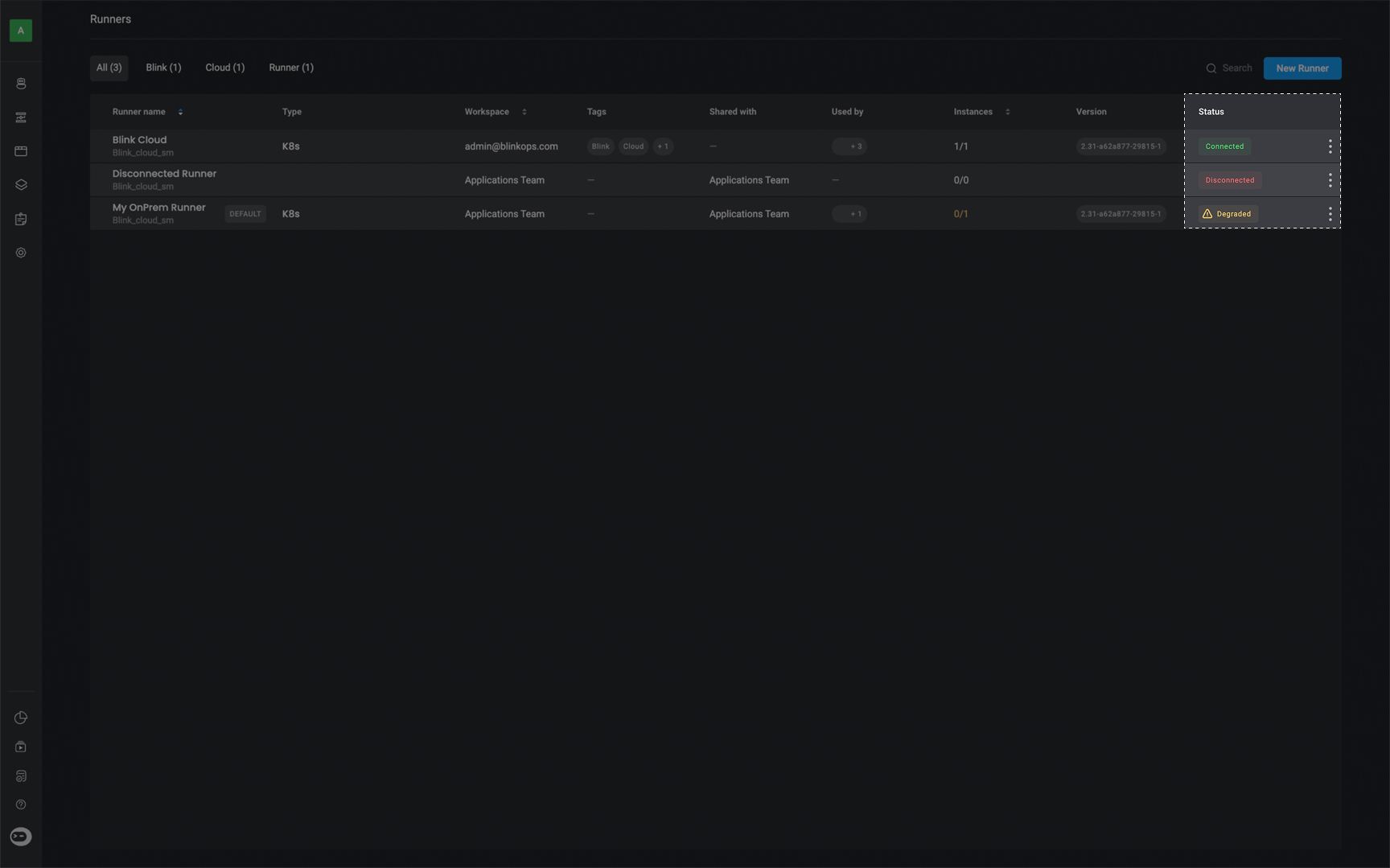
Health status is visible in the runner's status column with detailed tooltips including all failed plugins with descriptive reason and suggested remediation
1. Connected- The runner is online and operating normally, fully able to accept and process new actions.
2. Degraded- The runner is partially operational and may be experiencing limited connectivity, reduced capacity, or transient issues affecting performance.
* **How a Runner Becomes Degraded**
1. **Plugin Health Determines Runner Health**
* If a plugin fails **3 times in a row**, it is marked as Unhealthy.
* If a plugin successfully connects at least once, it is considered Healthy.
2. **Runner Status Calculation**
* If any plugin on a runner is unhealthy, the runner status changes to Degraded.
* This means the runner is partially operational and may have limited functionality.
3. **Recovery Checks**
* Health recovery checks run periodically to detect if previously unhealthy plugins have returned to Healthy status.
* If all plugins recover, the runner automatically returns to a connected/healthy state.
4. **Runner Selection Logic**
* When assigning tasks, the system prefers runners in the Connected state.
* Only if no fully healthy runners are available will tasks be routed to Degraded runners.
3. Disconnected- The runner is no longer connected and cannot process actions.
* Disconnected runners are automatically cleaned up every `10 minutes`.
 ***
### Runner Group – Statuses
**Number of instances**: Displays the number of **connected instances** out of the total number of **connected + at-risk instances**.
***
### Runner Group – Statuses
**Number of instances**: Displays the number of **connected instances** out of the total number of **connected + at-risk instances**.
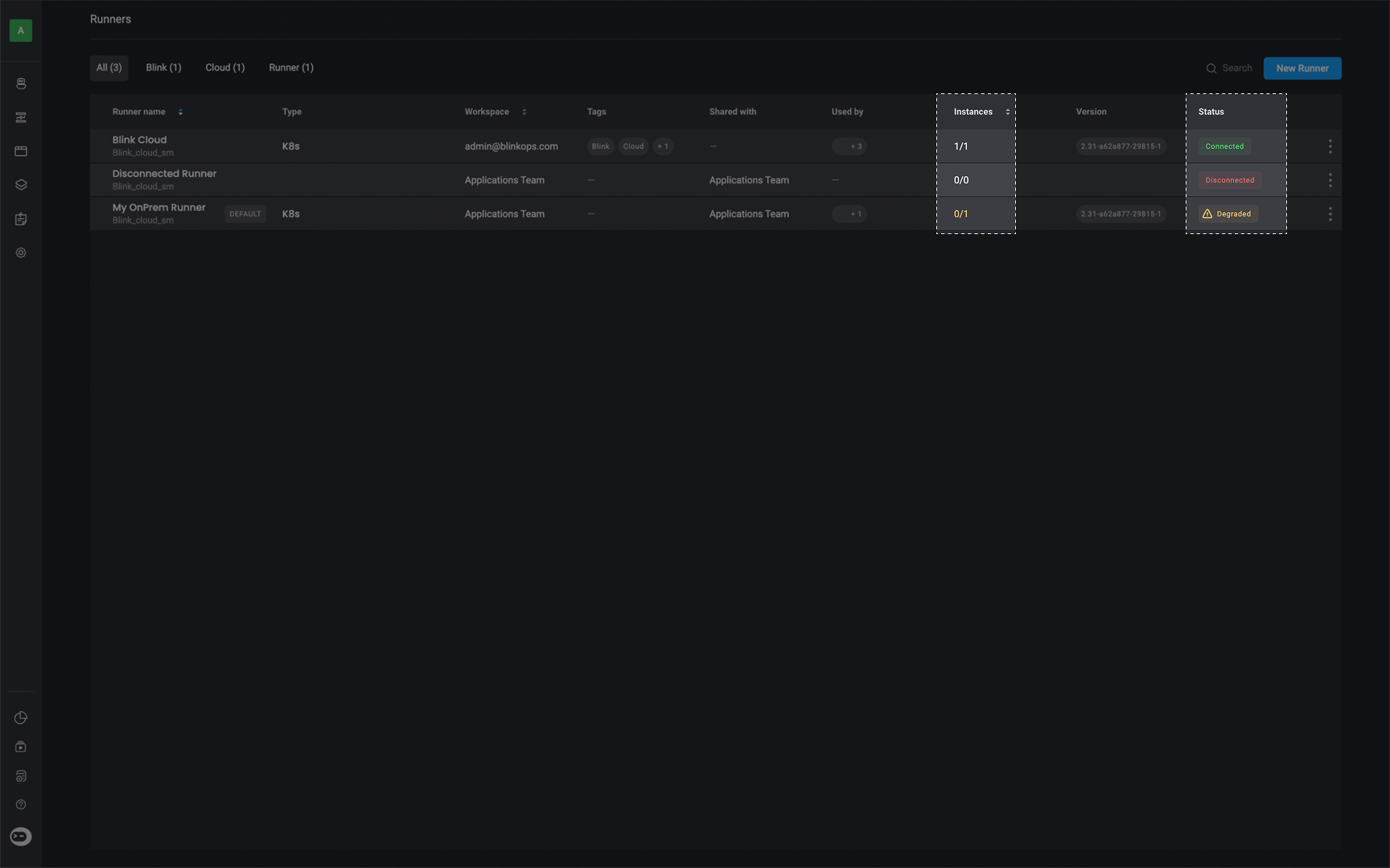 **Status**: The runner group status is determined by evaluating only **connected** and **at-risk** instances.
1. Connected- At least one runner instance is currently connected.
2. Degraded- No runner instances are connected, but one or more instances are in a degraded (at-risk) state.
3. Disconnected- No runner instances are connected or at risk.
***
## How to Set up a Runner Notification Workflow
Learn how to set up a runner notification workflow, by following these step-by-step instructions.
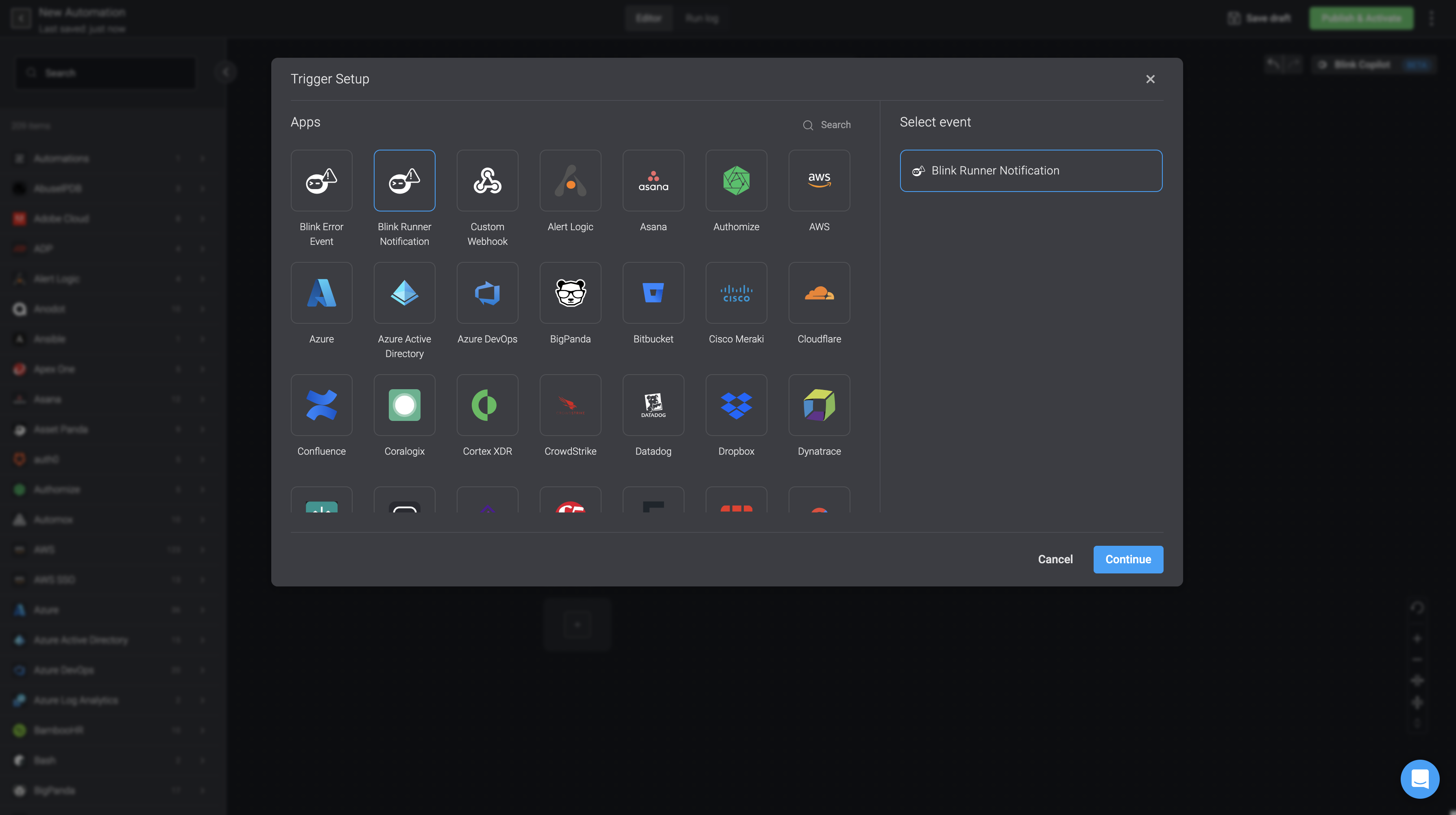
Configure the [event-based trigger](/docs/workflows/building-workflows/triggers/event-based-triggers/event-based-triggers) by selecting the 'Blink Runner Notification' option. Press the **continue** button in the bottom-right corner.
**Status**: The runner group status is determined by evaluating only **connected** and **at-risk** instances.
1. Connected- At least one runner instance is currently connected.
2. Degraded- No runner instances are connected, but one or more instances are in a degraded (at-risk) state.
3. Disconnected- No runner instances are connected or at risk.
***
## How to Set up a Runner Notification Workflow
Learn how to set up a runner notification workflow, by following these step-by-step instructions.
Configure the [event-based trigger](/docs/workflows/building-workflows/triggers/event-based-triggers/event-based-triggers) by selecting the 'Blink Runner Notification' option. Press the **continue** button in the bottom-right corner.
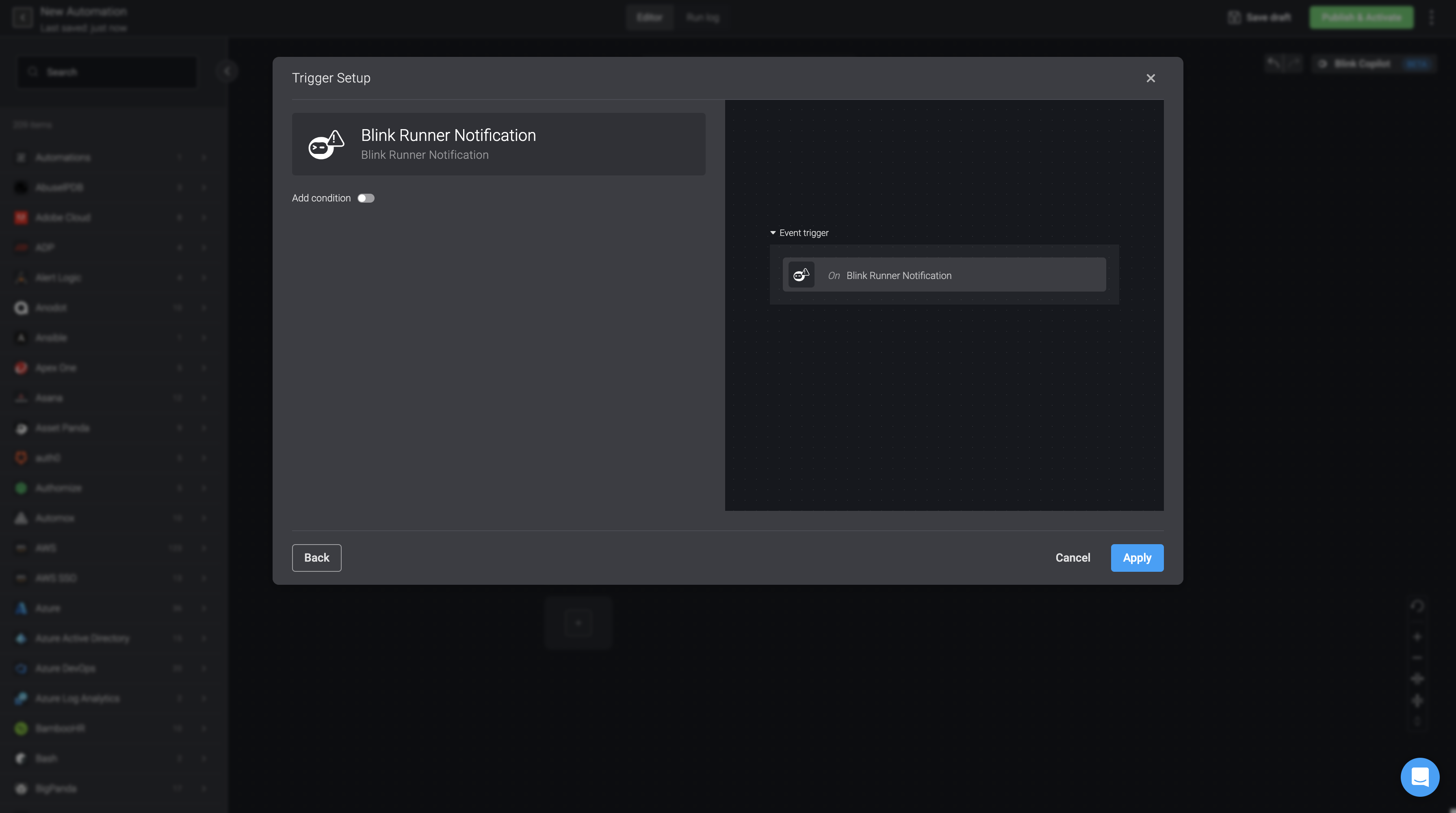
 Confirm the **Trigger Setup** by clicking the **apply** button in the bottom-right corner and continue to build your desired Workflow.
 Upon completion of creating your Workflow, proceed to **publish** and **activate** it.
Please note that the Workflow has to be **published** and **activated** in order for the 'Runner Notification Workflow' feature to work.
Upon completion of creating your Workflow, proceed to **publish** and **activate** it.
Please note that the Workflow has to be **published** and **activated** in order for the 'Runner Notification Workflow' feature to work.
Proceed by navigating to the **Runners Page** and click the button beside a particular runner and select the **Edit Runner** option.
Access the **Notifications** tab in the 'Edit Runner' popup. Customize your notification preferences—whether via email or via a workflow. You will only be able to choose from the Event-Based Blink Runner Notification Workflow options that have been **published** and **activated**
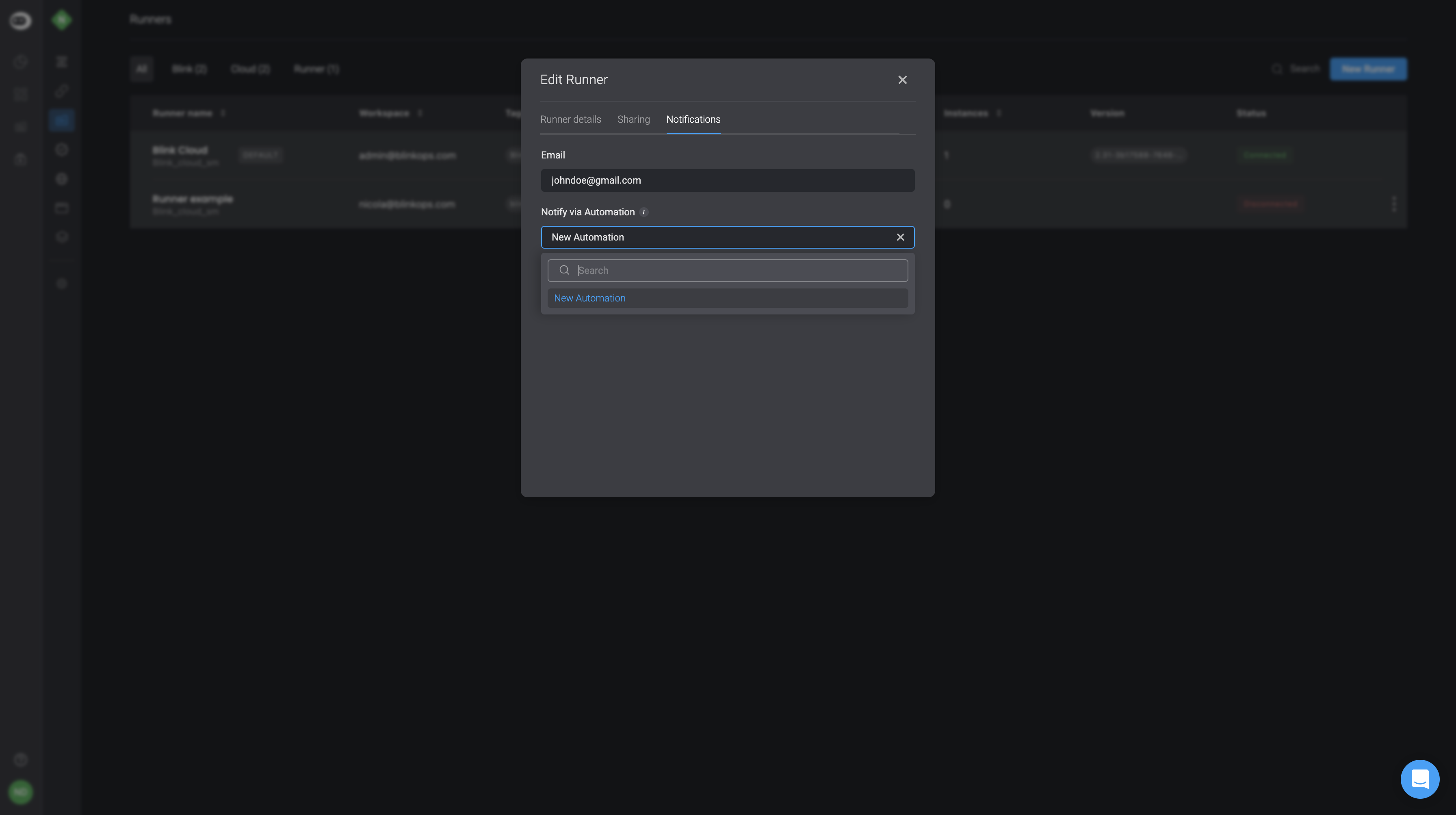 **Note** It is recommended to use the **Notify via Email** feature as a backup in case the notification Workflow fails for any reason. In addition, if possible use the **Blink Cloud Runner** for the runner running the notification Workflow itself.
You can receive **three types of different notifications**:
* **Runner Outdated**: When the runner version is outdated, and automatic runner updates are disabled.
* **Runner update failed**: When a runner automatic update fails for any reason, when automatic updates are enabled.
* **Runner Disconnected**: For when a Runner has been disconnected for over 10 minutes.
10 minutes is the default time, however if you would like to make the time period longer or shorter please contact support: [support@blinkops.com](mailto:support@blinkops.com)
**Note** It is recommended to use the **Notify via Email** feature as a backup in case the notification Workflow fails for any reason. In addition, if possible use the **Blink Cloud Runner** for the runner running the notification Workflow itself.
You can receive **three types of different notifications**:
* **Runner Outdated**: When the runner version is outdated, and automatic runner updates are disabled.
* **Runner update failed**: When a runner automatic update fails for any reason, when automatic updates are enabled.
* **Runner Disconnected**: For when a Runner has been disconnected for over 10 minutes.
10 minutes is the default time, however if you would like to make the time period longer or shorter please contact support: [support@blinkops.com](mailto:support@blinkops.com)