> ## Documentation Index
> Fetch the complete documentation index at: https://docs.blinkops.com/llms.txt
> Use this file to discover all available pages before exploring further.
# Configuring a Runner Group
> Configure and manage runner groups to organize runners by deployment location and scope.
A **Runner Group** is a collection of identical runner instances that work together to execute actions in workflows. Distributing the workload across multiple instances helps improve performance, reliability, and efficiency.
***
## Prerequisites for Runner Group Installation
* The original Runner installation key that was used in the installation of the first Runner in the group (the Runner which you want to scale)
* If an external secret manager is used, all Runners must be configured with the same secret manager configuration
* If internal network resources are used by the Runners, all Runners must be capable of reaching these resources through their network configuration
***
## Reasons for Installing Multiple Runners
1. **Redundancy**: If a Runner isn't reachable or isn't available, having more than one configured Runner will decrease the chances of Workflow downtime.
2. **Scale**: If a single machine/container with a Runner cannot handle the amount of executions, having more than one Runner installed results in load-distribution between the installed Runners.
3. **Isolation:** Installing multiple Runners allows you to isolate workloads based on environments (e.g., staging vs. production), teams, or use cases. This ensures sensitive workflows don’t share execution environments and helps with compliance or audit requirements.
4. **Geographic Proximity**: Deploying Runners in different regions can reduce latency when interacting with region-specific services or APIs, improving overall workflow performance and responsiveness.
5. **Maintenance Flexibility**: With multiple Runners, you can take individual Runners offline for upgrades or maintenance without affecting workflow availability, ensuring continuous operation.
***
## Balancing the Load within a Runner Group
When you first deploy a **Docker** or **Kubernetes** Runner Group, it includes only a single runner instance by default. To improve performance and ensure better load distribution, it's recommended to add multiple runner instances to the group.
### How to Add Additional Runner Instances in Docker
1. Use the **same deployment command** provided by Blink during the installation of the first runner.
2. Deploy each new runner **on a separate machine** to ensure effective workload distribution.
3. Because all instances use the **same authentication key**, they will automatically join the existing Runner Group.
This setup allows your Runner Group to handle higher loads with improved efficiency and resilience.
### How to Add Additional Runner Instances in Kubernetes
1. In Kubernetes, set the runner hpa and plugins hpa to 'true'
```helm theme={"dark"}
--set plugins.hpa.enabled=true
--set hpa=true`
```
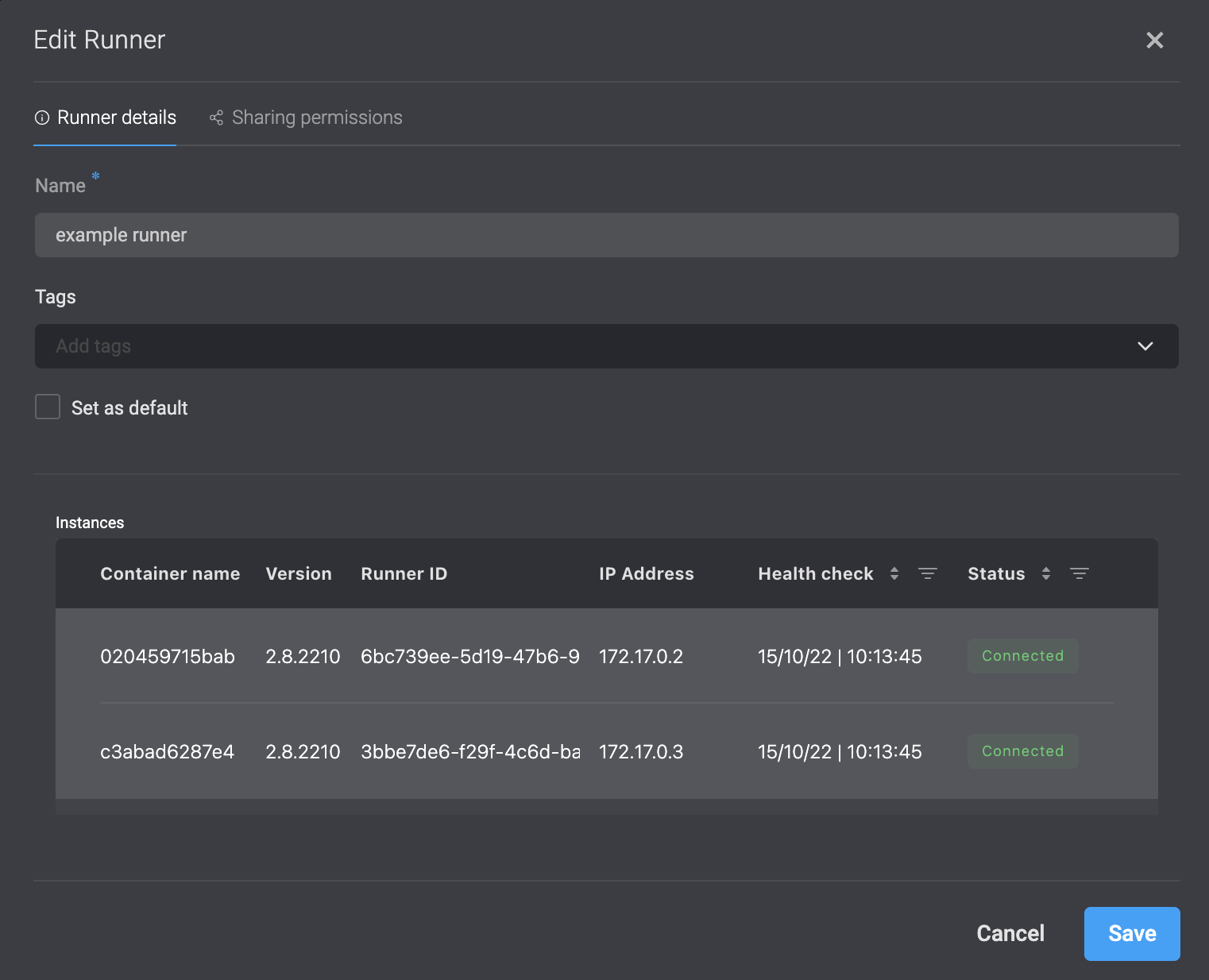
### Viewing the Number of Instances in a Runner Group
1. Click the on the runner and select **Edit**. A dialogue box opens.
2. Under **Instances**, you can see a list of instances and their status, that are used in the runner group.
 ***
## Scaling up a Runner Group in Docker
Identify the Runner you want to scale and ensure you have access to the Runner installation key used during its original setup.
1. In the Blink platform, navigate to your workspace > Runners > New Runner.
2. Select Docker Runner
3. In the command, replace the key value with the same key that was used during the initial setup.
***
### Flow Diagram - Scale with Kubernetes/Docker Runners
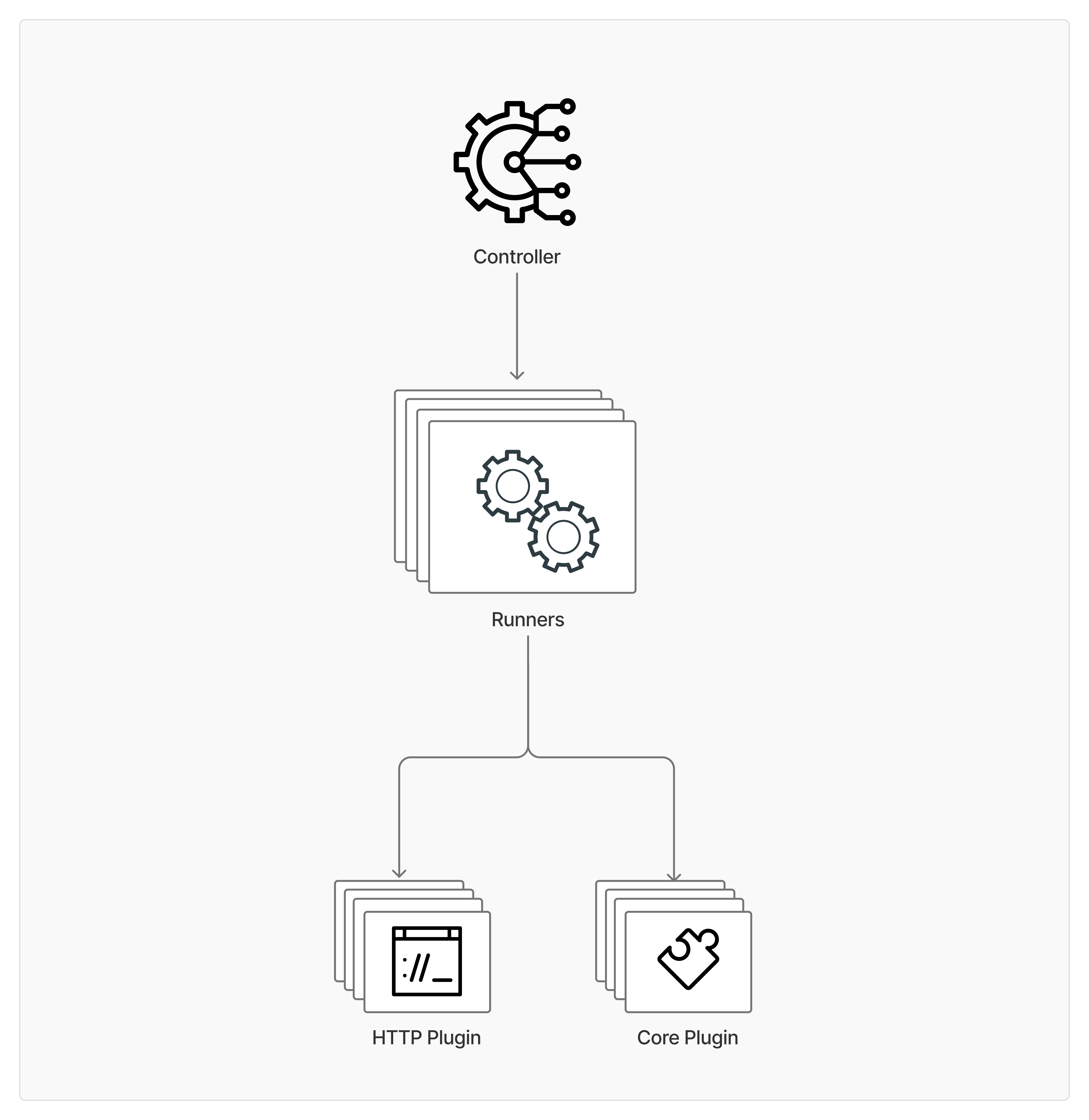
This diagram displays top-down flow of scaling plugins where a central Controller passes an action(s) to the runner groups (eg. Kubernetes Runners or Docker Runners), and one of the runners within the group will be randomly assigned the action. Each Runner can then leverage different types of plugins—here, an HTTP Plugin for handling HTTP requests and responses, and a Core Plugin for CLI and code functionalities. The Controller orchestrates execution by assigning work to the runner group, which in turn utilize the appropriate plugin to complete their specific actions.
***
## Scaling up a Runner Group in Docker
Identify the Runner you want to scale and ensure you have access to the Runner installation key used during its original setup.
1. In the Blink platform, navigate to your workspace > Runners > New Runner.
2. Select Docker Runner
3. In the command, replace the key value with the same key that was used during the initial setup.
***
### Flow Diagram - Scale with Kubernetes/Docker Runners
This diagram displays top-down flow of scaling plugins where a central Controller passes an action(s) to the runner groups (eg. Kubernetes Runners or Docker Runners), and one of the runners within the group will be randomly assigned the action. Each Runner can then leverage different types of plugins—here, an HTTP Plugin for handling HTTP requests and responses, and a Core Plugin for CLI and code functionalities. The Controller orchestrates execution by assigning work to the runner group, which in turn utilize the appropriate plugin to complete their specific actions.
 ***
## Related Articles
Learn about Runners and how they work in the Blink platform.
Guide to installing, configuring and deploying a Runner using Kubernetes
Guide to installing, configuring and deploying a Runner using CloudFormation
Guide to installing, configuring and deploying a Runner using Docker
***
## Related Articles
Learn about Runners and how they work in the Blink platform.
Guide to installing, configuring and deploying a Runner using Kubernetes
Guide to installing, configuring and deploying a Runner using CloudFormation
Guide to installing, configuring and deploying a Runner using Docker