> ## Documentation Index
> Fetch the complete documentation index at: https://docs.blinkops.com/llms.txt
> Use this file to discover all available pages before exploring further.
# Deploying a Runner with Kubernetes
> Deploy a Blink self-hosted runner on a Kubernetes cluster using Helm charts.
## Prerequisites
1. **Kubernetes Cluster**: You need to have a Kubernetes cluster up and running. This can be an on-premises cluster or a cloud-based Kubernetes service like Amazon EKS, Google Kubernetes Engine (GKE), or Azure Kubernetes Service (AKS).
2. **Blink User:** You must have either the [Owner role](/docs/blink-platform/account-management/roles#1-owner),[Contributor role](/docs/blink-platform/account-management/roles#2-contributor), or a [custom role](/docs/blink-platform/account-management/roles#adding-a-new-role) that includes both the `runners:view` and `runners:edit` permissions. To learn more about role-based access and permissions, see the [User Roles documentation](/docs/blink-platform/account-management/roles).
3. **(Optional)-SSH Access to Kubernetes Cluster:** If you need to manually manage your Kubernetes cluster or troubleshoot any issues, you should have SSH access or appropriate permissions to interact with the cluster.
Make sure you have the kubectl installed, Kubernetes command-line (CLI) tool for managing your clusters. Detailed instructions can be found in the official [Kubernetes documentation](https://kubernetes.io/docs/tasks/tools/).
***
## Deployment Guide
In the left-hand navigation bar, select **Runners**. Then, click the **New Runner** button in the top-right corner to open the configuration dialog.
Fill in the required details:
* **Name**: Enter a name for the Runner group.
* **Tags**: Add or create tags (optional).
* **Default:** Check this box to set this Runner group as the default. When enabled, any workflows that do not explicitly specify a Runner group will automatically be assigned to this one.
Choose Kubernetes as your runner type. Click the 'Continue' button to proceed.
Under the heading *Runner Profile*, please choose between the following options: **Low, Medium, High or Custom**. This allows you to better manage your resource containers and pods. To read more about it you can visit [resource container links](https://kubernetes.io/docs/concepts/configuration/manage-resources-containers/).
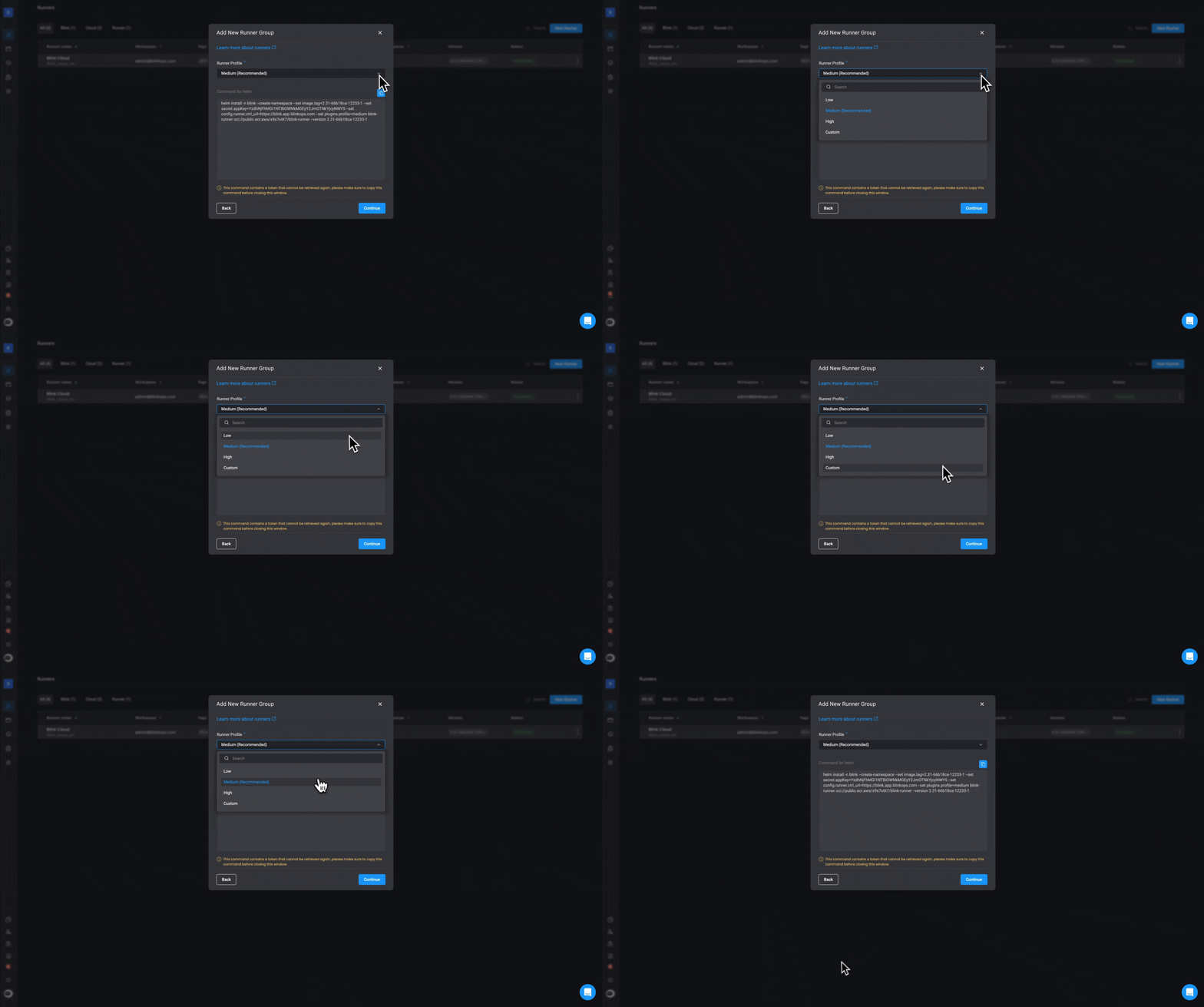
Click the button in the top-right corner to copy command needed to install the Runner in your Kubernetes environment.
**WARNING**
Please be aware that the provided command contains the registration token of the Runner, which will not be retrievable after copying. It is essential to securely store this token in a safe location for future reference.
***
## Plugin Resource Control
| Parameter | Request | Limit |
| -------------- | ------- | ------ |
| Plugin CPU | 200m | 2000m |
| plugin Memory | 250Mi | 1000Mi |
| plugin Storage | 2Gi | 4Gi |
| Parameter | Request | Limit |
| -------------- | ------- | ------ |
| plugin CPU | 400m | 4000m |
| plugin Memory | 600Mi | 1800Mi |
| plugin Storage | 4Gi | 6Gi |
| Parameter | Request | Limit |
| -------------- | ------- | ------ |
| plugin CPU | 600m | 6000m |
| plugin Memory | 900Mi | 2400Mi |
| plugin Storage | 6Gi | 8Gi |
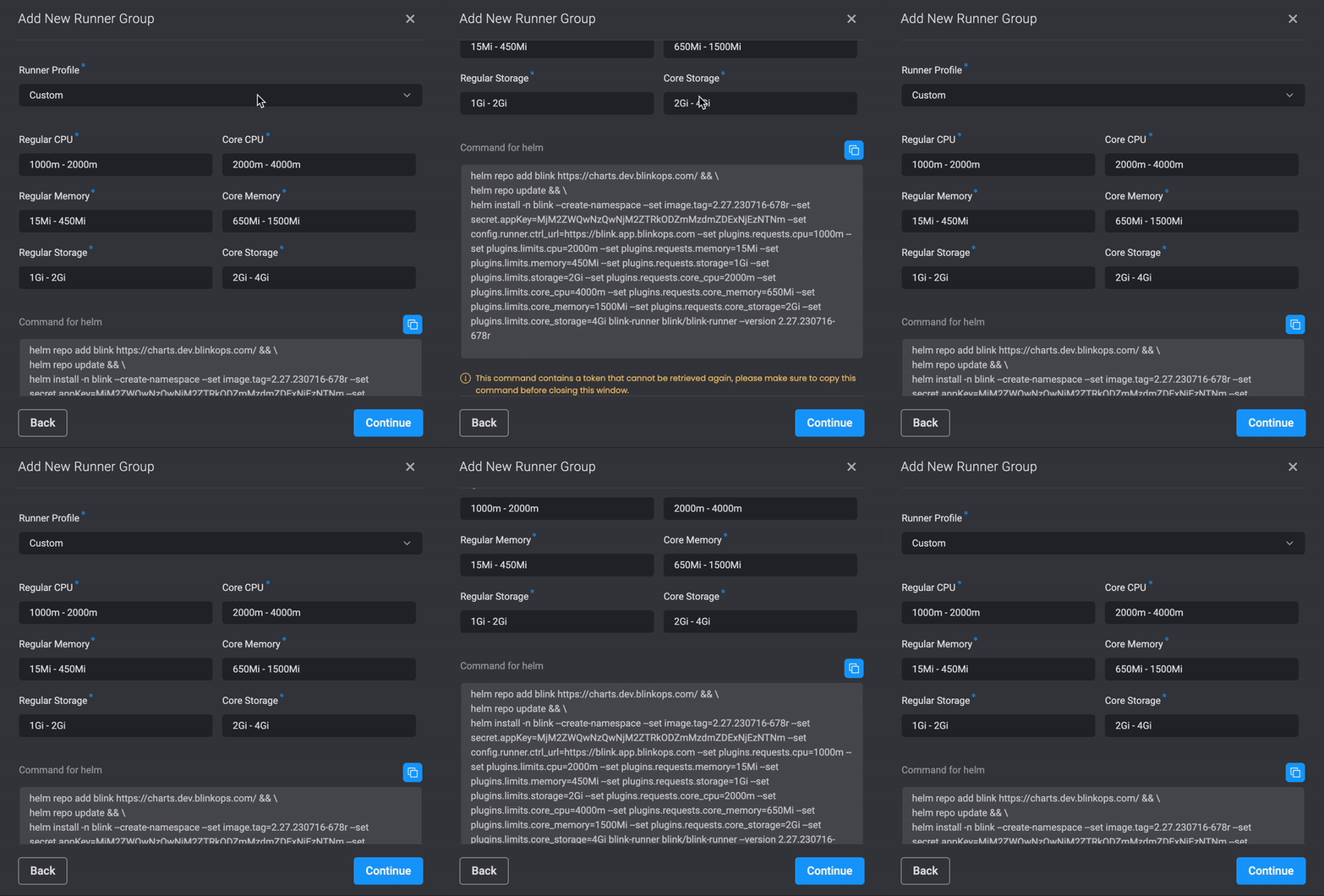
If you choose the 'Custom Option' as your Runners Profile, you will be able to enter your own **Request Units** and **Limits Units**. For Example:
 ## Configuring Runner Resource Limitations
Use the following flags when deploying the Runner to set pod requests:
```bash theme={"dark"}
--set plugins.requests.core_cpu="400m" // The CPU request for plugin containers
--set plugins.requests.core_memory="650Mi" // The Memory request for plugin containers
--set plugins.requests.core_storage="4Gi" // The Storage request for plugin containers
```
Use the following flags when deploying the Runner to set pod limits:
```bash theme={"dark"}
--set plugins.limits.core_cpu="400m" // The CPU limit for plugin containers
--set plugins.limits.core_memory="650Mi" // The Memory limit for plugin containers
--set plugins.limits.core_storage="4Gi" // The Storage limit for plugin containers
```
***
### Scale with Kubernetes Runner
In Kubernetes, you can take advantage of the built-in 'Horizontal Pod Autoscaler' (HPA) to automatically scale your workloads. Instead of manually specifying a fixed number of pods, you define the minimum and maximum pod count, and Kubernetes adjusts the number based on resource usage. This approach works seamlessly with both runners and plugins, allowing you to scale them dynamically based on demand.
**Enable Horizontal Pod Autoscaler (HPA)** for the Kubernetes Runner deployment by including the following addition in the helm command: `--set hpa=true`.
**Configure the Horizontal Pod Autoscaler (HPA)** for the Kubernetes Runner deployment by including the following addition in the helm command:
```helm theme={"dark"}
--set minReplicas={minReplicas} (The default value is set to 3)
--set maxReplicas={maxReplicas} (The default value is set to 6)
--set targetCPUUtilizationPercentage={targetCPUUtilizationPercentage} (The default value is set to 80%)
--set targetMemoryUtilizationPercentage={targetMemoryUtilizationPercentage} (The default value is set to 80%)
```
### Scale Plugins with Kubernetes Runner
**Note:** This configuration currently does not affect core plugins, but we are working on it and support will be available soon.
**Enable Horizontal Pod Autoscaler (HPA)** for the plugins deployed by the runner using the following addition to the helm command:
```helm theme={"dark"}
--set plugins.hpa.enabled=true
```
**Configure the Horizontal Pod Autoscaler (HPA)** for the plugins deployed by the runner using the following addition to the helm command:
```helm theme={"dark"}
--set plugins.hpa.minReplicas={minReplicas} (The default value is set to 2)
--set plugins.hpa.maxReplicas={maxReplicas} (The default value is set to 4)
--set plugins.hpa.targetCPUUtilizationPercentage={targetCPUUtilizationPercentage} (The default value is set to 60%)
--set plugins.hpa.targetMemoryUtilizationPercentage={targetMemoryUtilizationPercentage} (The default value is set to 60%)
```
***
## Related Articles
Learn how to deploy a Blink Runner to execute workflows securely within your environment.
Guide to installing, configuring and deploying a Runner using CloudFormation
Guide to installing, configuring and deploying a Runner using Docker
Deploy multiple on-prem Runners for high availability, parallel execution, or workload isolation.
## Configuring Runner Resource Limitations
Use the following flags when deploying the Runner to set pod requests:
```bash theme={"dark"}
--set plugins.requests.core_cpu="400m" // The CPU request for plugin containers
--set plugins.requests.core_memory="650Mi" // The Memory request for plugin containers
--set plugins.requests.core_storage="4Gi" // The Storage request for plugin containers
```
Use the following flags when deploying the Runner to set pod limits:
```bash theme={"dark"}
--set plugins.limits.core_cpu="400m" // The CPU limit for plugin containers
--set plugins.limits.core_memory="650Mi" // The Memory limit for plugin containers
--set plugins.limits.core_storage="4Gi" // The Storage limit for plugin containers
```
***
### Scale with Kubernetes Runner
In Kubernetes, you can take advantage of the built-in 'Horizontal Pod Autoscaler' (HPA) to automatically scale your workloads. Instead of manually specifying a fixed number of pods, you define the minimum and maximum pod count, and Kubernetes adjusts the number based on resource usage. This approach works seamlessly with both runners and plugins, allowing you to scale them dynamically based on demand.
**Enable Horizontal Pod Autoscaler (HPA)** for the Kubernetes Runner deployment by including the following addition in the helm command: `--set hpa=true`.
**Configure the Horizontal Pod Autoscaler (HPA)** for the Kubernetes Runner deployment by including the following addition in the helm command:
```helm theme={"dark"}
--set minReplicas={minReplicas} (The default value is set to 3)
--set maxReplicas={maxReplicas} (The default value is set to 6)
--set targetCPUUtilizationPercentage={targetCPUUtilizationPercentage} (The default value is set to 80%)
--set targetMemoryUtilizationPercentage={targetMemoryUtilizationPercentage} (The default value is set to 80%)
```
### Scale Plugins with Kubernetes Runner
**Note:** This configuration currently does not affect core plugins, but we are working on it and support will be available soon.
**Enable Horizontal Pod Autoscaler (HPA)** for the plugins deployed by the runner using the following addition to the helm command:
```helm theme={"dark"}
--set plugins.hpa.enabled=true
```
**Configure the Horizontal Pod Autoscaler (HPA)** for the plugins deployed by the runner using the following addition to the helm command:
```helm theme={"dark"}
--set plugins.hpa.minReplicas={minReplicas} (The default value is set to 2)
--set plugins.hpa.maxReplicas={maxReplicas} (The default value is set to 4)
--set plugins.hpa.targetCPUUtilizationPercentage={targetCPUUtilizationPercentage} (The default value is set to 60%)
--set plugins.hpa.targetMemoryUtilizationPercentage={targetMemoryUtilizationPercentage} (The default value is set to 60%)
```
***
## Related Articles
Learn how to deploy a Blink Runner to execute workflows securely within your environment.
Guide to installing, configuring and deploying a Runner using CloudFormation
Guide to installing, configuring and deploying a Runner using Docker
Deploy multiple on-prem Runners for high availability, parallel execution, or workload isolation.