> ## Documentation Index
> Fetch the complete documentation index at: https://docs.blinkops.com/llms.txt
> Use this file to discover all available pages before exploring further.
# Rich Text Editor
> Use Blink's rich text editor to create and format styled text content within your workflows.
## Overview
Blink's **Rich Text Editor (RTE)** is a tool that allows you to create and format text with visual styles. It’s designed to make text look professional, structured, and easy to read.
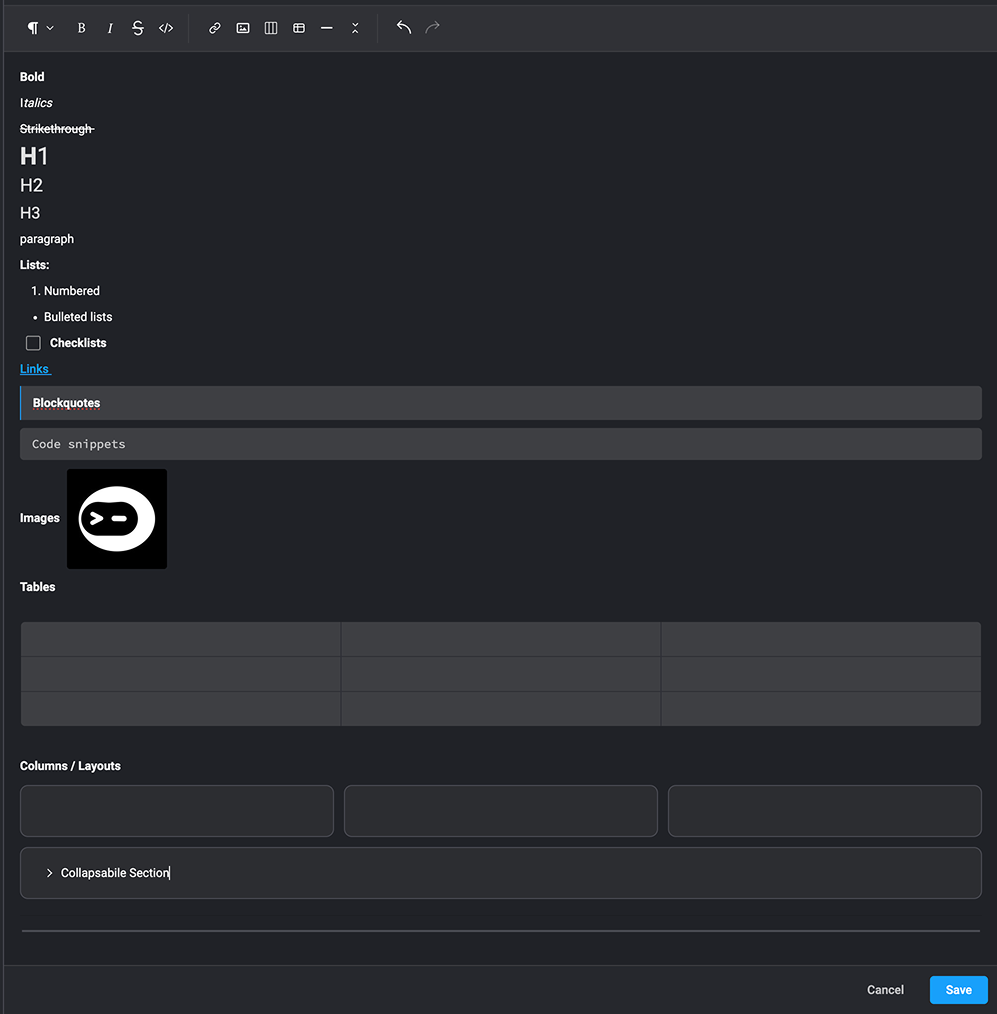 ### Formatting Options in the Rich Text Editor
**Note**: When using `HTML` in the rich text editor, only the elements supported by the editor will be rendered. Any unsupported `HTML` may not be displayed as expected.
The editor provides a variety of options to customize your text, including:
* **Bold** – Make text stand out. Example: **bold**
* **Italics** – Emphasize text. Example: *italics*
* **Underline** – Highlight important text. Example: underline
* **Strikethrough** – Show removed or corrected text. Example: ~~strikethrough~~
* **Headers** – Structure your content with headings (H1, H2, H3)
* **Lists** – Organize content into numbered or bulleted lists
* **Links** – Add clickable hyperlinks displayed as text
* **Checklist**- Create interactive checkable items for tasks or to-dos
* **Blockquotes** – Highlight quotes or important sections
* **Code snippets** – Display code snippets clearly
* **Images** – Embed visuals to complement your text
* **Tables** – Organize data into rows and columns for clarity
* **Columns** – Arrange content side-by-side, by inserting columns for better readability
* **Horizontal Lines** – Separate sections of content for clarity (e.g., a divider line)
* **Collapsible Sections** – Create expandable/collapsible blocks to hide or reveal content (e.g., for meetings, notes, or details)
***
### Formatting Options in the Rich Text Editor
**Note**: When using `HTML` in the rich text editor, only the elements supported by the editor will be rendered. Any unsupported `HTML` may not be displayed as expected.
The editor provides a variety of options to customize your text, including:
* **Bold** – Make text stand out. Example: **bold**
* **Italics** – Emphasize text. Example: *italics*
* **Underline** – Highlight important text. Example: underline
* **Strikethrough** – Show removed or corrected text. Example: ~~strikethrough~~
* **Headers** – Structure your content with headings (H1, H2, H3)
* **Lists** – Organize content into numbered or bulleted lists
* **Links** – Add clickable hyperlinks displayed as text
* **Checklist**- Create interactive checkable items for tasks or to-dos
* **Blockquotes** – Highlight quotes or important sections
* **Code snippets** – Display code snippets clearly
* **Images** – Embed visuals to complement your text
* **Tables** – Organize data into rows and columns for clarity
* **Columns** – Arrange content side-by-side, by inserting columns for better readability
* **Horizontal Lines** – Separate sections of content for clarity (e.g., a divider line)
* **Collapsible Sections** – Create expandable/collapsible blocks to hide or reveal content (e.g., for meetings, notes, or details)
***