> ## Documentation Index
> Fetch the complete documentation index at: https://docs.blinkops.com/llms.txt
> Use this file to discover all available pages before exploring further.

# Dashboard Management

> Manage your Blink dashboards, including viewing, organizing, and controlling access to dashboard resources.

### Dashboard Table Overview

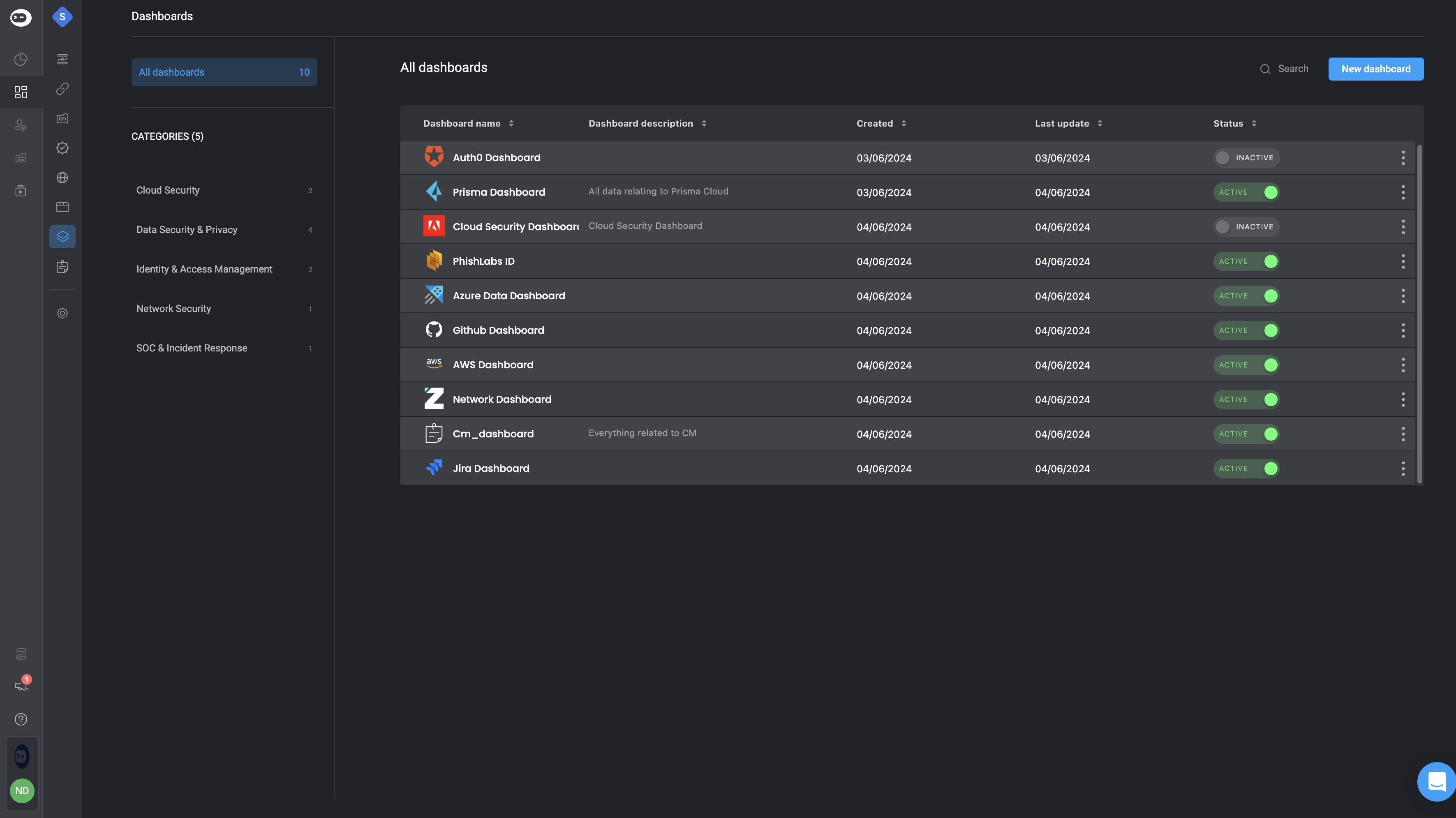
The **Dashboard Table** provides a complete overview of all dashboards you have created, including key details such as their status, creation date, and description.

On the **left-hand side**, dashboards are organized into categories to help you quickly navigate and filter results when searching for a specific dashboard.

The table includes the following fields:

<div className="integrations-table">
  | Table Field               | Description                                                    |
  | ------------------------- | -------------------------------------------------------------- |
  | **Dashboard Name**        | The name of the dashboard.                                     |
  | **Dashboard Description** | A short description explaining the dashboard’s purpose.        |
  | **Created At**            | The date the dashboard was created.                            |
  | **Last Updated**          | The date the dashboard was last modified.                      |
  | **Status**                | Indicates whether the dashboard is **Active** or **Inactive**. |
</div>

<Frame>
  <img src="https://mintcdn.com/blinkops-2/yJ58SW0nEEHwB-YX/img/Dashboards/DashboardConsumingInterface.png?fit=max&auto=format&n=yJ58SW0nEEHwB-YX&q=85&s=1d9db813938b85501e380476e2251a98" width="3542" height="1990" data-path="img/Dashboards/DashboardConsumingInterface.png" />
</Frame>

***

## Dashboard Table Settings

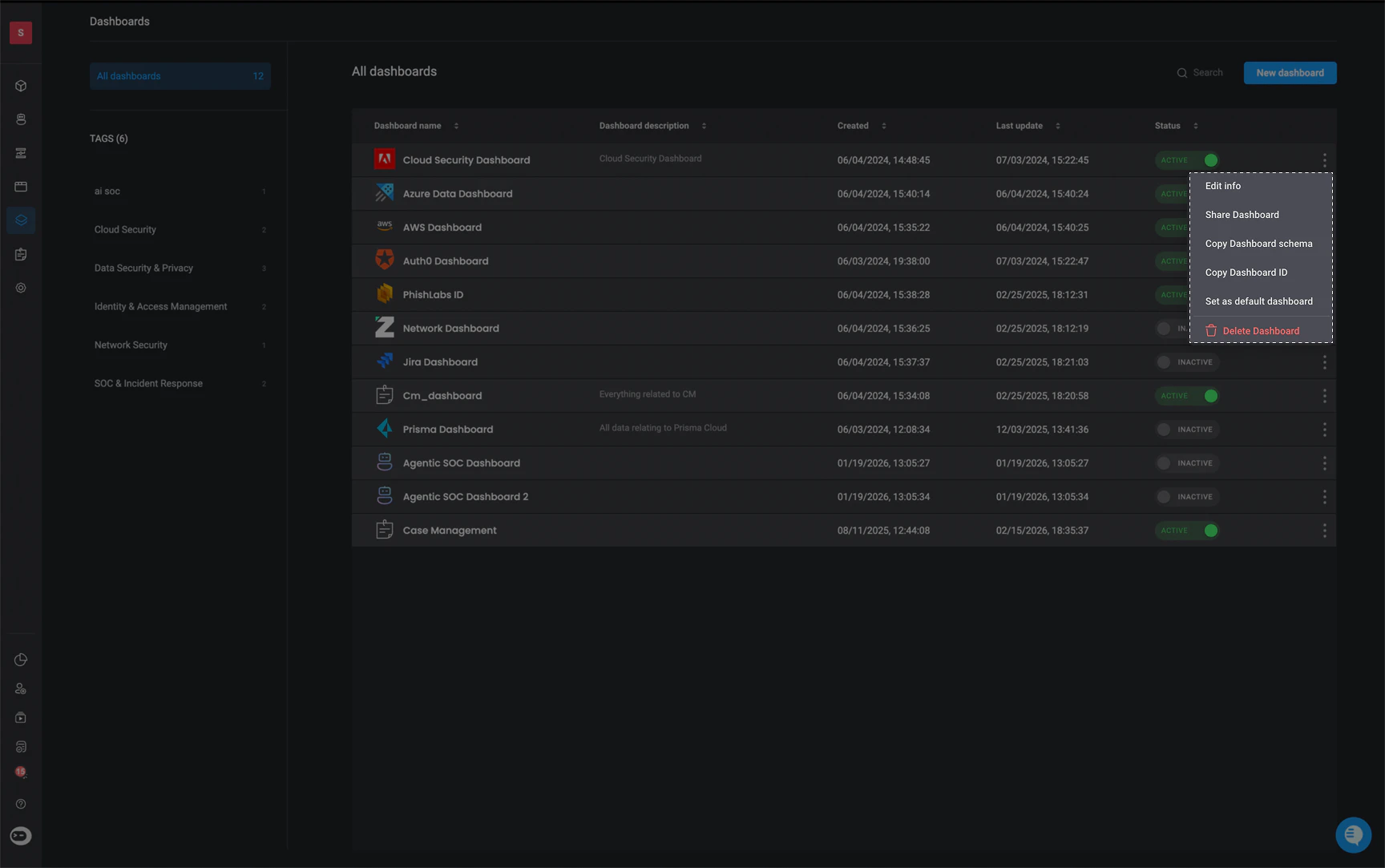
<p>In the top-right corner of the Dashboard Table click the <Icon icon="ellipsis-vertical" /> icon to open a menu with the following settings:</p>
<Tip>You can export the selected dashboard from the [Dashboard Building Interface](/docs/blink-platform/dashboards/building-a-dashboard/building-a-dashboard#dashboard-building-interface-settings), via the [Export Dashboard](/docs/blink-platform/dashboards/dashboard-actions/export-dashboard) action or through the [Self-Service Portal](/docs/blink-platform/dashboards/dashboard-actions/export-dashboard#3-through-the-self-service-portal).</Tip>

<div>
  <Frame>
    <img src="https://mintcdn.com/blinkops-2/BkSBdK7Kj_5DTSv2/img/Dashboards/DashboardTableSettings.png?fit=max&auto=format&n=BkSBdK7Kj_5DTSv2&q=85&s=26fcf126189c2277b9eec7dac5050fb2" width="1728" height="1083" data-path="img/Dashboards/DashboardTableSettings.png" />
  </Frame>
</div>

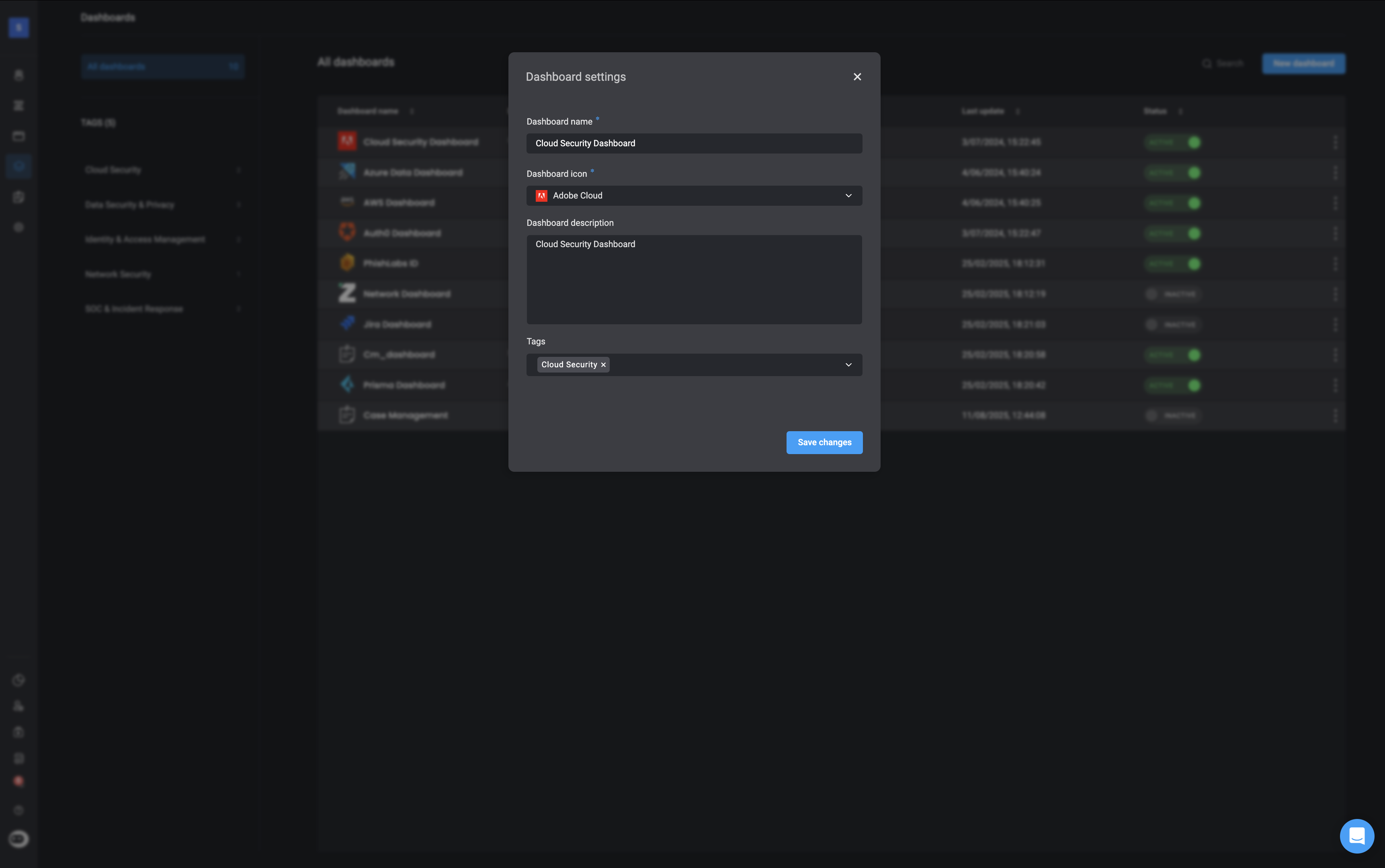
1. **Edit Info**: Update your dashboard’s information as needed. After making changes, click **Save Changes** to apply them automatically.

   <Frame>
     <img src="https://mintcdn.com/blinkops-2/vkoB9r28xH-9Wb3v/img/Dashboards/EditMetadata.png?fit=max&auto=format&n=vkoB9r28xH-9Wb3v&q=85&s=1c796a638d2f1f2669155c5754ad9108" width="3446" height="2160" data-path="img/Dashboards/EditMetadata.png" />
   </Frame>

2. **Share Dashboard**: - You can share an **activated** dashboard by entering the name of the user or group you want to share the selected dashboard with.
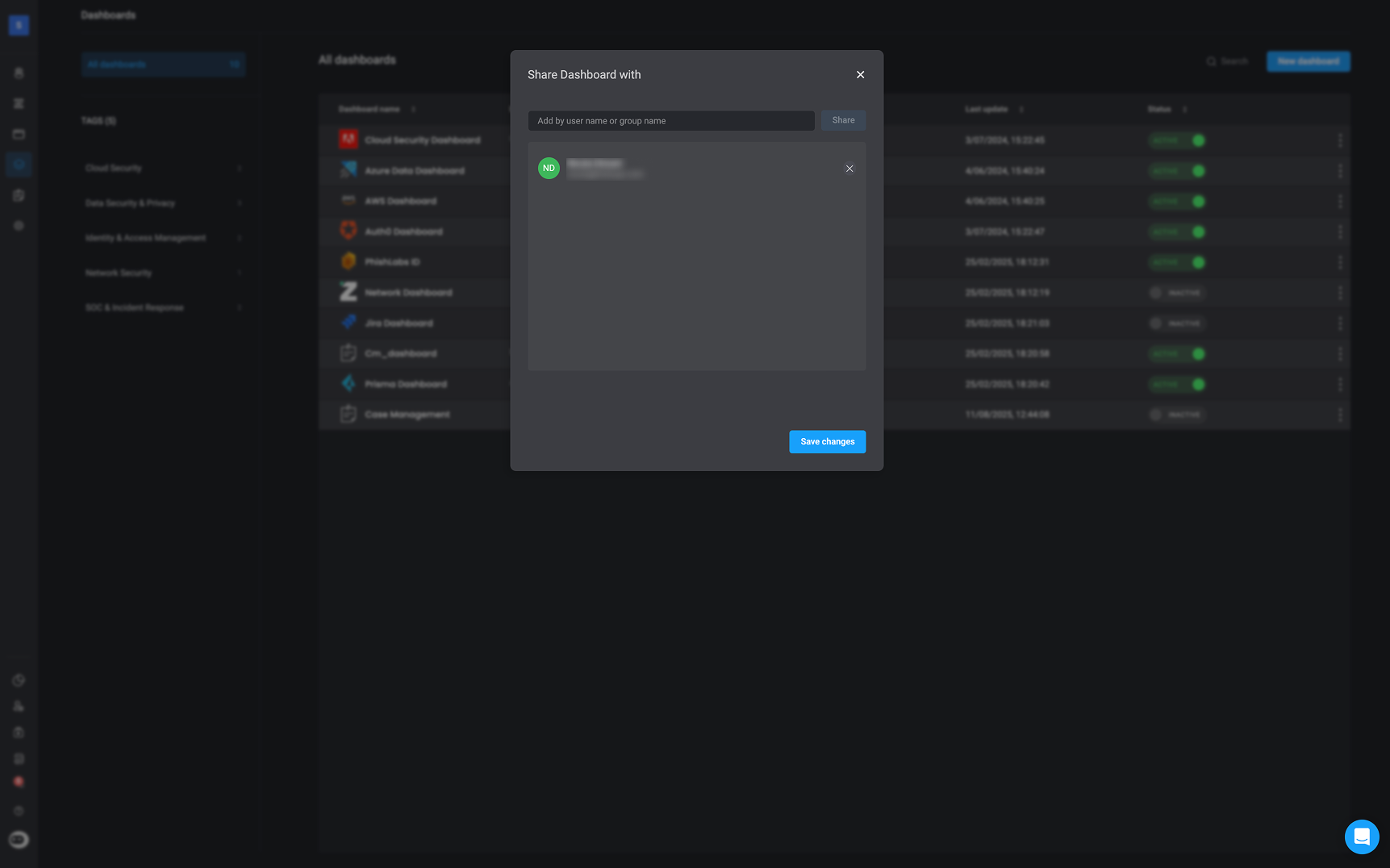
   <Note> **Note**: You cannot share a **disabled** dashboard.</Note>

   <Frame>
     <img src="https://mintcdn.com/blinkops-2/AGqTh6XZufYCXTEl/img/Dashboards/ShareDashboard.png?fit=max&auto=format&n=AGqTh6XZufYCXTEl&q=85&s=c2210d083eb63f4668b0a1bcd3422614" width="1723" height="1076" data-path="img/Dashboards/ShareDashboard.png" />
   </Frame>

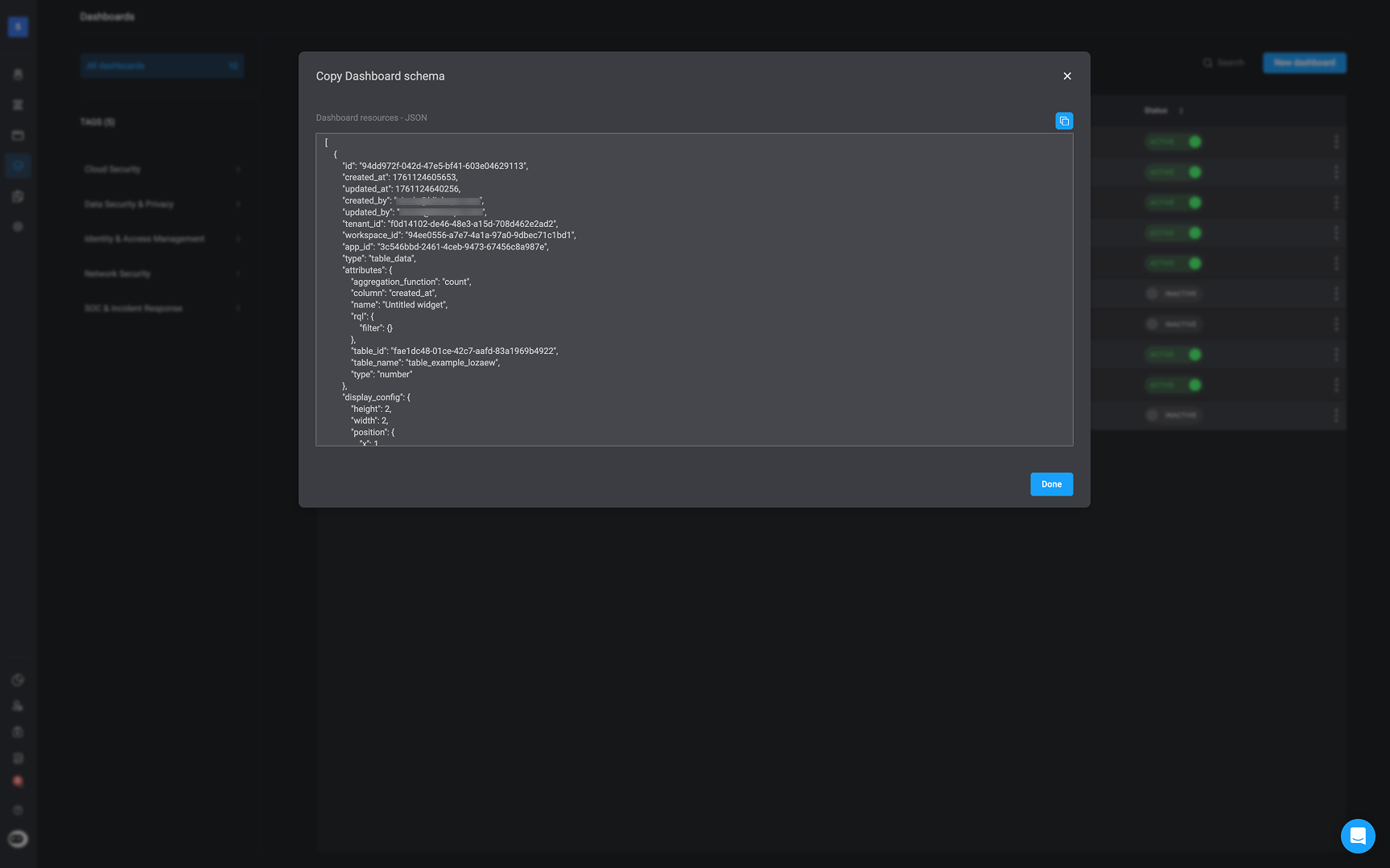
3. **Copy Dashboard Schema** - Copies the JSON syntax of the selected Dashboard
   <Frame>
     <img src="https://mintcdn.com/blinkops-2/vkoB9r28xH-9Wb3v/img/Dashboards/CopyDashboardSchema.png?fit=max&auto=format&n=vkoB9r28xH-9Wb3v&q=85&s=e364e42c11b4d12edb2b90d8d3ae3e1f" width="1727" height="1079" data-path="img/Dashboards/CopyDashboardSchema.png" />
   </Frame>

4. **Copy Dashboard ID** - Copies the selected Dashboard's unique ID

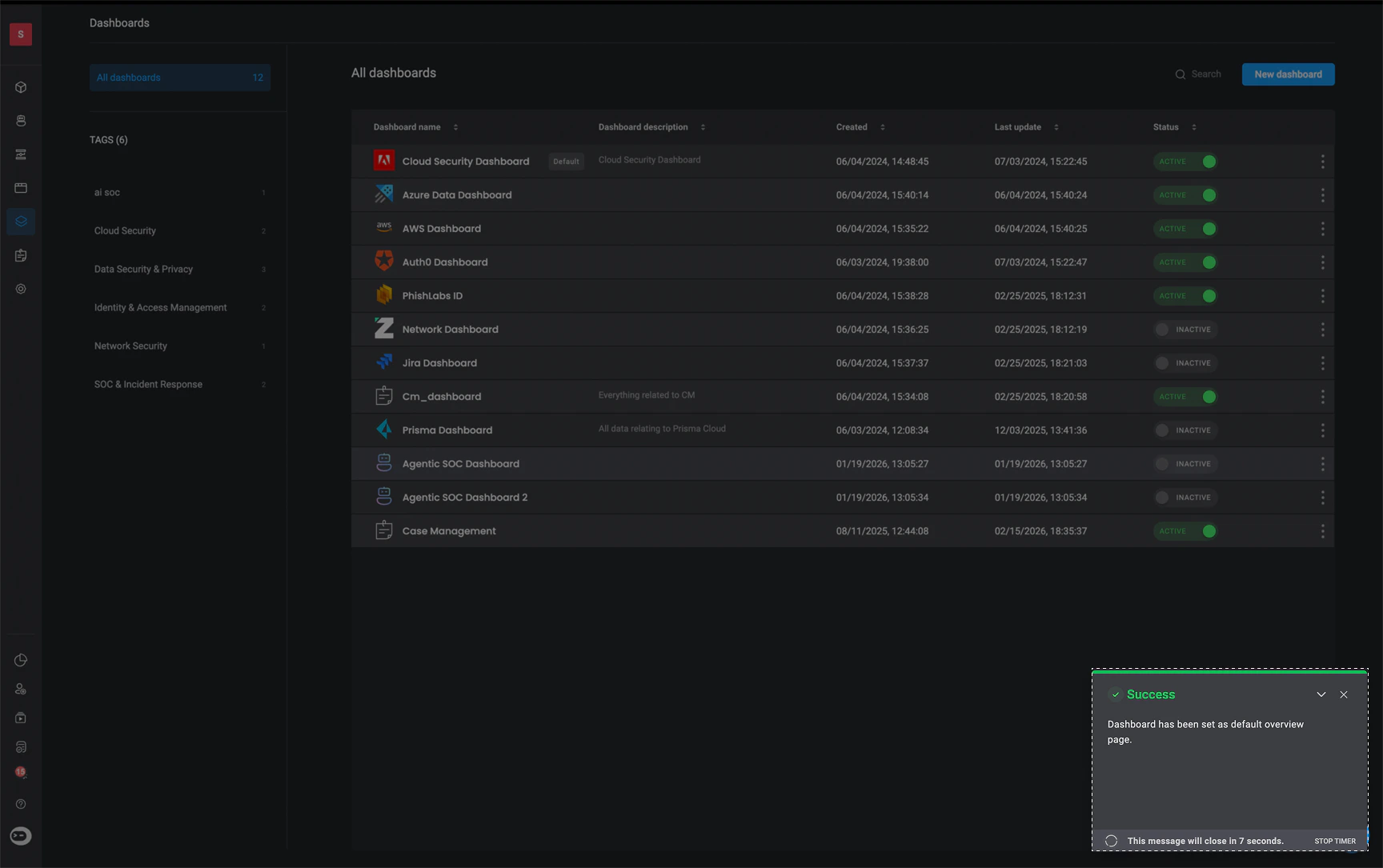
5. **Set as Default** – Marking a dashboard as default ensures it automatically appears as the primary dashboard on your [Overview page](/docs/blink-platform/workspaces/managing-your-workspace#settings).
   <Frame>
     <img src="https://mintcdn.com/blinkops-2/9Dr2XWqOiHJPPf4W/img/Dashboards/SetAsDefault.png?fit=max&auto=format&n=9Dr2XWqOiHJPPf4W&q=85&s=607ce603c8eaba640ebac8b466bb1edb" width="1728" height="1085" data-path="img/Dashboards/SetAsDefault.png" />
   </Frame>

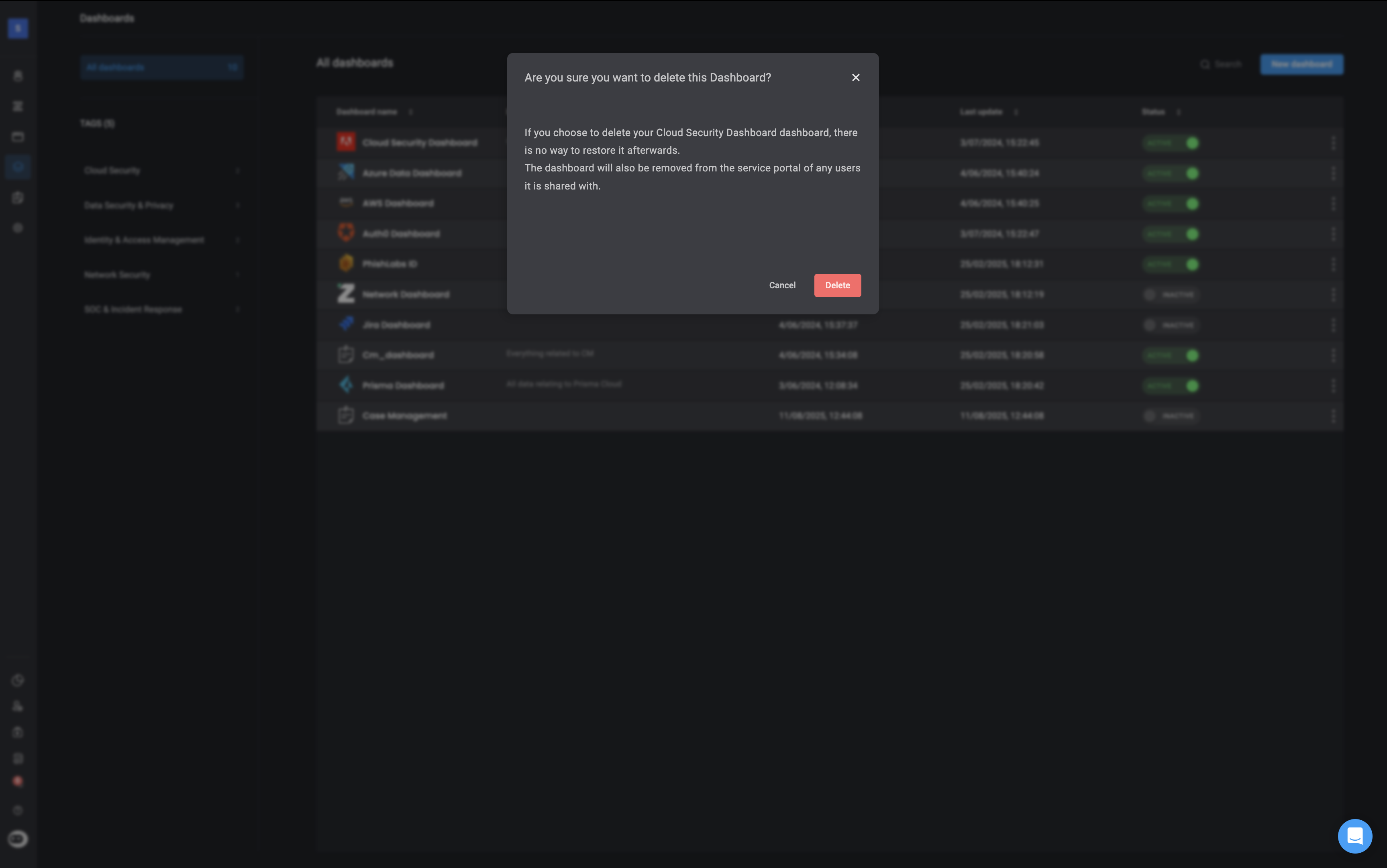
6. <p><Icon icon="trash" color="red" /> **Delete**: Permanently removes the selected dashboard and all its content.</p>

   <Frame>
     <img src="https://mintcdn.com/blinkops-2/vkoB9r28xH-9Wb3v/img/Dashboards/DeleteDashboardTable.png?fit=max&auto=format&n=vkoB9r28xH-9Wb3v&q=85&s=4bbd007dc9a1f752fdd3c7ae7acf92f8" width="3454" height="2162" data-path="img/Dashboards/DeleteDashboardTable.png" />
   </Frame>