> ## Documentation Index
> Fetch the complete documentation index at: https://docs.blinkops.com/llms.txt
> Use this file to discover all available pages before exploring further.
# Export Dashboard
> How to export a Blink dashboard for sharing or backup purposes.
Dashboards can be exported as PDF documents for record-keeping, reporting, or easy sharing with stakeholders. There are **three** primary ways to export a dashboard to PDF, depending on where you are accessing it from:
## 1. The 'Export Dashboard' Action
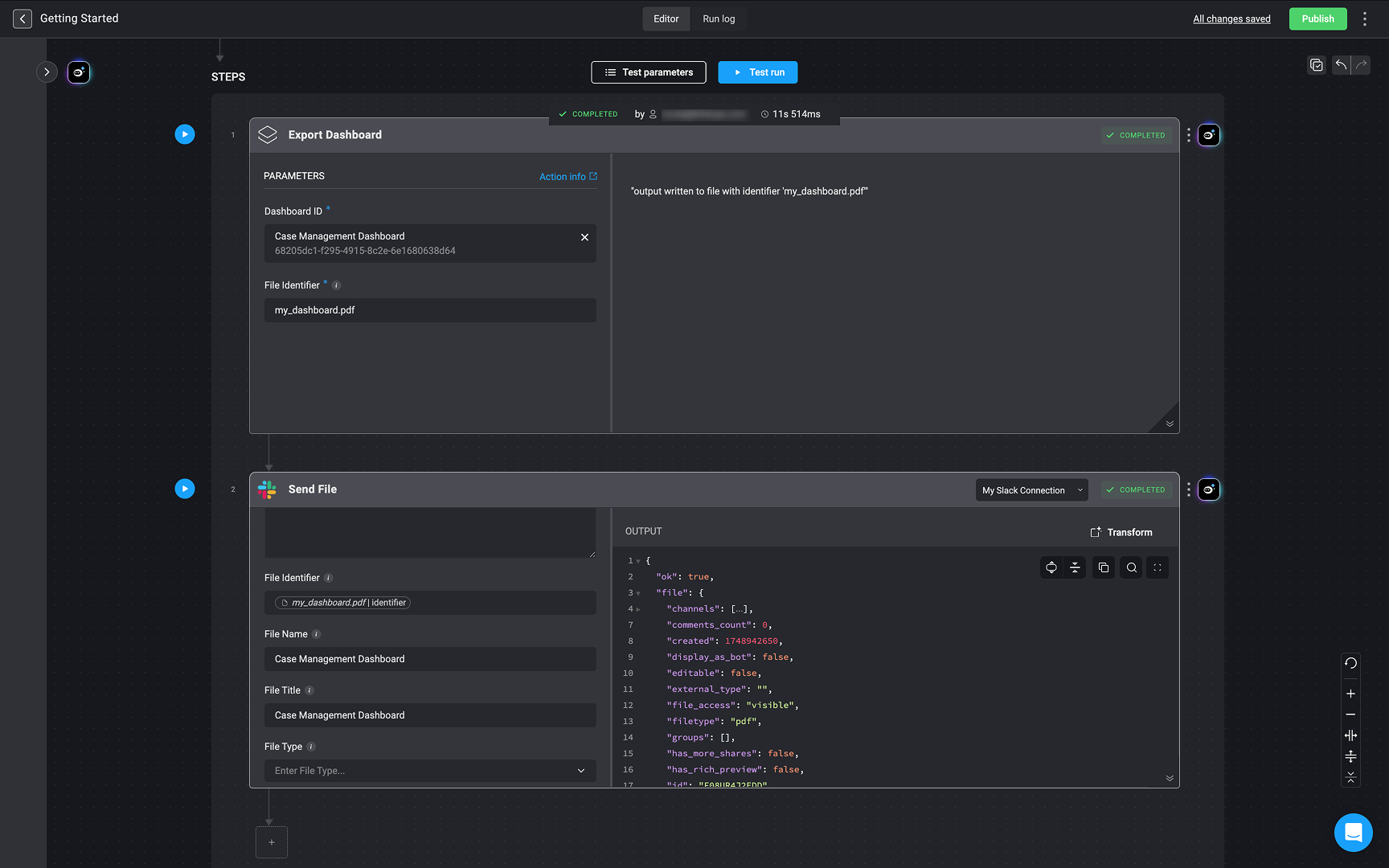
You can also export dashboards as PDFs programmatically by using the **Export Dashboard** action in the [Workflow Editor](/docs/workflows/building-workflows/workflow-editor). Once the PDF is generated, you can send or store it using supported [file identifier](/docs/workflows/building-workflows/files) actions.
In the example below, the PDF file was sent to Slack using the [Send File via Slack](/docs/integrations/slack/actions/send-file) action and the file identifier from the **Export Dashboard** action.
 ***
## 2. From the Dashboard Building Interface
To export a dashboard while building or editing it:
1. Navigate to the top-right corner of the **Dashboard Builder**.
2. Click the icon to open the menu.
3. Select **Export Dashboard** to generate and download a PDF version of the dashboard.
This option is useful when you want to quickly capture the current layout and data view for sharing or archiving.
***
## 2. From the Dashboard Building Interface
To export a dashboard while building or editing it:
1. Navigate to the top-right corner of the **Dashboard Builder**.
2. Click the icon to open the menu.
3. Select **Export Dashboard** to generate and download a PDF version of the dashboard.
This option is useful when you want to quickly capture the current layout and data view for sharing or archiving.
 ***
## 3. Through the Self-Service Portal
Once a dashboard is activated, it becomes accessible through the [Blink Portal](/docs/blink-platform/blink-portal/blink-portal#expose-workflows-to-the-blink-portal):
1. Go to the Self-Service Portal to find all active dashboards.
2. Click a dashboard card to open and view the dashboard.
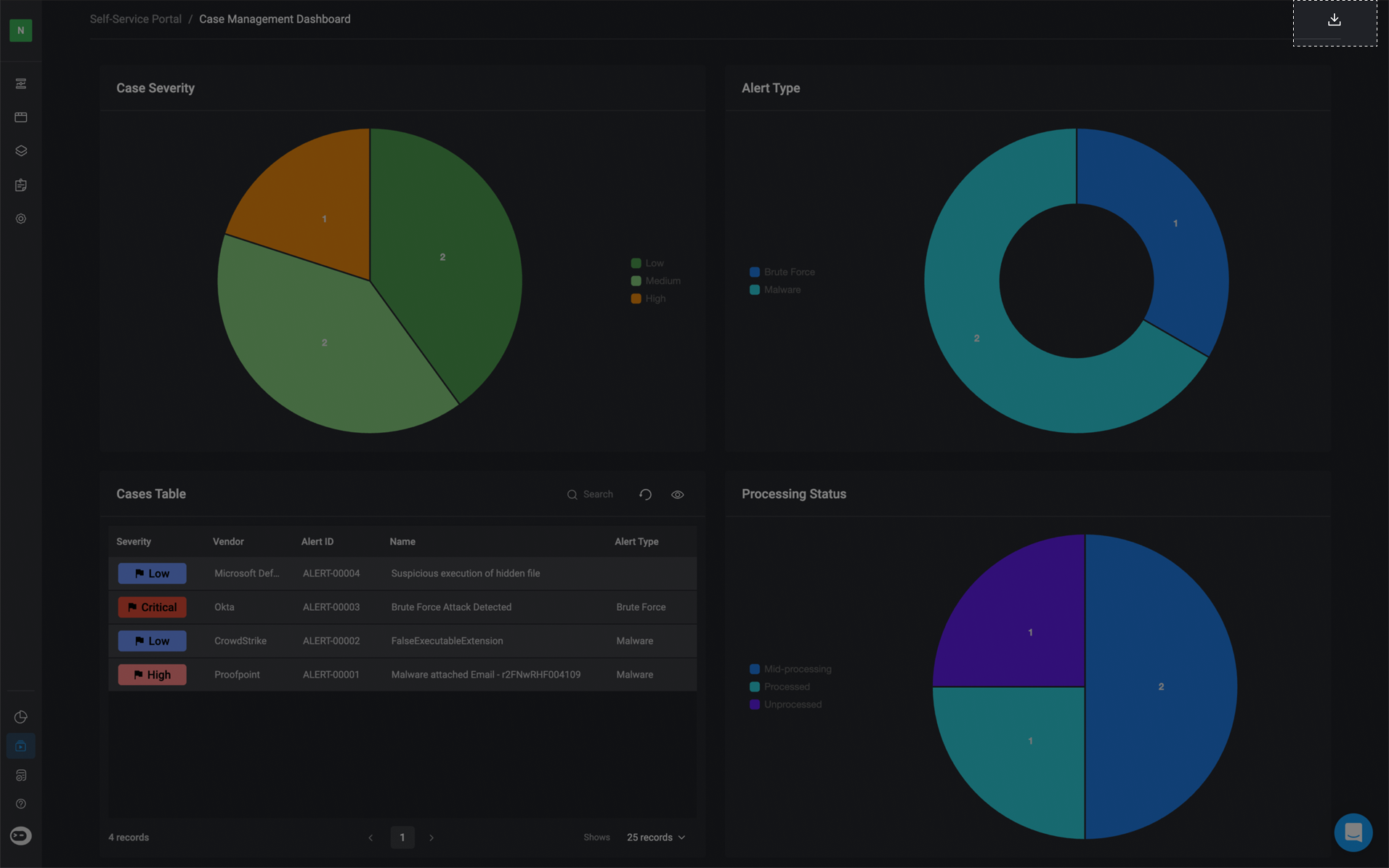
3. In the top-right corner, click the button to automatically download a PDF version of the dashboard.
***
## 3. Through the Self-Service Portal
Once a dashboard is activated, it becomes accessible through the [Blink Portal](/docs/blink-platform/blink-portal/blink-portal#expose-workflows-to-the-blink-portal):
1. Go to the Self-Service Portal to find all active dashboards.
2. Click a dashboard card to open and view the dashboard.
3. In the top-right corner, click the button to automatically download a PDF version of the dashboard.
 ***
***