> ## Documentation Index
> Fetch the complete documentation index at: https://docs.blinkops.com/llms.txt
> Use this file to discover all available pages before exploring further.
# Create Dashboard
> How to create a new dashboard in Blink to visualize and interact with your table data.
The "Create Dashboard" workflow action allows you to build a custom dashboard. Dashboards help you visualize and organize data from selected resources in one centralized view, making it easier to monitor, analyze, and take action.
| Parameter | Description |
| -------------------------- | -------------------------------------------------------------------------- |
| **Name of Dashboard** | Enter a unique name to identify your dashboard. |
| **Resources** | Specify the resources or data sources that the dashboard will display. |
| **Advanced – Description** | Add a short summary that explains the purpose or focus of the dashboard. |
| **Advanced – Icon** | Select an icon to visually represent the dashboard. |
| **Advanced – Categories** | Assign one or more categories to help organize and classify the dashboard. |
To help ensure a smooth execution of the Create Dashboard action, we recommend using the JSON output from the [Get Dashboard](/docs/blink-platform/dashboards/dashboard-actions/get-dashboard) action.
This JSON data can serve as a reference to create the correct syntax needed for the resource field in 'Create Dashboard' action. The steps below guide you in preparing and cleaning up your JSON before running the 'Create Dashboard' action.
Start by configuring and executing the [Get Dashboard](/docs/blink-platform/dashboards/dashboard-actions/get-dashboard) action. This action retrieves the complete configuration of an existing dashboard using its dashboard ID.
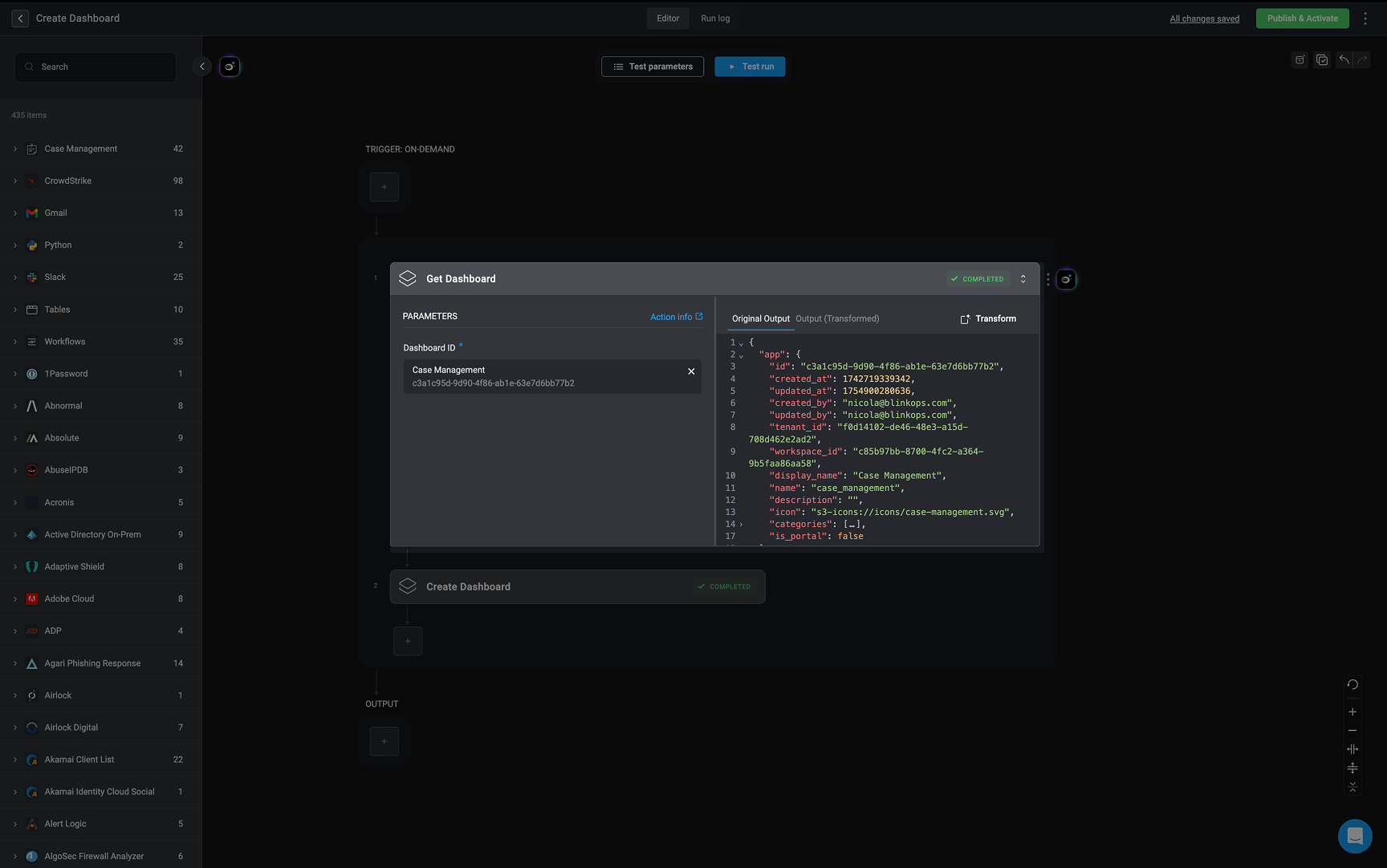 Next, use the [Step Output Transformation](/docs/builder-copilot/transform-data-output) feature to remove all instances of the `table_id` key-value pairs from the JSON output.
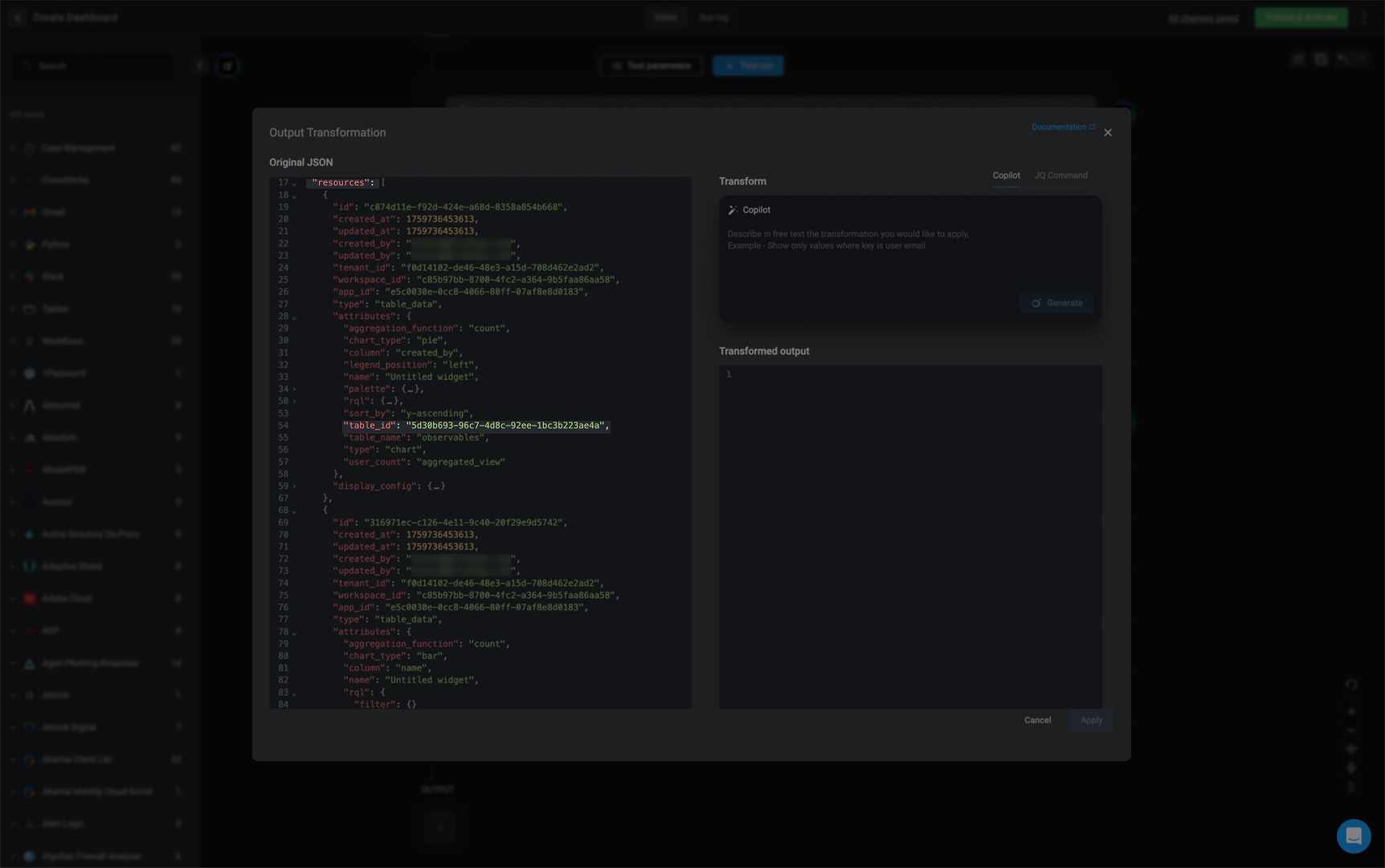 **For Example:**
1. **Using Copilot** – Run the following prompt in the Copilot:
* “remove table\_id from all resources”
**For Example:**
1. **Using Copilot** – Run the following prompt in the Copilot:
* “remove table\_id from all resources”
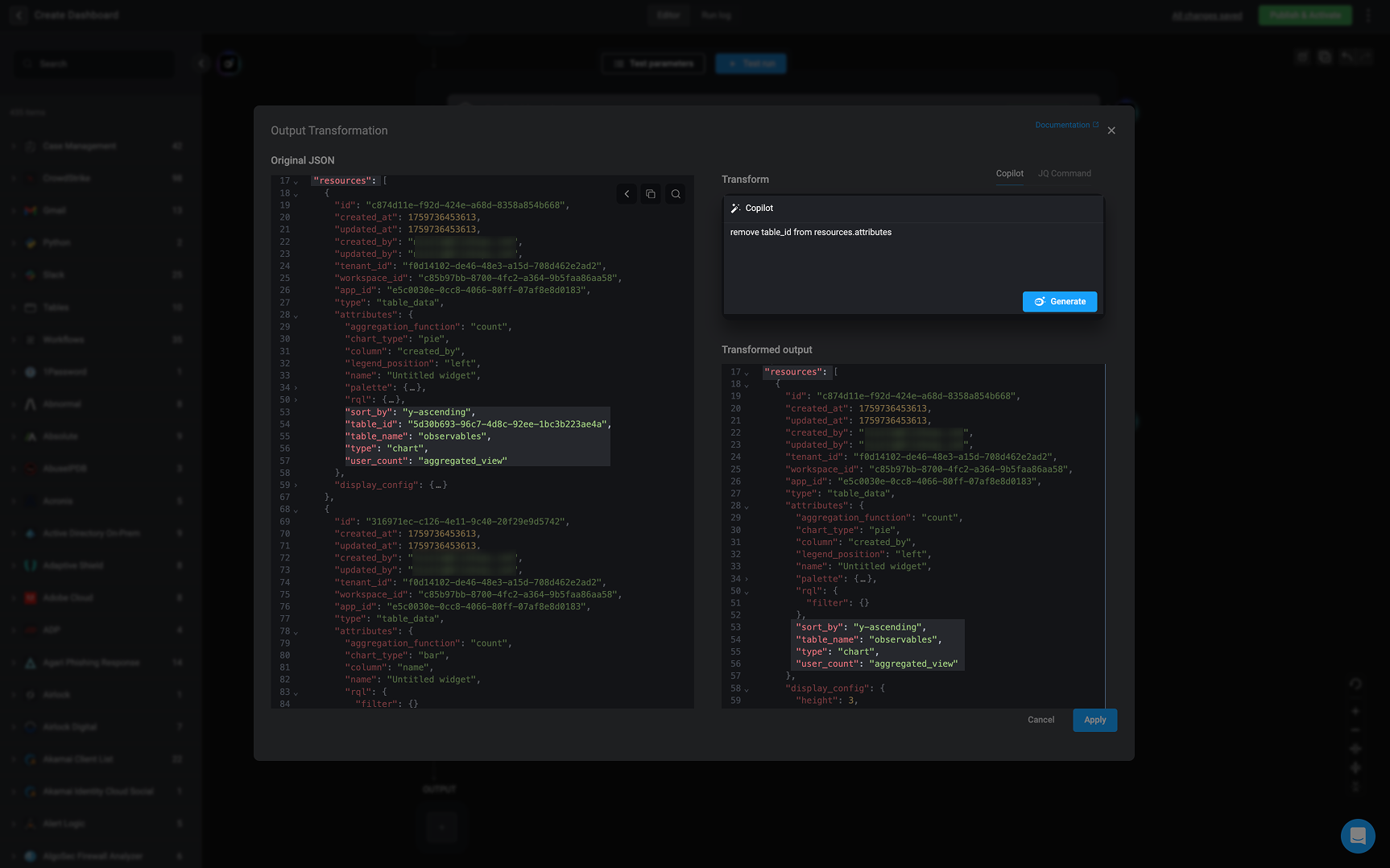 2. **Using a JQ Command** – Apply the following command:
```bash theme={"dark"}
-r '.resources |= map(.attributes |= del(.table_id, .input.table_id, .output.table_id))''
```
2. **Using a JQ Command** – Apply the following command:
```bash theme={"dark"}
-r '.resources |= map(.attributes |= del(.table_id, .input.table_id, .output.table_id))''
```
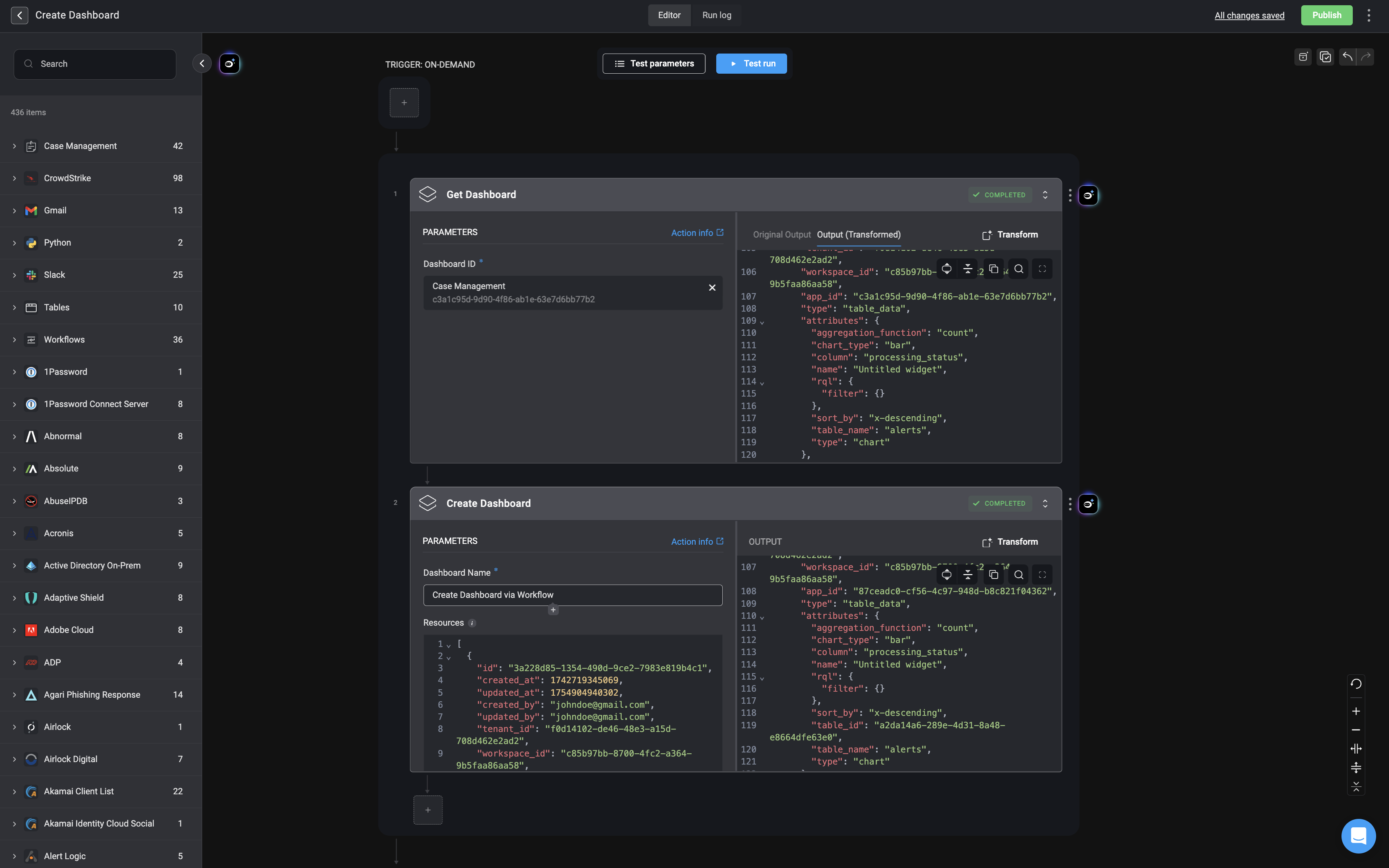
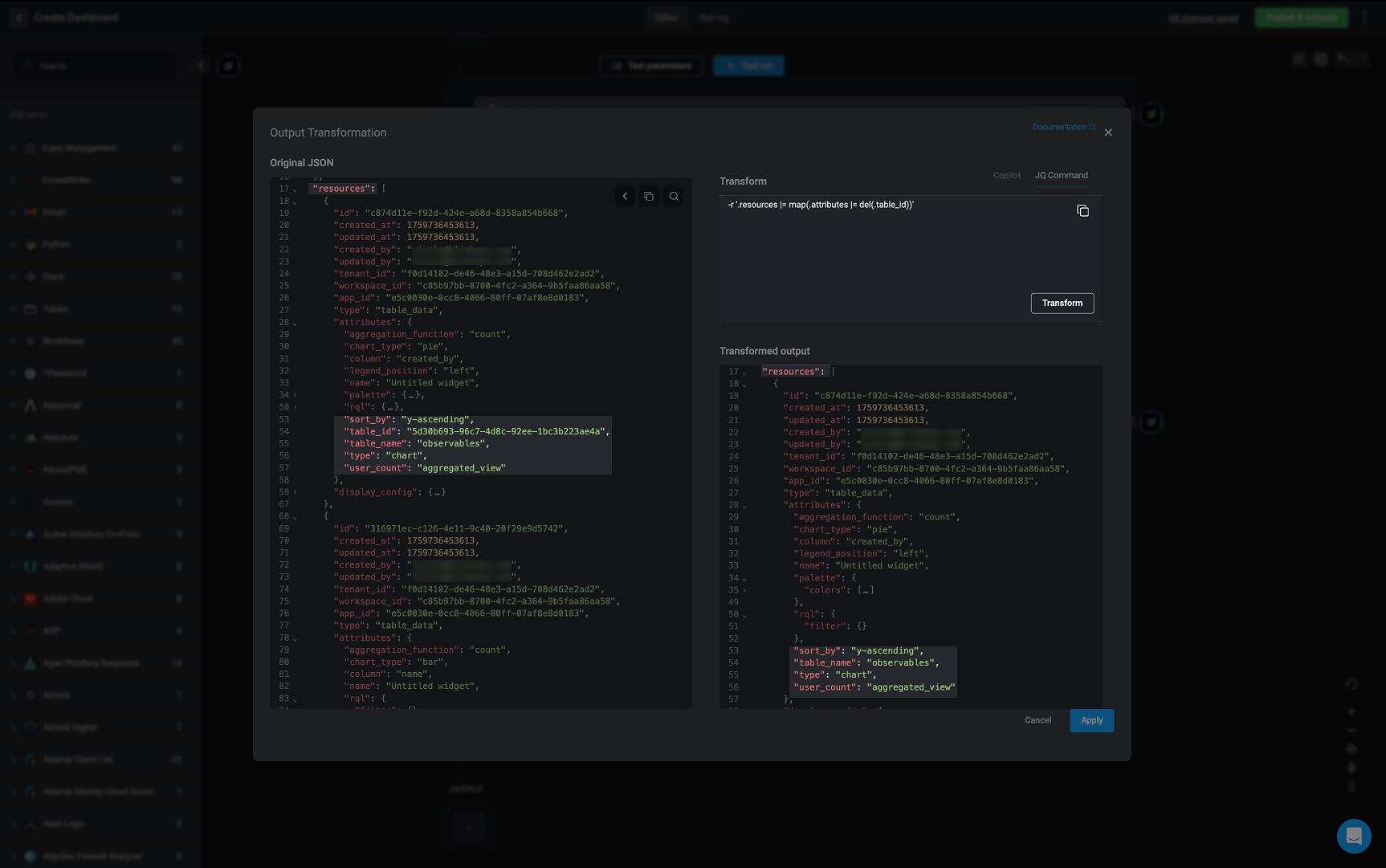 After removing all `table_id` fields, copy the contents of the `.resources` key from the transformed JSON output and paste it in the resource field of the 'Create Dashboard' action. These values represent the dashboard widgets and configurations that will be used in the **Create Dashboard** action.
```json theme={"dark"}
[
{
"id": "3a228d85-1354-490d-9ce2-7983e819b4c1",
"created_at": 1742719345069,
"updated_at": 1754904940302,
"created_by": "johndoe@gmail.com",
"updated_by": "johndoe@gmail.com",
"tenant_id": "f0d14102-de46-48e3-a15d-708d462e2ad2",
"workspace_id": "c85b97bb-8700-4fc2-a364-9b5faa86aa58",
"app_id": "c3a1c95d-9d90-4f86-ab1e-63e7d6bb77b2",
"type": "table_data",
"attributes": {
"aggregation_function": "count",
"chart_type": "pie",
"column": "created_by",
"legend_position": "left",
"name": "Untitled widget",
"palette": {
"colors": [
"#4e9f50",
"#87d180",
"#ef8a0c",
"#fcc66d",
"#3ca8bc",
"#98d9e4",
"#94a323",
"#c3ce3d",
"#a08400",
"#f7d42a",
"#26897e",
"#8dbfa8"
]
},
"rql": {
"filter": {}
},
"sort_by": "y-ascending",
"table_name": "alerts",
"type": "chart",
"user_count": "aggregated_view"
},
"display_config": {
"height": 3,
"width": 6,
"position": {
"x": 1,
"y": 1
}
}
},
{
"id": "d9ec8225-0e11-477d-9661-b802ece63f5a",
"created_at": 1759736018525,
"updated_at": 1759736030135,
"created_by": "johndoe@gmail.com",
"updated_by": "johndoe@gmail.com",
"tenant_id": "f0d14102-de46-48e3-a15d-708d462e2ad2",
"workspace_id": "c85b97bb-8700-4fc2-a364-9b5faa86aa58",
"app_id": "c3a1c95d-9d90-4f86-ab1e-63e7d6bb77b2",
"type": "table_data",
"attributes": {
"aggregation_function": "count",
"chart_type": "bar",
"column": "name",
"name": "Untitled widget",
"rql": {
"filter": {}
},
"sort_by": "x-ascending",
"table_name": "alerts",
"type": "chart"
},
"display_config": {
"height": 3,
"width": 6,
"position": {
"x": 7,
"y": 1
}
}
},
{
"id": "caf97bc3-b9b3-45b6-b78f-cda3c0f8eeaf",
"created_at": 1759736041492,
"updated_at": 1759736056192,
"created_by": "johndoe@gmail.com",
"updated_by": "njohndoe@gmail.com",
"tenant_id": "f0d14102-de46-48e3-a15d-708d462e2ad2",
"workspace_id": "c85b97bb-8700-4fc2-a364-9b5faa86aa58",
"app_id": "c3a1c95d-9d90-4f86-ab1e-63e7d6bb77b2",
"type": "table_data",
"attributes": {
"aggregation_function": "count",
"chart_type": "bar",
"column": "processing_status",
"name": "Untitled widget",
"rql": {
"filter": {}
},
"sort_by": "x-descending",
"table_name": "alerts",
"type": "chart"
},
"display_config": {
"height": 3,
"width": 6,
"position": {
"x": 1,
"y": 4
}
}
}
]
```
After removing all `table_id` fields, copy the contents of the `.resources` key from the transformed JSON output and paste it in the resource field of the 'Create Dashboard' action. These values represent the dashboard widgets and configurations that will be used in the **Create Dashboard** action.
```json theme={"dark"}
[
{
"id": "3a228d85-1354-490d-9ce2-7983e819b4c1",
"created_at": 1742719345069,
"updated_at": 1754904940302,
"created_by": "johndoe@gmail.com",
"updated_by": "johndoe@gmail.com",
"tenant_id": "f0d14102-de46-48e3-a15d-708d462e2ad2",
"workspace_id": "c85b97bb-8700-4fc2-a364-9b5faa86aa58",
"app_id": "c3a1c95d-9d90-4f86-ab1e-63e7d6bb77b2",
"type": "table_data",
"attributes": {
"aggregation_function": "count",
"chart_type": "pie",
"column": "created_by",
"legend_position": "left",
"name": "Untitled widget",
"palette": {
"colors": [
"#4e9f50",
"#87d180",
"#ef8a0c",
"#fcc66d",
"#3ca8bc",
"#98d9e4",
"#94a323",
"#c3ce3d",
"#a08400",
"#f7d42a",
"#26897e",
"#8dbfa8"
]
},
"rql": {
"filter": {}
},
"sort_by": "y-ascending",
"table_name": "alerts",
"type": "chart",
"user_count": "aggregated_view"
},
"display_config": {
"height": 3,
"width": 6,
"position": {
"x": 1,
"y": 1
}
}
},
{
"id": "d9ec8225-0e11-477d-9661-b802ece63f5a",
"created_at": 1759736018525,
"updated_at": 1759736030135,
"created_by": "johndoe@gmail.com",
"updated_by": "johndoe@gmail.com",
"tenant_id": "f0d14102-de46-48e3-a15d-708d462e2ad2",
"workspace_id": "c85b97bb-8700-4fc2-a364-9b5faa86aa58",
"app_id": "c3a1c95d-9d90-4f86-ab1e-63e7d6bb77b2",
"type": "table_data",
"attributes": {
"aggregation_function": "count",
"chart_type": "bar",
"column": "name",
"name": "Untitled widget",
"rql": {
"filter": {}
},
"sort_by": "x-ascending",
"table_name": "alerts",
"type": "chart"
},
"display_config": {
"height": 3,
"width": 6,
"position": {
"x": 7,
"y": 1
}
}
},
{
"id": "caf97bc3-b9b3-45b6-b78f-cda3c0f8eeaf",
"created_at": 1759736041492,
"updated_at": 1759736056192,
"created_by": "johndoe@gmail.com",
"updated_by": "njohndoe@gmail.com",
"tenant_id": "f0d14102-de46-48e3-a15d-708d462e2ad2",
"workspace_id": "c85b97bb-8700-4fc2-a364-9b5faa86aa58",
"app_id": "c3a1c95d-9d90-4f86-ab1e-63e7d6bb77b2",
"type": "table_data",
"attributes": {
"aggregation_function": "count",
"chart_type": "bar",
"column": "processing_status",
"name": "Untitled widget",
"rql": {
"filter": {}
},
"sort_by": "x-descending",
"table_name": "alerts",
"type": "chart"
},
"display_config": {
"height": 3,
"width": 6,
"position": {
"x": 1,
"y": 4
}
}
}
]
```
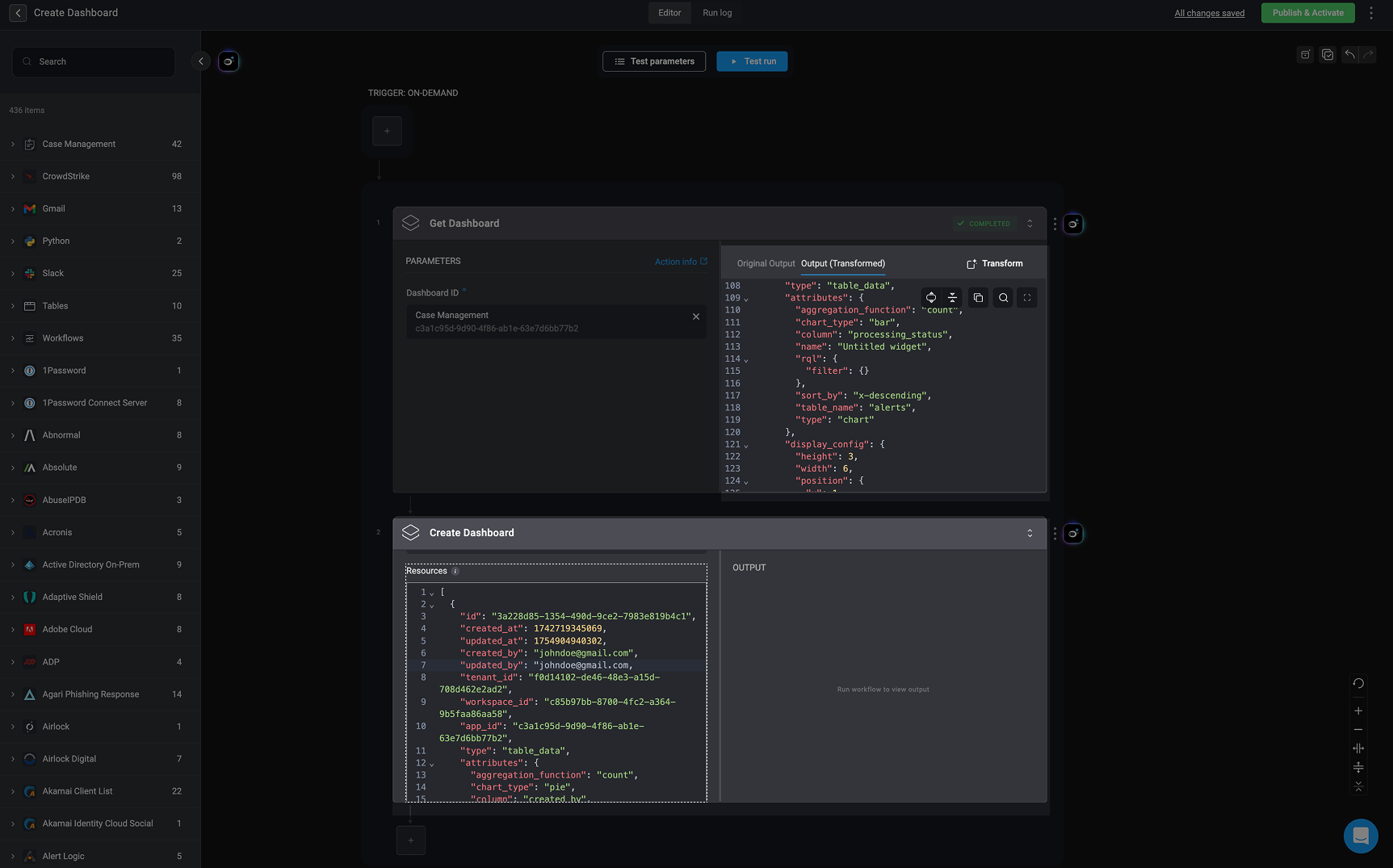 Once your JSON data has been pasted in the resource field, fill in the remaining parameters and you can successfully execute the Create Dashboard action. This will generate a new dashboard using the defined configuration, without errors related to table references or invalid widget mappings.
 ***
***