> ## Documentation Index
> Fetch the complete documentation index at: https://docs.blinkops.com/llms.txt
> Use this file to discover all available pages before exploring further.
# Blink Teams Bot
> Use the Blink bot for Microsoft Teams to run self-service portal workflows directly from your Teams environment.
## Using the Self-service portal via Teams
We have created the bot for Teams to seamlessly execute apps available in the Self-service portal directly from your Teams environment. Every Workflow that is exposed in the portal is automatically exposed to the bot for Teams.
## Connecting Teams to the Blink platform
To execute Workflows from Teams, a connection between your Teams workspace and your Blink account must be created.
1. In your Teams application, navigate to Apps on the left-hand side of your screen. You will be redirected to the Team's App Marketplace. In the search bar, type "Blink Ops" and click the "Add" button.
2. The Blink App will be added to your Teams application, and a conversation with the Blink Teams Bot will automatically open.
## Executing a Workflow via Teams
1. In your teams app, navigate to the Blink App and start a conversation by entering ***/portal***.
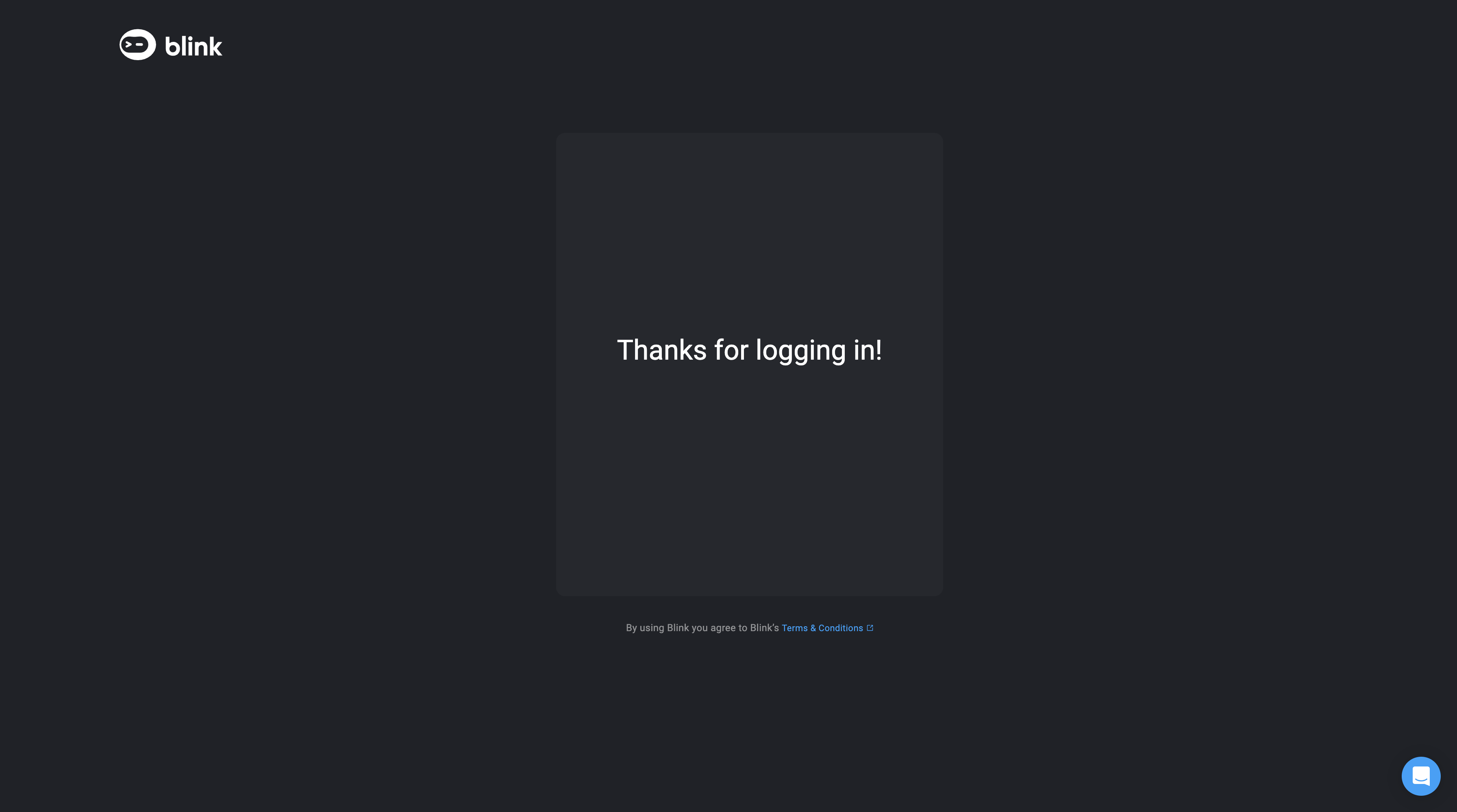
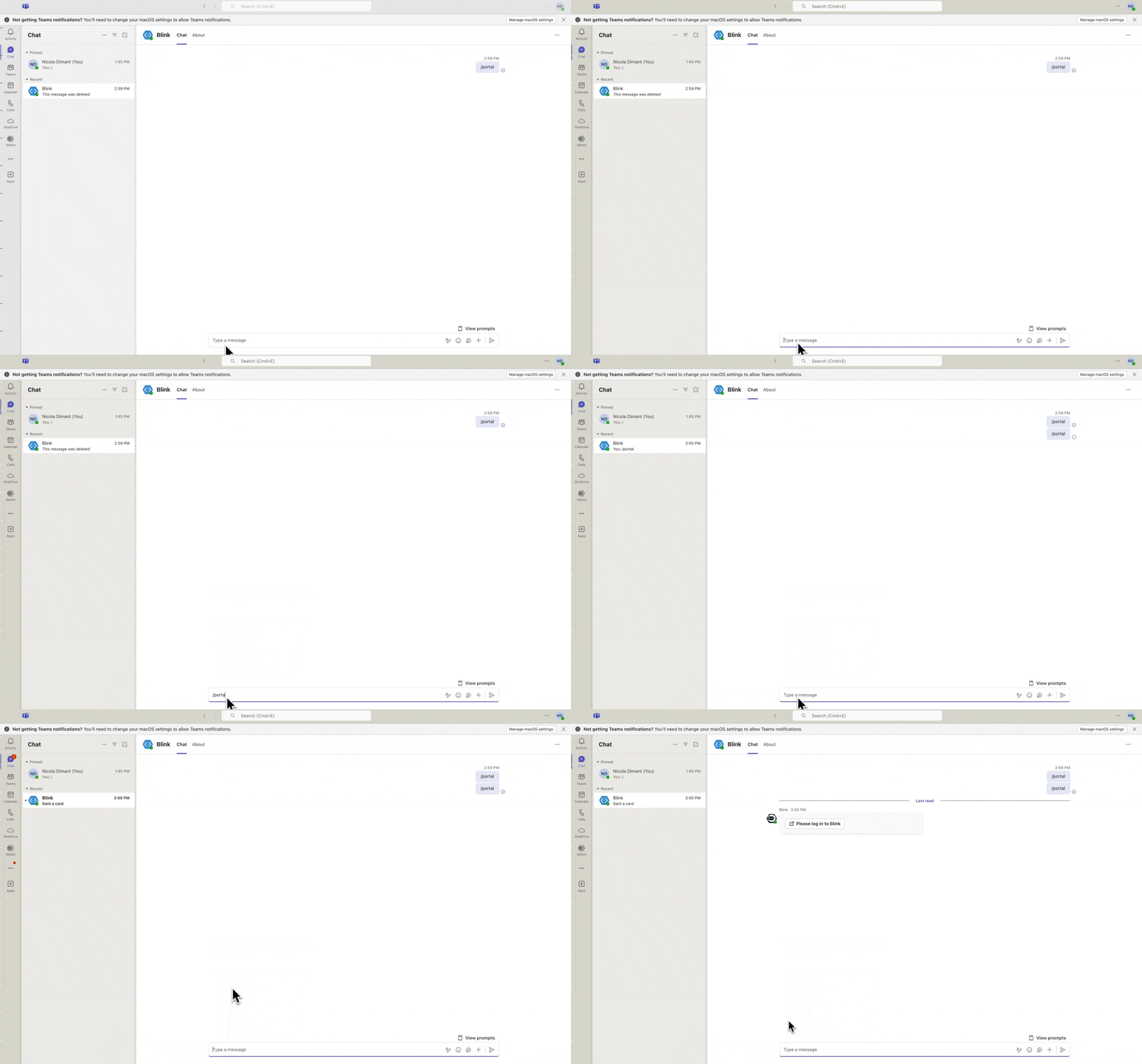 2. If you are not logged in to the Blink platform, you will receive a message to **Go to login page**. Click **Go to login page** and log in to Blink. If you logged in successfully, **Thanks for logging in** will appear.
 3. Enter ***/portal*** and click **the open dialogue** button. A pop up will appear with a dropdown menu containing a list of all items available in the Self-service portal is displayed.
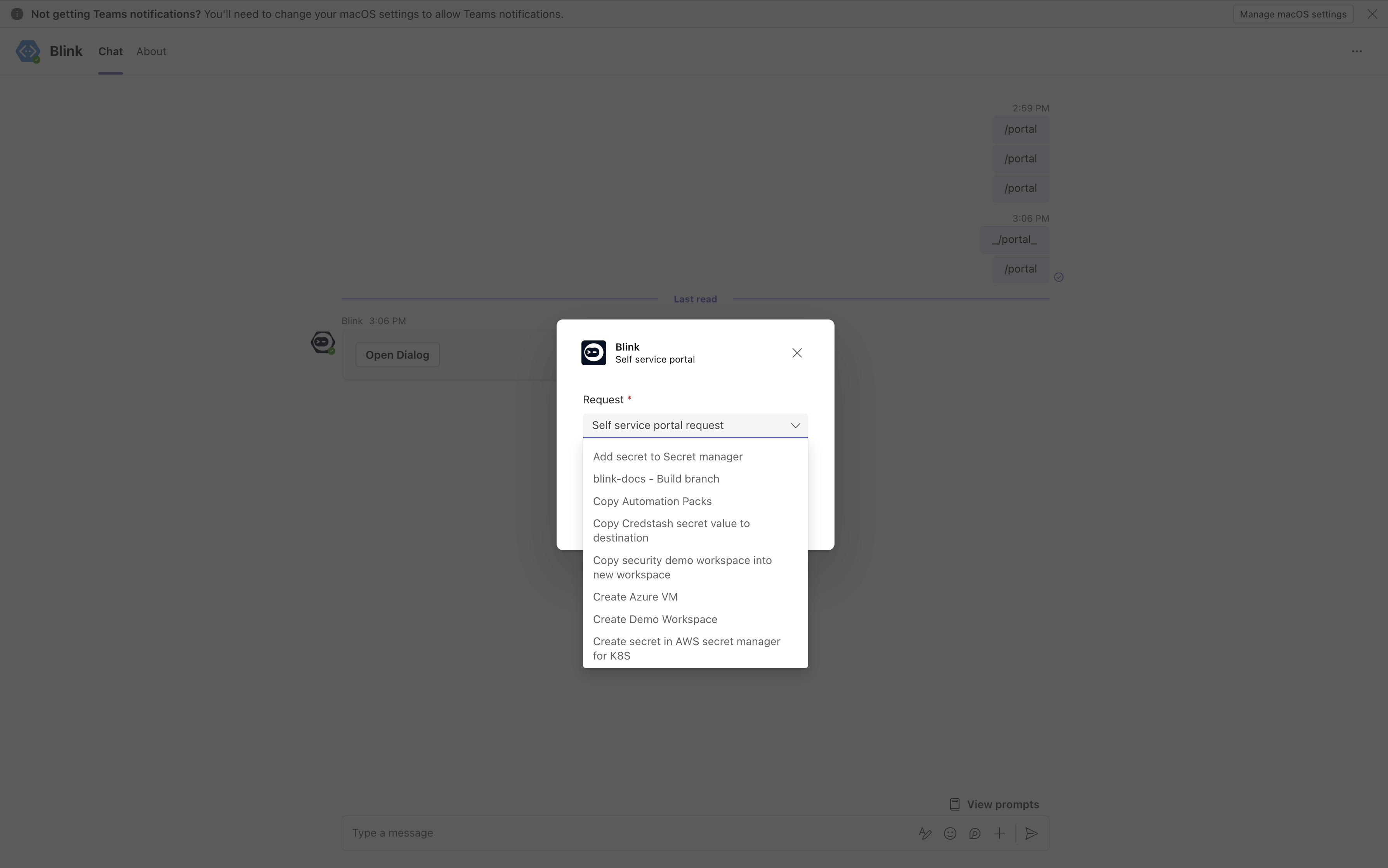 4. Click on any item in the portal. You will receive a message that the Workflow is running. If the Workflow needs input parameters, you will be prompted to enter them before running. The Blink bot will notify you of your request, the Workflow state and its results.