> ## Documentation Index
> Fetch the complete documentation index at: https://docs.blinkops.com/llms.txt
> Use this file to discover all available pages before exploring further.
# Blink Groups
> Groups are used to manage groups of users, for example work teams and departments
Groups are used to manage groups of users, for example work teams and departments. You can attach a specific role to a group inside a workspace, thus granting access to all group members.
## Creating a new group
1. Navigate to **Account Settings** and select the  icon.
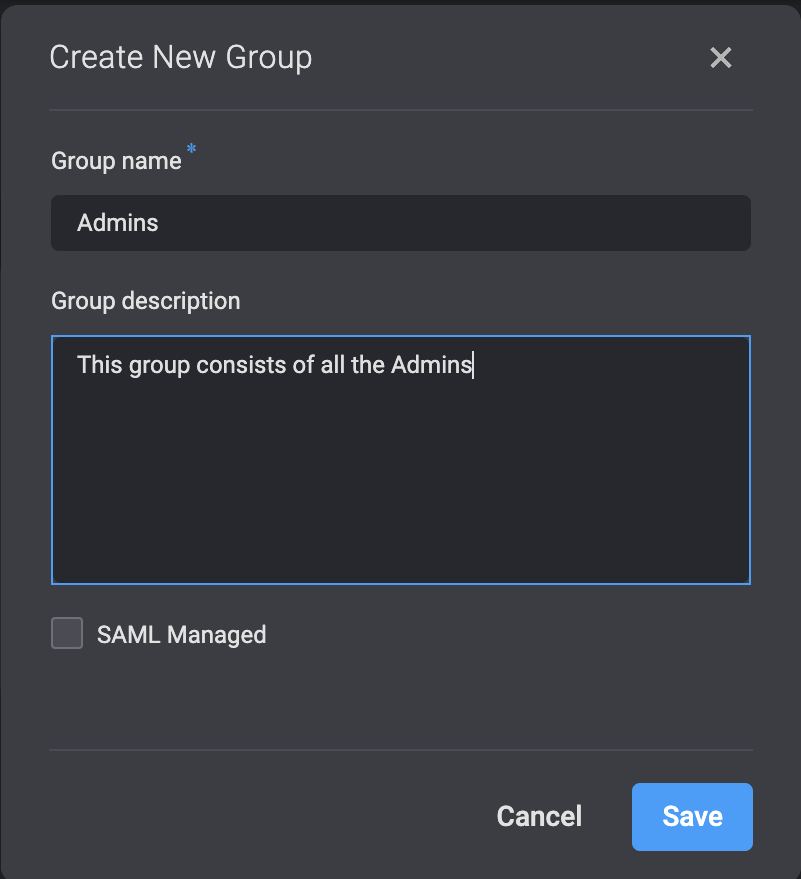
2. Click **New Group**. In the dialog box, fill in the group name and description.
3. Then click **Save**.
icon.
2. Click **New Group**. In the dialog box, fill in the group name and description.
3. Then click **Save**.
 ## Adding a member to a group
### Adding a member from the Users tab
1. Navigate to **Account Settings** and select the
## Adding a member to a group
### Adding a member from the Users tab
1. Navigate to **Account Settings** and select the  icon.
2. Select a user and double click on the **Groups** column.
3. From the dropdown menu, select a group you wish to add the user to.
4. Click **Add**.
### Adding a member from the Groups tab
1. Navigate to **Account Settings** and select the icon.
2. Select a **Group** and double click on the **Users** column.
3. From the dropdown menu, select a user you wish to add to the group.
4. Click **Add**.
## Adding groups to a workspace
1. Click
icon.
2. Select a user and double click on the **Groups** column.
3. From the dropdown menu, select a group you wish to add the user to.
4. Click **Add**.
### Adding a member from the Groups tab
1. Navigate to **Account Settings** and select the icon.
2. Select a **Group** and double click on the **Users** column.
3. From the dropdown menu, select a user you wish to add to the group.
4. Click **Add**.
## Adding groups to a workspace
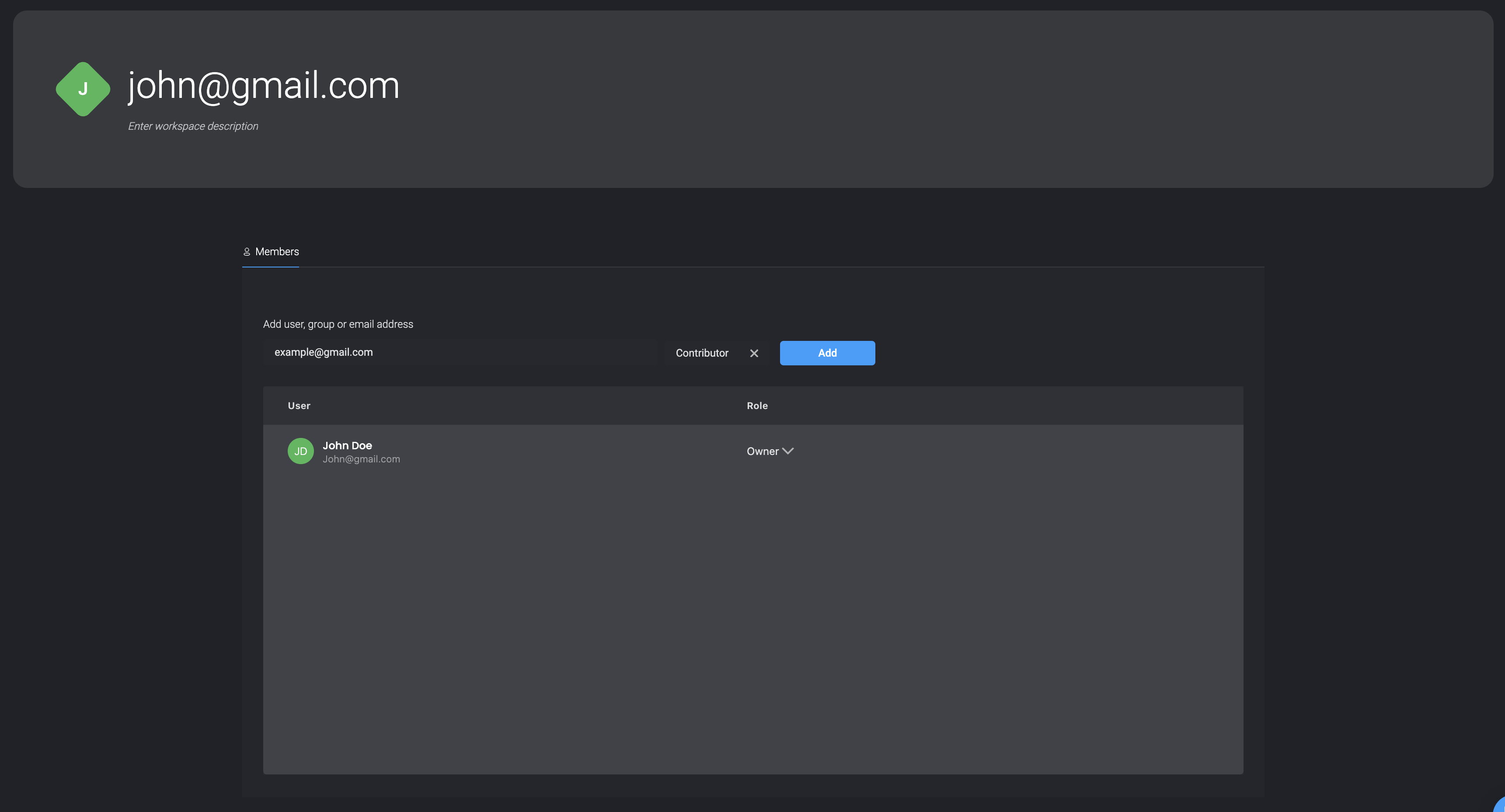
1. Click  to navigate to the **Workspaces Settings**.
2. In the empty text field invite a new member to your workspace by **User, Group or Email**
3. Click **Add**. The group is added to the workspace.
to navigate to the **Workspaces Settings**.
2. In the empty text field invite a new member to your workspace by **User, Group or Email**
3. Click **Add**. The group is added to the workspace.