> ## Documentation Index
> Fetch the complete documentation index at: https://docs.blinkops.com/llms.txt
> Use this file to discover all available pages before exploring further.
# Enabling Two Factor Authentication
> Configure authentication methods for your Blink account, including SSO and multi-factor authentication.
When signing up for Blink, you have the option to enable two-factor authentication (2FA) for enhanced account security. Two-factor authentication adds an extra layer of protection by requiring users to verify their identity using two separate forms of identification before accessing their account.
**Note**: Two-Factor Authentication is only available for the **email login** option.
 ## Enabling Two-Factor Authentication (2FA) for Your Account
Two-Factor Authentication (2FA) is enabled at the tenant level and is automatically enforced for all users in the tenant upon login.
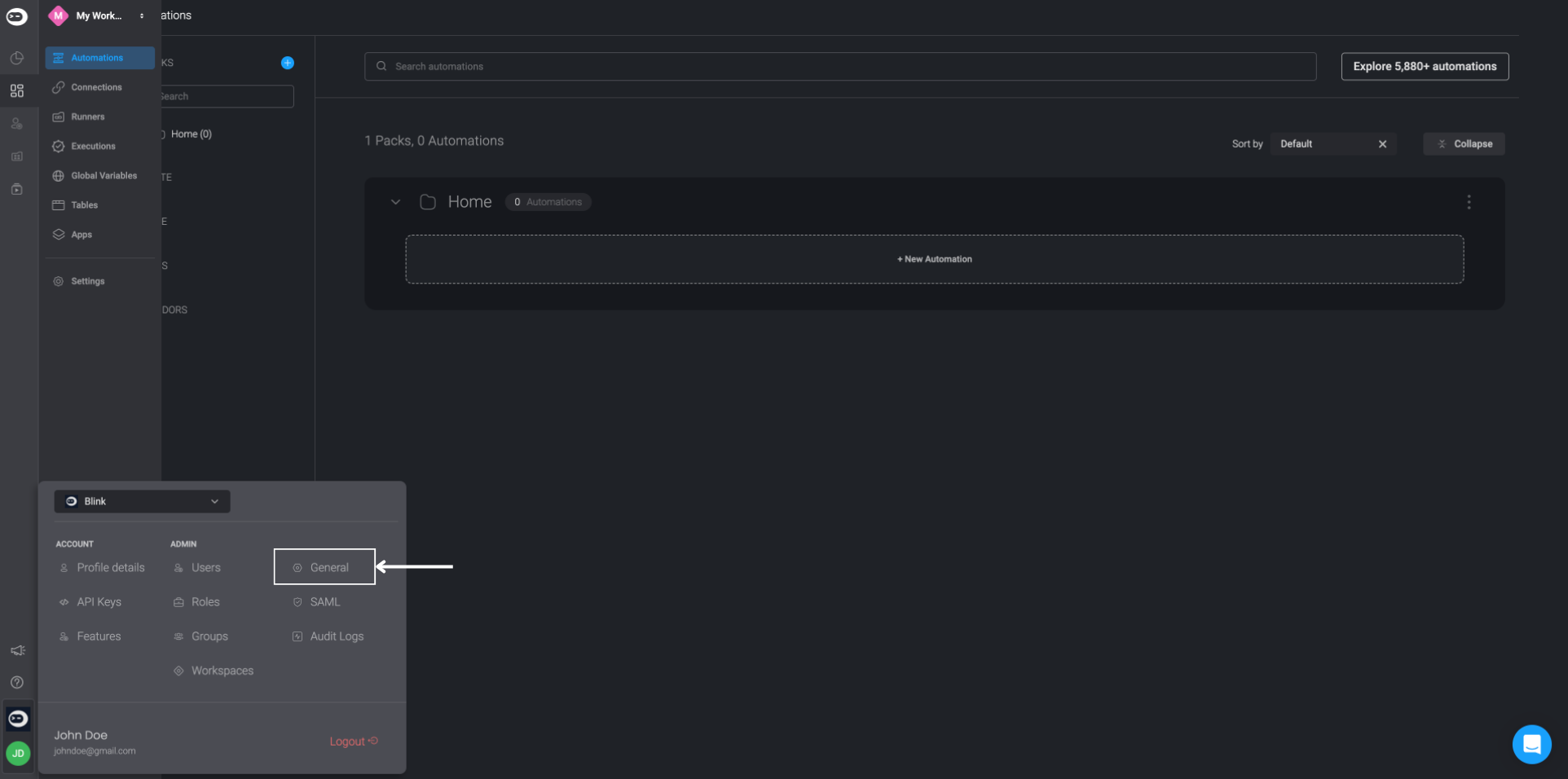
Navigate to the bottom-left corner of the Blink interface and click on the circle displaying your initials.
From the 'User Settings' menu, select 'General'.
## Enabling Two-Factor Authentication (2FA) for Your Account
Two-Factor Authentication (2FA) is enabled at the tenant level and is automatically enforced for all users in the tenant upon login.
Navigate to the bottom-left corner of the Blink interface and click on the circle displaying your initials.
From the 'User Settings' menu, select 'General'.
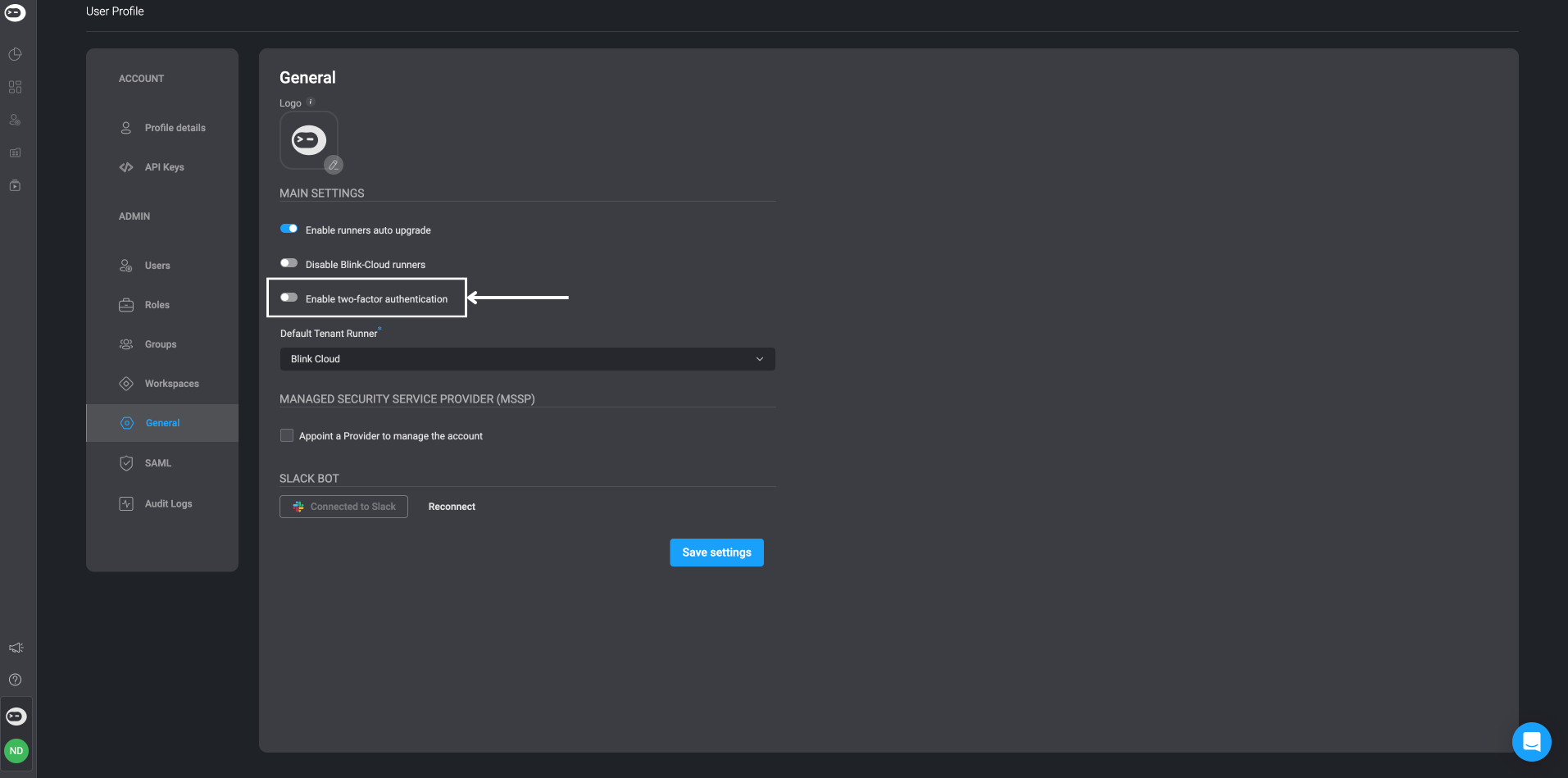
 On the 'General Settings' page, locate the 'Enable Two-Factor Authentication' option and toggle it on to activate the feature.
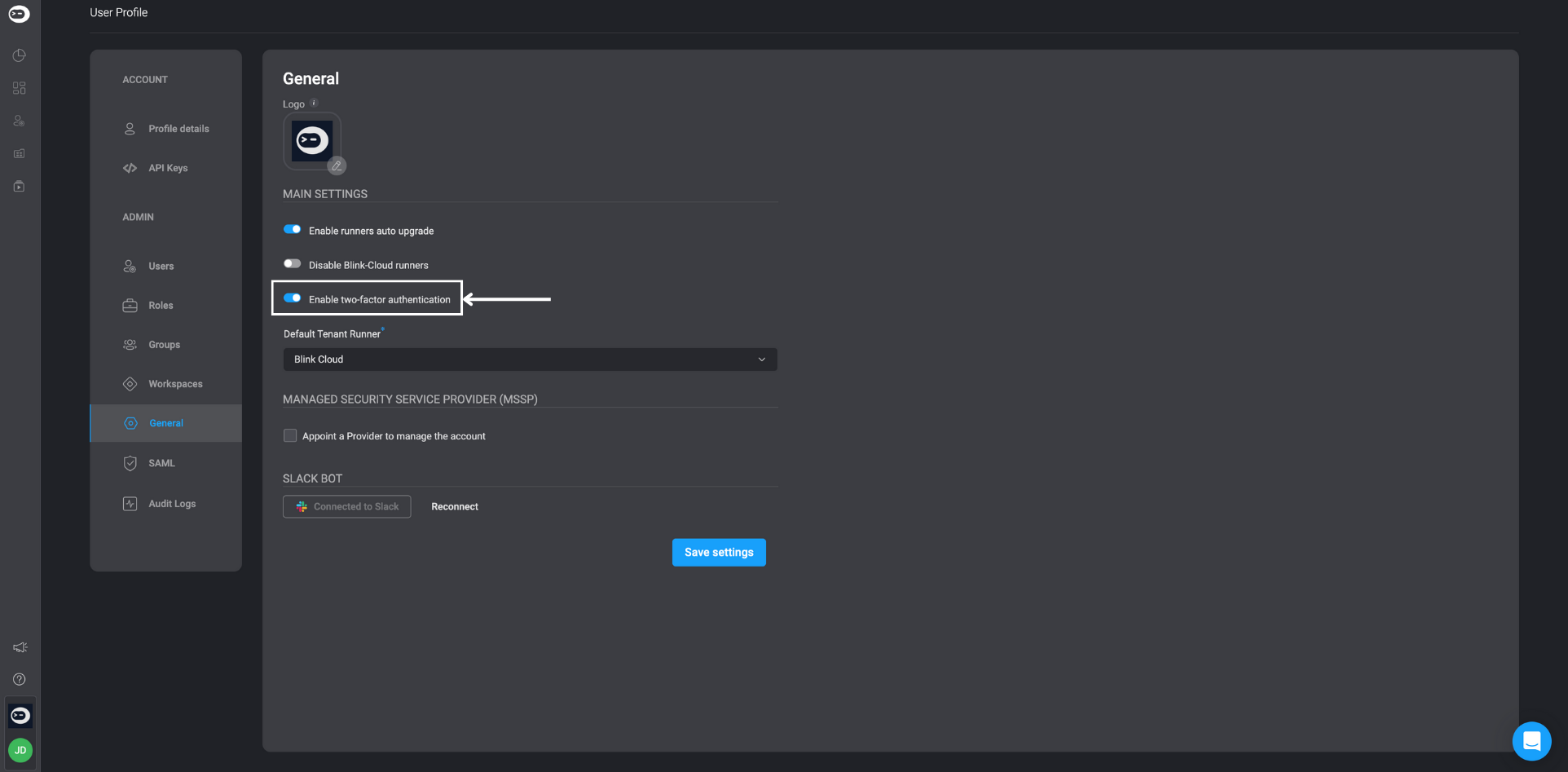 Click 'Save Settings' to confirm the activation of Two-Factor Authentication.
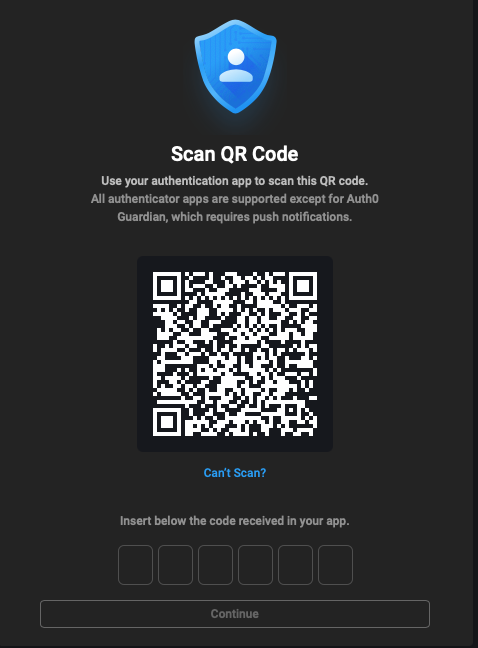
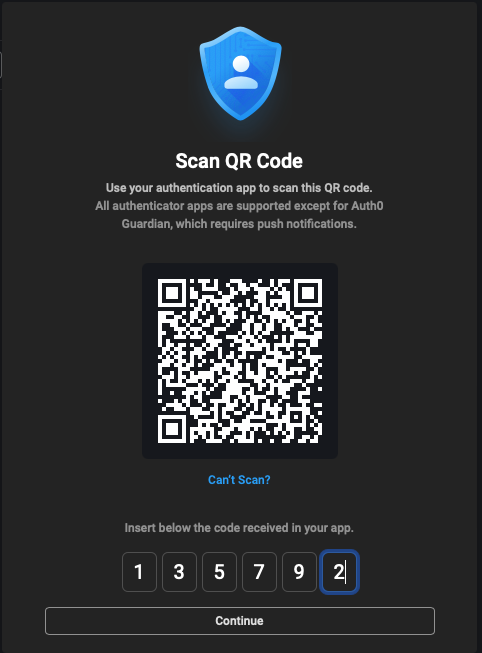
Using your preferred authenticator app, scan the barcode displayed on the screen.
In your authenticator app, retrieve the unique 6-digit code. Enter this code in the designated field, then click 'Continue'.
Click 'Save Settings' to confirm the activation of Two-Factor Authentication.
Using your preferred authenticator app, scan the barcode displayed on the screen.
In your authenticator app, retrieve the unique 6-digit code. Enter this code in the designated field, then click 'Continue'.
 You will be redirected to the Sign-In page. Sign back into your Blink account.
Follow the prompt to enter a new authentication code from the same authenticator app to complete the verification.
You will be redirected to the Sign-In page. Sign back into your Blink account.
Follow the prompt to enter a new authentication code from the same authenticator app to complete the verification.
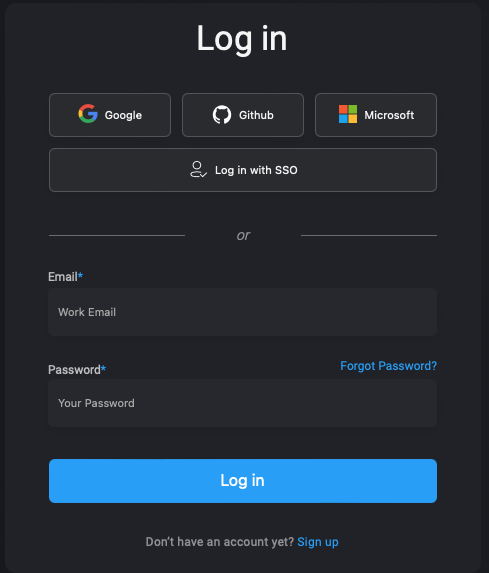 After successfully logging in, Two-Factor Authentication will be fully activated for your Blink account.
At any time, you can choose to disable Two-Factor Authentication by toggling the 'Enable Two-Factor Authentication' switch off.
After successfully logging in, Two-Factor Authentication will be fully activated for your Blink account.
At any time, you can choose to disable Two-Factor Authentication by toggling the 'Enable Two-Factor Authentication' switch off.