> ## Documentation Index
> Fetch the complete documentation index at: https://docs.blinkops.com/llms.txt
> Use this file to discover all available pages before exploring further.

# Audit Logs

> The Audit Log monitors user activity in the tenant

The **Audit Log** provides a comprehensive, timestamped record of all key activities occurring within the tenant. It is a critical tool for monitoring changes, troubleshooting issues, and ensuring compliance by giving administrators visibility into who did what and when.

<Note>**Note**: Audit logs are retained for a duration of 30 days.</Note>

Audit log events are categorized into the following areas:

* Approval management
* Cases
* Case related tables
* Connections
* Dashboards
* Global variables
* Runners
* Self-service apps
* Tables
* Tenant admin settings
* Tenant user management
* Users
* Workflows
* Workspace management

For a complete list of Audit Log events, see this [section](#categories-and-events).

<Note> The audit logs do not track changes to data or content, such as workflow action updates, workflow executions, modifications to table records, or changes to cases. </Note>

***

## Audit Log Table Content

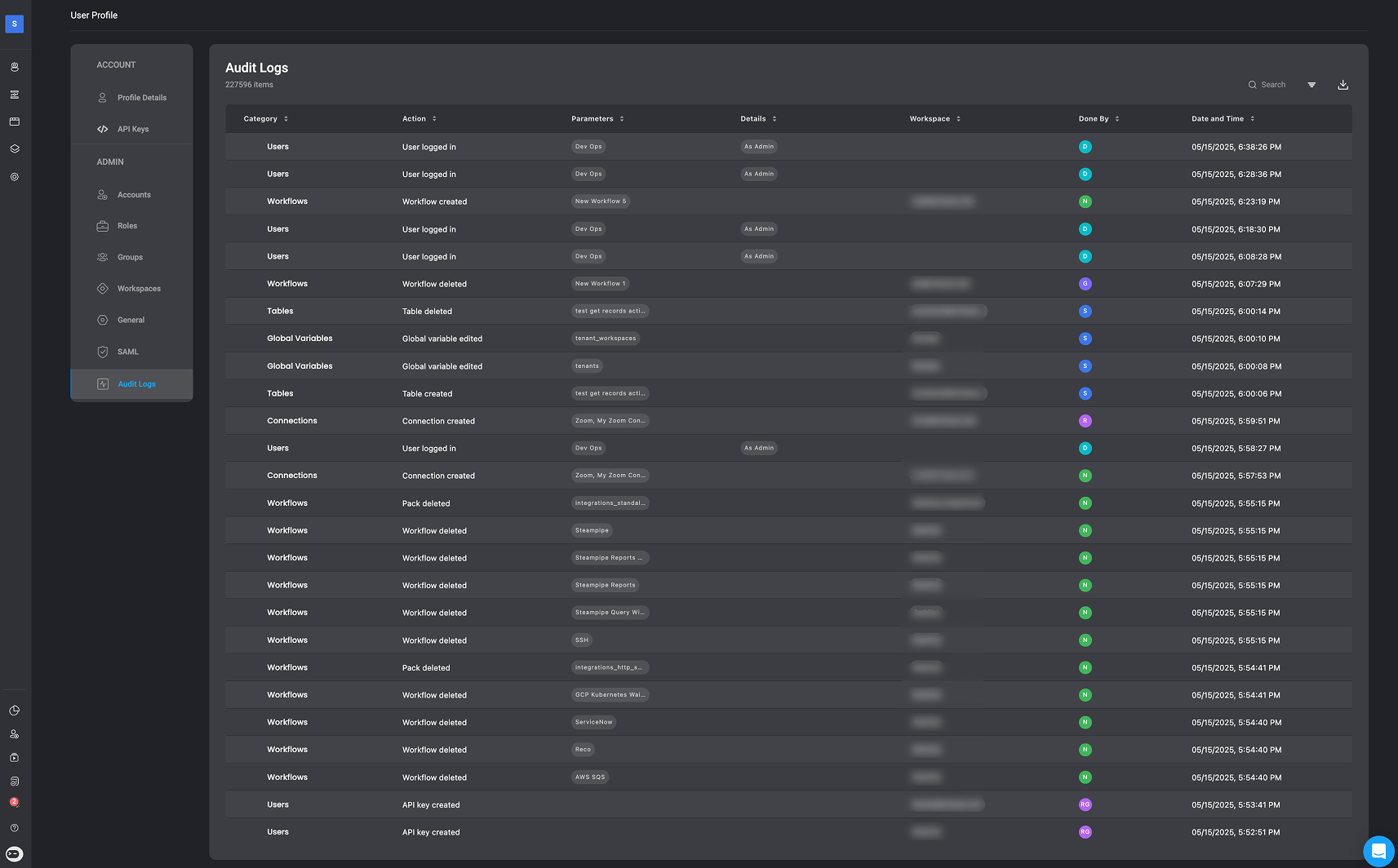
Each log entry includes the following information:

* **Category** – The general type of activity: Setting updates, System configuration, or User actions.
* **Action** – The specific action that occurred.
* **Parameters** – Key data relevant to the action, such as the affected username, Workflow name, or API endpoint.
* **Details** – Additional context or information about the action.
* **Workspace** – The name of the workspace where the action took place.
* **Done by** – The email address of the user who initiated the action.
* **Date and Time** – When the action was performed.

<Frame>
  <img src="https://mintcdn.com/blinkops-2/TqQZZZpDuOn7Wlvq/img/AccountAdmin/AuditLogs.png?fit=max&auto=format&n=TqQZZZpDuOn7Wlvq&q=85&s=b3a0da9a184a4bb3a2955928e04290ce" width="1713" height="1064" data-path="img/AccountAdmin/AuditLogs.png" />
</Frame>

***

## Categories and Events

In the following section, you can find a complete overview of Blink’s audit log categories and the types of events captured within each. Audit logs in Blink are designed to give you full visibility into user activity, system changes, and workflow executions across the platform.

<Accordion title="Audit Log Categories and Events" icon="up-down">
  ### Approval Management

  <div className="flow-table">
    | **Event**         | **Description**                                         |
    | ----------------- | ------------------------------------------------------- |
    | Request approved  | A submitted request was approved by an authorized user. |
    | Request denied    | A submitted request was denied by an authorized user.   |
    | Request submitted | A request was submitted for approval.                   |
  </div>

  ***

  ### Cases

  <div className="flow-table">
    | **Event**                      | **Description**                                                                                                                           |
    | ------------------------------ | ----------------------------------------------------------------------------------------------------------------------------------------- |
    | Case exported                  | A case was exported to a downloadable format.                                                                                             |
    | Case shared                    | A case was shared with external parties or users.                                                                                         |
    | Case viewed                    | Logged when a user opens and views the details of a case.                                                                                 |
    | Case closed                    | Logged when a case has been closed                                                                                                        |
    | Case response action triggered | Logged when a predefined response action (e.g., notification, remediation step, or ability workflow) is executed for a case.              |
    | Case escalated                 | Logged when a the [escalated action](/docs/case-management/cases/case-overview/case-overview#escalate-case) in the Case Overview is used. |
    | Table exported to CSV          | A case table was exported in CSV format.                                                                                                  |
  </div>

  ***

  ### Case Related Tables

  <Note>Case related tables refer to **all** tables in [Case Management](/docs/case-management/case-management) including: the [Cases Table](/docs/case-management/cases/cases), [Alerts Table](/docs/case-management/alerts/alerts), [Observable Table](/docs/case-management/observables/observables), [Attachments Table](/docs/case-management/attachments/attachments),[Tasks Table](/docs/case-management/tasks/tasks) or your own [Custom Table](/docs/case-management/case-management-settings#create-a-custom-table) created in [Case Management](/docs/case-management/case-management)</Note>

  <div className="flow-table">
    | **Event**                   | **Description**                                              |   |
    | --------------------------- | ------------------------------------------------------------ | - |
    | Custom cases table created  | A case management tables was created.                        |   |
    | Custom cases table edited   | An existing case management table was edited.                |   |
    | Case related tables read    | Logged when a case management tables was accessed or viewed. |   |
    | Case related tables deleted | A case management tables was deleted.                        |   |
    | Exported to CSV             | Data from a custom cases table was exported as a CSV file.   |   |
    | Field created               | A new field was added to a case management table.            |   |
    | Field edited                | A field in a case management tables was updated.             |   |
    | Field deleted               | A field was removed from a case management tables            |   |
  </div>

  ***

  ### Connections

  <div className="flow-table">
    | **Event**          | **Description**                                    |
    | ------------------ | -------------------------------------------------- |
    | Connection created | A new integration connection was created.          |
    | Connection deleted | An existing integration connection was removed.    |
    | Connection edited  | An integration connection was modified or updated. |
  </div>

  ***

  ### Dashboards

  <div className="flow-table">
    | **Event**                 | **Description**                                                 |
    | ------------------------- | --------------------------------------------------------------- |
    | Dashboard activated       | A dashboard was activated and made live.                        |
    | Dashboard created         | A new dashboard was created.                                    |
    | Dashboard deactivated     | A dashboard was deactivated.                                    |
    | Dashboard deleted         | A dashboard was deleted.                                        |
    | Dashboard edited          | Changes were made to a dashboard’s configuration or layout.     |
    | Dashboard metadata edited | Metadata for the dashboard (e.g., tags, ownership) was updated. |
  </div>

  ***

  ### Global Variables

  <div className="flow-table">
    | **Event**               | **Description**                                     |
    | ----------------------- | --------------------------------------------------- |
    | Global variable created | A new global variable was created.                  |
    | Global variable deleted | A global variable was removed from the system.      |
    | Global variable edited  | An existing global variable was updated or changed. |
  </div>

  ***

  ### Runners

  <div className="flow-table">
    | **Event**                   | **Description**                                                      |
    | --------------------------- | -------------------------------------------------------------------- |
    | Runner group created        | A new group for managing runners was created.                        |
    | Runner group deleted        | A runner group was deleted.                                          |
    | Runner group edited         | A runner group’s settings or members were updated.                   |
    | Runner group set as default | A runner group was marked as the default for new workflows or tasks. |
  </div>

  ***

  ### Self-Service Apps

  <div className="flow-table">
    | **Event**     | **Description**                                      |
    | ------------- | ---------------------------------------------------- |
    | App created   | A new self-service app was created.                  |
    | App deleted   | A self-service app was removed.                      |
    | App published | A self-service app was published and made available. |
  </div>

  ***

  ### Tables

  <div className="flow-table">
    | **Event**             | **Description**                                 |
    | --------------------- | ----------------------------------------------- |
    | Field created         | A new field was added to a data table.          |
    | Field deleted         | A field was removed from a data table.          |
    | Field edited          | A field in a table was modified.                |
    | Table created         | A new data table was created.                   |
    | Table read            | A new data table was accessed or viewed         |
    | Table deleted         | A data table was deleted.                       |
    | Table edited          | A data table was updated or modified.           |
    | Table exported to CSV | A table’s contents were exported to a CSV file. |
  </div>

  ***

  ### Tenant Admin Settings

  <div className="flow-table">
    | **Event**                          | **Description**                                                     |   |
    | ---------------------------------- | ------------------------------------------------------------------- | - |
    | Audit logs exported                | Audit logs were exported for review or archiving.                   |   |
    | Blink-cloud runner updated         | Settings for the Blink cloud runner were updated.                   |   |
    | Default tenant runner updated      | The default runner for the tenant was changed.                      |   |
    | Runner auto upgrade updated        | Auto-upgrade settings for runners were modified.                    |   |
    | SAML role mapping updated          | Role mapping configuration for SAML was updated.                    |   |
    | SAML settings updated              | SAML authentication settings were changed.                          |   |
    | Two-factor authentication disabled | Two-factor authentication was disabled for the tenant.              |   |
    | Two-factor authentication enabled  | Two-factor authentication was enabled for the tenant.               |   |
    | Time format updated                | The time display format used across the Blink platform was changed. |   |
    | Date format updated                | The date display format used across the Blink platform was changed. |   |
  </div>

  ***

  ### Tenant User Management

  <div className="flow-table">
    | **Event**                                | **Description**                        |
    | ---------------------------------------- | -------------------------------------- |
    | Group created                            | A new group was created.               |
    | Group deleted                            | An existing group was deleted.         |
    | Group name updated                       | The name of a group was changed.       |
    | Role created                             | A new role was created.                |
    | Role deleted                             | An existing role was deleted.          |
    | Role updated                             | An existing role was updated.          |
    | Service account activated                | A service account was activated.       |
    | Service account created                  | A new service account was created.     |
    | Service account deactivated              | A service account was deactivated.     |
    | Service account deleted                  | A service account was deleted.         |
    | Service account group assignment updated | A service account's group was updated. |
    | Service account role changed             | A service account's role was changed.  |
    | User activated                           | A user was activated.                  |
    | User deactivated                         | A user was deactivated.                |
    | User deleted                             | A user was deleted.                    |
    | User group assignment updated            | A user's group assignment was updated. |
    | User invited                             | A user was invited.                    |
    | User role changed                        | A user's role was changed.             |
  </div>

  ***

  ### Users

  <div className="flow-table">
    | **Event**       | **Description**         |
    | --------------- | ----------------------- |
    | User logged in  | A user logged in.       |
    | User logged out | A user logged out.      |
    | API key created | An API key was created. |
    | API key deleted | An API key was deleted. |
  </div>

  ***

  ### Workflows

  <div className="flow-table">
    | **Event**                 | **Description**                 |
    | ------------------------- | ------------------------------- |
    | Pack created              | A new pack was created.         |
    | Pack deleted              | A pack was deleted.             |
    | Pack edited               | A pack was edited.              |
    | Workflow activated        | A workflow was activated.       |
    | Workflow created          | A new workflow was created.     |
    | Workflow deactivated      | A workflow was deactivated.     |
    | Workflow deleted          | A workflow was deleted.         |
    | Workflow published        | A workflow was published.       |
    | Workflow settings updated | Workflow settings were updated. |
  </div>

  ***

  ### Workspace Management

  <div className="flow-table">
    | **Event**              | **Description**                             |
    | ---------------------- | ------------------------------------------- |
    | Workspace created      | A new workspace was created.                |
    | Workspace deleted      | A workspace was deleted.                    |
    | Workspace name updated | A workspace’s name was updated.             |
    | User invited/added     | A user was invited or added.                |
    | User removed           | A user was removed.                         |
    | User role changed      | A user’s role in the workspace was changed. |
  </div>
</Accordion>

***

## External Audit Log Integration

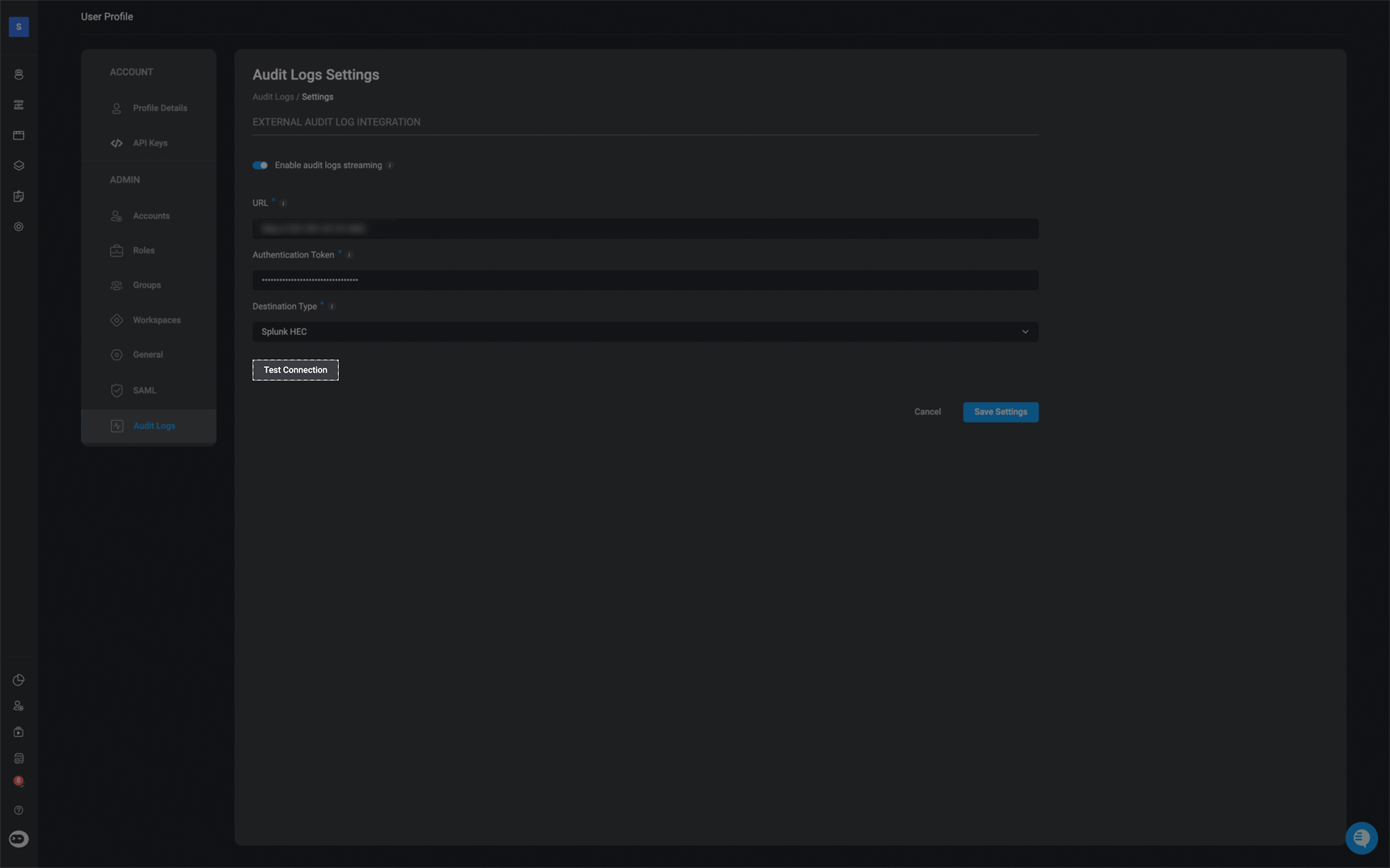
Blink supports native audit log streaming to external SIEM systems, allowing organizations to integrate Blink audit data into tools like Splunk or Elasticsearch. This feature gives security teams greater visibility and control by centralizing audit logs for compliance, monitoring, and incident response without the need for manual exports. [Tenant admins](/blink-platform/account-management/roles#1-admin) can configure their SIEM endpoint directly in Blink, test the connection, and begin streaming audit logs in real time.
<Frame>
  <img src="https://mintcdn.com/blinkops-2/tSjETGVxH3j_fakW/img/AccountAdmin/SendAuditLogs.png?fit=max&auto=format&n=tSjETGVxH3j_fakW&q=85&s=e7bb252cc041b4a7fad809e96e1092e2" width="1717" height="1081" data-path="img/AccountAdmin/SendAuditLogs.png" />
</Frame>

***

<Steps>
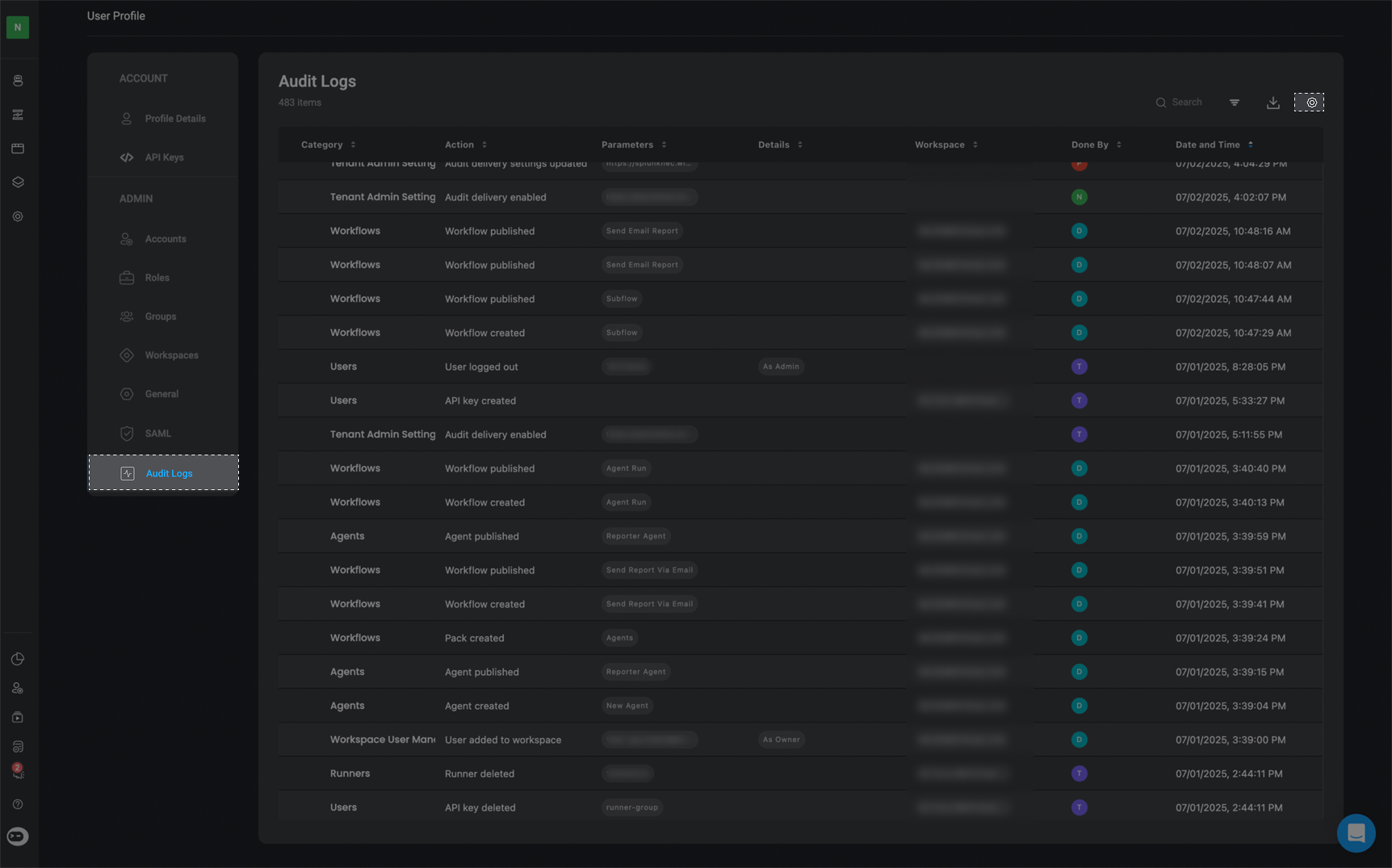
  <Step title="Navigate to the 'Audit Log Settings' page">
    <p>In the top right-corner of the Audit Log page, select the <Icon icon="gear" /> icon </p>

    <Frame>
      <img src="https://mintcdn.com/blinkops-2/TqQZZZpDuOn7Wlvq/img/AccountAdmin/SendAuditLogsSettings.png?fit=max&auto=format&n=TqQZZZpDuOn7Wlvq&q=85&s=0607a9a75024c6c5801de62b3a2f4249" width="1724" height="1075" data-path="img/AccountAdmin/SendAuditLogsSettings.png" />
    </Frame>
  </Step>

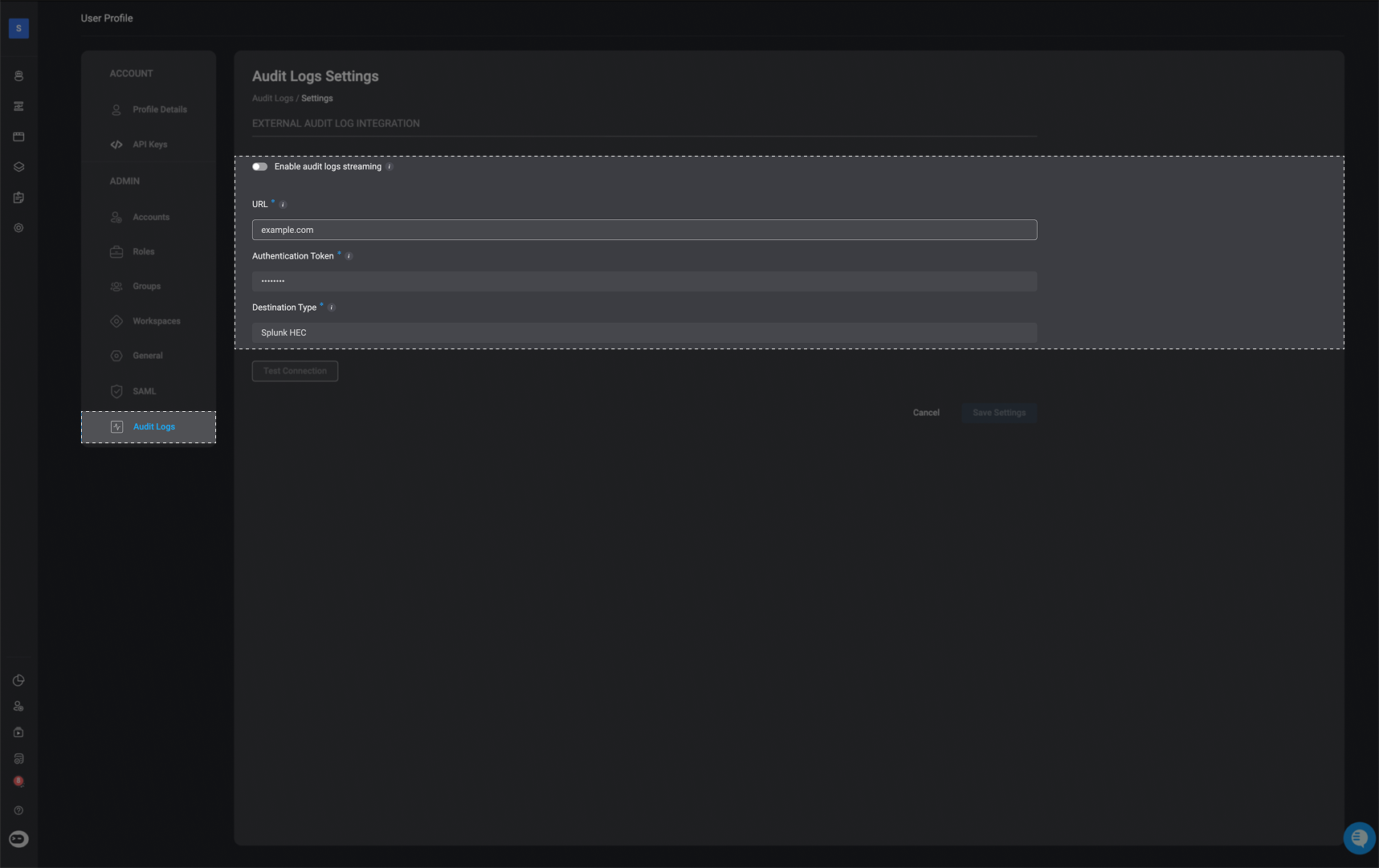
  <Step title="Enter the Required Parameters">
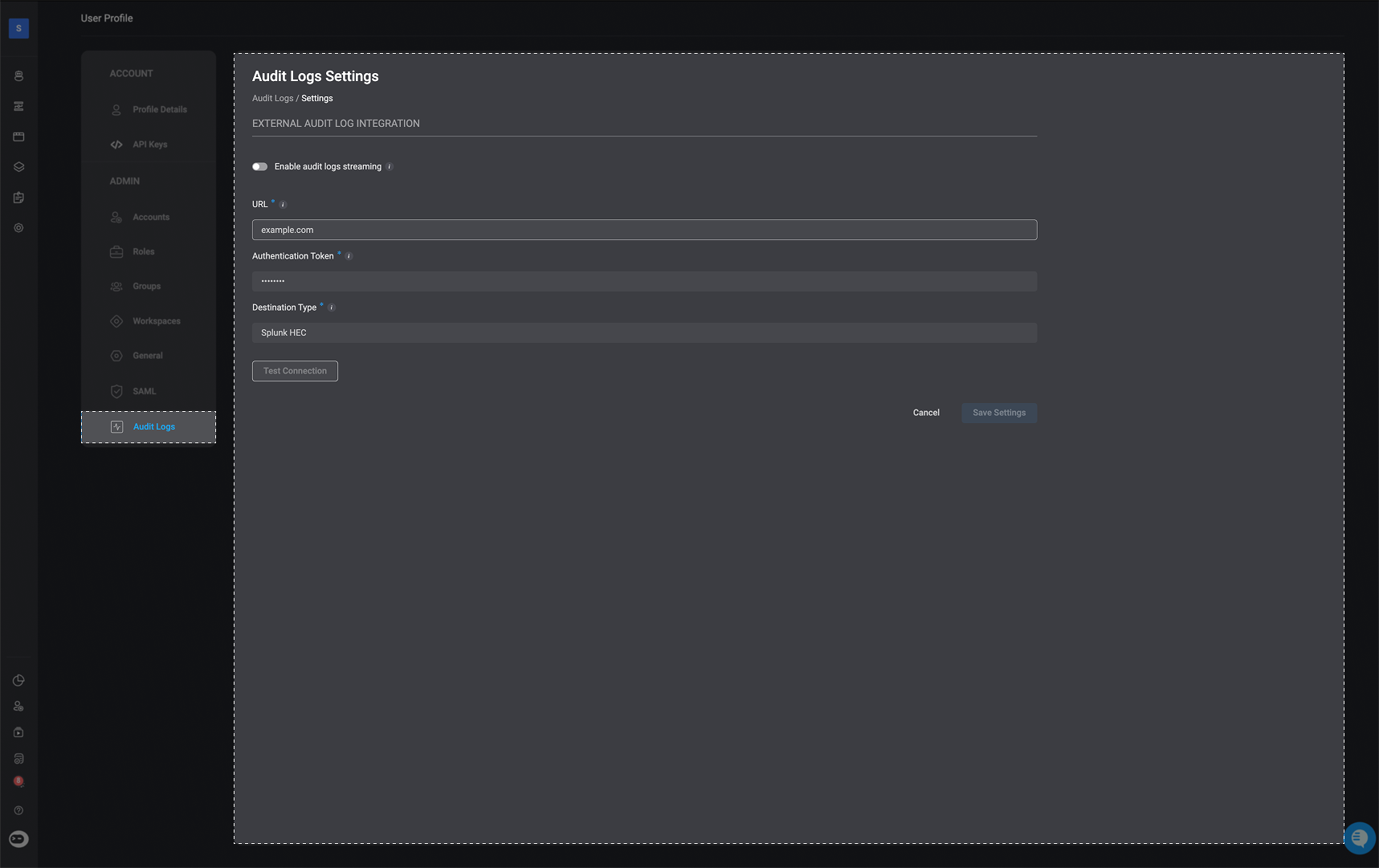
    1. **Enable audit log streaming**:
       * When enabled, audit logs will be delivered to your specified external destination in real time.
       * Disabling this will stop all log delivery and deactivate the form below.

    2. **URL**:
       * The destination URL for your external logging service.
         <Note>This must be a reachable HTTPS endpoint that supports log ingestion. </Note>

    3. **Authentication Token**:
       * A token or API Key used to authenticate requests to your external logging endpoint. This is required for secure delivery of audit logs.

    4. **Destination Type**- Select the type of destination where logs will be sent:
       * [Splunk HEC](#generating-a-splunk-http-event-collector-hec-token)
       * HTTP (Bearer Auth)
       * Elasticsearch

    <Frame>
      <img src="https://mintcdn.com/blinkops-2/tSjETGVxH3j_fakW/img/AccountAdmin/AuditLogParams.png?fit=max&auto=format&n=tSjETGVxH3j_fakW&q=85&s=f3b1e47ff77861a6e24d99d546eb9d6c" width="1717" height="1081" data-path="img/AccountAdmin/AuditLogParams.png" />
    </Frame>
  </Step>

  <Step title="Optional-Test Connection">
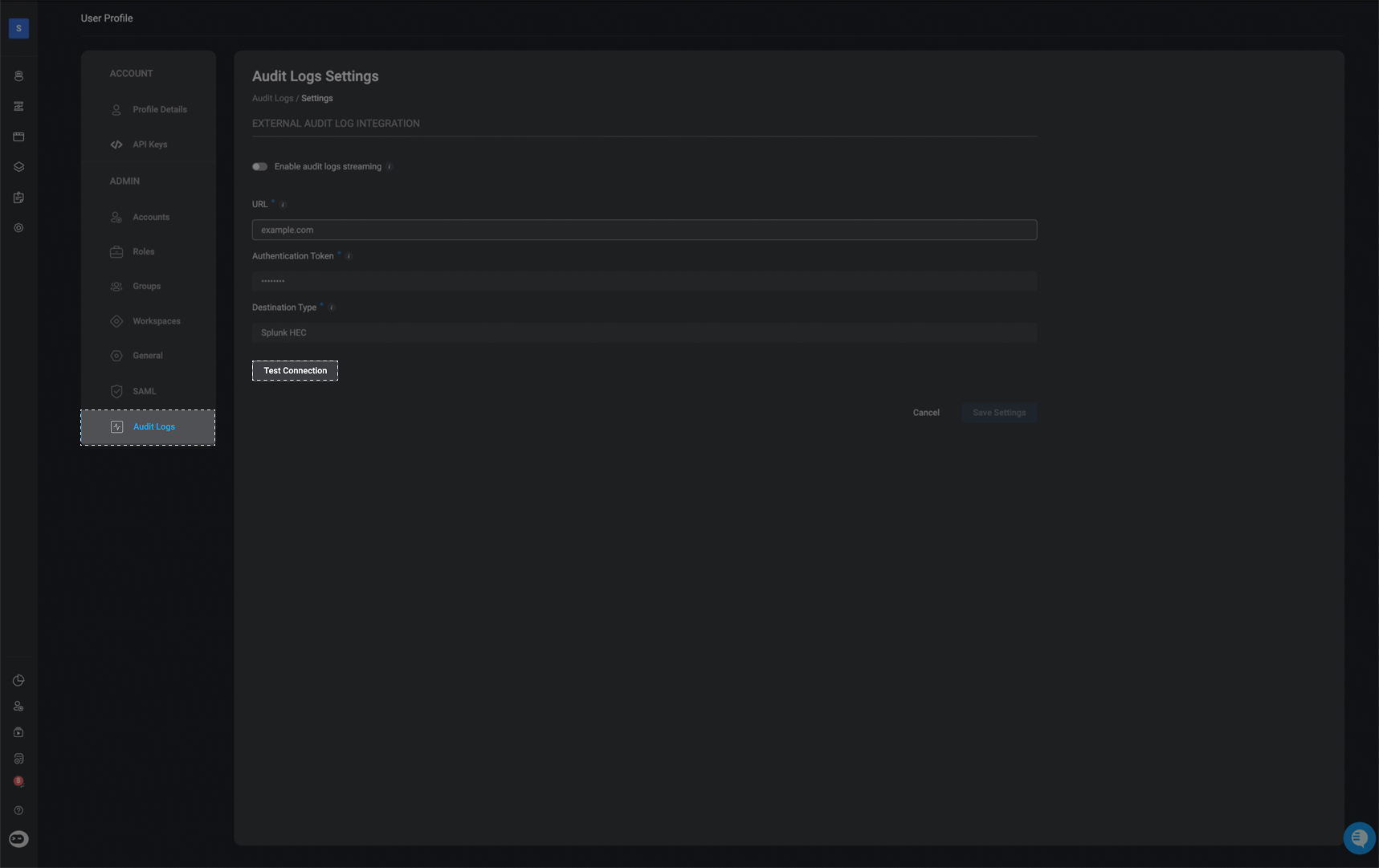
    You can verify that Blink is successfully connected to your selected SIEM platform by clicking the 'Test Connection' button.

    <Frame>
      <img src="https://mintcdn.com/blinkops-2/iyQsfeLanU45y0f9/img/AccountAdmin/TestConnectionAuditLog.png?fit=max&auto=format&n=iyQsfeLanU45y0f9&q=85&s=e0ebc7a42a105785133d63d6c85cfecd" width="1717" height="1081" data-path="img/AccountAdmin/TestConnectionAuditLog.png" />
    </Frame>
  </Step>
</Steps>

***

## Configuration Guide: Generating a Splunk HTTP Event Collector (HEC) Token

Follow this step-by-step guide, to learn how to generate Splunk HTTP Event Collector (HEC) token, which is required for integrating Splunk with the Blink platform. This token is required to integrate Splunk with the Blink platform in order to stream Blink's audit logs to a selected external destination.

<Warning> **Note**: The images used in this guide are for illustration purposes only. Your Splunk configuration may differ based on your organization's environment, existing settings, and indexing policies. Use the images as a visual reference to help guide you through each step. </Warning>

<Steps>
  <Step title="Access the HTTP Event Collector">
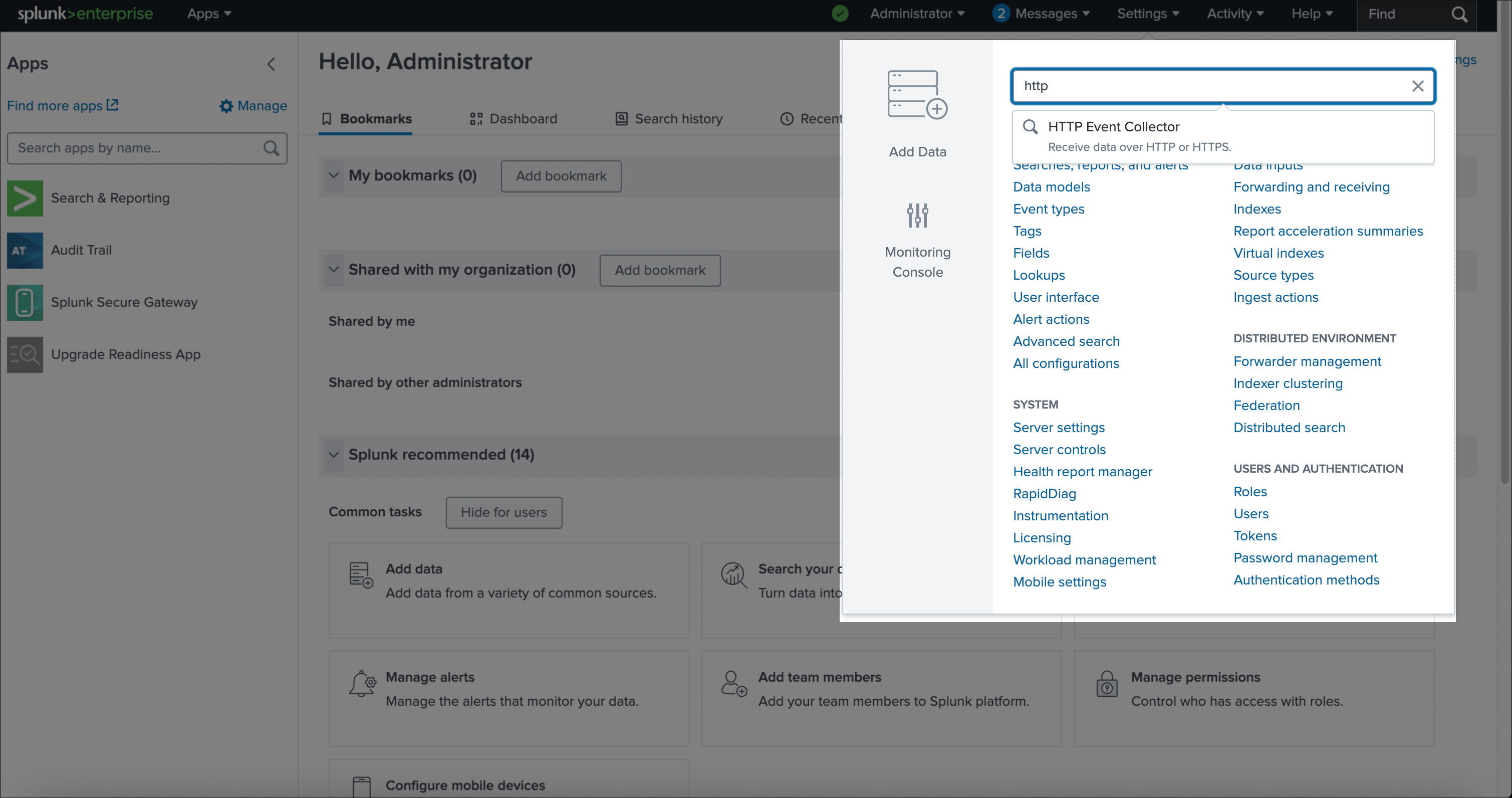
    Log in to your [Splunk Enterprise account](https://login.splunk.com). In the top-right corner, click on **Settings**, then search for **HTTP Event Collector** and select it.

    <Frame>
      <img src="https://mintcdn.com/blinkops-2/TqQZZZpDuOn7Wlvq/img/AccountAdmin/SplunkHTTPEvent.png?fit=max&auto=format&n=TqQZZZpDuOn7Wlvq&q=85&s=abd8f753fae0a4a5ec647642d0892ff8" width="3018" height="1592" data-path="img/AccountAdmin/SplunkHTTPEvent.png" />
    </Frame>
  </Step>

  <Step title="Select Source">
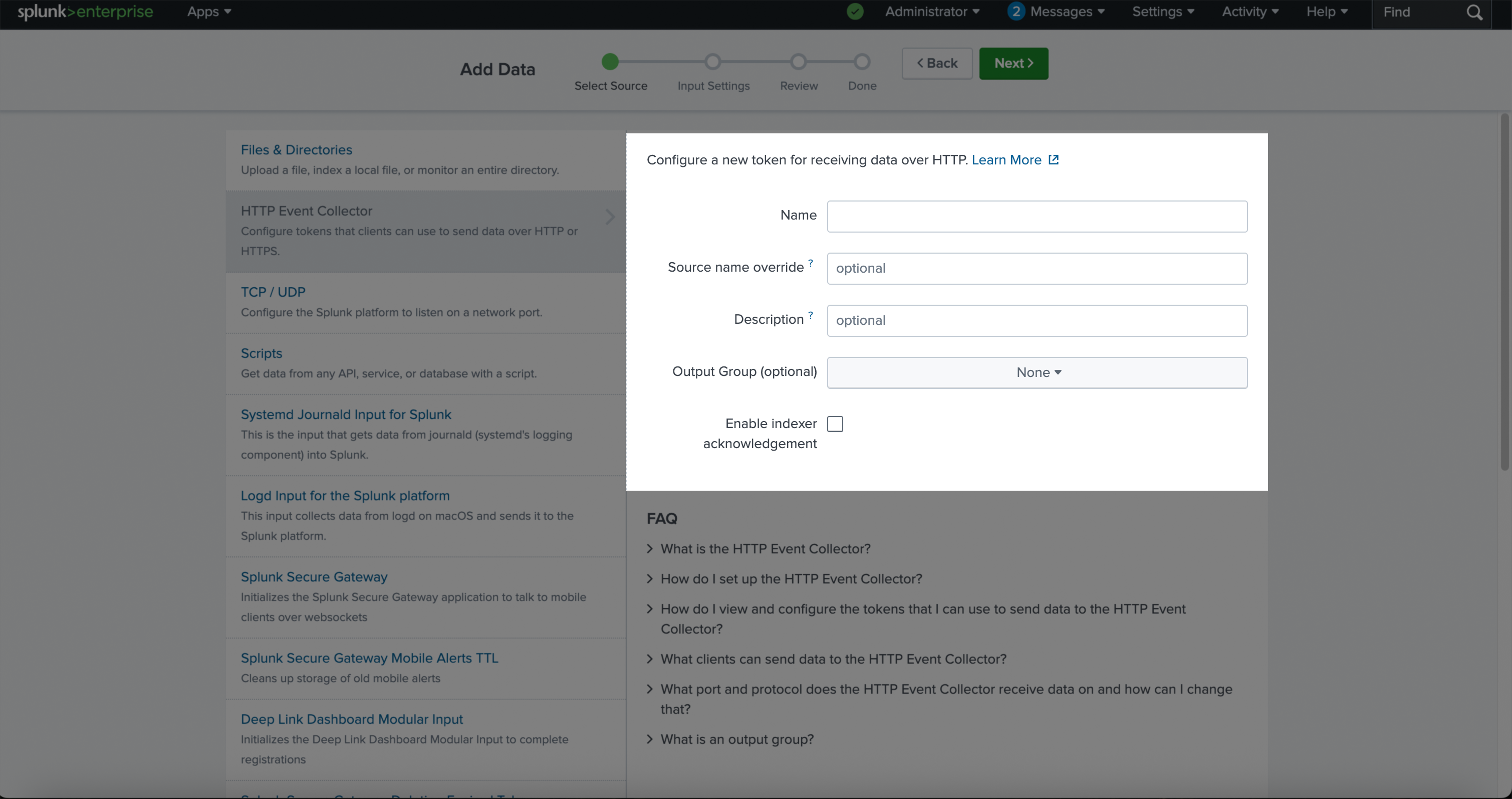
    Fill in all required fields for the data source configuration.

    <Frame>
      <img src="https://mintcdn.com/blinkops-2/TqQZZZpDuOn7Wlvq/img/AccountAdmin/SelectSource.png?fit=max&auto=format&n=TqQZZZpDuOn7Wlvq&q=85&s=f29a792a58257ba0fe6cf42e1314f830" width="3018" height="1594" data-path="img/AccountAdmin/SelectSource.png" />
    </Frame>
  </Step>

  <Step title="Input Settings">
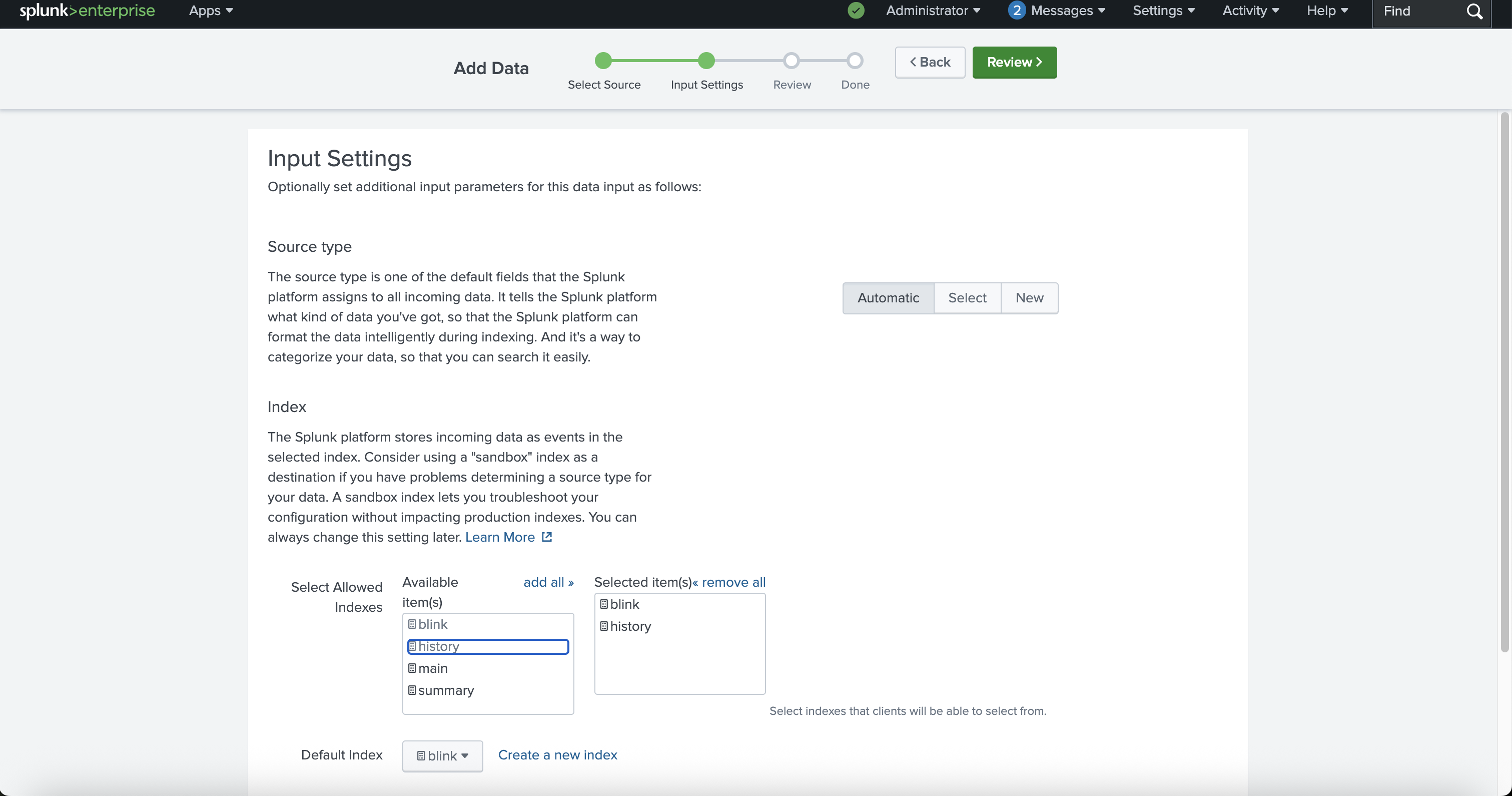
    Choose the appropriate indexes that the 'HTTP Event Collector' token will be allowed to access.

    <Warning>
      **Reminder**: The indexes displayed in the example image may differ from your organization’s configuration. Be sure to select the correct indexes based on your environment and data routing needs.
    </Warning>

    <Frame>
      <img src="https://mintcdn.com/blinkops-2/TqQZZZpDuOn7Wlvq/img/AccountAdmin/InputSettings.png?fit=max&auto=format&n=TqQZZZpDuOn7Wlvq&q=85&s=cdf626af54ea9c5f5bc22cff06abfb33" width="3022" height="1590" data-path="img/AccountAdmin/InputSettings.png" />
    </Frame>
  </Step>

  <Step title="Review">
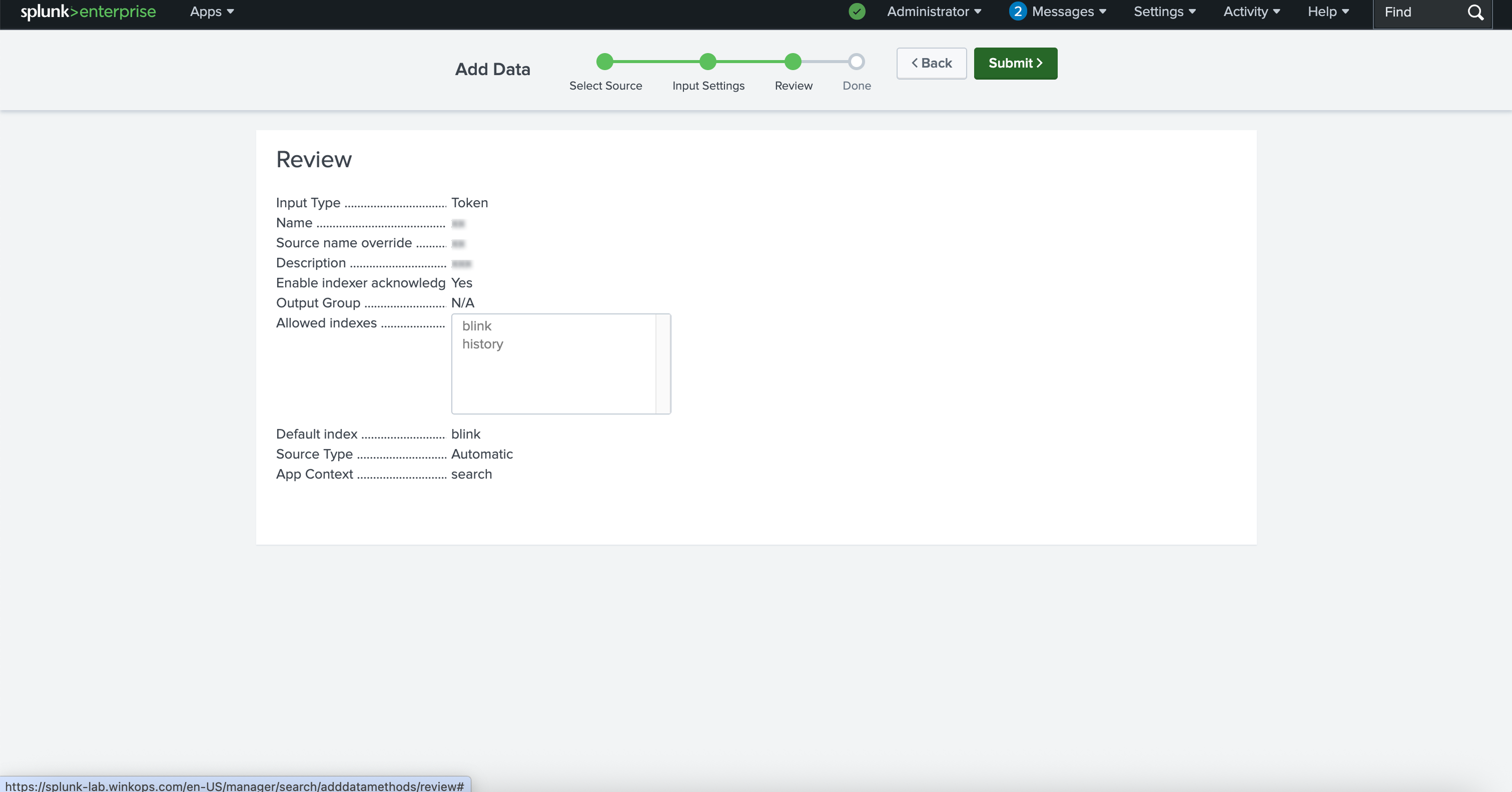
    Review all the details you have entered to ensure everything is accurate before proceeding.

    <Frame>
      <img src="https://mintcdn.com/blinkops-2/TqQZZZpDuOn7Wlvq/img/AccountAdmin/Review.png?fit=max&auto=format&n=TqQZZZpDuOn7Wlvq&q=85&s=ab37bb603320682c51f4b504f736344a" width="3022" height="1582" data-path="img/AccountAdmin/Review.png" />
    </Frame>
  </Step>

  <Step title="Token Created Successfully">
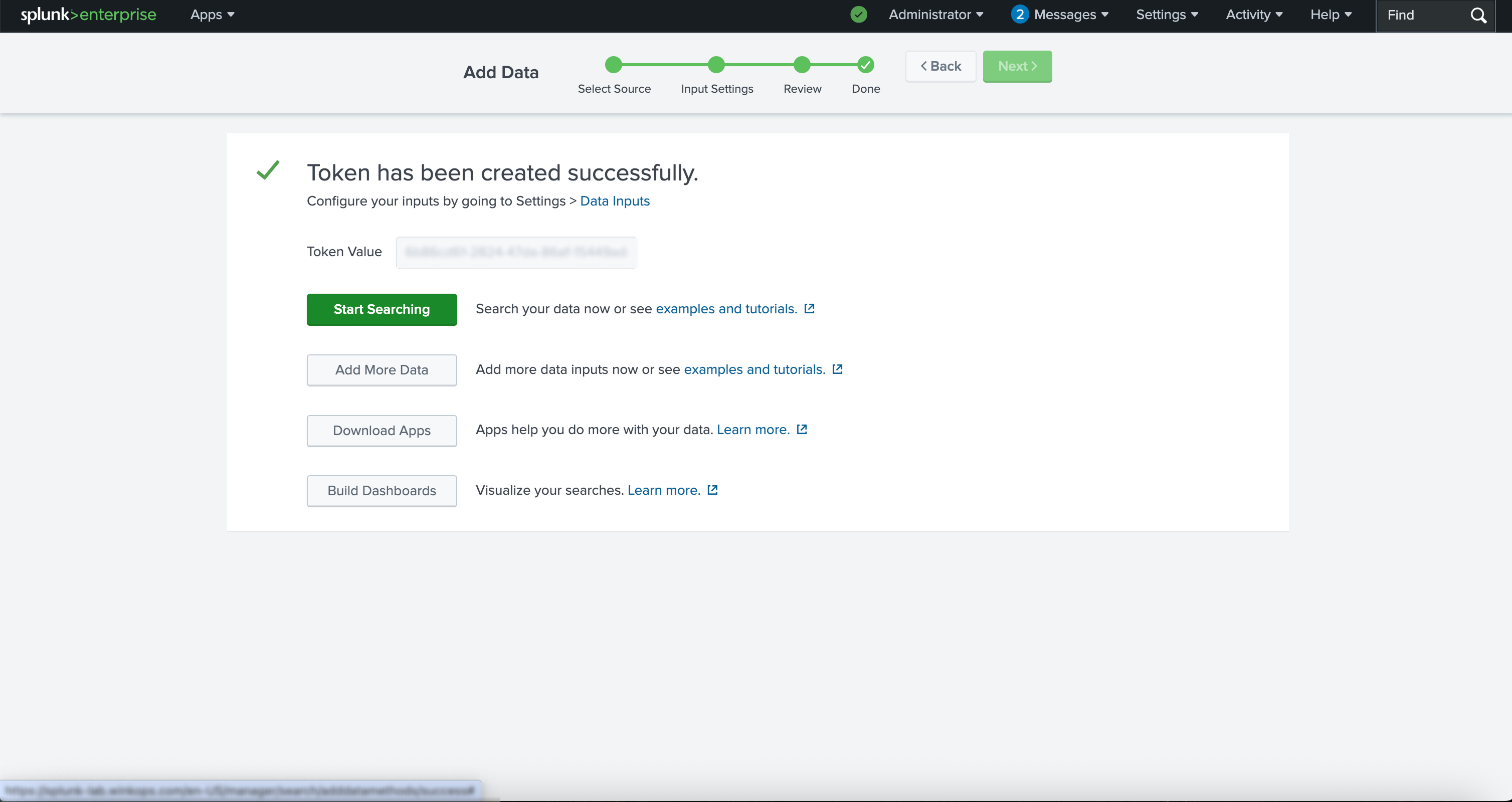
    Once the token has been generated in Splunk, copy it and securely store it.

    <Frame>
      <img src="https://mintcdn.com/blinkops-2/TqQZZZpDuOn7Wlvq/img/AccountAdmin/SplunkTokenCreated.png?fit=max&auto=format&n=TqQZZZpDuOn7Wlvq&q=85&s=05ecf662c1f181885256eb63172b6797" width="3016" height="1600" data-path="img/AccountAdmin/SplunkTokenCreated.png" />
    </Frame>
  </Step>

  <Step title="Integrate with Blink">
    To complete the integration with Blink, go to the [Audit Settings](#external-audit-log-integration) section of the Blink platform and do the following:

    * Paste the token into the **Authentication Token** field
    * Enter the **URL**: If the HEC feature is enabled in the Splunk Enterprise platform you will see the port it uses (by default, it's `8088`). Your full url will look something like this `https://splunk.yourcompany.com:8088`
    * Select **Splunk HEC** as the **Destination Type**

    This ensures that Blink can successfully forward audit logs to your Splunk instance.

    <Frame>
      <img src="https://mintcdn.com/blinkops-2/tSjETGVxH3j_fakW/img/AccountAdmin/SplunkBlinkConnection.png?fit=max&auto=format&n=tSjETGVxH3j_fakW&q=85&s=54e1f75f452bf4b101566c65ec0eaf17" width="1728" height="1079" data-path="img/AccountAdmin/SplunkBlinkConnection.png" />
    </Frame>
  </Step>

  <Step title="Test Connection and Save Settings">
    Click **Test Connection** to verify that the URL and token have been entered correctly and that Blink can successfully communicate with your Splunk instance. Once the connection is validated, click **Save Settings** to apply the configuration.

    <Frame>
      <img src="https://mintcdn.com/blinkops-2/tSjETGVxH3j_fakW/img/AccountAdmin/AuditLogTest.png?fit=max&auto=format&n=tSjETGVxH3j_fakW&q=85&s=af628d17e487d34819332905b242d935" width="1728" height="1079" data-path="img/AccountAdmin/AuditLogTest.png" />
    </Frame>
  </Step>
</Steps>